How do you set up a new Apple Watch? Whether you got the surprisingly capable Apple Watch SE 3, the battery-boosted Apple Watch Series 11 or the rugged Apple Watch Ultra 3, you might be wondering how to get started. After all, the Watch is unlike any other Apple device, both in its dependence on an iPhone and in the way it works.
The good thing is, Apple has made it really, really easy to get things up and running. Let’s take a look.
How to set up an Apple Watch
Unboxing an Apple Watch might feel like a victory lap, but the real magic starts when you pair it properly and tune it to your specific lifestyle and needs. Beyond the basics of linking the Apple Watch to your iPhone, choosing whether to revive old settings or start fresh, and setting security options, there are a host of tweaks — from organizing notifications and app views to customizing widgets, fitness goals and sleep tracking — that determine whether your smartwatch fades into the background or becomes a genuinely useful extension of your life.
Our guide walks you step by step through the Apple Watch setup journey, so you wind up with a personalized gadget that works the way you do.
Things are easy if you’re moving from an Apple Watch. Apple makes it easy to copy over all your settings and apps. But it’s also pretty straightforward to start from scratch — you’ll just have to go through a few extra steps.
Table of contents: How to set up an Apple Watch
- Set up an Apple Watch
- How Apple Watch controls work
- Apple Watch settings to change immediately
- Make it easy to find apps
- Change your exercise goals and close your rings
- Customize Apple Watch widgets
- Adjust Wake Duration for Apple Watch’s screen
- Increase Apple Watch font size
- Unlock your Apple Watch with your iPhone
- Unlock your iPhone with your Apple Watch
- Stop irritating reminders to breathe
- Enable Walkie-Talkie
- Set up sleep stage tracking
- Get out and use it!
Set up an Apple Watch
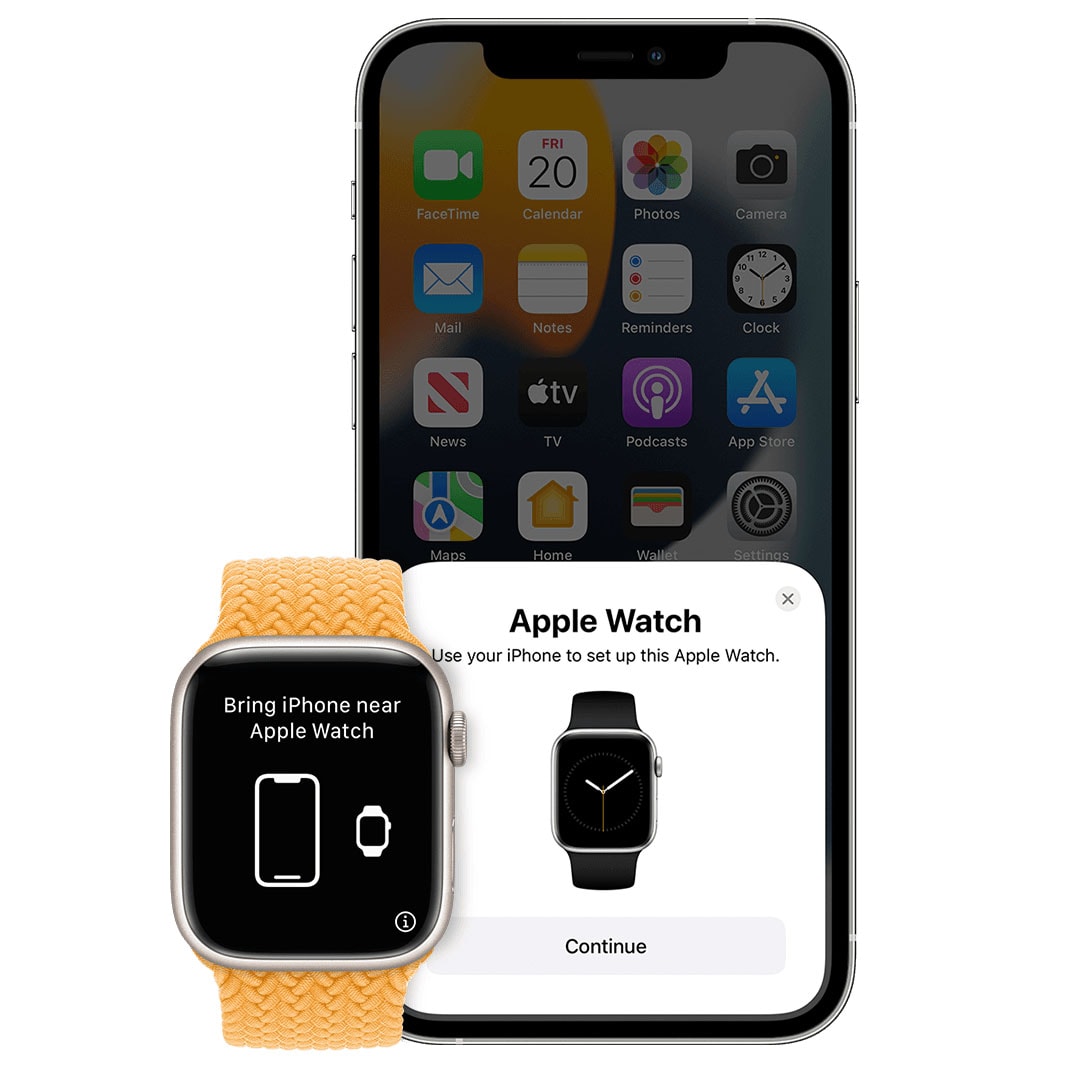
Image: Apple
The first step is to turn on your new Apple Watch by pressing and holding the side button.
Just like setting up a new Apple Pencil or a pair of AirPods, the iPhone will detect your new Watch, and present a pop-up on the screen automatically. If you have any problems, make sure that Bluetooth is turned on and you are connected to Wi-Fi. Tap Continue.
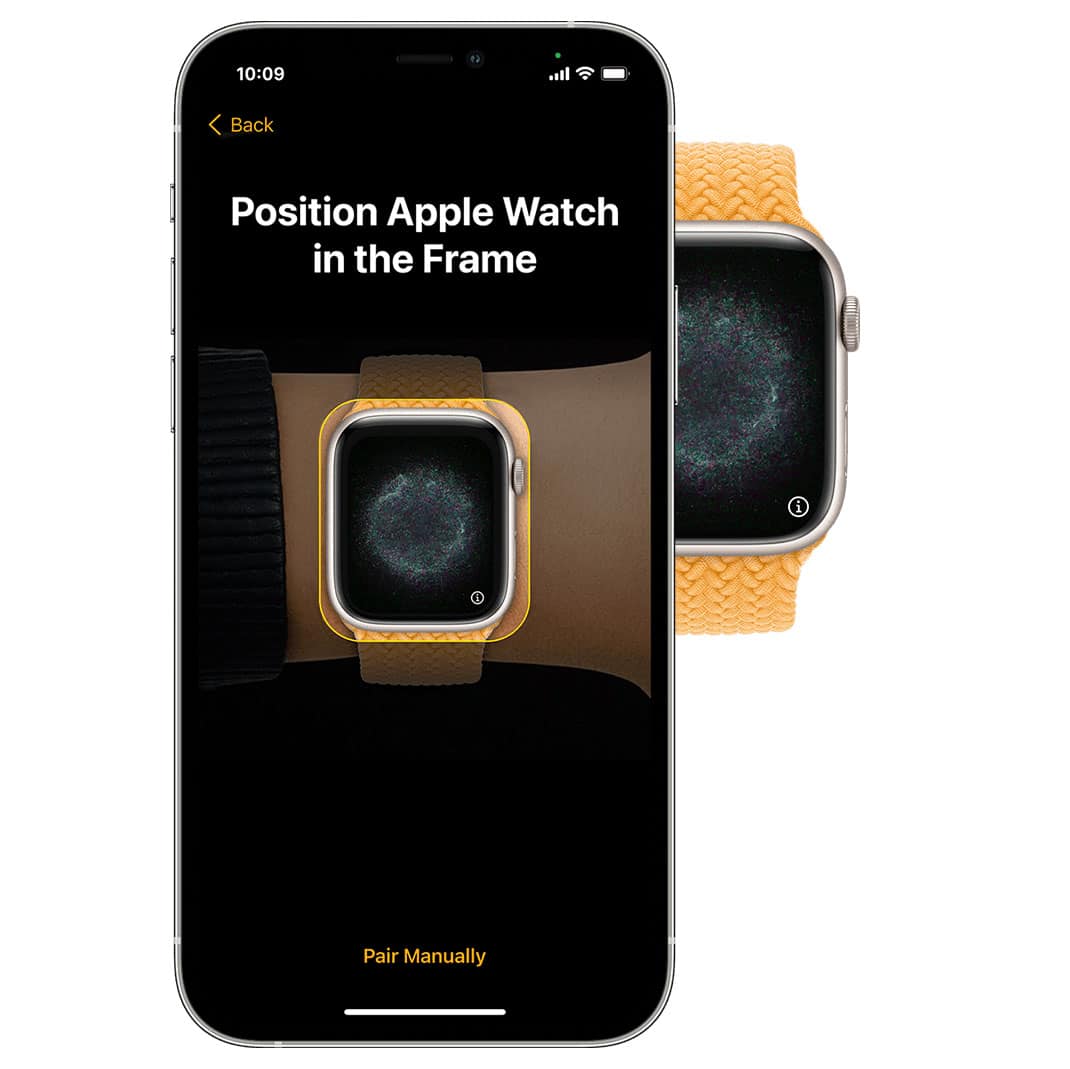
Image: Apple
You’ll see a cloud of static on your Watch. Hold your Watch behind your iPhone as if you’re taking a picture of it. Tap Set Up Apple Watch to continue.
Set up Apple Watch without iPhone
Unfortunately, you can’t set up an Apple Watch without an iPhone. However, you can set up an Apple Watch for someone who doesn’t have an iPhone — and it can be that person’s one and only device. If your kid is too young for a phone, you can give them an Apple Watch to call them, text them and track where they are. Do you have an elderly family member who can’t figure out a smartphone on their own? You can give them an Apple Watch to keep tabs on them.
If this is the route you’re going, select Set Up for a Family Member. Otherwise, tap Set Up for Myself. (If you’re gifting this Watch to someone, make sure you’re doing this part with their iPhone.)
You can’t set up Apple Watch without an iPhone, but you can set up Apple Watch for someone who doesn’t have an iPhone.

Set up as new or transfer from an old Apple Watch
The next step depends on whether or not this is your first Apple Watch. If this is your first, then you will Set Up as New Apple Watch and follow the on-screen instructions.
If you have an old Apple Watch, and this one’s an upgrade, you should choose Make This Your New Apple Watch and follow the on-screen instructions. It’ll set up your new watch exactly like your old one.
This is also the part where you sign into iCloud using your Apple Account.
How Apple Watch controls work
What do the buttons on the side do? Because of its small screen, the buttons control a lot of features on the Apple Watch. Click this article for more detailed information on what the Apple Watch buttons do, or save the photo below:
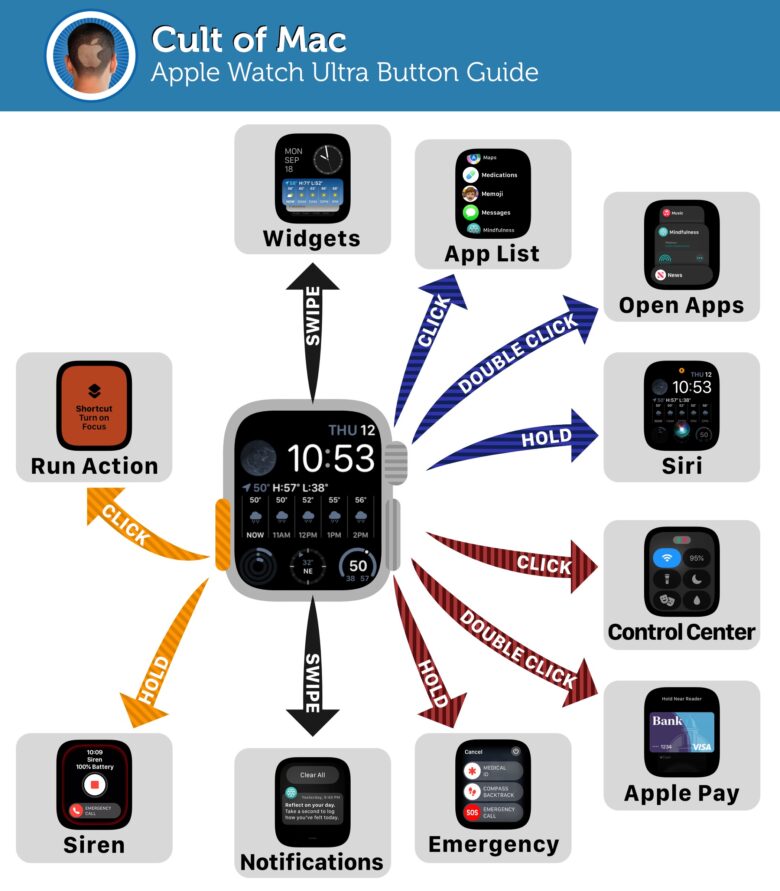
Image: D. Griffin Jones/Cult of Mac
Apple Watch settings to change immediately
I always tell people to change these things when they first set up their Apple Watch.
Make it easy to find apps
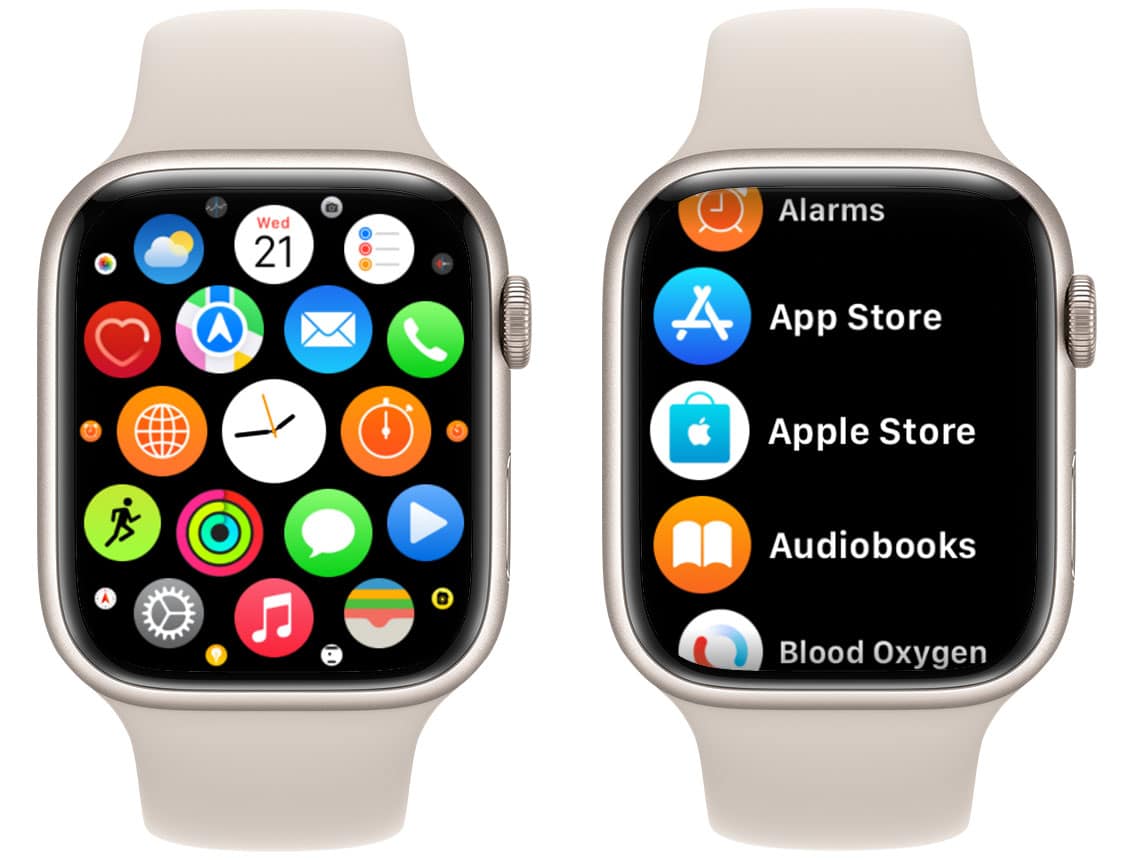
Screenshot: D. Griffin Jones/Cult of Mac
At first glance, the honeycomb app grid looks great, but finding the specific app you’re looking for is nigh impossible, especially if you have a bunch of apps installed. Rather than organizing them in a grid, your Apple Watch can instead list all your apps in alphabetical order.
Click the Digital Crown, scroll to the very bottom, and tap List View. Now, when you hit the Digital Crown, you’ll get an alphabetical list of apps. This is much easier to navigate than the dense honeycomb of tiny icons.
Change your exercise goals and close your rings
Your Apple Watch is great for tracking your daily activity: how much you Move, how often you Stand, and how many minutes of Exercise you get. These three metrics are commonly known as the Apple Watch “rings.” The red outer ring is for Move; the inner green ring is for Exercise and the blue ring is for Stand.
The goal is to close your rings every day, but the defaults (30 minutes of exercise a day, standing every hour for 12 cumulative hours) may not fit your daily routine. Maybe you want to exercise more than 30 minutes a day, or burn more calories.
To adjust the defaults, open the Activity app on your Apple Watch, scroll to the metric you want to change, tap the little −+ icon in the bottom right corner and tap Change Daily Goal. Tap Set to save your changes.
Keep a close eye on your rings. If you find it easy to close your rings every day — or not — go back to the Activity app and adjust them again. (For more info, read: How to track your Apple Watch activity rings and pause your streak.)
Customize Apple Watch widgets
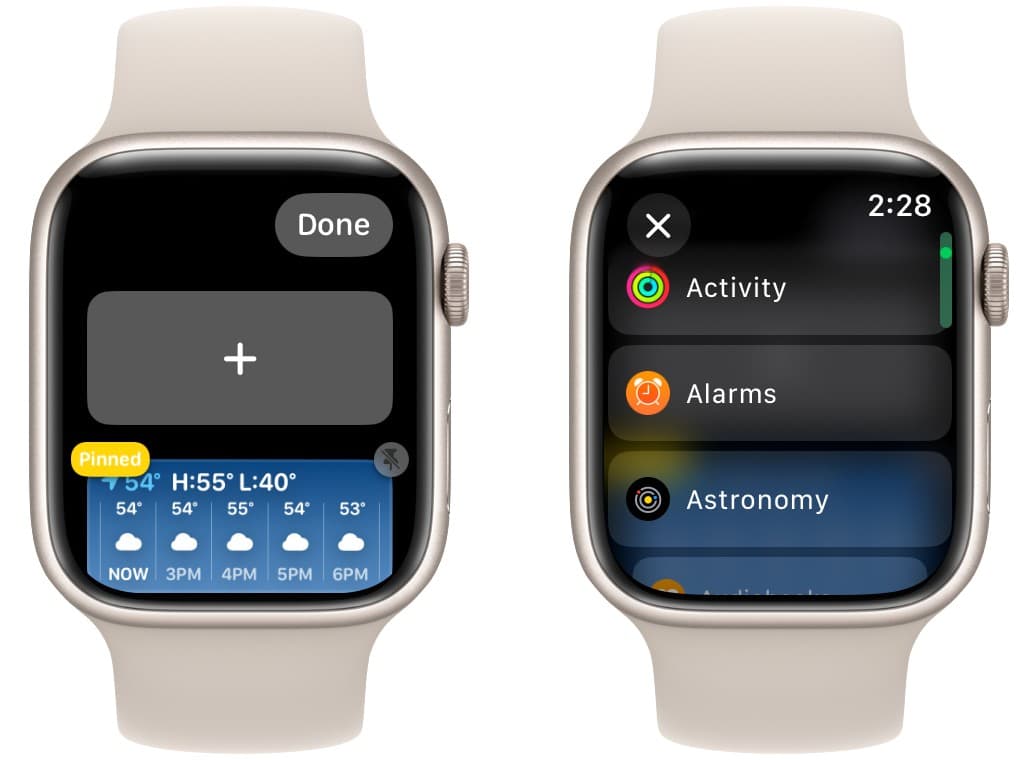
Screenshot: D. Griffin Jones/Cult of Mac
Widgets on the Apple Watch are little cards of information that show things like the weather or the amount of time left on a timer.
Widgets make it super easy to see stuff at a glance — just swipe up from the bottom of your watch face or turn the Digital Crown up. Your widgets are presented in a scrollable stack.
To customize your widgets, scroll to the very bottom and tap Edit. At the top, you’ll see an empty widget with a plus sign. Tap on it to get a selection of widgets to choose from. First are Featured widgets, then a list of all the apps on your Apple Watch that offer widgets. Almost all of Apple’s apps do. Any widget you add will be added to your stack.
To pin a widget to the top of the list, tap the Pin button. To adjust the order of multiple pinned widgets, you can drag them up or down.
You can also delete widgets you don’t want: Just tap the red minus sign next to an existing widget to remove it.
Personally, in my widget stack, I have Weather, Calendar, Now Playing, Noise and Training Today (a third-party app). For more info, read: How to customize Apple Watch widgets for easy access to your favorite apps.
Adjust Wake Duration for Apple Watch’s screen
By default, your Apple Watch’s screen will stay awake for 15 seconds. But I prefer the screen to keep bright for longer; it can be extended to 70 seconds. On your watch, open Settings, scroll to Display & Brightness at the bottom, and tap Wake Duration. You can select Wake for 15 Seconds or Wake for 70 Seconds.
Increase Apple Watch font size
If you’re already squinting at text or numbers on your Apple Watch, you can easily increase the font size to make it easier to read.
On your watch, open Settings, scroll to Display & Brightness and then scroll to Text Size. You can either tap the Aᴀ letters on either side of the adjustment meter, or rotate the Digital Crown on your watch. Apple Watches with bigger displays — Series 7 (and later) and Apple Watch Ultra, have more size options thanks to their larger size.
Unlock your Apple Watch with your iPhone
Instead of tapping out your Apple Watch passcode, you can have your iPhone unlock your Apple Watch after you put it on. Your iPhone will automatically unlock the Apple Watch when your iPhone is unlocked.
Again, tap the Digital Crown and go to the Apple Watch’s Settings app. Scroll down to Passcode, and enable Unlock with iPhone. Now whenever you unlock your Apple Watch with your iPhone, you’ll see a pop-up warning.
Unlock your iPhone with your Apple Watch
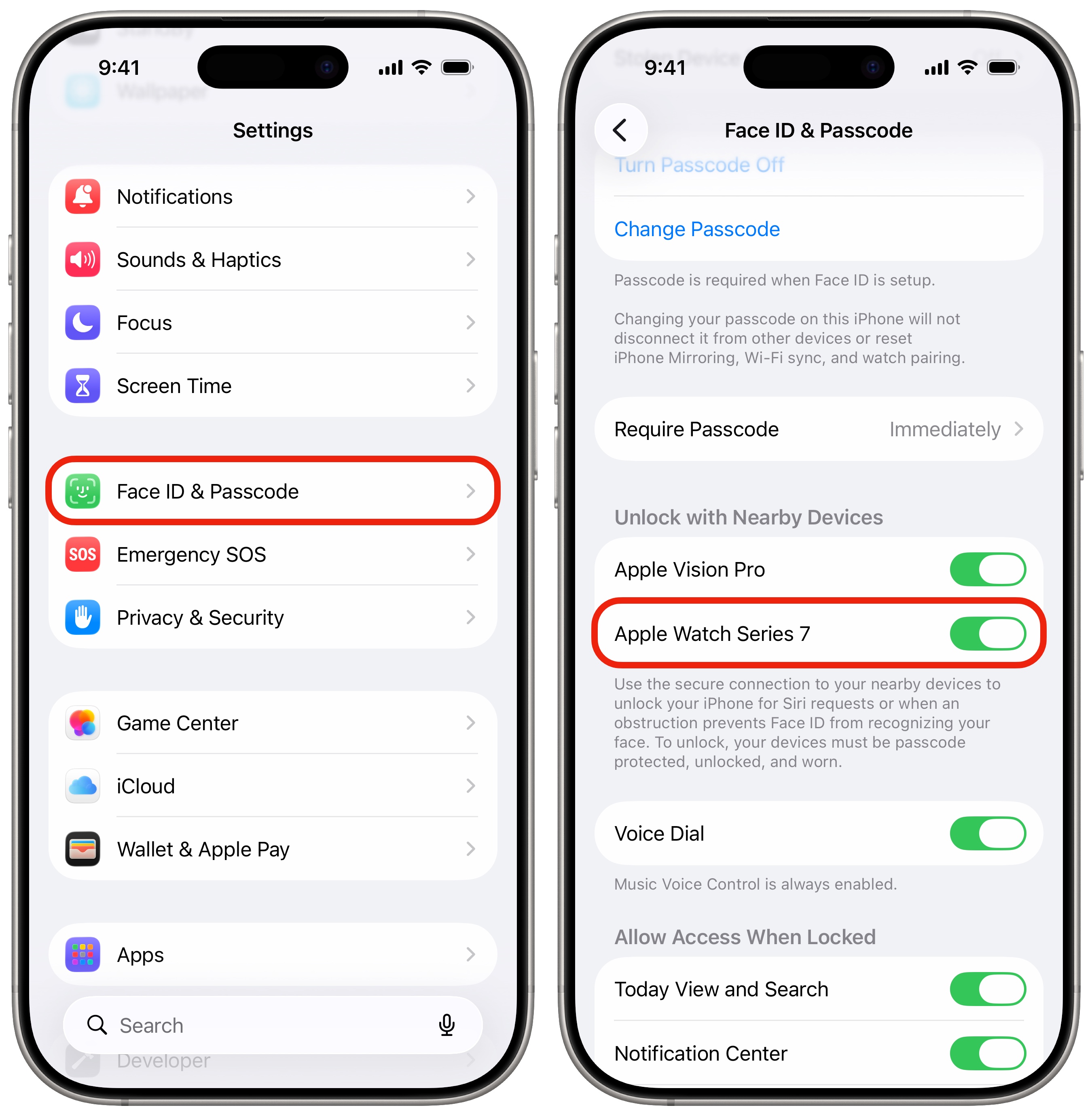
Screenshot: D. Griffin Jones/Cult of Mac
You can also do the opposite — set up your Apple Watch to unlock your iPhone. This feature uses the secure connection between the devices to unlock your iPhone when an obstruction prevents Face ID from recognizing you. For it to work, your Apple watch must be protected by a password, be unlocked, and be strapped to your wrist.
To enable it, go to Settings on your iPhone, scroll down to Face ID & Passcode, enter your passcode, and enable Unlock With Apple Watch by selecting your device.
Stop irritating reminders to breathe
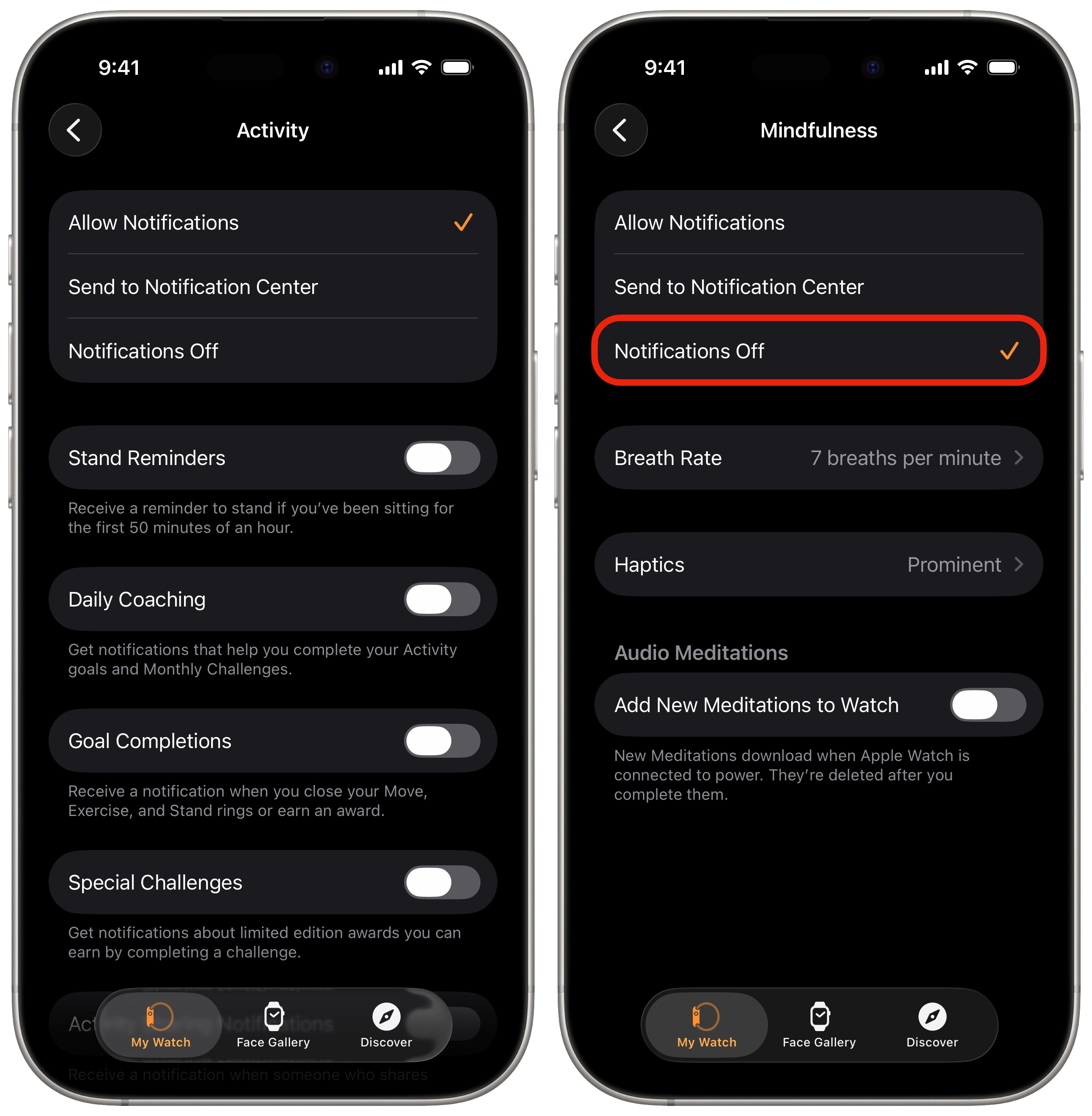
Screenshot: D. Griffin Jones/Cult of Mac
By default, the Apple Watch will bug you every hour to stand up, yell at you if you don’t meet your activity goals, and occasionally remind you to breathe. Lots of people buy an Apple Watch to stay active. I find it irritating.
To customize your Apple Watch experience, open the Watch app on your iPhone. Then tap on Activity and turn off any notifications you don’t want. Turn off Breathe notifications by going back to Watch > Mindfulness and tap Notifications Off. (Note, on watchOS 8 and earlier, Mindfulness appears as Breathe.)
Enable Walkie-Talkie
Screenshot: D. Griffin Jones/Cult of Mac
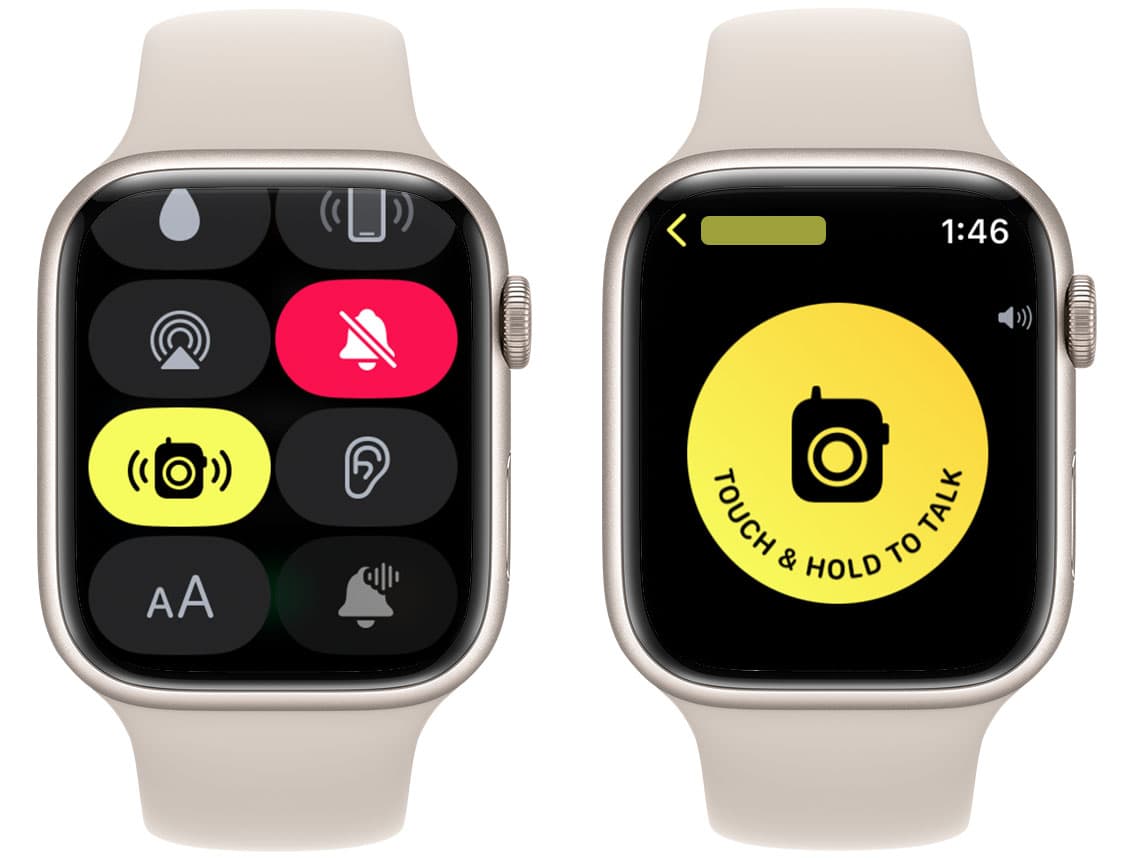
Does everyone in your house have an Apple Watch? If so, you don’t need to shout to get someone’s attention — you can use the Apple Watch’s Walkie-Talkie feature. Press the Side Button to bring up the Control Center and turn on the yellow Walkie-Talkie button.
Now add Walkie-Talkie to your Apple Watch face as a Complication, or open the Walkie-Talkie app to quickly get the attention of your partner or children. (For more info on how the feature works, read: How to use the Walkie-Talkie app on Apple Watch.)
Set up sleep stage tracking
Screenshot: D. Griffin Jones/Cult of Mac
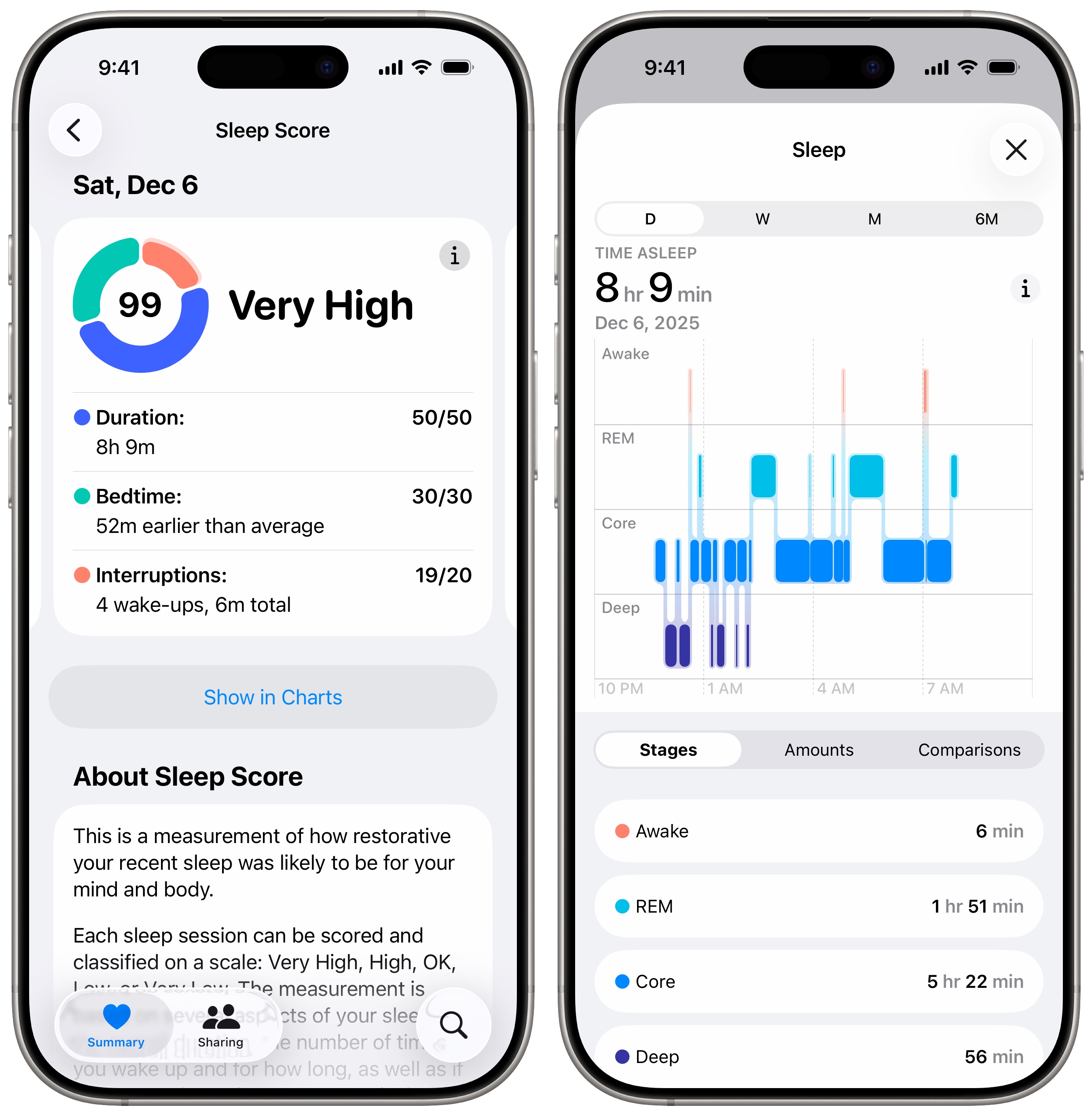
One more tip: set up Apple Watch sleep stage tracking. If you wear your Watch overnight and charge it in the morning, you can get great details about how you’re sleeping overnight. (Read our guide: How to use advanced Apple Watch sleep stage tracking.)
On top of that, your Apple Watch will wake you up, silently vibrating on your wrist — useful if you and your partner wake up at different times.
Get out and use it!
What are you waiting for? The whole point of the Apple Watch is that it’s with you, all the time. Go for a walk and make a start on closing those rings. Or go swimming. Or, if you don’t dig on that whole exercise thing, you can read our guide to customizing your Apple Watch from the comfort of your favorite armchair.
Note: D. Griffin Jones and Leander Kahney contributed to this article. We originally published this article on how to set up an Apple Watch September 18, 2019. We updated it on December 24, 2023; December 24, 2024; and December 24, 2025.

Charlie Sorrel writes reviews and how-tos. Follow Charlie on Twitter at @mistercharlie, and at micro.blog on @mistercharlie

