It’s a great season to get a new Mac, since every model is a great buy. If you’re one of the lucky people to get one this year, here’s how to set up your Mac like a pro.
So rip open that box, tear off that plastic, and let’s get to the good stuff.
Here is Cult of Mac’s guide to setting up your new Mac the right way.
How to set up Mac: Initial setup
Unboxing a new Mac brings the inevitable feeling that you’re starting a fresh chapter of your digital life. But the charm wears off fast if you skip the setup essentials and end up with a half-configured machine. From the moment Apple’s Setup Assistant greets you with “Hello,” you’re making choices that will shape your everyday experience — how your data migrates, which settings actually matter, and which apps you’ll want in your Dock.
This guide cuts through the marketing polish to show you how to go beyond the defaults, transfer your data cleanly, tweak key system preferences, and lay the groundwork for a Mac that’s fast, familiar and ready for real work.
If this is your first Mac with one of the powerful Apple silicon chips inside, you’re in for a real treat. It’s pretty easy to set up, whether you have an old Mac to transfer data from or you’re starting from scratch.
There are a few choices to make along the way, though, and some essential tricks and apps you’ll want to consider. This guide will take you through the process of setting up your new Mac.
Table of contents: How to set up your new Mac
- Getting started with Setup Assistant
- Choose how to transfer your stuff
- Essential settings to change
- How-tos to read
Getting started with Setup Assistant
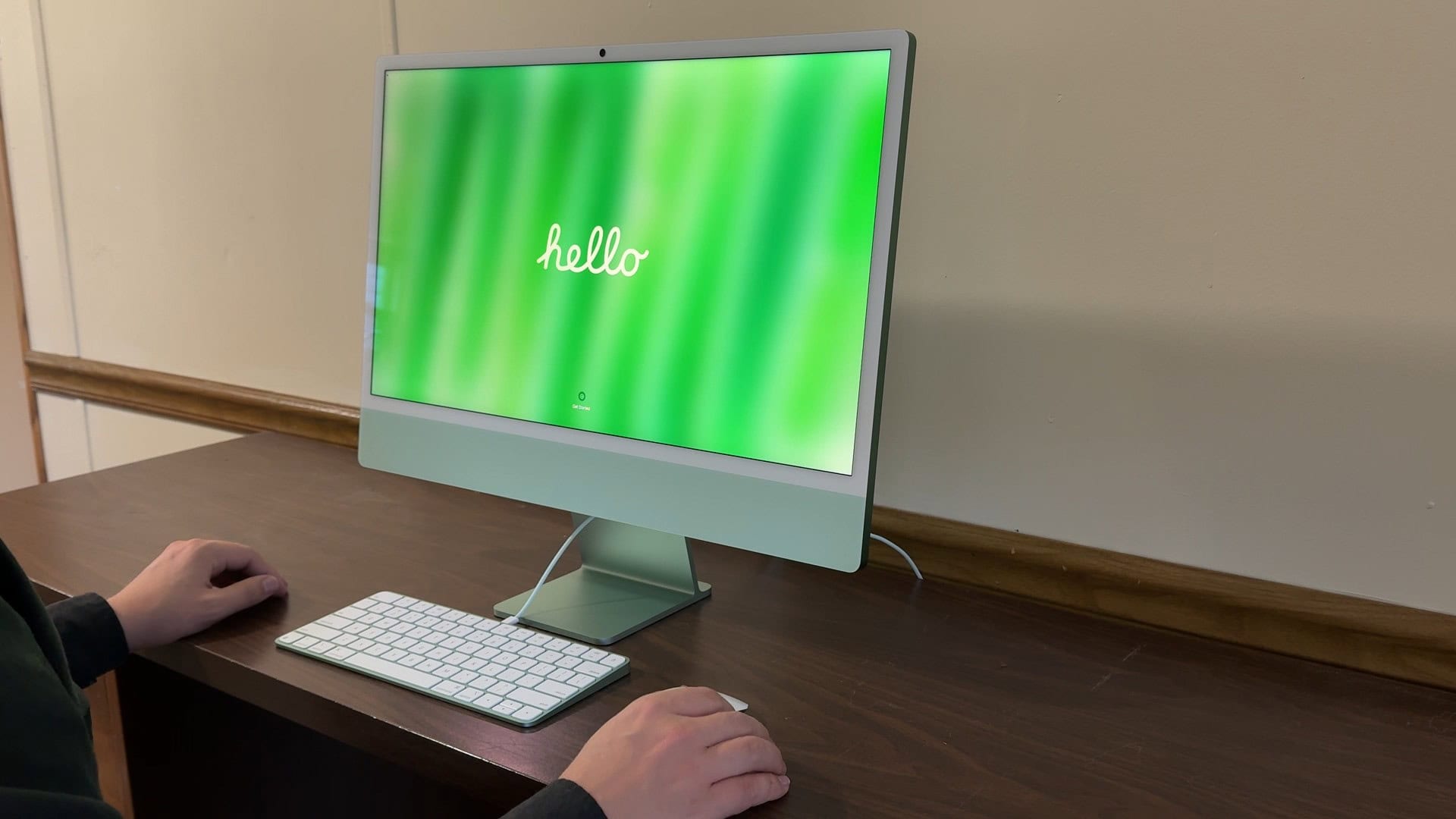
Image: D. Griffin Jones/Cult of Mac
First up, stop yourself before you rip into that box — Apple packaged your new Mac pretty well for travel. So, if you ever need to make a return (heaven forbid) or even just move your Mac to a new location, the box it shipped in will come in handy. It also helps the resale value.
Open the box gently, and think twice before recycling.
Yes, it’s hoarding, but keep the box: It’ll boost the resale value.

If you’ve got a new MacBook, it’ll probably have some charge already, but you might as well plug it in while you set it up. A new MacBook will automatically turn on when you plug it in or open the lid.
If you’re setting up a new desktop, you’ll need to attach the power cable to the rear of the machine, plug it into the wall, and fish around for the power button on the back. You’ll also need to plug in its keyboard and mouse to sync.
Brand new Macs will launch Setup Assistant — all you need to do is follow the instructions on the screen as the come up.
Choose how to transfer your stuff
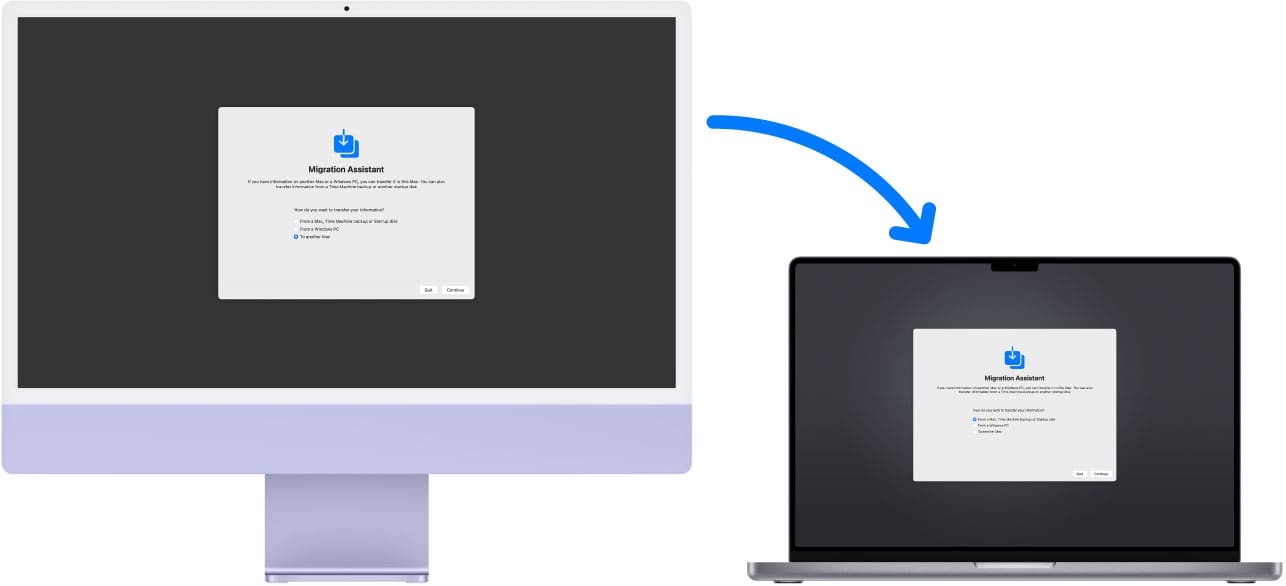
Image: Apple
The next screen gives you the option to transfer your data from an older Mac to your new one.
If you’re moving from an old Mac to a new Mac, you have two choices:
- If you’ve backed up your data from an older machine to a hard drive via Time Machine, this is the best way. Just plug in your hard drive, follow the instructions, and your Mac will be restored exactly as your old one.
- You can also use the Migration Assistant app. You should find this on your old Mac in Finder > Applications > Utilities. This is a good option if you don’t have a backup, but it’ll take the longest. If both Macs have a USB-C port, you can plug them into each other to speed up the process; otherwise, it’ll work over Wi-Fi. Keep them side by side while this process takes place.
If you own a PC, you can download the Migration Assistant program for Windows. And if your Mac is a brand-new model, you’ll need to download the latest version for macOS 14 Sonoma or later.
You can run this app at any time, though, so there’s no pressure to do it right away. If you want to get going and worry about bringing your old stuff over later, click Not Now.
Save time by setting up Touch ID now
If your Mac supports Touch ID, I highly recommend setting it up during this next step. It’s a significantly faster way to sign into your Mac, buy things with Apple Pay, or install apps. And while you’re at it, you should set up Apple Pay, too. It’s always a pleasant surprise when I find a website that supports it — it’s so much faster than entering in credit card information, billing and shipping addresses every time.
Essential settings to change when setting up a new Mac
While you can use it right out of the box, there are a few things you can set up on your Mac to ensure a more pleasant experience. Here are a few of the most essential.
Once you’re past the initial setup, click on the Apple menu in the upper left of your Mac’s screen and then click on App Store. The Mac App Store will launch, and you’ll want to click on the Updates tab on the left. If you have software that needs an update, it’ll show up in the list there. It’s typically best to keep all your software up to date. You can also download your previously purchased apps here.
Set up your Dock
Screenshot: D. Griffin Jones/Cult of Mac
The Dock at the bottom of the screen will look less cluttered with fewer icons. Click and drag each one you don’t want off the Dock, holding them until you see the word Remove. Let go, and the icon will fade away.
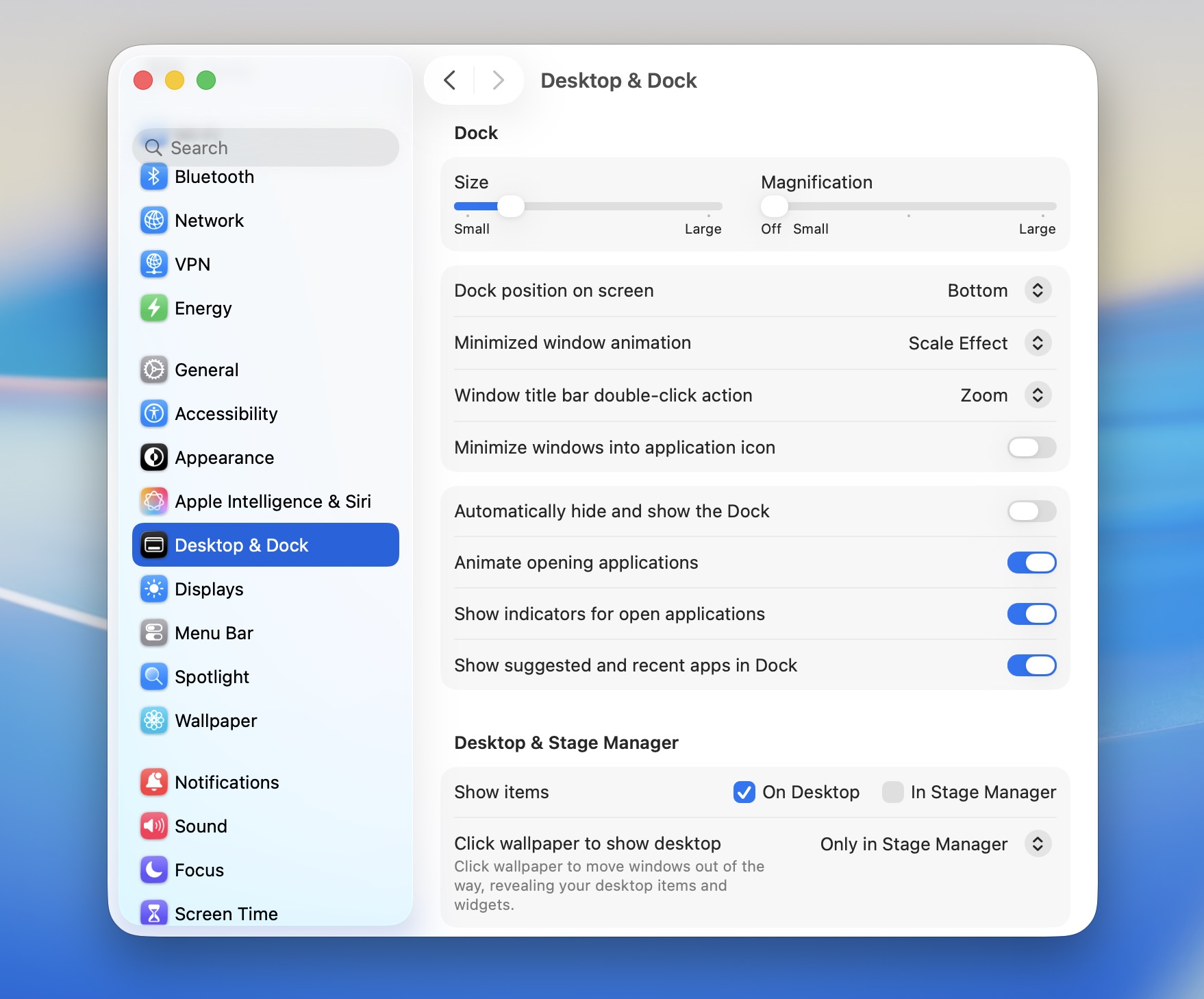
If you want to put an app back in your Mac’s Dock later, go to Finder > Applications and drag its icon to the Dock area until the other icons move out of the way. Let go, and it’ll stay there. You also might consider disabling the Dock magnification feature, which looks cool, but can get in the way of accurate clicking. Head into System Settings > Desktop & Dock, then uncheck the Magnification checkbox.
Make the most of Spotlight and iPhone Mirroring
You can also find your apps in Spotlight, a universal search bar that help you find files, documents, messages and more. You can bring up Spotlight by pinching in four fingers on your trackpad or by hitting Command-Space (⌘␣) followed by Command-1 (⌘1). (If you’re not familiar with Spotlight, it’s super-handy. You can even type in quick calculations, units to convert and web searches. For more info, read our guide to this powerful tool: How to use the all-new Spotlight in macOS 26 Tahoe.)
Finally, you should open iPhone Mirroring and follow its instructions to set that up. iPhone Mirroring is a major convenience. You can fully control your phone and even play audio through your Mac, while it’s in your pocket, bag or in StandBy.
More Mac how-tos to read
Now that your Mac is set up, here’s a list of how-tos to help you make the most of it:
- Master Mac screenshots: Every shortcut and trick you need to know
- Everything you need to know about iPhone Mirroring on the Mac
- How to use the all-new Spotlight
- Rename multiple files on Mac the easy way
- 6 tricks to master Preview on the Mac
- How to use window snapping and tiling on the Mac
- Hidden Mac keyboard shortcuts you might not know
- How to set up the best Mac screensaver, Aerial
D. Griffin Jones contributed to this article on how to set up a Mac, which we originally published on December 22, 2015. We updated it on December 22, 2017; December 24, 2020; December 24, 2022; December 24, 2023; December 24, 2024, and December 24, 2025.

Rob LeFebvre is an Anchorage, Alaska-based writer and editor who has contributed to various tech, gaming and iOS sites, including 148Apps, Creative Screenwriting, Shelf-Awareness, VentureBeat, and Paste Magazine. Feel free to find Rob on Twitter @roblef, and send him a cookie once in a while; he’ll really appreciate it.


9 responses to “How to set up your new Mac like a pro”
I’d recommend Oracle VirtualBox over VMWare. Also, it’s free.
A pro install used to also include setting up a separate user account with no admin privileges and an admin account. are the built-in protections and sandboxing so good now that this is no longer recommended?
Also I would add MACID to your list of applications. MACID allows you to lock and unlock your mac from your iPhone and includes iPhone proximity to lock your mac when you walk away.
What about databases? I recommend both MYSQL and SQLite, the GUIs I like include SQL Pro, Valentina Studio and Toad. All Free.
dude you are off on so many apps.. 1Password: SUCKS.. “lastpass” all the way
Adium:, who uses that anymore.. “Whats app”
Pages, Numbers, Keynote: SUCKS. Google Docs.
Avast or Avira: waste of time..
dude glad you are not setting up my computer.. it would be a mess..
a mess of 6 apps you don’t use? wow. That IS horrible. ;)
You must be joking… Your computer sounds like a mess.
I actually only pay $7.65 per month for MS Office or $65 per year, which I think is very reasonably priced. Gave iWork a whirl when I first switched to Mac but those things are just toys.
Natural scrolling is great … just get used to it over a day or two and then you won’t go back…. I’m actually shocked someone is still scrolling the old way after all these years…. Move with the times dude !
The Migration Assistant is practically a worthless tool. Apple hasn’t improved this code for a long time. I got a brand new 4,000$ Macbook and it’s been very frustrating (to say the least) to get my data copied over from my Retina Macbook. One attempt had the system unable to open newly downloaded files, claiming they were corrupted! Ultimately, I accomplished this daunting task with a Time Machine Restore. But do yourself a favor, unless you have little data, avoid the Migration Assistant. It’s crap!
Agreed it doesn’t work now… why Apple aren’t fixing this is a mystery… but the solution was simple. Initially blow away your new Macbook and install fresh OSX, then run the migration assistant and it works fine. I read this solution by Googling my issues, which was that M.A. doesn’t allow you to migrate your user login and insists you make it a new name… which is just not on.