
Mobile menu toggle

tip - page 2

Directly Upload Images You Take On Your iOS Devices To Dropbox With QuickShot [iOS Tip]

By

QuickShot-Dropbox

If you’re a Dropbox user, uploading images to your Dropbox account directly from your iOS devices can be incredibly handy. And with QuickShot ($1.99), it couldn’t easier. Simply link the app to your Dropbox account and images are automatically uploaded as you snap them.

This is great if you often use public computers and you need to upload multiple images, but you don’t want to send them all via email. You can also use the app as alternative to Photo Stream. Sure, Photo Stream’s great, but until Apple allows us to delete our photos individually, it’s not ideal for everyone.

By uploading your images to Dropbox instead, you have access to them on pretty much all of your internet-connected devices. Here’s how to get setup with QuickShot!

Access Your Mac On The Go With LogMeIn On Your iOS Device [iOS Tip]

By

LogMeIn-iOS-feature

Have you ever arrived at the office and realized that report you need for the meeting today is still on your Mac at home? I’m sure that at some point we have all needed access to our home computer while we’re away from home, and it’s actually a lot easier than you might think thanks to the free LogMeIn app for iOS.

Use Siri And The Find My Friends App To Locate Your Pals By Voice [iOS Tip]

By

Find-My-Friends-with-Siri

While the feature is currently still in beta, Apple is yet to extend Siri support to apps that aren’t already baked into the iOS operating system. But did you know that the company’s own Find My Friends app, which debuted alongside iOS 5 last summer, does include Siri support, allowing you to locate your pals using only your voice?

Here’s you to find your friends using Siri.

Check The Speed Of Your Device’s Data Connection With The Free Speed Test App [iOS Tip]

By

Speed-results-iPhone

Have you ever wondered what kind of data speeds you get on your iPhone with a full 3G signal, or how fast your internet is on your home Wi-Fi network? With the free iOS app from Speedtest.net, you can perform a quick and simple test that will tell you your download and your upload speeds on your iPhone, iPod touch, or iPad.

Save iCloud Storage By Managing Your Backups On Your iOS Device [iOS Tip]

By

photo 3-1

Yesterday we showed you how to conserve iCloud storage space by removing old backups from your iOS device. But what if you don’t have old backups eating up your storage, and you’re still going over your limit?

Today’s tip will show you how to manage your iCloud storage by disabling backups for selected iOS apps that you don’t necessarily need to backup with iCloud, quickly providing you with more storage for your important data.

How To Delete iCloud Backups On Your iOS Device [iOS Tip]

By

delete-iCloud-backup-iPhone

Thanks to iCloud and iOS 5, we no longer have to plug our iOS devices into our computers to back them up. With iCloud backups enabled, all of our precious data is sent to the cloud and is easily retrievable when we need it — providing we have a data connection.

But we only get so much cloud space, so we need to look after it. If you’ve got backups saved from old devices you’re not using anymore, it’s important to delete them so that your existing devices have plenty of storage for their own data. Here’s how to delete iCloud backups on your iOS device!

Reopen Recently Closed Tabs In Mobile Safari On Your iPad [iOS Tip]

By

recently-closed-tabs-ipad

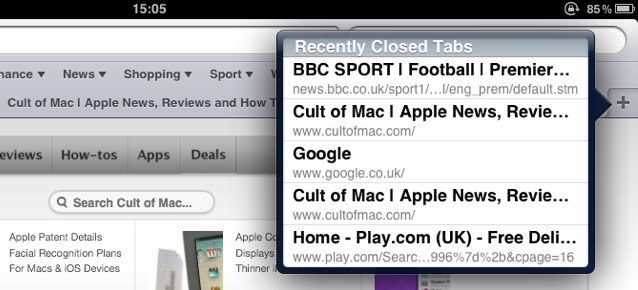
Today’s tip is a simple one, but it fixes one of the most frustrating things that can happen when you’re browsing the web — especially on an iOS device. Have you ever hit your iPad’s display accidentally while browsing the web and closed a tab that included an article you were halfway through reading?

Thankfully, mobile Safari on the iPad has a handy feature that allows you to quickly access recently closed tabs.

Specify Which Albums Are Displayed In Photo Frame On iPad, Or Disable The Feature Completely [iOS Tip]

By

photo-frame-on-ipad

Photo Frame is a nifty feature on the iPad that allows you to show off your photo collection by turning your device into a digital photo frame when it’s not in use. By default, the feature cycles through all of the photos stored on your device, which could mean that an embarrassing image can pop up at any time and spoil the afternoon tea you were enjoying with friends.

Did you know that you can set Photo Frame to display images only from selected albums, or disable it completely to stop unwanted access? Here’s how to customize your Photo Frame and prevent that shot of you in your Justin Bieber pajamas from popping up again.

Customize Your Mail Signature On Your iPhone, iPod Touch or iPad [iOS Tips]

By

email-signature-ios-large

Apple’s iOS devices come with a default mail signature that reads “Sent from my iPhone/iPod/iPad.” It was a nice novelty in 2007 when the iPhone was first released, but over the years, it’s gotten a little boring.

But did you know that it’s incredibly easy to customize your Mail signature and remove Apple’s default? Here’s how to change your signature on your iPhone, iPod touch, or iPad.

How To Make Your iOS Devices Read Selected Text Out Loud [iOS Tip]

By

speak-selection-big

It’s not always easy to read the tiny text displayed on our iOS devices. But did you know that the iOS operating system features a handy “Speak Selection” feature that will read selected text out loud?

Once activated, the feature allows you to select a piece of text within any app, then have it read out loud. Here’s how to enable and use it!

Customize Your Spotlight Search To Remove Unwanted Results And Find Things Faster [iOS Tip]

By

spotlight-search-ios

Spotlight search on an iOS device is a fantastic feature. If, like me, you have pages and pages filled with apps, it’s easy to find the one you’re looking for simply by typing the first few letters of its name into Spotlight. You can do the same with songs, contacts, messages, emails, reminders, events, and lots, lots more.

However, there may be some things you don’t want to show in Spotlight. That doesn’t mean you should avoid the feature altogether — just customize its results to suit you. It’s incredibly easy, and not only will this remove items you don’t want to see, it’ll also make it faster to find what you’re looking for.

How To Create An Alphanumerical Passcode On Your iOS Device [iOS Tip]

By

alpha-passcode-iphone

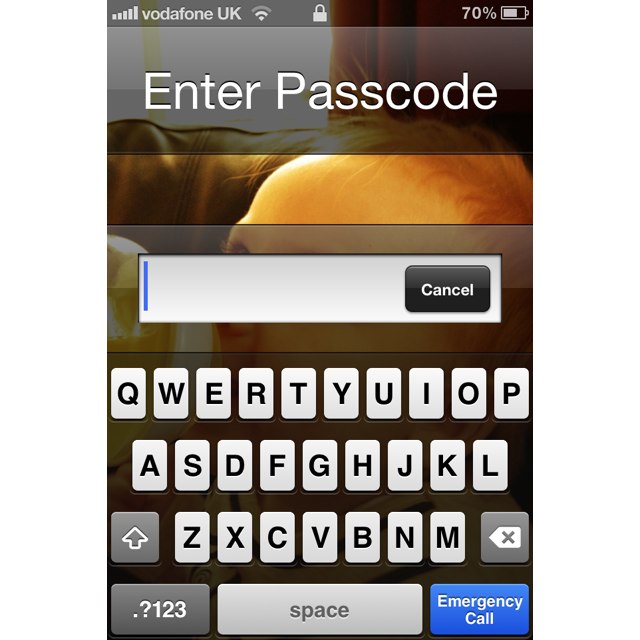
When we have an iOS device stolen, thieves don’t just obtain our precious iPhone, but they also obtain all the information that’s stored on it. Our devices are filled with personal data such as names and addresses for our friends and family, and for our convenience, they save usernames and passwords for all kinds of different services.

That’s why we secure our devices with passcode locks. But did you know you can use an alphanumeric passcode to make it even more secure?

How To Display The Battery Percentage On Your iPhone [iOS Tips]

By

ios-battery-percentage

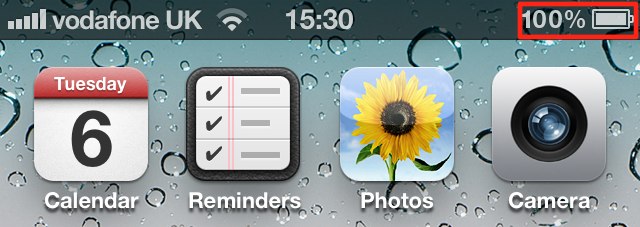
Today’s tip is a simply one, but it’s a question I get asked a lot when people see the battery percentage in my iPhone’s status bar. The iPhone ships with this feature disabled by default, and Apple hides the option away within the device’s general settings. So, here’s how to enable it!