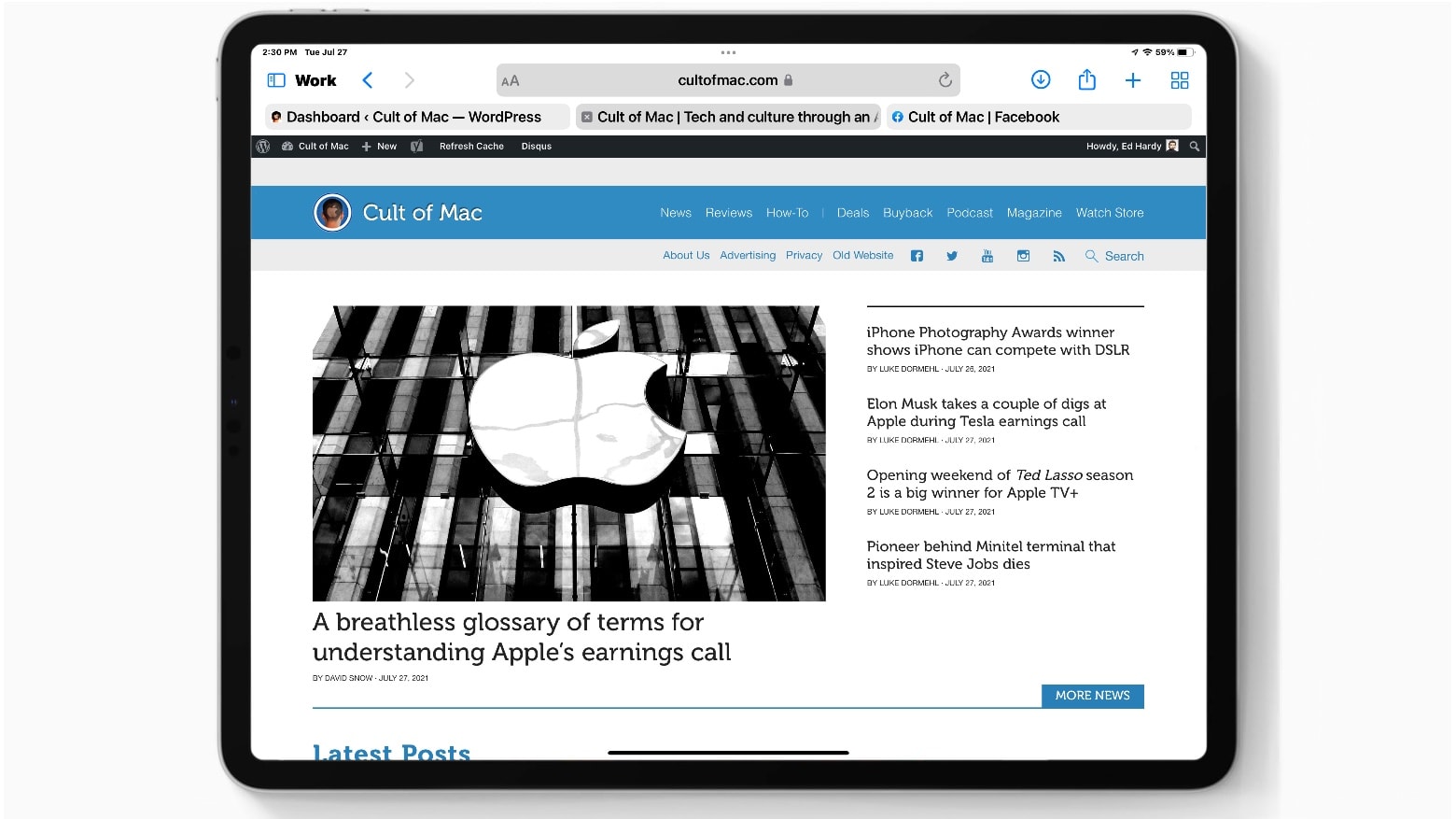
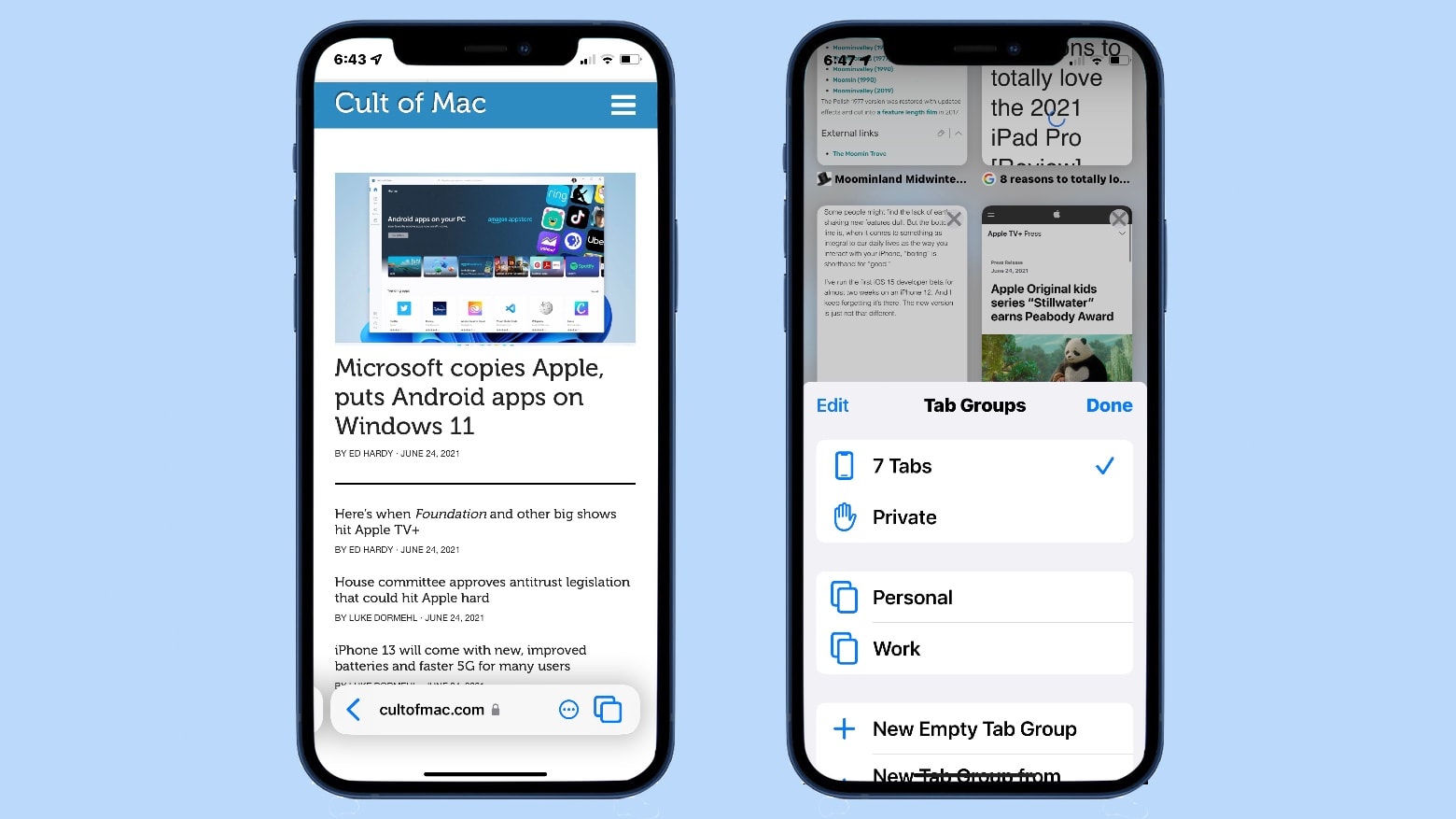
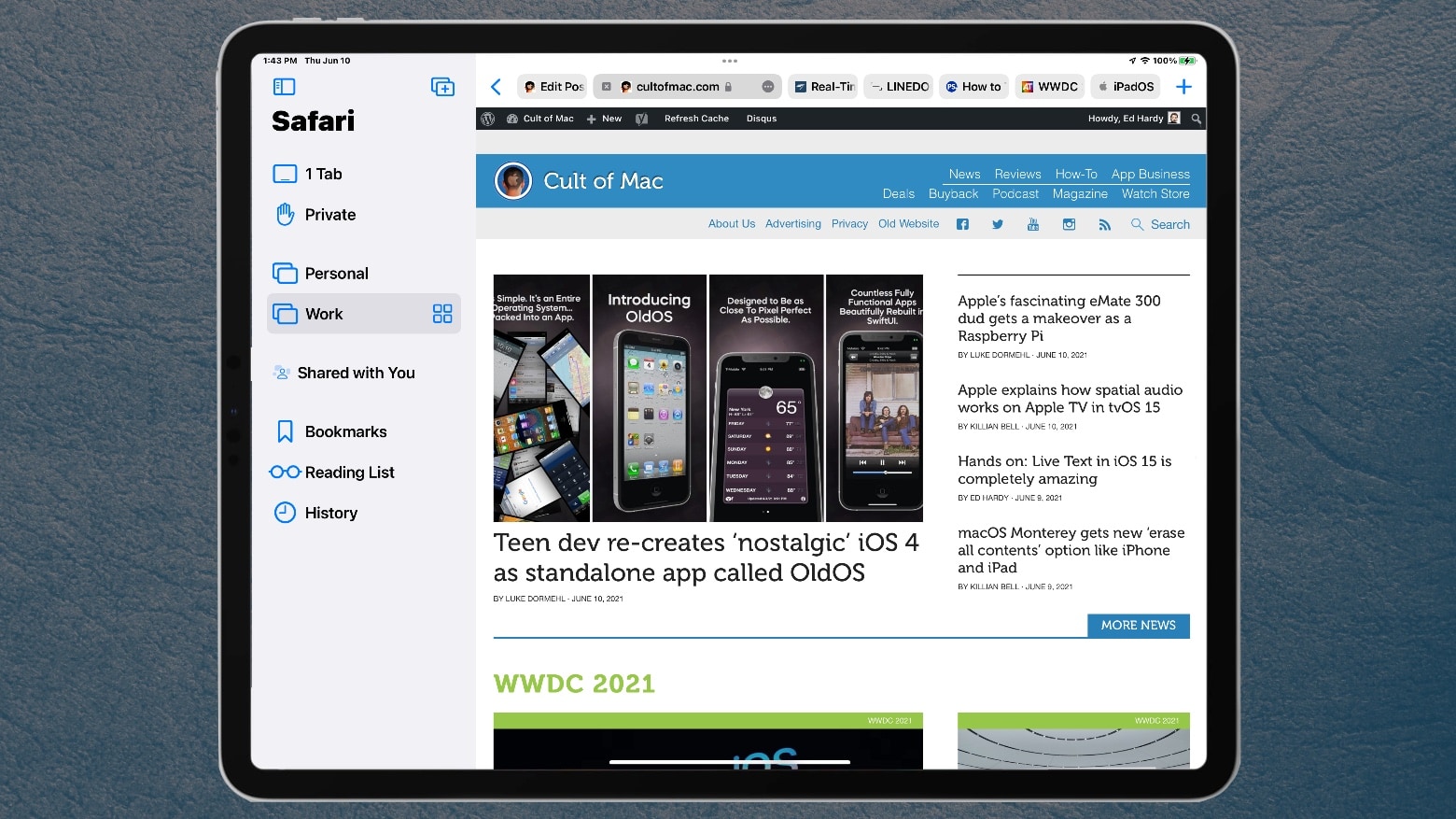
iPad users will find browser tabs unavoidable in the version of Safari in iPadOS 15. Photo: Ed Hardy/Cult of Mac
The redesigned Safari web browser in iPadOS 15 makes tabs an inescapable part of browsing. The new system is more space efficient, but forces many people to change the way they use their iPad.
I work in Safari on iPad all day every day, so I used the first iPadOS 15 beta to test the modifications that are coming. Here’s what I like. And what I don’t.
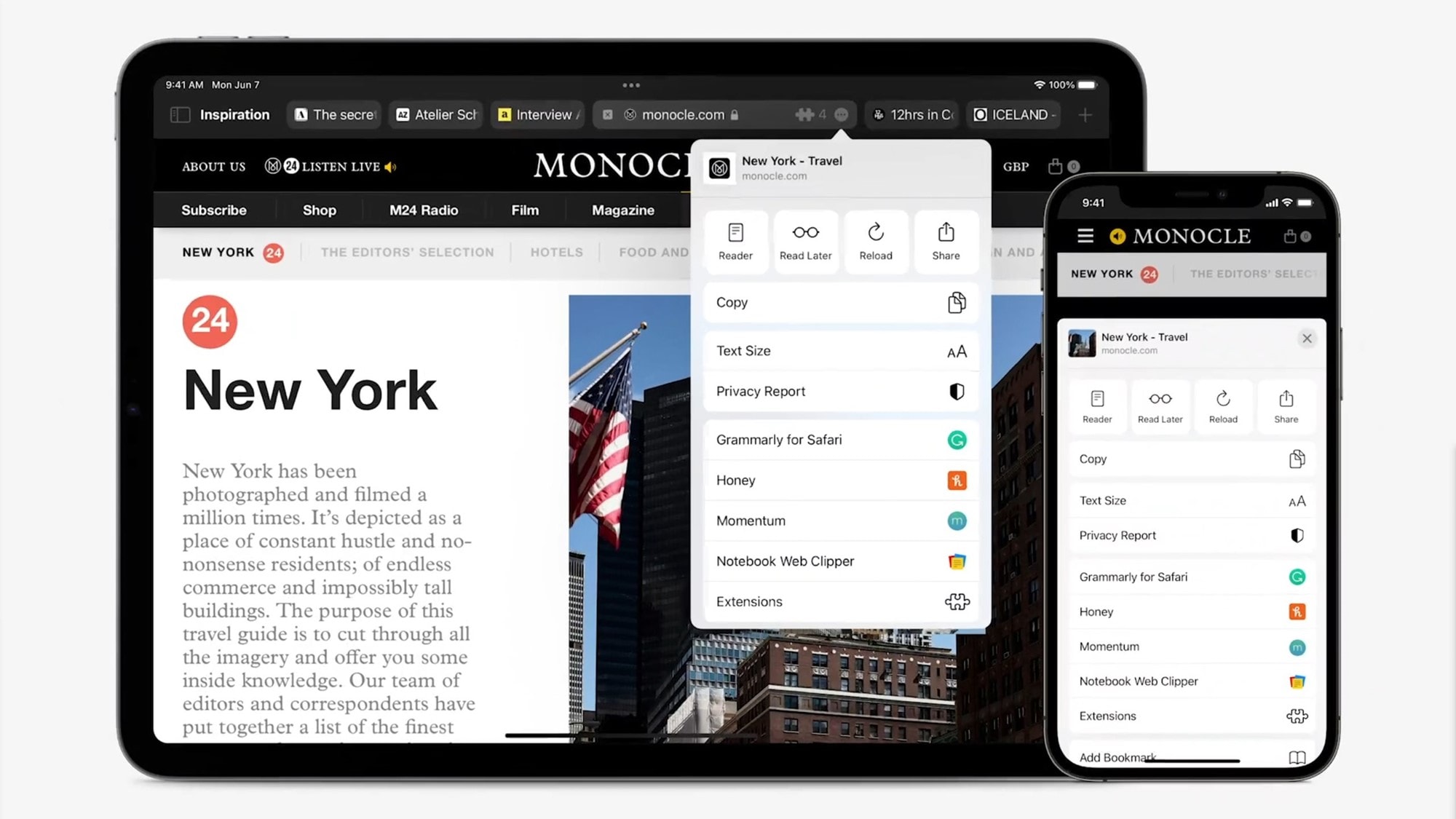
Safari extensions are finally coming to iPhone and iPad this fall with iOS and iPadOS 15. You’ll have access to all the same extension options you’re used to seeing on your Mac, with developers getting the ability to create universal extensions that work across all devices.
An Australian government agency is probing Apple and Google for anticompetitive practices. Photo: Sora Shimazaki/Pexels CC
The Australian Competition and Consumer Commission is gathering data for a report on whether Google and Apple abuse their ability to pick default web browsers and search engines in their operating systems to squeeze out smaller competitors.
And Australia is just one of many countries probing the business practices of big tech companies. These investigations might eventually be followed by lawsuits or legislation that forces Google, Apple, Facebook, etc. to change the way they do business.
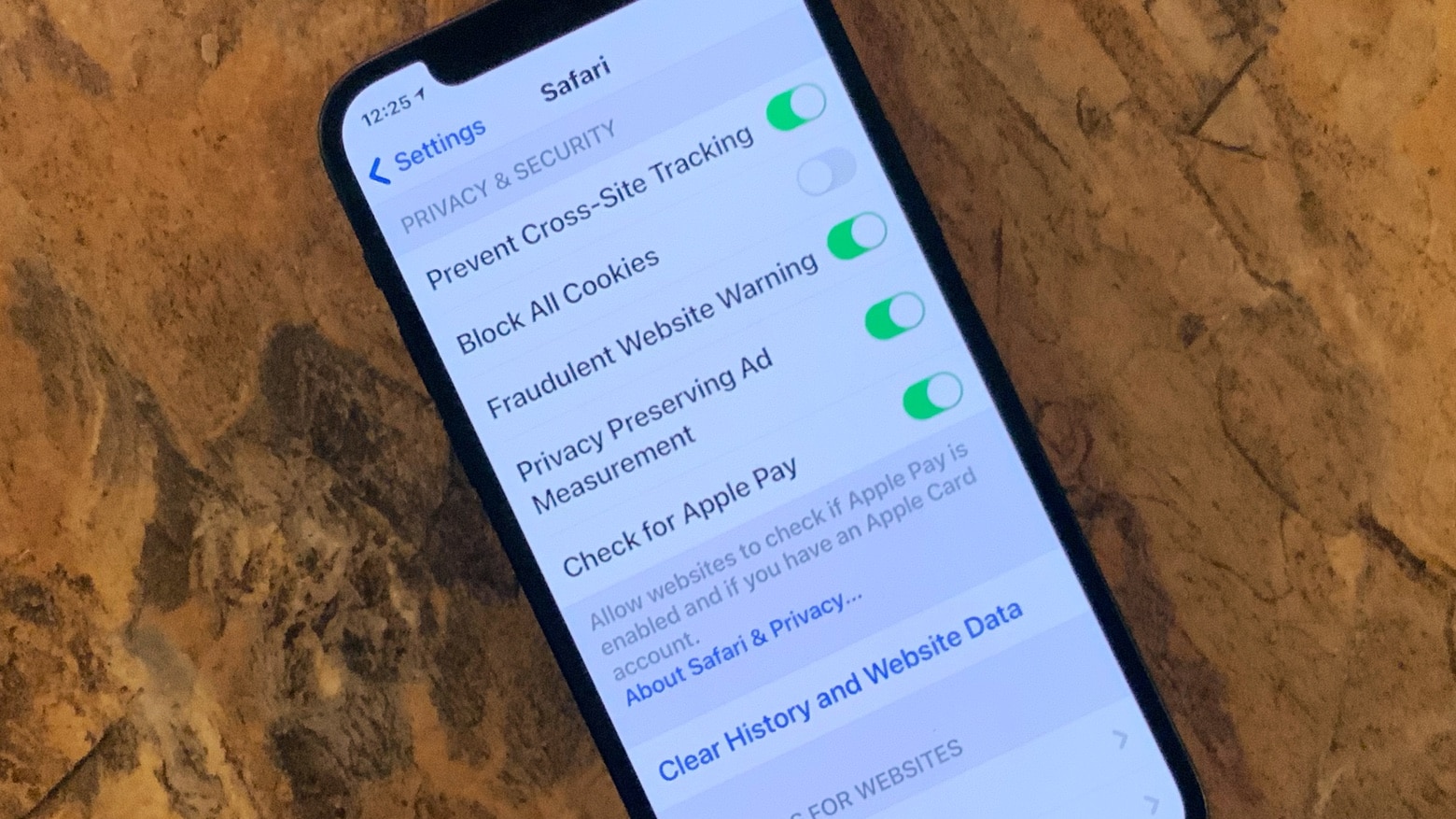
Safari’s anti-phishing tool is about to get even more secure. Photo: Ed Hardy/Cult of Mac
The Fraudulent Website Warning system built into Safari in the upcoming iOS 14.5 reportedly takes an additional step to protect your identity. Apple licenses the scam-prevention service from Google, and going forward will block that company from knowing users’ IP addresses through the use of a proxy server.
Save it as an editable, shareable PDF. Image: Killian Bell/Cult of Mac
Have you ever found yourself snapping multiple screenshots when you want to share or save an entire webpage on iPhone and iPad? There is an easier way — a neat trick to capture the whole thing in an instant.
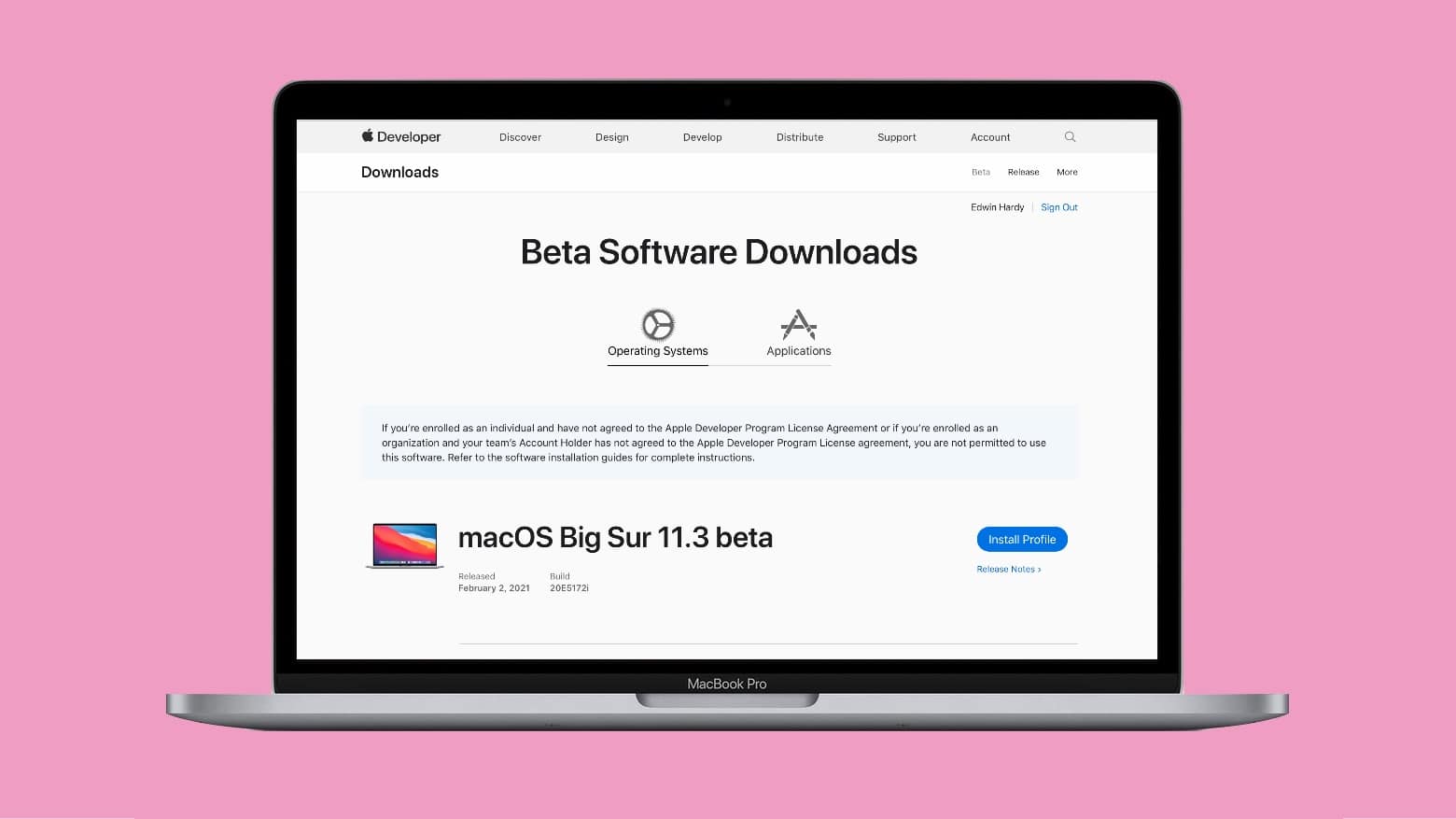
Those in the Apple Developer Program can begin testing macOS Big Sur 11.3. Image: Cult of Mac
A mere day after the release of a fresh macOS version, Apple went ahead and seeded to developers macOS 11.3 beta 1. The company isn’t one to sit on its hands.
The new beta includes small improvments to Safari and Reminders. And enhancements to a range of other features too. Plus bug fixes, of course.
Don't let online bloat weigh you down. Image: Killian Bell/Cult of Mac
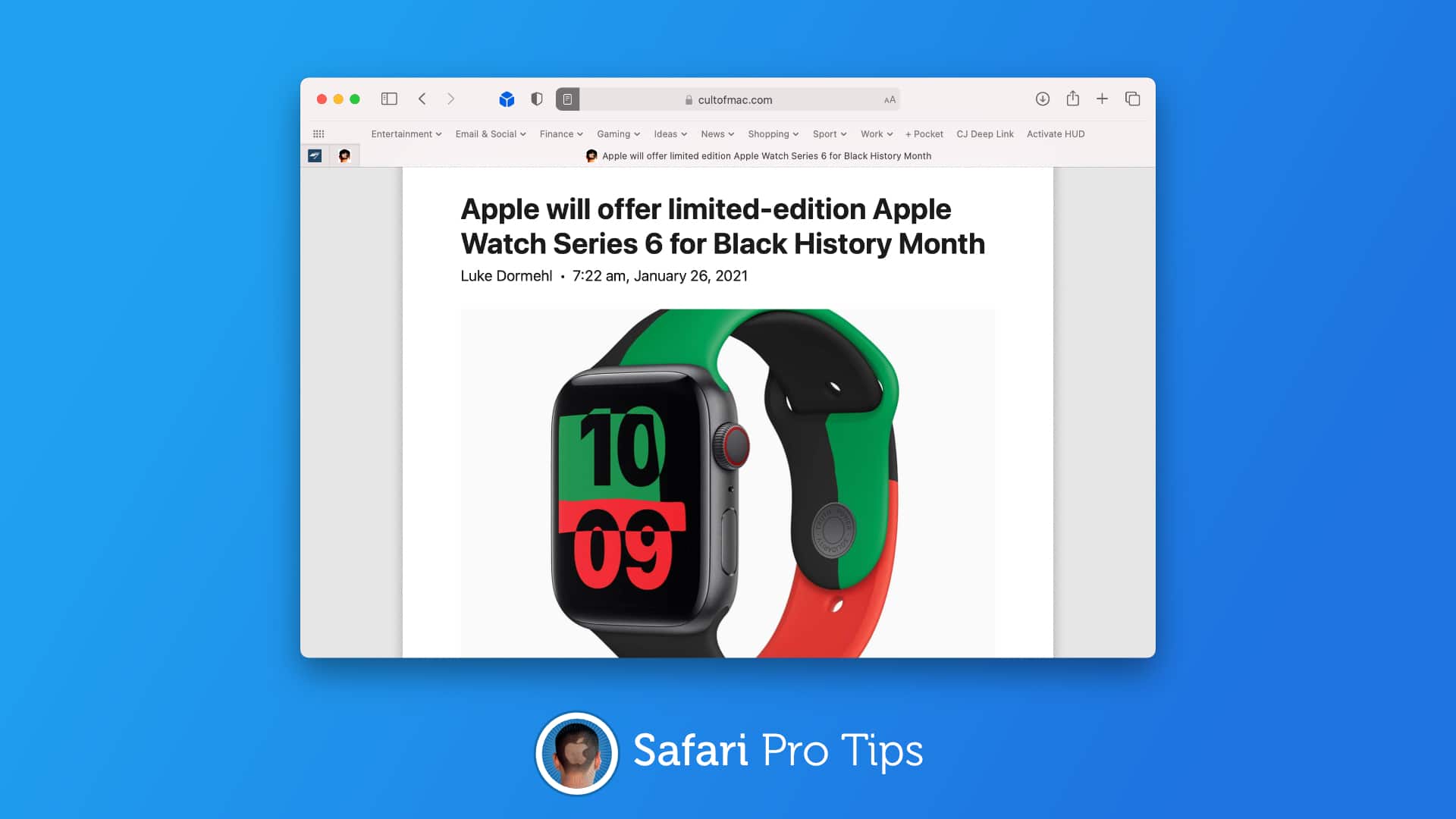
We want to help you master Safari. Cult of Mac’sSafari Pro Tips series will show you how to make the most of Apple’s web browser on iOS and Mac.
Wouldn’t it be nice if you could strip out all the unnecessary bloat from your favorite websites so that they’re easier to read and faster to load? Well with Safari’s built-in Reader mode on Mac, iPhone, and iPad, you can.
What’s more, you can have Reader mode load automatically on every website you visit with a simple settings change. We’ll show you how in this Safari pro tip.
Don't let Safari cut your URLs short. Image: Killian Bell/Cult of Mac
We want to help you master Safari. Cult of Mac’sSafari Pro Tips series will show you how to make the most of Apple’s web browser on iOS and Mac.
Sometimes it’s handy to see complete URLs in Safari’s address bar, but they get shortened automatically for the sake of cleanliness. The good news is there is a way to prevent that from happening in macOS.
Access your reading list anywhere, anytime. Image: Killian Bell/Cult of Mac
We want to help you master Safari. Cult of Mac’sSafari Pro Tips series will show you how to make the most of Apple’s web browser on iOS and Mac.
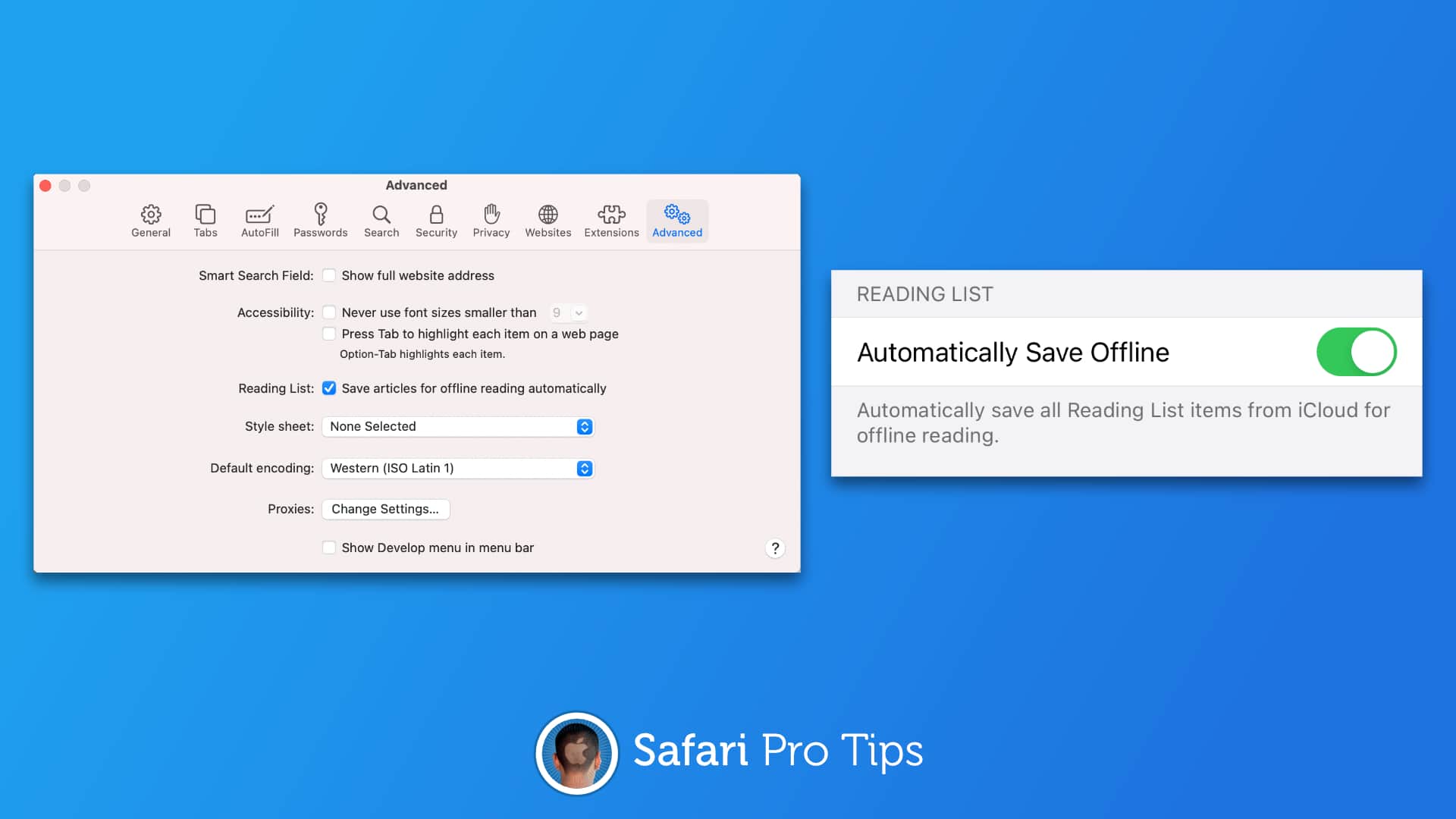
Need something to read on the go when you don’t have great data connectivity? Automatically save your Safari reading list to your iPhone, iPad, or Mac so that you can keep up with your favorite sites anytime, anywhere.
Don't settle for mobile sites all the time. Image: Killian Bell/Cult of Mac
We want to help you master Safari. Cult of Mac’sSafari Pro Tips series will show you how to make the most of Apple’s web browser on iOS and Mac.
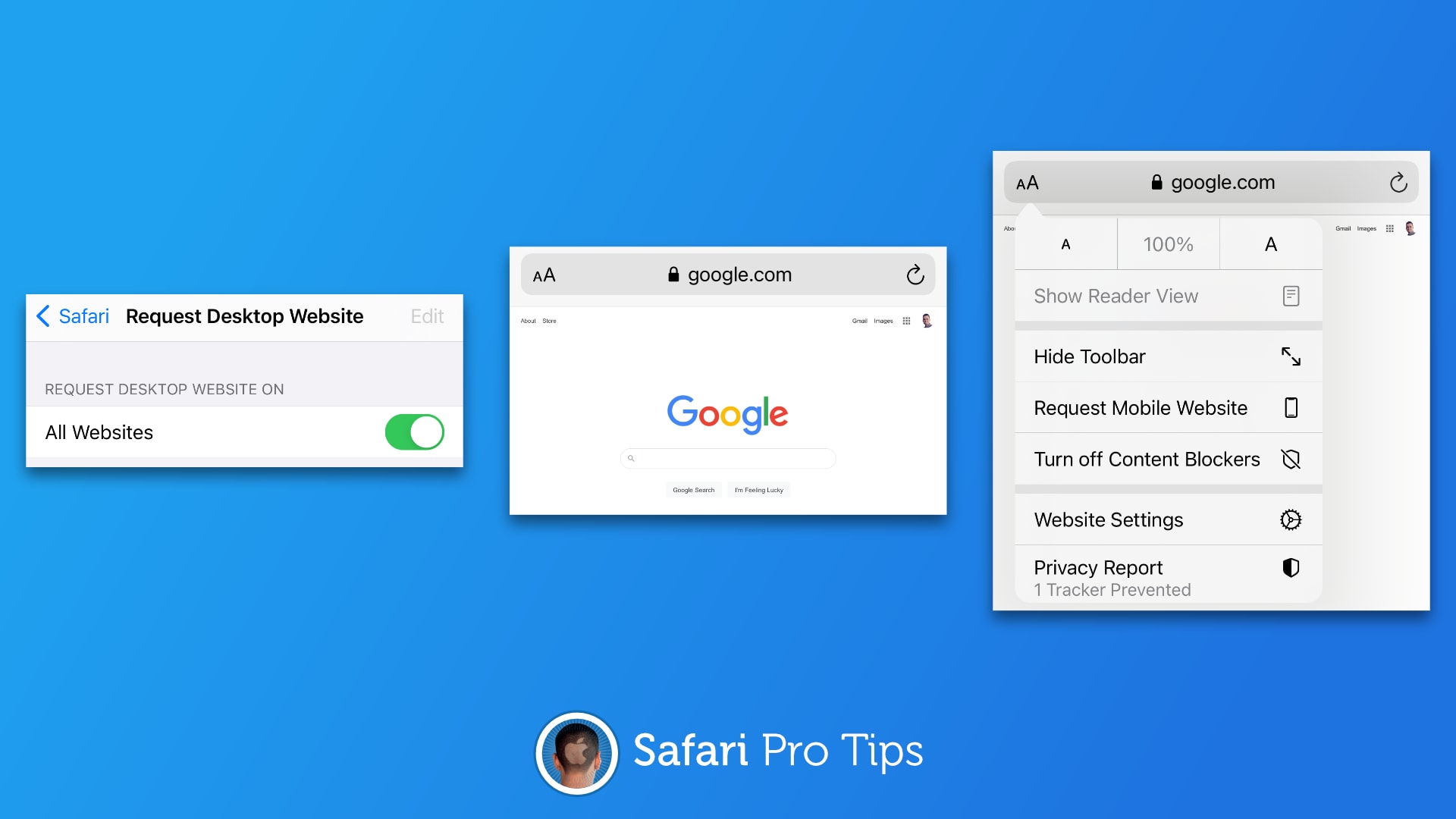
If you prefer an entirely unadulterated experience when browsing the web, you probably find yourself frequently loading websites in desktop mode in Safari on iPhone. But rather than having to enable this mode every time you visit a new site, you can have Safari fetch desktop websites automatically.
We’ll show you have to set it up in this Safari pro tip.
Don't lose your Safari downloads. Image: Killian Bell/Cult of Mac
We want to help you master Safari. Cult of Mac’sSafari Pro Tips series will show you how to make the most of Apple’s web browser on iOS and Mac.
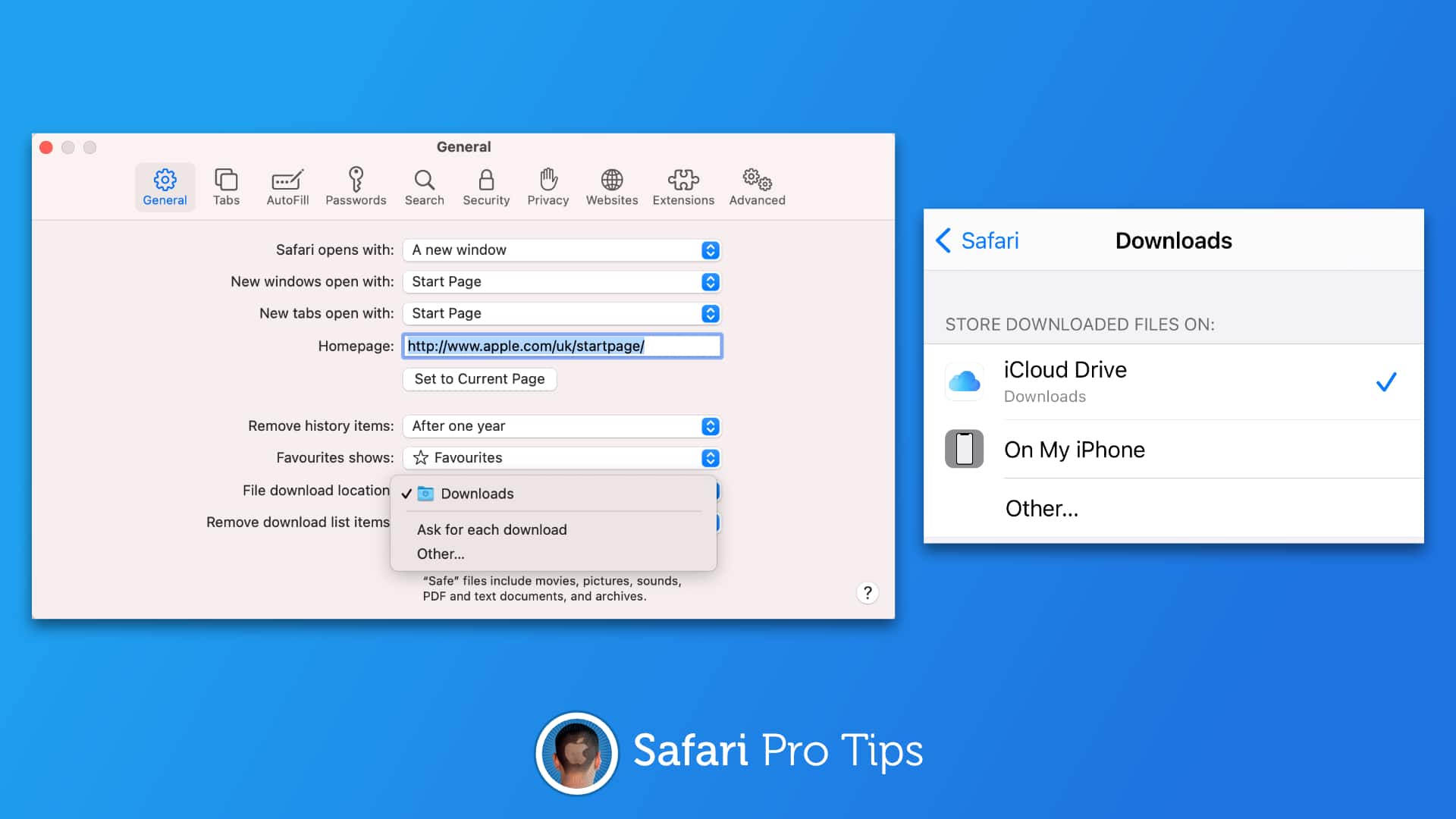
How many times have you downloaded something from the internet and then had to spend way too much time trying to figure out where it was saved? It’s probably a common occurrence — especially on iOS.
But did you know that you can tell Safari exactly where to save your downloads so that you never lose them? We’ll show you how in this Safari pro tip.
Make your favorite websites easier to read. Image: Killian Bell/Cult of Mac
We want to help you master Safari. Cult of Mac’sSafari Pro Tips series will show you how to make the most of Apple’s web browser on iOS and Mac.
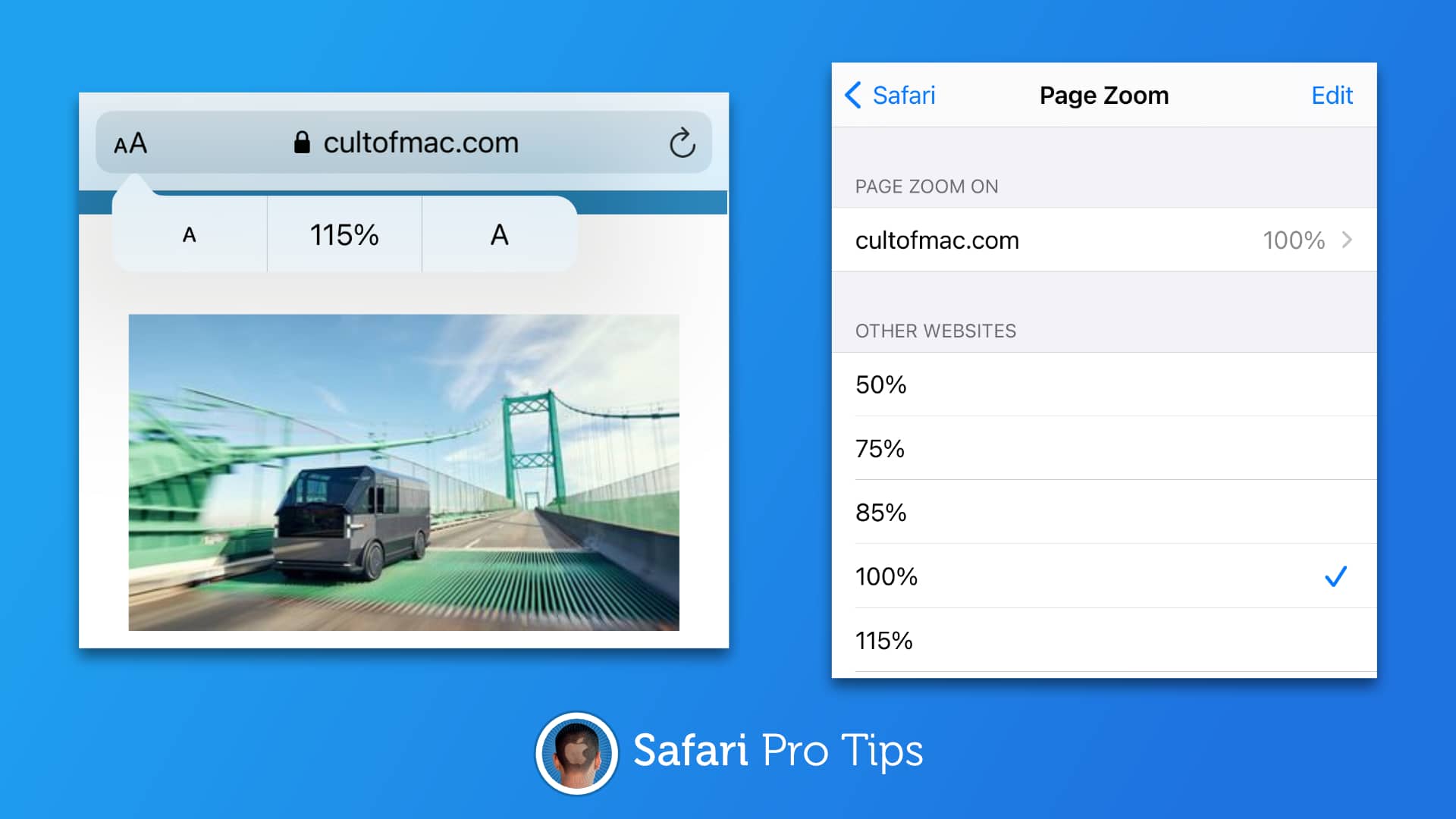
iOS, iPadOS, and macOS allow you to increase font sizes system-wide so that everything you do is easier to see. You can do a similar thing to make your favorite websites easier to read inside Safari.
We’ll show you how to use Page Zoom in this Safari pro tip.
Let Safari take care of clearing old tabs. Image: Cult of Mac
We want to help you master Safari. Cult of Mac’sSafari Pro Tips series will show you how to make the most of Apple’s web browser on iOS and Mac.
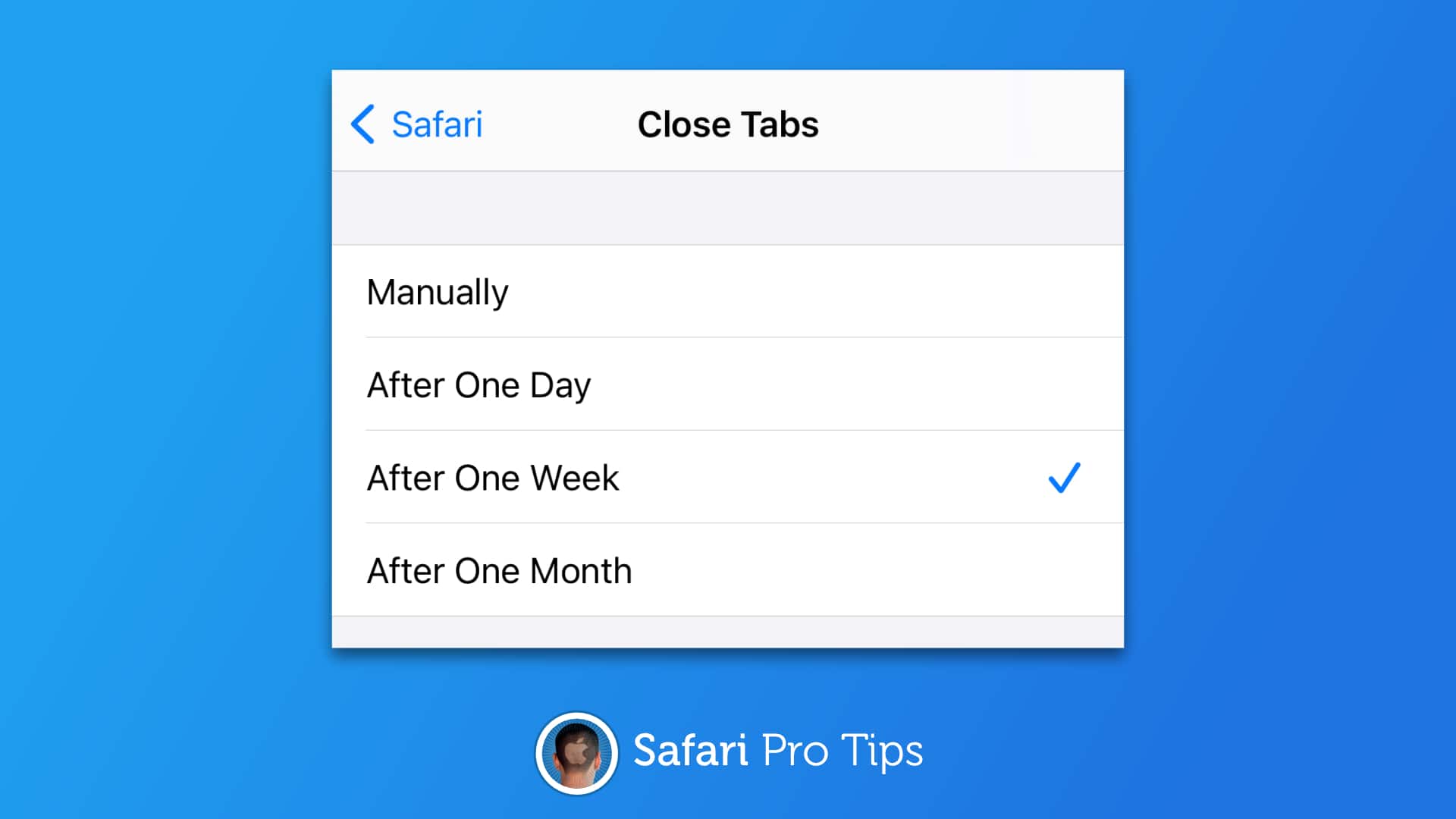
Are you an unwitting Safari tab hoarder? It’s easy to forget to close old tabs you no longer need — especially on iPhone, where the dozens of open tabs you’ve forgotten about aren’t always visible. But did you know that Safari can clear all your old tabs automatically after a certain period of time?
Find out how to set up automatic tab clearing in this Safari pro tip.
Bing, DuckDuckGo, and others are available. Image: Cult of Mac
We want to help you master Safari. Cult of Mac’s Safari Pro Tips series will show you how to make the most of Apple’s web browser on iOS and Mac.
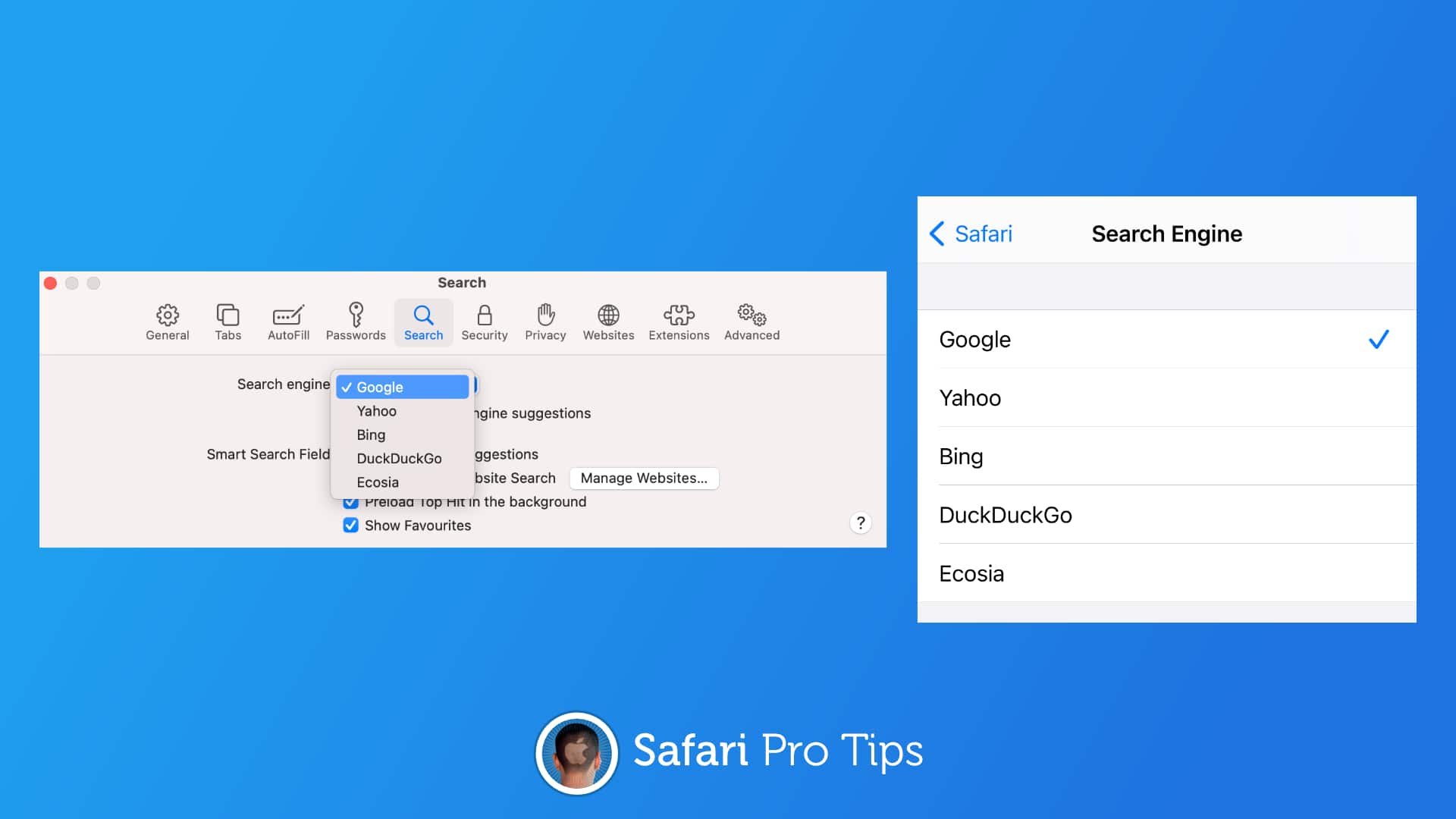
Google has long been the default search engine inside Safari, but it’s not your only option. With a simple settings change, you can find what you’re looking for with Yahoo, Bing, DuckDuckGo or Ecosia instead.
Apple won't like this. Photo: Killian Bell/Cult of Mac
GeForce Now, the online game streaming service from Nvidia, is now available in Safari on iOS. You can use it to play a whole host of controller-compatible PC games (more than 750) in 1080p.
The wait is over. You can install macOS Big Sur today. Photo: Apple
Apple released the final version of macOS Big Sur on Thursday. The new operating system offers the biggest design overhaul to the Mac user interface in nearly two decades. Plus, it brings big improvements to Apple’s bundled applications like Messages, Maps and Safari.
Learn how to use widgets, the App Drawer, and more. Image: Apple/Cult of Mac
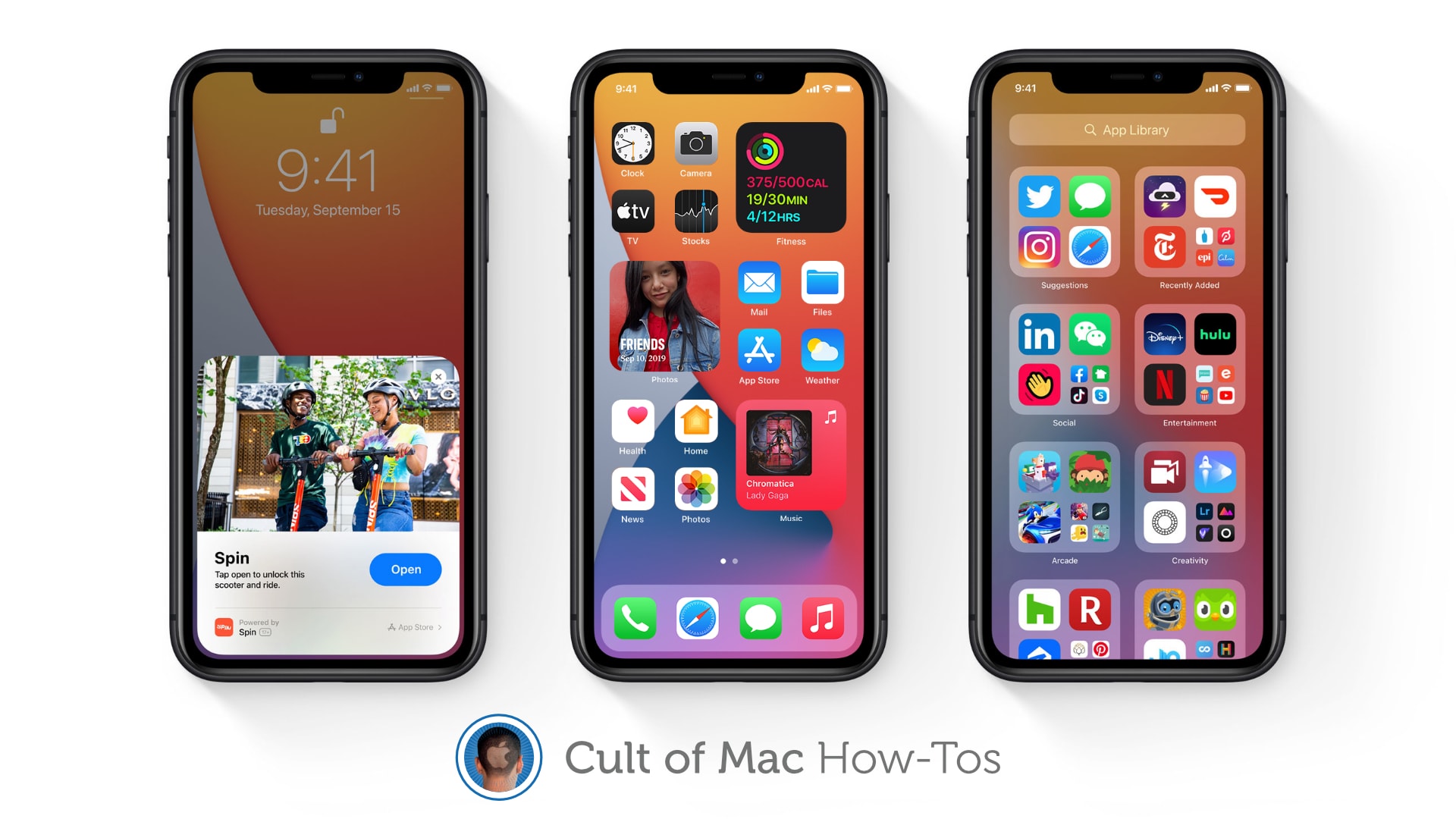
iOS 14 is finally out and packed full of awesome new features that make being an iPhone user even greater. We’ve got real Home screen widgets, a useful new App Drawer, Picture in Picture, and more!
If you were able to avoid the iOS 14 beta and all these things are still brand-new to you, you might be wondering how some of them work. Well, don’t worry — Cult of Mac has how-to guides on all of them.
Find out how to use some of the best new features in iOS 14 right here.
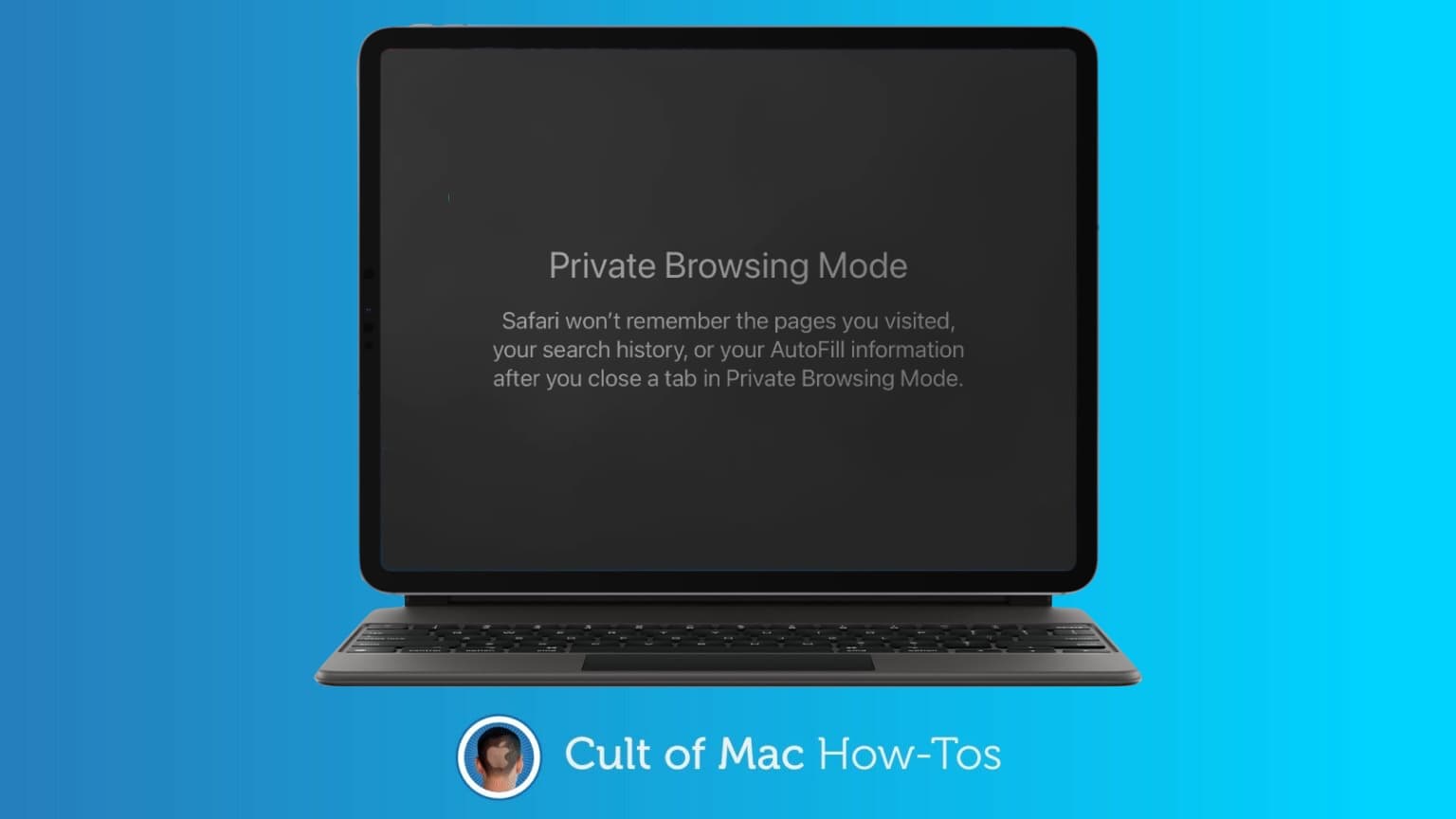
Safari Private Browsing is less private than you think. Here’s how to change that. Photo: Killian Bell/Ed Hardy
Push a button in Safari and you’re in Private Browsing Mode. Suddenly, you’re completely safe from all tracking, and no one can tell what you did online, right? Wrong.
This mode really can help protect your privacy when you’re surfing the web, but you need to know its limitations.
Some browsers are better than others on older machines. Image: Killian Bell/Cult of Mac
Got an old Mac that’s crawling to a halt every time you browse the web? It might not be your hardware that’s in need of a change. Before splashing out on new components, try switching browsers instead—or considerwhat to do with old MacBook to give it a new lease on life.
Get a second shot of WWDC 2020 talk in this week's podcast. Image: The CultCast
This week on The CultCast: We bring you a huge list of great iOS 14 features that Apple did not mention onstage during this week’s WWDC keynote, and there’s a lot here to love.
Plus: Why iOS 14’s new Home screen widgets aren’t as powerful as you might think. And get ready to log into websites with Face ID or Touch ID.
Today’s episode is supported by CleanMyMac X, an all-in-one utility that takes care of your Mac’s health: It’s a macOS cleaner, a performance monitor, a malware remover and, occasionally, a lifesaver. And until July 5th, you can go to macpaw.com/cultofmac to get CleanMyMac X with a 30% discount.
The virtual WWDC 2020 keynote packed in loads of exciting revelations. Breeze through all the highlights in these very visual sketchnotes!
Photo: Apple
Monday’s WWDC 2020 keynote was very polished and a little fast-paced for me. This year, the entire Worldwide Developers Conference is virtual due to COVID-19, and the presentations flowed seamlessly from presenter to presenter, leaving little time for someone drawing to catch a breath. I ended up with five pages of drawings in my notebook.
I sketched out the important new features coming in iOS 14, iPadOS 14, macOS Big Sur, watchOS 7 and more. For a quick visual recap of the highlights of the WWDC 2020 keynote, check out my sketchnotes below.
Logging in to websites is about to get easier for Apple users. Screenshot: Apple
Safari users soon will be able to securely log into websites using Face ID and Touch ID. The new feature, which Apple is rolling out in iOS 14, iPadOS 14 and macOS Big Sur, should take away one of the most irritating things about using the web — remembering, and then typing in, user names and complicated passwords.
On websites that support the feature, users can opt in to use Apple’s biometric ID systems, making that irritating login dance a thing of the past.
It's official: The next version of macOS will be called "Big Sur." Photo: Apple
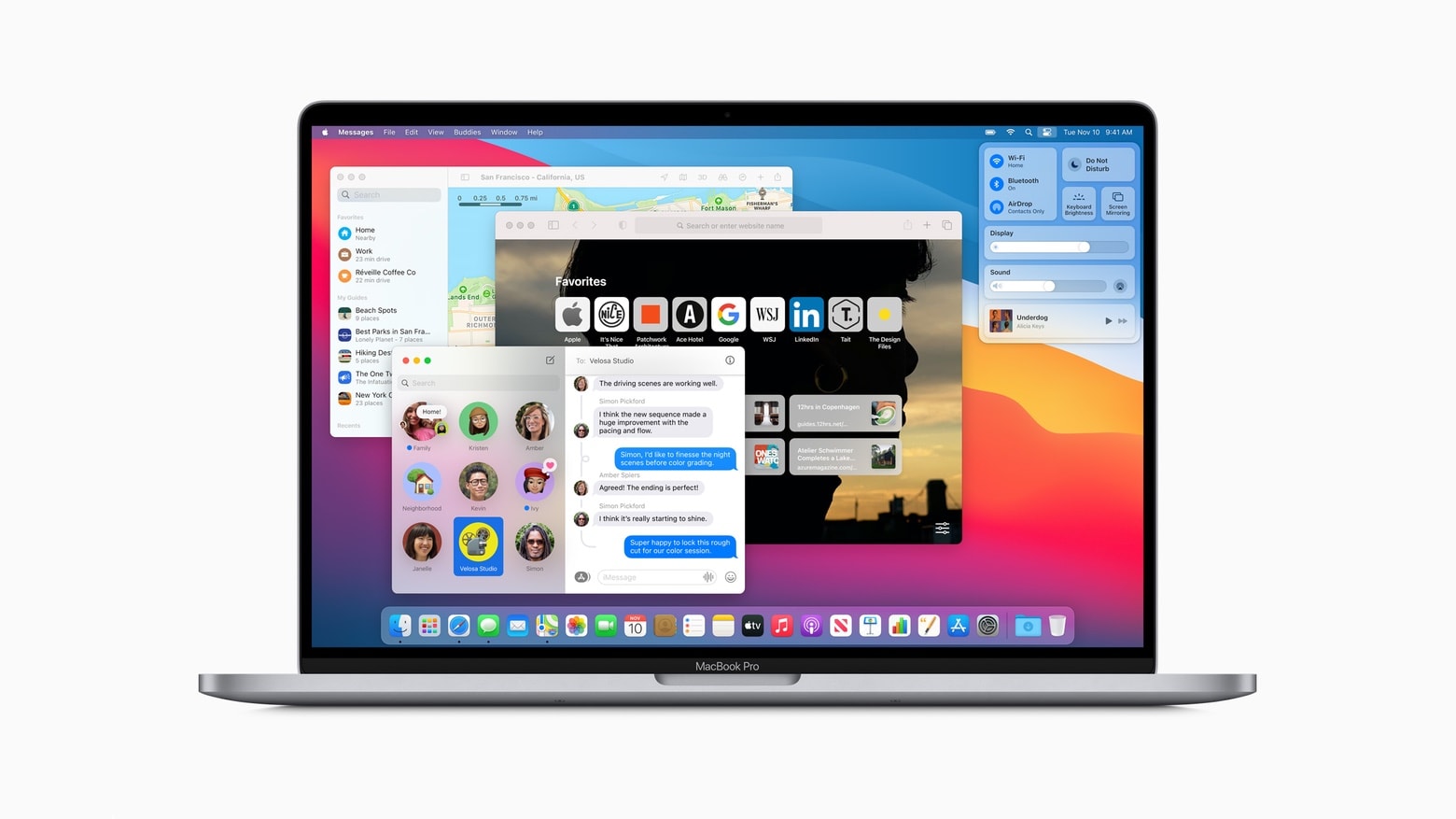
The next Mac operating system, called macOS Big Sur, will bring the biggest design overhaul in nearly two decades, Apple said Monday. In addition to the massive visual upgrades, MacOS Big Sur will usher in huge changes to the Messages, Maps and the Safari web browser.
Apple unveiled the massive changes coming to macOS on Monday during the company’s keynote kicking off this year’s online-only Worldwide Developers Conference.
“This year, we’re taking the macOS experience you love even further,” said Craig Federighi, Apple’s senior VP of software engineering, as he launched into a deep dive into changes coming soon to Mac.
iOS 14 gives iPhone and iPad users the power to choose their default web browser and email app for the first time when it lands this fall. That means you’ll no longer be forced into Safari and Mail when tapping links.
Why are you still using your mouse?! Photo: Florian Krumm/Cult of Mac
You’ll be amazed at what you can do with keyboard shortcuts on YouTube. There’s a key for almost everything you could ever need while watching videos. Learn them all in this how-to.