I swear, the more I learn about the Mac OS X operating system, the more there is to know!
There are so many little hidden key strokes on the Mac that help you do all sorts of things, and there’s really no way to find them out.
This little gem is something I just found out today, and I’ve been sending you OS X Tips for the better part of two years.
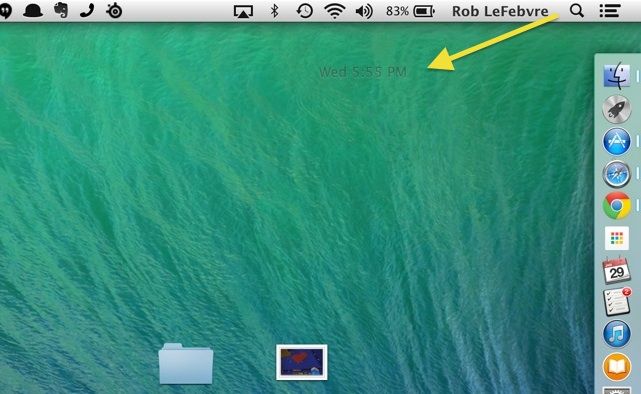
To get rid of the system menubar icons, you can drop into each System Preference pane and uncheck the “Show in Menu Bar” option, or you can just do this.
Move your mouse cursor above any of the system menu bar icons, like AirPlay, Bluetooth, Time Machine, Wi-Fi, Battery, Time, or User name.
Before you click, hold the Command key down. Then, click and drag the menu bar icon off of the menu bar, down toward the desktop.
Just like when you pull off a Dock icon, the little menu bar item will poof away, no longer on the menu bar.
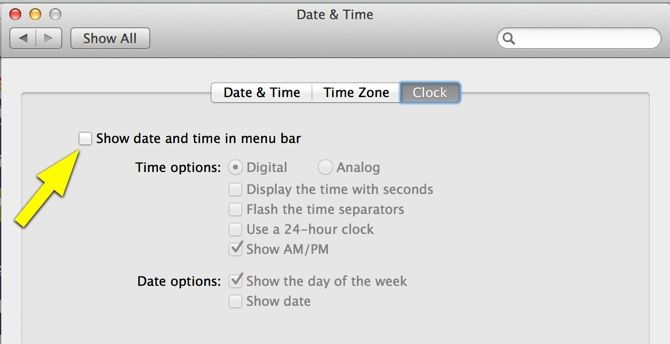
If you want to put it back, you will need to drop into the System Preferences for that particular icon, and click the Show in menu bar option, like the clock one above.
Via: LifeHack

Rob LeFebvre is an Anchorage, Alaska-based writer and editor who has contributed to various tech, gaming and iOS sites, including 148Apps, Creative Screenwriting, Shelf-Awareness, VentureBeat, and Paste Magazine. Feel free to find Rob on Twitter @roblef, and send him a cookie once in a while; he’ll really appreciate it.

