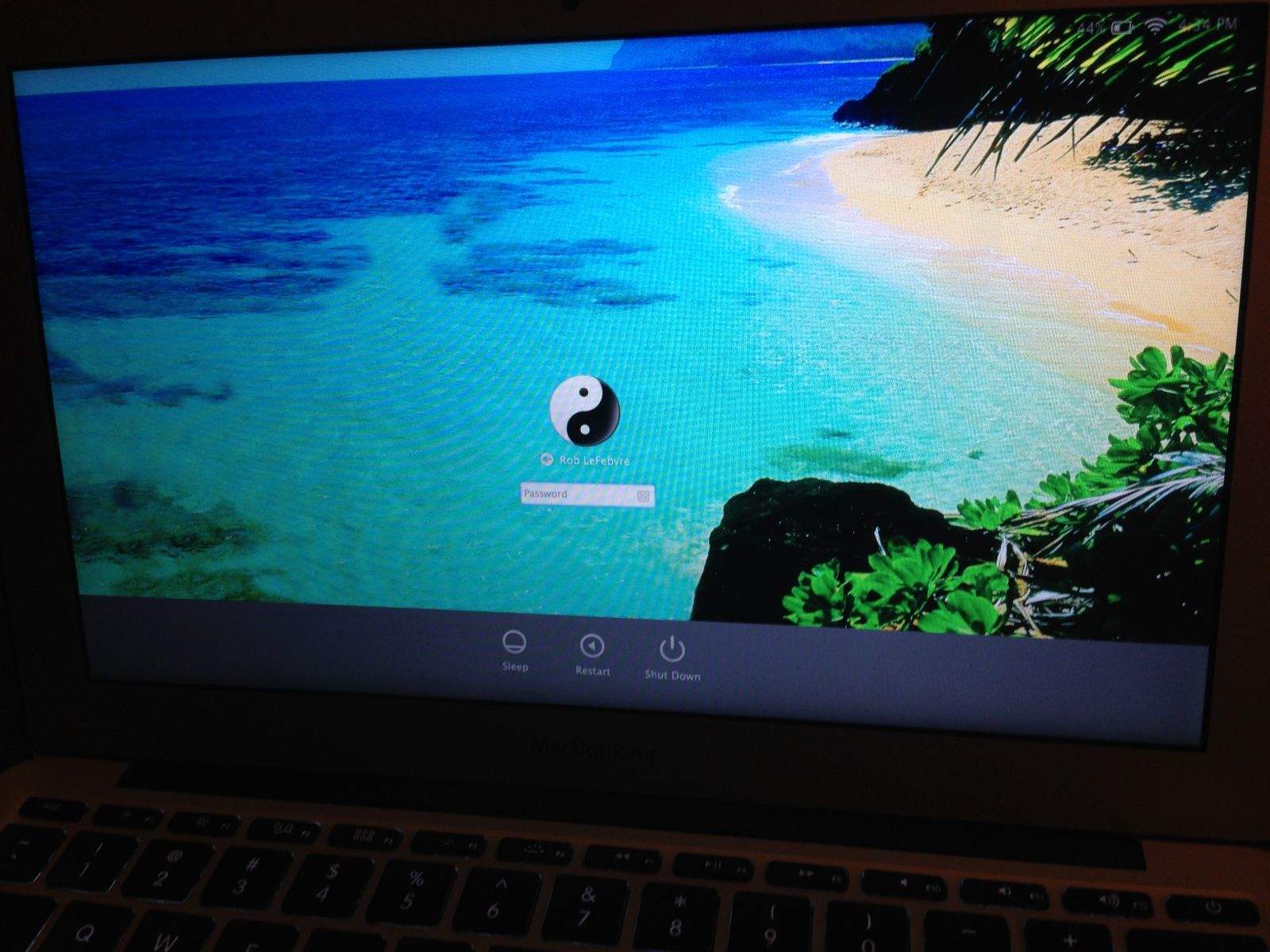
The login screen wallpaper in OS X Mavericks is a pretty boring dark gray linen picture, with the Apple logo in the center. Yawn.
Far better to put in your own image, thereby customizing the login screen for your very own purposes, am I right? It’s not too tricky to do so, though it does require replacing some system files and will get rid of the Apple logo image itself.
If you don’t mind replacing that Apple logo with a much larger image, thereby hiding the linen look but losing the Apple logo, then here’s how to do just that.
Find a large image you want to have as your login screen wallpaper, either with a Google image search or an image you took yourself. Next, open this up in Preview and save as a .PNG file, using the Export function. Then, in the Finder, make copies of the file until you have a total of four. Rename them to apple.png, apple_s1.png, [email protected], and [email protected].
Now, go backup the Apple logo for the linen login screen. Hit Command-Shift-G and type or paste the following path into the resulting field:
/System/Library/PrivateFrameworks/LoginUIKit.framework/Versions/A/Frameworks/LoginUICore.framework/Resources/
Option-drag the four files there out to a folder on your Desktop, or anywhere else you want to back these files up. This will copy the files to your folder.
Next, drag all of the four files you created with your own image to this /Resources folder, and allow your Mac to replace the files there (you made a backup above, so it’s ok). You’ll probably need to type in your administrator password and login name here.
To see the changes, all you need to do is Log Out of your Mac, either by hitting Command-Shift-Q, or Choosing Log out from the Apple menu.
Via: OS X Daily
Image: End Time Headlines

Rob LeFebvre is an Anchorage, Alaska-based writer and editor who has contributed to various tech, gaming and iOS sites, including 148Apps, Creative Screenwriting, Shelf-Awareness, VentureBeat, and Paste Magazine. Feel free to find Rob on Twitter @roblef, and send him a cookie once in a while; he’ll really appreciate it.


10 responses to “Prettier Than Linen: Change The Login Screen Wallpaper In OS X Mavericks [OS X Tips]”
i did everything just fine but the image is cropped short and the restart and shutdown links are shown how do I make it full screen so the restart and shutdown links aren’t showing? Also how do I modify Mavericks boot screen?
Actually this is the right path- /System/Library/PrivateFrameworks/LoginUIKit.framework/Versions/A/Frameworks/LoginUICore.framework/Resources