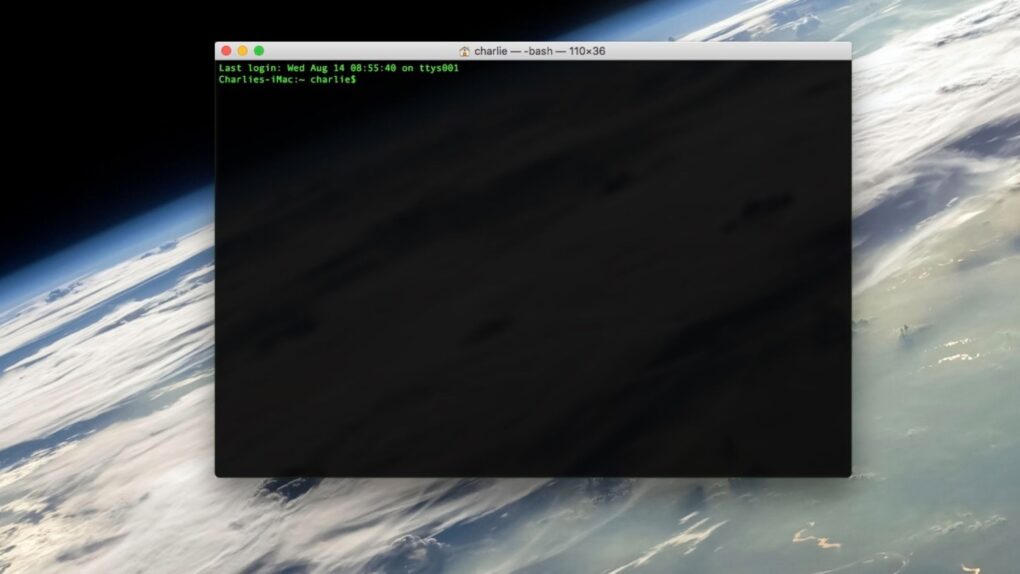
If your Mac showed a warning the last time you tried to paste something into Terminal, Apple just explained what’s going on. Turns out, your Mac has been quietly blocking and protecting you from an increasingly common scam.
The feature, which shipped back in March with the macOS Tahoe 26.4 update, blocked pasted Terminal commands without explanation. Apple published an official support document on Monday explaining what those alerts mean — and what to do when one appears.
Why is macOS blocking Terminal commands?
Sometimes a dangerous Mac attack looks like a helpful fix from a stranger on the internet: A quick solution from a pop-up or a “repair” trick from a chat message that instructs you to paste something into Terminal, the macOS command-line interface. With its new warning, Apple offers a layer of defense. The new Terminal protection feature might annoy power users, but it targets an emerging tactic used by scammers: convincing Mac owners to run their own malware.
The alerts are aimed at a very specific type of scam called ClickFix. The attack works by showing a fake webpage, pop-up or chat message telling you that something is broken on your Mac — and suggesting a Terminal command to “fix” it.
When you copy and paste the suggested command, you’ve basically handed the attacker access to your machine. And because you initiated the process, traditional security tools can’t catch it. However, Apple fixed the problem by intercepting the pasted code before anything happens.
What do these alerts mean?
Apple’s new support document breaks down these alerts into three types of warnings, each one highlighting different levels of urgency:
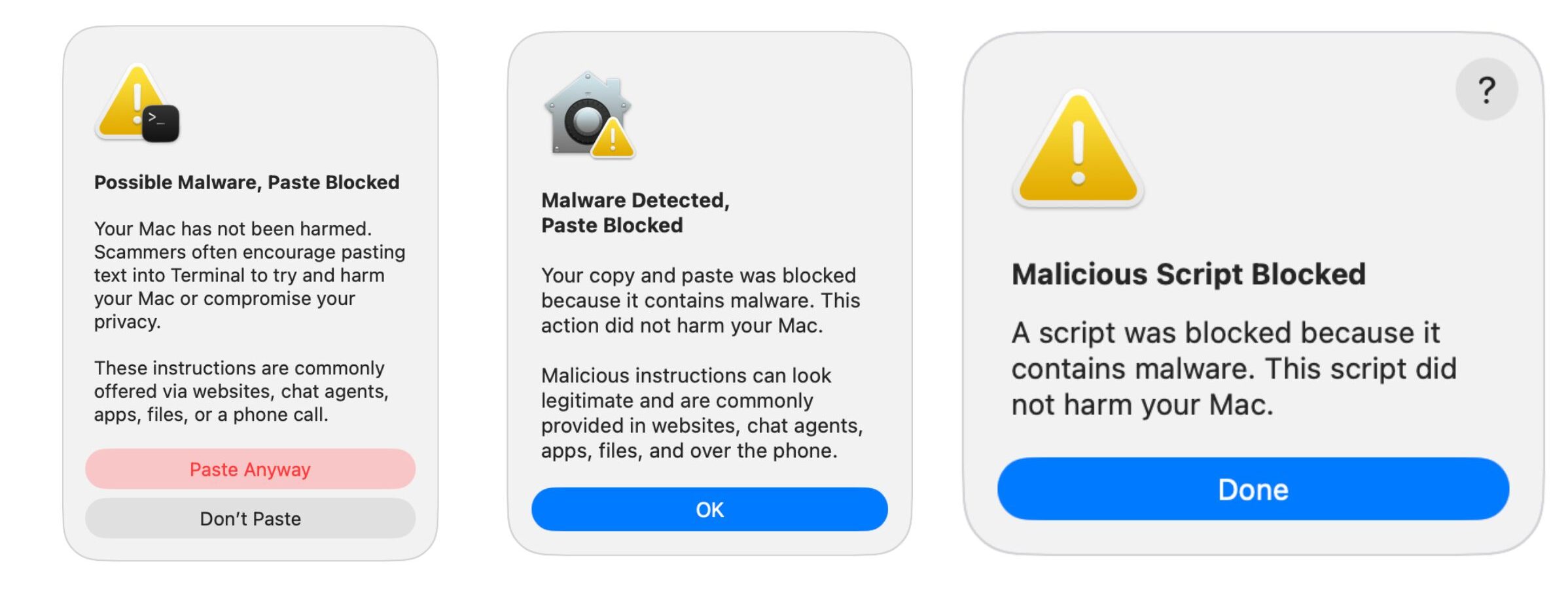
Image: Apple
The Mac’s operating system will fire the “Possible Malware, Paste Blocked” alert if you copy a command from a website, email or chat. Apple is betting that you aren’t a regular Terminal user and should stop and think twice.
That said, you should definitely pay attention to the “Malware Detected, Paste Blocked” and “Malicious Script Blocked” messages if you see them. These pop-ups mean macOS detected that the command or script you pasted matches a known malware signature. It then automatically stops it, with no option to override.
Apple’s message for both alerts is the same: Your Mac is safe, and you should probably not run the Terminal command.
What should you do if you see a macOS Terminal warning
If such a warning confronts you, the first thing you should do is think about where the command came from. Most software, developer tools and app installers don’t need you to paste commands into Terminal. If a webpage, pop-up or someone else sent you there, that’s a red flag.
If you are a developer or sysadmin who works with Terminal and sees the “Possible Malware” alert for a safe command, don’t panic. Apple says the warning is intended for unfamiliar users, and it will only appear once per session.
Apple didn’t mention the feature when it shipped. But for someone who’s Googled a fix and blindly pasted in a Terminal command, this might be a handy security feature.

Anurag Chawake is a tech-focused writer specializing in smartphones, apps and consumer technology. His interest in computers began during the Windows 98 era, eventually leading him to explore everything from operating systems to mobile devices and PC hardware. Anurag previously contributed to The Indian Express, covering Apple, Android, gaming and the broader technology landscape.

