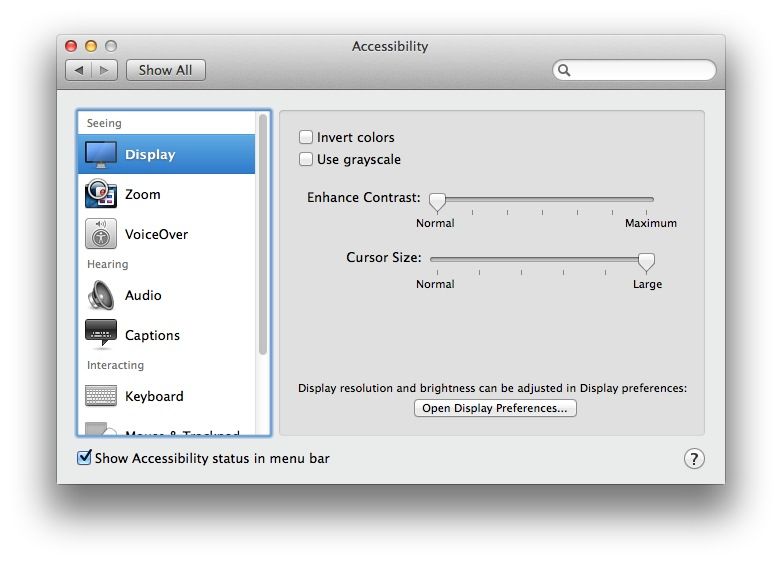
It used to be that if you wanted to increase the size of your mouse pointer, you’d hop into the Universal Access pane in the System Preferences and then click on the Mouse & Trackpad tab to find the Increase Cursor Size slider.
With OS X Mavericks beta, if you go looking for the Universal Access preferences pane, you’re out of luck. It’s called Accessibility now. However, if you know that much, and drop into it, you won’t find a Mouse & Trackpad tab.
So, in OS X Mavericks beta, if you want to increase the size of your mouse pointer, here’s what you have to do.
Launch System Preferences as before, and then click on the Accessibility icon there to access those preferences. Click on the Display icon in the left-hand column, under the Seeing section. Now, click and drag on the Cursor Size slider, moving it to the right to increase the mouse pointer size, and to the left to decrease the size of the mouse pointer.
Now you won’t have to search through endless preference panes trying to find this newly hidden feature like I did.
I use the enlarged mouse pointer on my Mac mini, which is connected to my HDTV in my living room. I found that even with the resolution turned up a bit to help me see the Mac screen items from across the room, I was still losing track of the cursor. Having the ability to zoom it up, independent of the rest of the screen zoom, has really helped my productivity.

Rob LeFebvre is an Anchorage, Alaska-based writer and editor who has contributed to various tech, gaming and iOS sites, including 148Apps, Creative Screenwriting, Shelf-Awareness, VentureBeat, and Paste Magazine. Feel free to find Rob on Twitter @roblef, and send him a cookie once in a while; he’ll really appreciate it.

