File this one under “stuff I should have known but totally didn’t.” I’m guessing that a few of you didn’t know this either, or have forgotten if you once did. For the rest of you who might say, “meh. I know this one already,” I’m more than glad to point you in the direction of all our other iOS tips in search of something you didn’t know, smartypants.
Google maps rocks on my iPhone, and I’ve recently begun using my iPad to get around as well. Google Street View is fantastic on the computer, allowing me to virtually stalk my old home town and friends that still live there, the poor dears. I’ve never put two and two together, however, and realized that I could, in fact, engage in some Street View joy right on my iOS device of choice. Here’s how.
Launch Maps on your iPad or iPhone. Or iPod touch, if you must. Be sure you’re connected to a good network signal, as the images that make up street view require a bit more bandwidth.
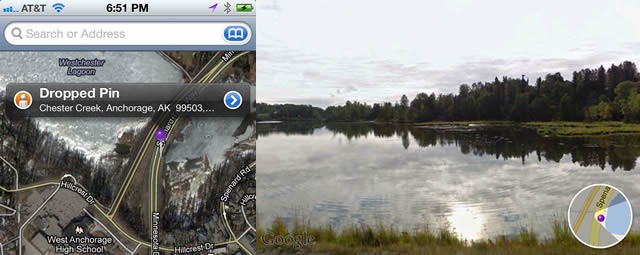
Next, type in your home address. No, not the address of that girl who won’t give you the time of day, you sick little monkey. Your own home address. This is a family friendly tip, ok? Once the pin drops, tap the little orange person icon.
Boom, you’re in Street View. Pretty nice, right? Feel free to pan around and get a feel for how long ago the Google Street team drove by your house with a camera, and you’re good to go. To get out of this view, tap on the map in the lower right hand corner.
I can see using this on the go to figure out what the address looks like where I’m headed, if I haven’t checked on the computer ahead of time. Hopefully some of you didn’t know about this built-in feature as well. Let me know in the comments below if you found this tip useful today.
Got an iOS tip of your own? Need help troubleshooting your iPhone, iPod touch or iPad ? Drop me a line or leave a comment below.

Rob LeFebvre is an Anchorage, Alaska-based writer and editor who has contributed to various tech, gaming and iOS sites, including 148Apps, Creative Screenwriting, Shelf-Awareness, VentureBeat, and Paste Magazine. Feel free to find Rob on Twitter @roblef, and send him a cookie once in a while; he’ll really appreciate it.

