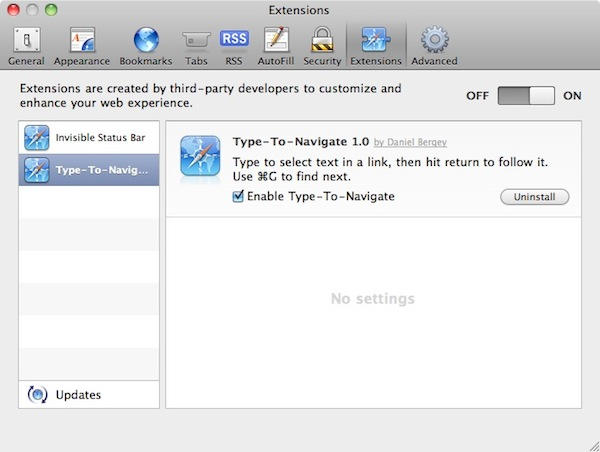
Step 1: Open Safari 5’s preferences, and go to the Advanced tab.
Step 2: Click “Show Develop menu in menu bar”
Step 3: In the Develop menu, select “Enable Extensions”
Step 4: Go to Safari Extensions – which has emerged almost overnight as the blog for extensions news and links – and follow some links. Download some stuff.
Step 5: Needless to say, and as Safari will warn you: only install extensions from sources you trust. Let’s be careful out there.
Now, this is still technically a developer-only feature. That’s why it’s in the Developer menu. So, beware of bugs and oddness. So far, only one out of the three extensions I’ve installed has worked (Daniel Bergey’s Type-to-navigate), and the first time I restarted Safari after installing those three, it forgot about all of them and I had to re-download and re-install.
So if you want everything to be working perfectly, it’s probably best to wait until there’s a more official, non-developer means of installing extensions.

Giles Turnbull is a freelance writer in England. He also writes for the Press Association and The Morning News. You can find out more at his website, and follow him on Twitter @gilest.

