Mobile menu toggle

iOS tips - page 17

Funny things to ask Siri, from jokes to Easter eggs [iOS Tips]

By

Siri Funny Questions

There are plenty of funny things to ask Siri. One of my daughter’s favorite things to do with Siri on my iPhone, besides rename me all sorts of ridiculous names, is to ask it questions.

“Siri,” she’ll say, “what is your real name?” Siri will reply with how she really doesn’t like talking about herself. Hilarious, right?

I’m almost afraid to show my daughter this tip, because she’ll now have a ton of funny questions to ask Siri, getting truly cute and laughable responses along the way. I may never get my iPhone back.

Here is a list of some of the best funny things to ask Siri. We’ll leave finding out the answers to you.


Use Siri To Generate A Super Secure Random Password [iOS Tips]

By

Siri Secure PAssword

As you may know, Siri is backed by the seriously amazing knowledge web site, Wolfram Alpha, which makes dynamic computations about your search terms based on a its own collection of built-in data, special algorithms, and other secret fancy methods. Or, to put it another way: magic.

Anyway, Siri taps into Wolfram Alpha and can come up with some great stuff, like calculating tips for you, for example. Siri’s connection to Wolfram can do even more than that, like generating a secure password for you. Here’s how.

Tell Siri Which Audio Input To Listen To [iOS Tips]

By

Hands-free car stereo Siri says HI.

Talking to Siri can be either an exercise in frustration, or a miracle of modern technology, depending on your mood and how successful the Apple digital assistant is at interpreting what it is you’re asking. Typically, when you activate Siri with a long press and hold on the Home button, the input is collected via the microphone built into your iPHone or iPad.

If you have a Bluetooth accessory, though, you might not know that Siri can listen through that device as well. Here’s how to get Siri to do just that.

Easily Correct Siri Input Errors Without Getting Frustrated [iOS Tips]

By

Siri Correction

Have you ever had one of those Siri moments, where you ask her to search for something, and she interprets your speech incorrectly? I’m guessing all of us have, at one time or another.

One thing Siri doesn’t do very well is provide for “no I meant…” error correction, at least using speech. Next time you use Siri and the result is something you didn’t expect, don’t just press the home button in frustration, but correct Siri using your iPhone or iPad keyboard instead.

Mastering Passbook On Your iPhone [Feature]

By

passbook_overview

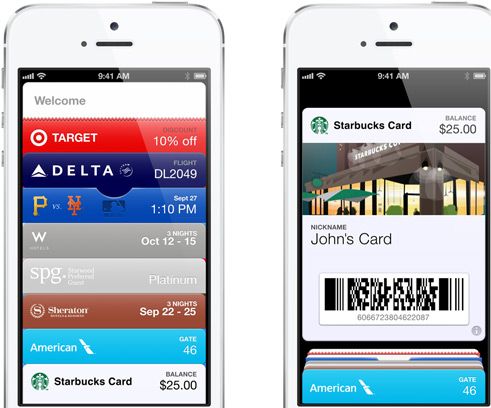
Apple’s new Passbook app and system is really a nascent technology, but it’s here on your iPhone, so why not figure out how to use it, right? Below are five tips and tricks to help you get the most out of this futuristic, if not-yet-mature technology from our favorite technology company.

Add Unsupported Passes, Cards, And Tickets To Passbook [iOS Tips]

By

PassSource Passbook

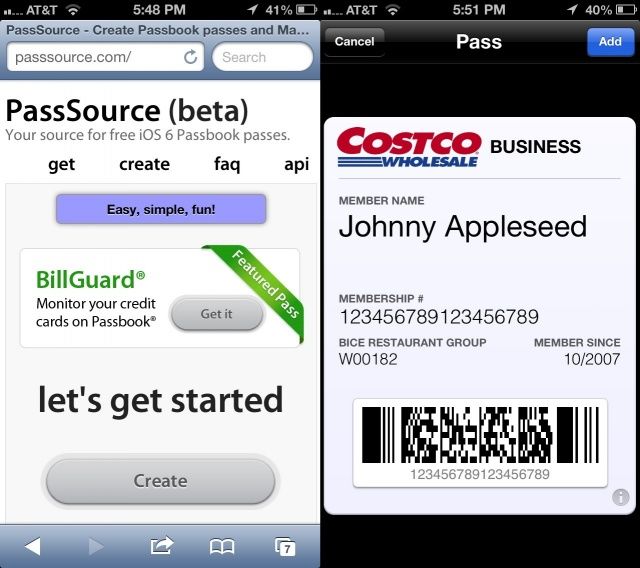
Yeah, we get it: Passbook is awesome. It’s also woefully under-populated with only a handful or three of official apps.

But look, Passbook files aren’t even that special. They’re just specially formatted computer files with a .pkpass extension. What’s neat about that is that anyone can create one of these files, and then send them to you in email, or have you download them from the web. That way, you can take advantage of Passbook system without being limited to the official Passbook apps on your iPhone.

Here’s how.

Delete Passbook Items With Aplomb On Your iPhone [iOS Tips]

By

Passbook Delete

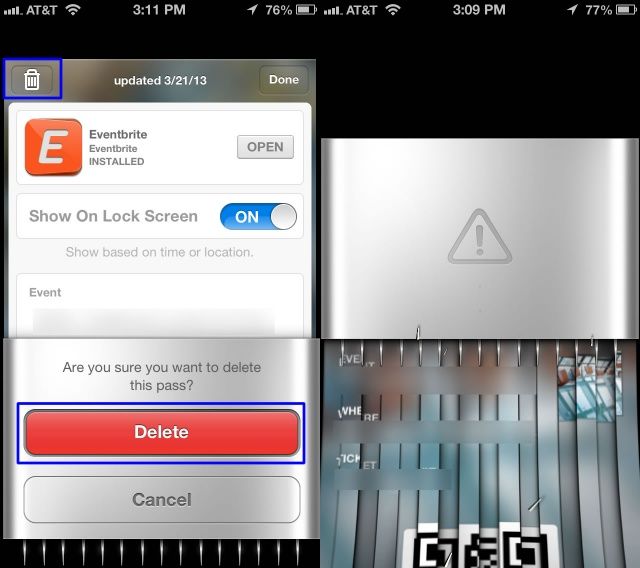
No, Aplomb is not a new third-party app to help you manage your Passbook items, cars, or passes. But if any developers plan to make one, please let me know.

Really, once a card, coupon, or time-based ticket is expired in Passbook, you’ll want to delete it to prevent Passbook clutter, right? Well, it’s super easy to do so, and here’s how.

Manually Refresh Items And Passes In Passbook [iOS Tips]

By

Passbook Refresh

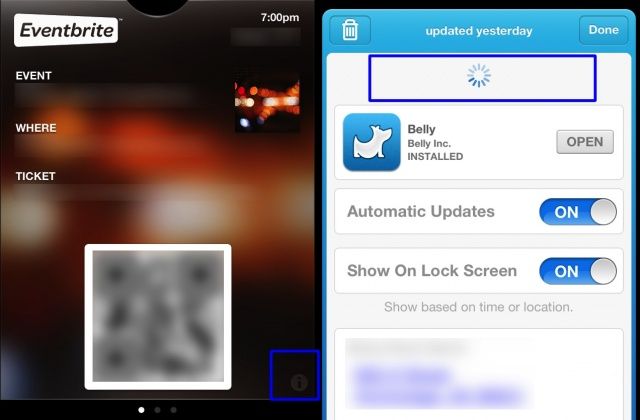
Passbook is cool, and one of the neat features of the service is the automatic refresh of information on your passes, letting you keep track of stuff like your Starbuck’s balance, or airline miles, or other kinds of cool stuff.

Unfortunately, it doesn’t always work automatically. This can be an issue if they include balances or loyalty points, right? Luckily you can refresh each of the passes in Passbook manually.

Here’s how to do that.

Troubleshoot Getting Passes On The Lock Screen Using Passbook [iOS Tips]

By

Passbook Lock Screen

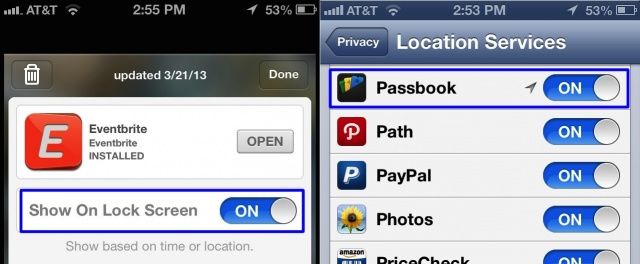
Apple’s Passbook app and system lets you use passes that contain time-sensitive or location-sensitive information. For example, you might have a pass that triggers when you enter a specific store, like Target. Or, you might have airplane tickets going through Passbook, if you use that specific airline’s iOS app.

The ideal here is that the passes show up on your lock screen, so you don’t have to launch an app. This doesn’t always work, however. What can you do when it doesn’t? I’m glad you asked.

Get Apps For Passbook And Carry Less Stuff In Your Wallet [iOS Tips]

By

PassbookApps

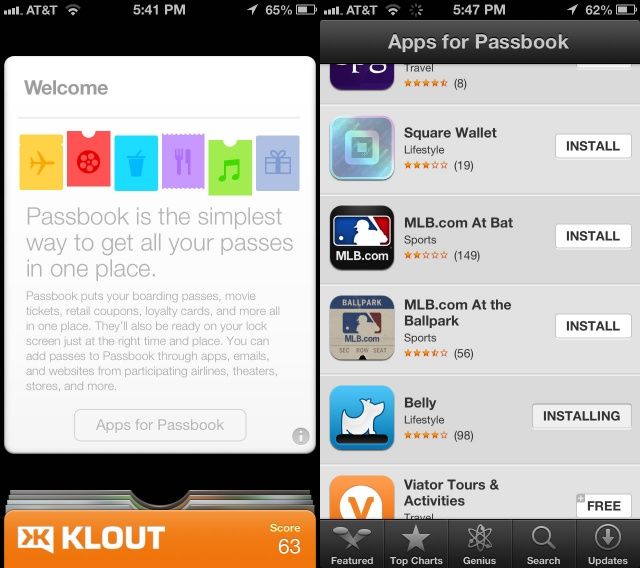
Passbook may be one of the most underrated technologies on the iPhone. In theory, it lets you collect your boarding passes, movie tickets, retail coupons, and loyalty cards all in one place. In reality, it isn’t supported by too many retailers, many of whom already have their own system of handling these types of passes.

In addition, many iPhone users don’t know how to get apps that support Passbook, as the only way to find a special list of apps that are supported by the service is to open the Passbook app itself. If you’re one of those users, here’s how to get some great apps on your iPhone and carry a few less bits of paper and plastic ephemera around with you.

Five Ways To Really Master Mobile Safari On Your iPhone And iPad [Feature]

By

features_safari

Somehow, Apple managed to cram in a ton of web browsing functionality into a teeny, tiny package called Safari. To distinguish the mobile web browser from the one of the same name on OS X, we’ll call it Mobile Safari and be done with it.

Regardless of the name, the mobile version of Safari is chock full of features both subtle and hidden. Here are five great tips and tricks to help you master Mobile Safari on your own iOS device, whether that be an iPhone, iPad, or iPod touch.

Skip The Domain Suffix And Prefix To Get To Websites Faster Via Mobile Safari [iOS Tips]

By

Web Prefix Suffix

Want to get to websites faster using mobile Safari? No, I’m not talking about upgrading your internet or data plan to LTE or something, though that will obviously help. No, I’m more interested in showing you how to get to most major websites with just a bit less typing involved.

It’s pretty simple and straightforward, to be honest. Here’s how.

Use The Gmail App To Share Links From Mobile Safari [iOS Tips]

By

share via Gmail app

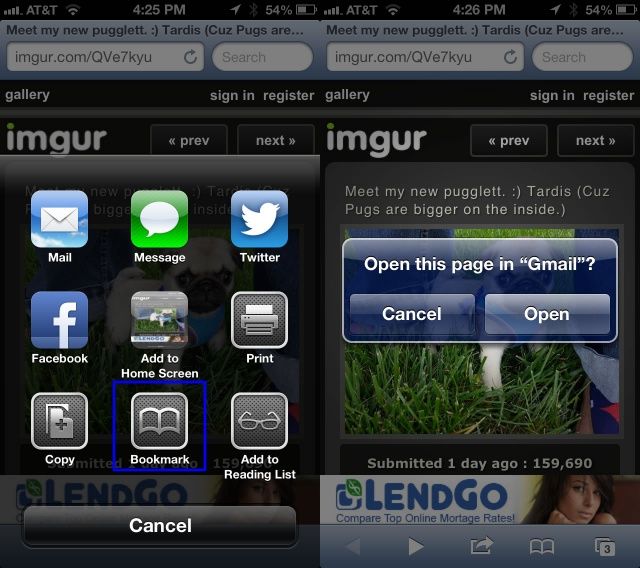
Mobile Safari has a great sharing feature, letting you send a web page to anyone via iMessage, Twitter, Facebook, or email. The bummer thing is, though, that if you hit Mail, your iPhone will wrest control from you and make you send via the built-in iOS Mail App.

But you don’t want to use Mail. You prefer the Gmail app, right? Of course you do. How the heck, then, can you send that adorable picture of a cute pug puppy via email using the Gmail app? With a secret bookmark, of course.

Here’s how.

Turn Off AutoFill On Your iPhone Or iPad For Better Privacy [iOS Tips]

By

AutoFill

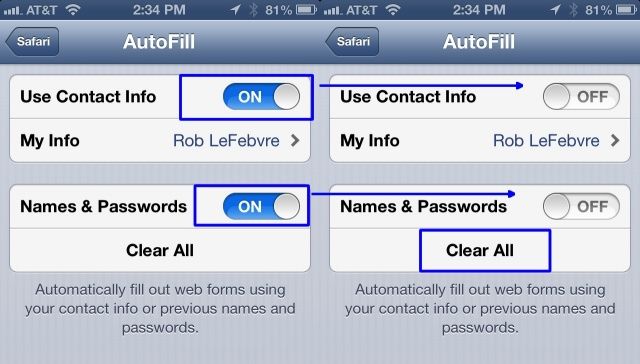
One of the more useful features of modern browsing, the AutoFill function started on the desktop, then made its way to the iPhone and iPad a while ago. It lets your iOS device hold all the form data, populating the oft-repeated fields with your personal info like your name and address. That way, you don’t have to type it all in all the time, which is brilliant on a mobile device with a small touch-keyboard.

When you share a device like an iPAd, like I do with my kids at home, you may not want to share this personal data. Until a proper multi-user experience comes to iOS, the best way to get around this is to clear out your personal info, and then turn off AutoFill. Here’s how.

Get Mobile Safari To Open Links In The Background [iOS Tips]

By

Mobile Safari Background Links

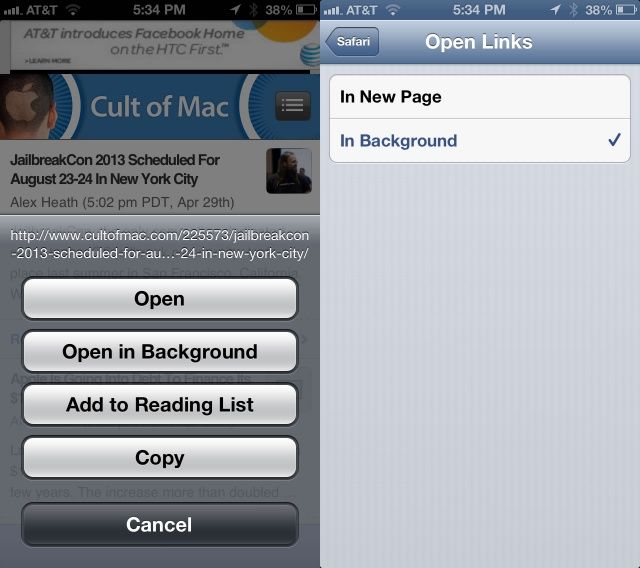
One of the limitations of the iPhone and iPod touch version of Safari has always been a lack of tabbed browsing. Granted, there’s only so much space on the smaller mobile screen, but all the same – tabbed browsing is great.

So is being able to open tabs in the background, so that you can continue reading Cult oF Mac posts, but still save an interesting link in another tab, just like you can on the Mac with a Command-click.

When you tap and hold on any link on a web page, Safari’s default behavior on the iPhone is to ask if you want to open the link, open it in a new page, Add to Reading List, or Copy it. Choosing Open in New Page will do just that, but in the foreground, taking you away from your current web page.

Luckily, with a simple Settings tweak, you can change this default behavior.

Clear Your Browsing History And Web Data From Mobile Safari [iOS Tips]

By

Safari Data

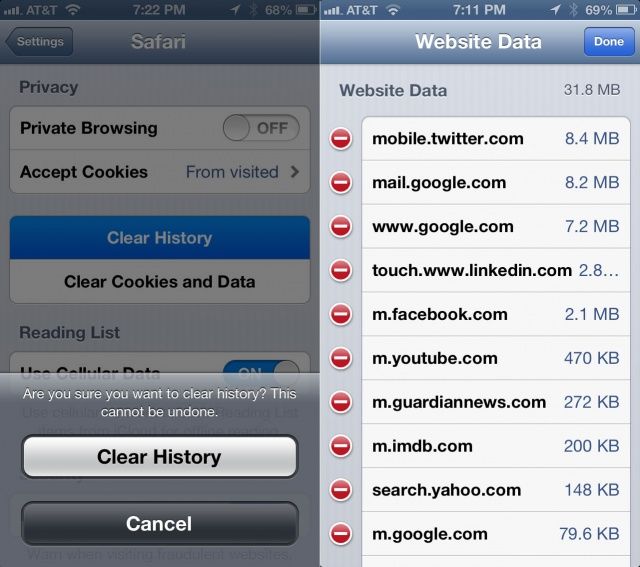
With all the sites we visit on a daily basis on our iPhones and iPads, we are capturing and storing where we visit in the background of every web page we see. You may want to clear your browsing history or other stored web data from your iPhone from time to time, if you’re of a security or privacy turn of mind.

iOS makes it fairly simple to do so; here’s how.

Five Great Ways To Use Accessibility Features For Your Own Benefit, Even If You Don’t Have A Disability [Feature]

By

howitworks

Accessibility is a priority to the designers and engineers at Apple. They have built some amazing software right into each operating system, from OS X to iOS, all for no etra charge and no need to add extra programs on to be able to use the products if you have a visual, hearing, motor, or cognitive disability.

But if you don’t have a disability (yet–we’re all just a lucky step or two away), you can take advantage of these systems for yourself or other family members.

Here are five different ways to do just that.

Use Guided Access And Safely Hand Your iPhone or iPad Over To Anyone [iOS Tips]

By

Guided Access

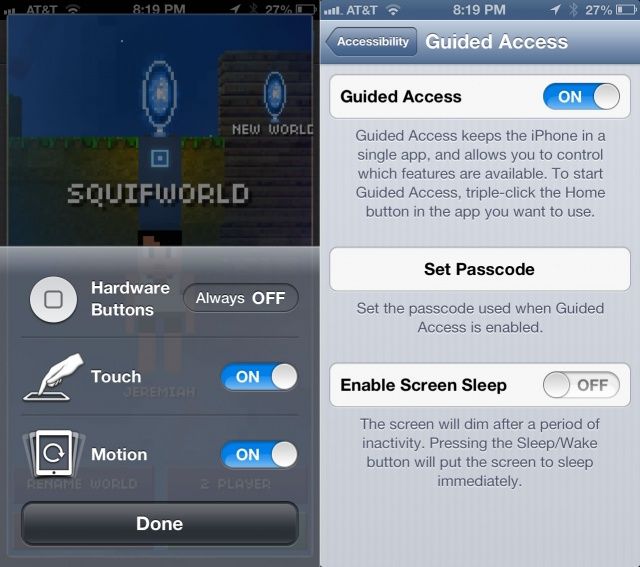
We’ve all done it. Passed our beloved iPhone handset to a young child or clumsy friend, in hopes that they’ll play a game for a bit and let the grownups continue drinking talking. Then the youngster in question ends up hitting the Home button, dropping into that secret stash of photos, or looking at our web history. Or even worse, playing some splatter-horror game that you forgot was even on the dang thing.

Guided Access is part of iOS 6’s accessibility options, but it can be useful for folks without the need for that specific adaptation. Here’s how to enable it for use.

Use Your iPad or iPhone Without Hardware Buttons Via Assisted Touch [iOS Tips]

By

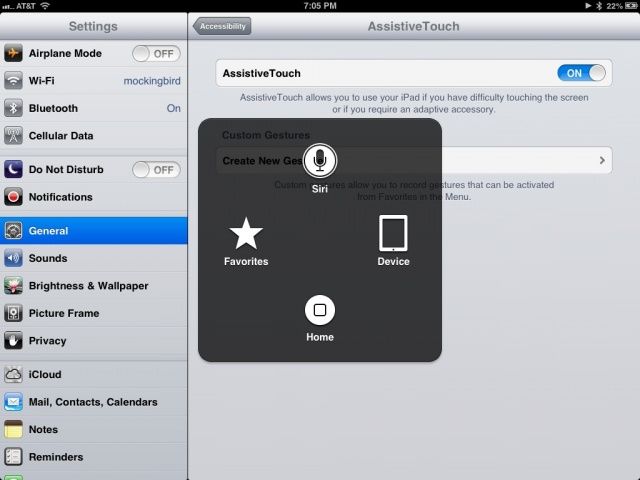
Assisted Touch

Assisted Touch is an accessibility feature for iOS, usable on any iPhone, iPad, and iPod touch, that recreates the hardware buttons and other gestures that someone with a motor disability might need to use. It also lets other folks use the Home, volume, screen lock, wake/sleep, and multitasking bar without using any of the hardware buttons themselves.

This can be pretty handy if you have the device in a case or holder of some type where accessing the buttons is tricky or impossible, like a home-made picture frame, for example.

Here’s how to activate this useful feature.

Have Your iPhone Highlight And Speak Selected Text Out Loud [iOS Tips]

By

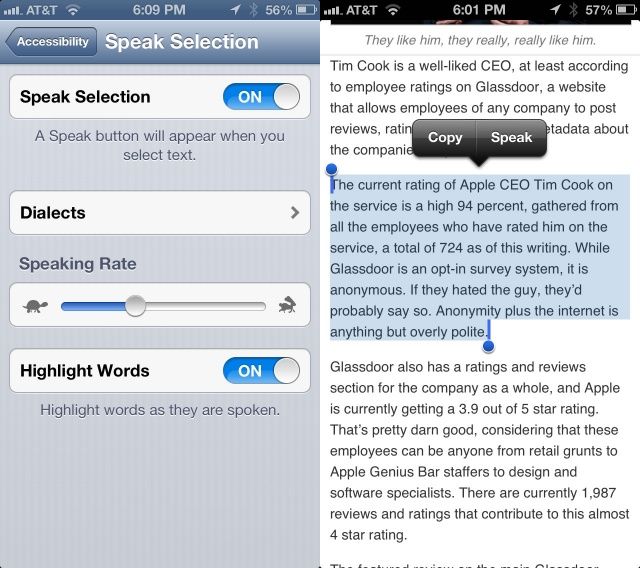
Speak Selection

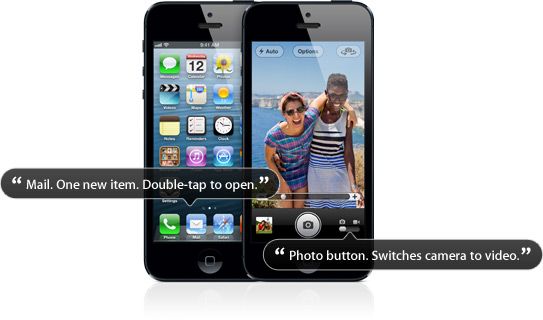
Another accessibility option like VoiceOver and Zoom, originally created for those with visual impairments, is Speak Selection. There are times when you may not want to turn the entire VoiceOver system on, having Siri read every button and icon on the screen, but would prefer to just have your iOS device speak text you’ve highlighted on the screen.

As an added bonus for those with print or learning disabilities, you can have your iPhone or iPad highlight the words as it speaks them for true bi-modal output (seeing and hearing the words at the same time).

Here’s how to make this happen.

Use Zoom And Large Text Options To Help See Stuff On The Screen [iOS Tips]

By

Zoom

Another accessibility option built right into iOS is Zoom. Like VoiceOver, it was originally created to help those with a visual impairment access their iPhone, iPad, or iPod touch. Zoom is made for those who need things magnified on the screen, and it can be pretty darn helpful for those of us who may not have a specific visual disability. If your iPhone is zoomed in on lock screen and you’re unsure how to fix it, there are simple ways to adjust this setting.

Some apps zoom in within the app itself, like Maps, Safari, or Google Earth. That doesn’t help if you need the buttons and iOS controls magnified, or the text in apps like Mail, right?

Here’s how to set things up with Zoom.

Enable VoiceOver And Have Your iPhone Or iPad Read Twitter To You [iOS Tips]

By

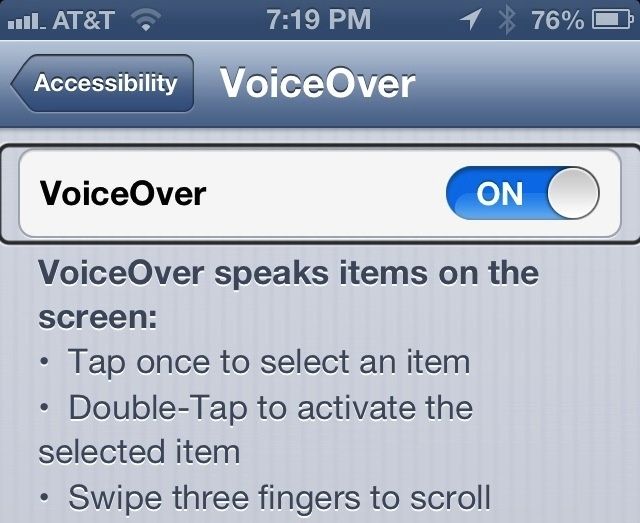
VoiceOver controls in iOS

Screenshot: Cult of Mac

VoiceOver is the name of the amazing text-to-speech feature in iOS and Mac OS X that allows those with visual impairments to use their Apple devices right out of the box, without needing help from a sighted person. On the iPhone or iPad, it empowers those with a visual disability to become more independent and function on a day to day basis in a world that isn’t really set up for them.

As an individual without a visual impairment (aside from a slight nearsightedness), I use VoiceOver to have my iPhone read to me when I’m in the car but need to catch up on email or want to hear what folks are doing on Twitter. Here’s how to set that up.

Five Awesome Ways To Master Mailbox For iPhone [Feature]

By

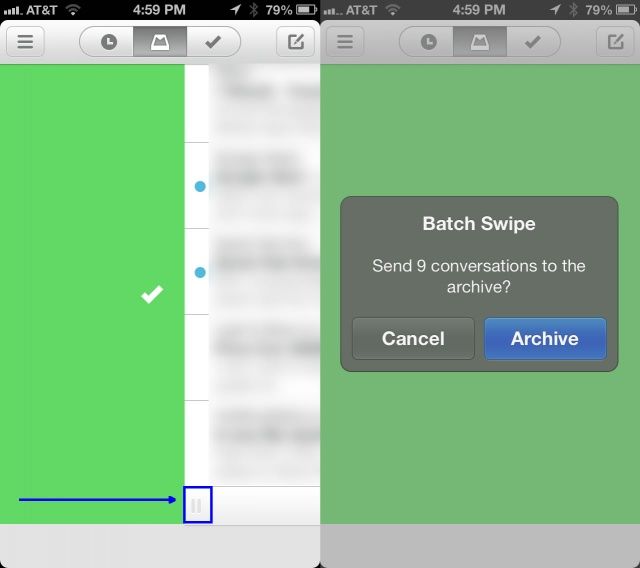
Mailbox All Swipe

https://vimeo.com/54553882

If you’re one of the lucky ones to have signed up for Mailbox, Orchestra’s amazing new email client for the iPhone, you know how great it is. It allows you to re-think how you deal with email on a daily basis. Mail messages can be archived, set to remind you at a later time or day, or placed in lists you create yourself all with a swipe of your thumb or finger. Mailbox turns email into much less of a chore while on the go.

Here are five great tips and tricks to get you mastering the Mailbox app for iPhone.

How Does Mailbox For iPhone Work With The Gmail Web Client? [iOS Tips]

By

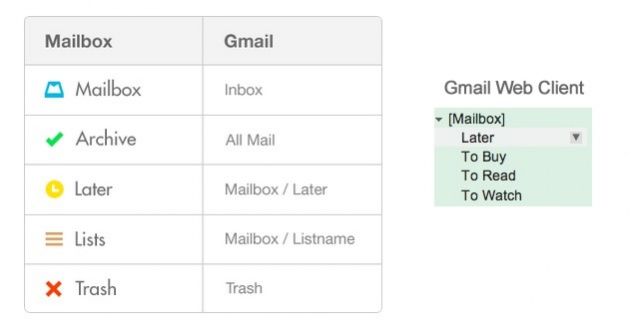
gmail mailbox integration

One of the advantages of Mailbox only working with Gmail is that a lot of the conventions you’re already used to are present in this fantastic on-the-go email app for your iPhone. If you spend a lot of time on your iPhone using Mailbox, you might have wondered what it does with your mail when you archive, set to later, or add to a list.

Well, it’s really quite simple.

Star And Mark Mail Unread Using Mailbox for iPhone [iOS Tips]

By

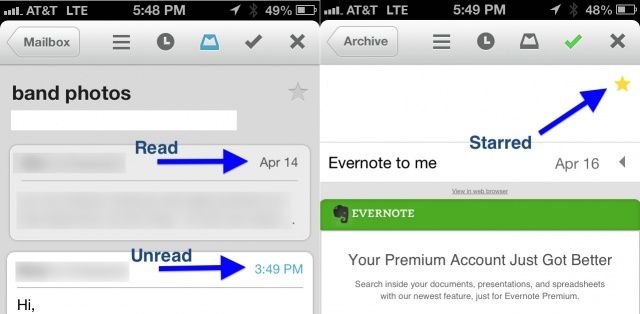
Mailbox Unread Star

Mailbox for iPhone lets you send each email to a list, set it to snooze for a certain number of hours or days, or even just archive the email if you want.

In addition, you can mark emails as read or unread, and star them, just like in Gmail itself. THis gives you yet another way to sort and classify emails on the go, which also transfers easily to the web version of Gmail, as well.