Mobile menu toggle

iOS 11 launch - page 2

How Apple made the Photos app even more private in iOS 11
By

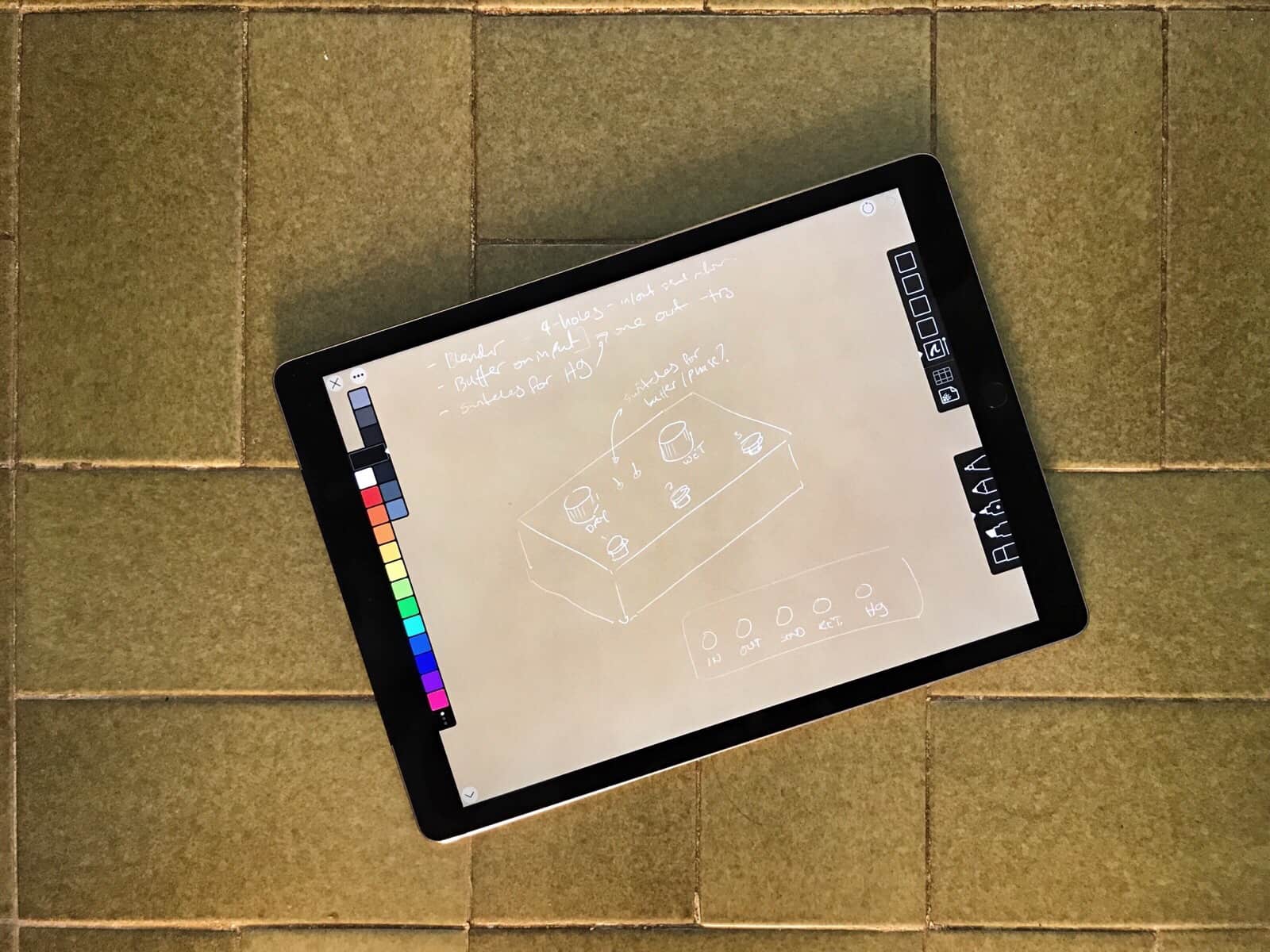
Private photos Linea
App’s like Linea don’t need to read your whole photo library just to save a sketch.
Photo: Charlie Sorrel/Cult of Mac
In iOS 11, developers have a new way to access your Photos library: write-only access. Instead of granting permission for an app to read and write to your Photos library, just so it can save the odd image, an app can now only be allowed to write — or save — images, without getting to poke around inside your library to see what else is there. It’s much more private,

How to share documents from the Files app in iOS 11

By

Share documents
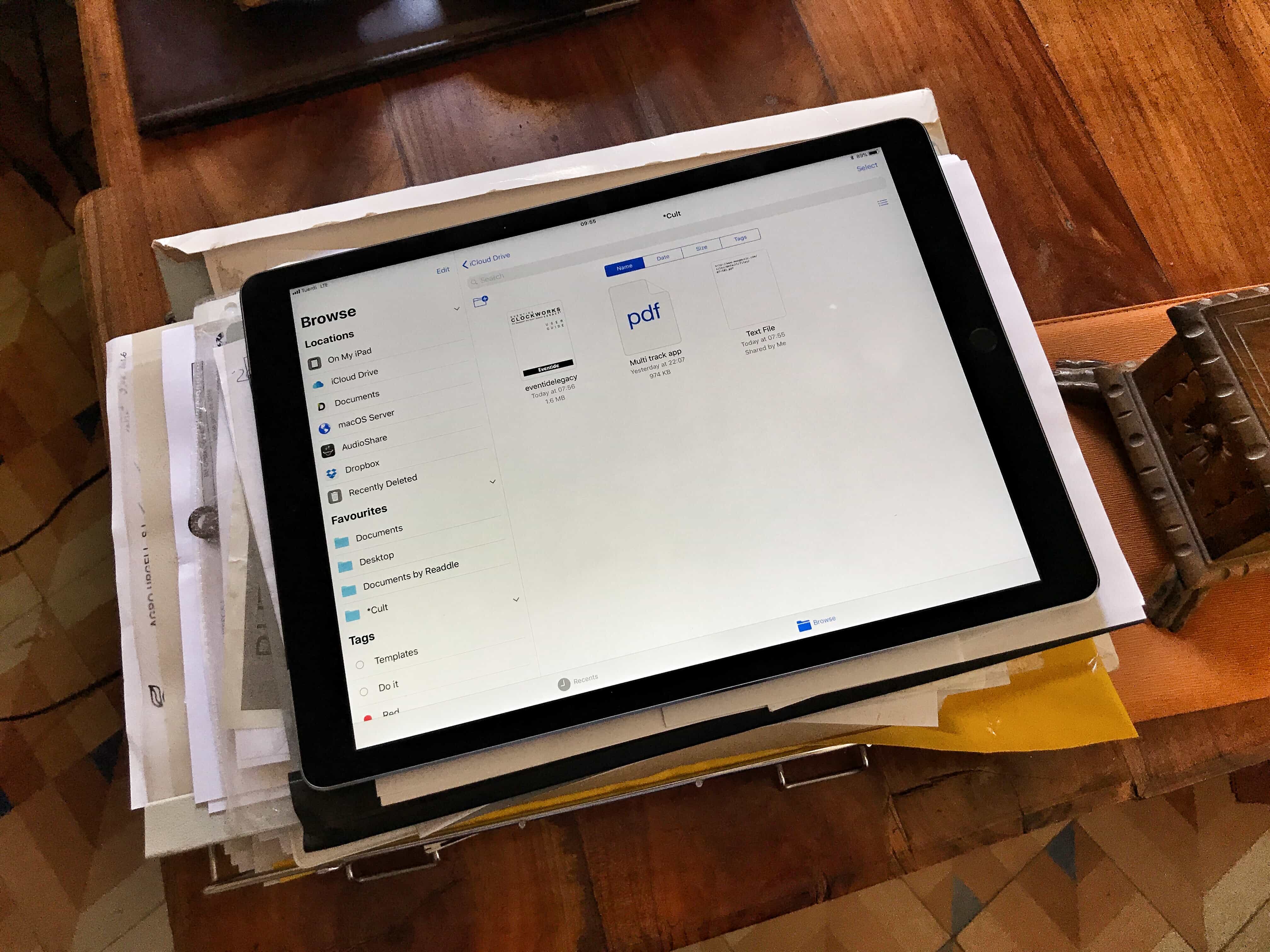
Files is awesome, but it could be better.
Photo: Charlie Sorrel/Cult of Mac
We’ve been able to share and collaborate on iWork documents for a while, but in iOS 11 (and macOS High Sierra) you’ll be able to collaborate on any document, just by sharing it through iCloud Drive. To begin with, this will only work with Apple’s own apps, but third-party developers may add real-time collaboration features to their own apps. Here’s how to get started.

How to share your iCloud storage plan with family members

By

iCloud storage family plans
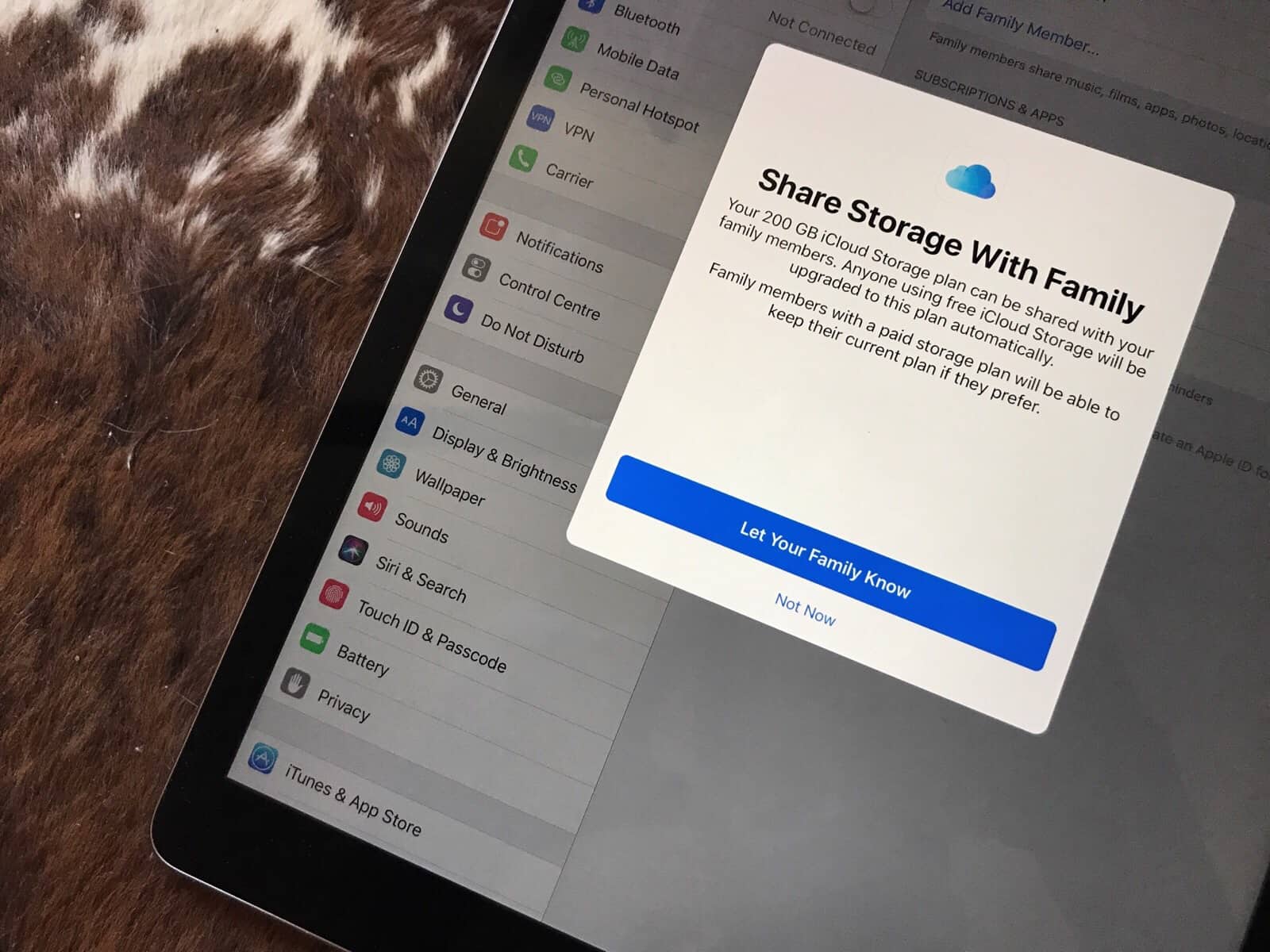
Sharing a big storage plan can save money, and make things simpler.
Photo: Charlie Sorrel/Cult of Mac
In iOS 11, you can share your iCloud storage with family members. This is a big deal, thanks to the new supersize iCloud plans, which make it a lot cheaper to buy a single 2TB plan and share it among all your family members.

With all that storage available, you can keep a huge iCloud Photo Library, and take full advantage of the new Files app in iOS 11. Never again will you run out of storage on your iPhone, iPad or the MacBook you foolishly specced at just 128GB of storage space. Here’s how to share iCloud storage with your family members.

iOS 11 automatically ignores flaky Wi-Fi connections

By

Flaky Wi-fi
You should already have this switched off.
Photo: Cult of Mac

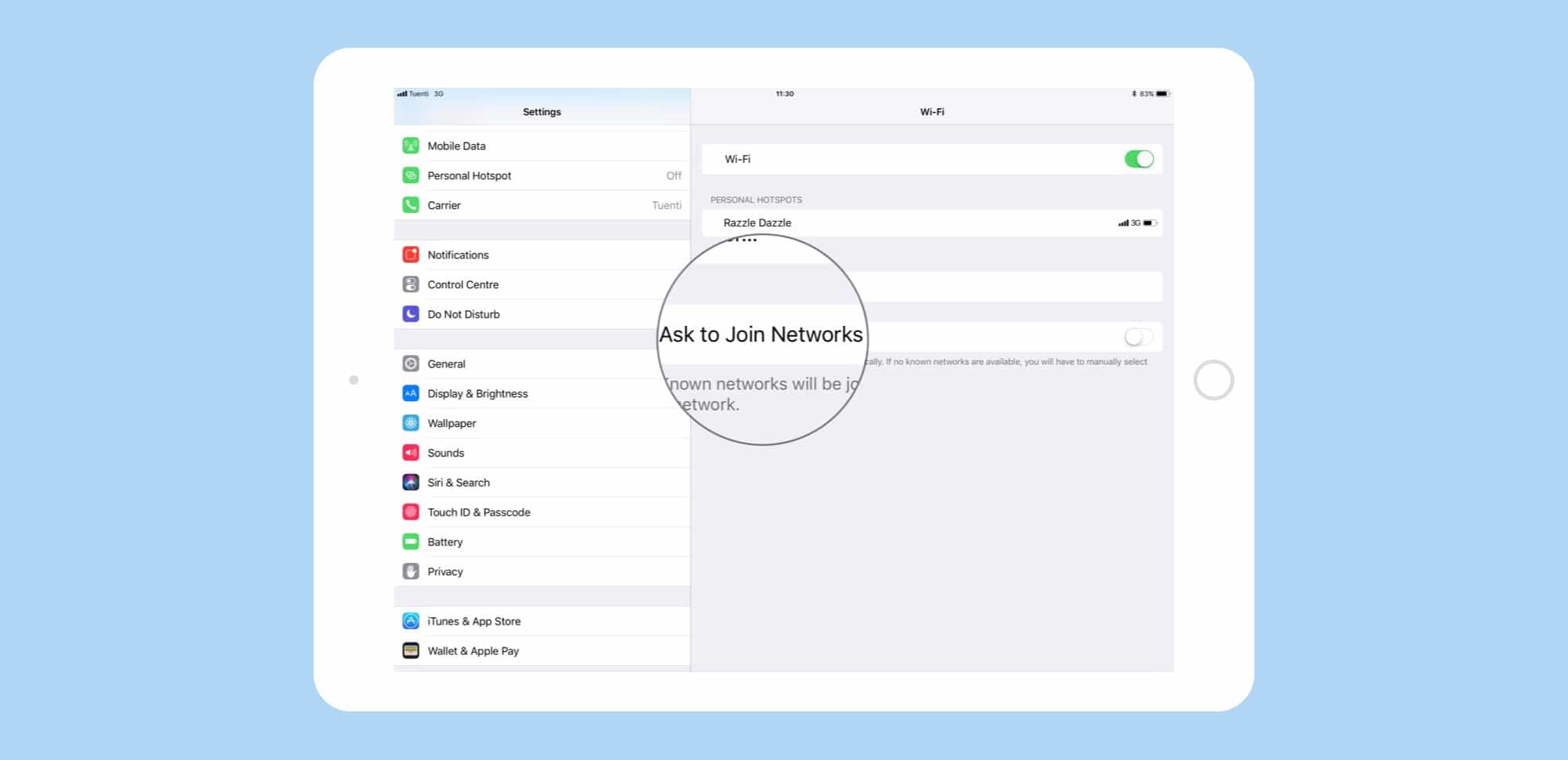
With iOS 11, your iPhone gets smart enough to realize when a Wi-Fi connection is flaky, and gives up trying to join it. This might be most useful if you’re one of those people who keeps your Ask Join Networks setting activated, but it should help anyone who uses their iPhone in multiple places — i.e. everyone ever.

Quick tip: Using the awesome new iOS 11 Timer widget

By

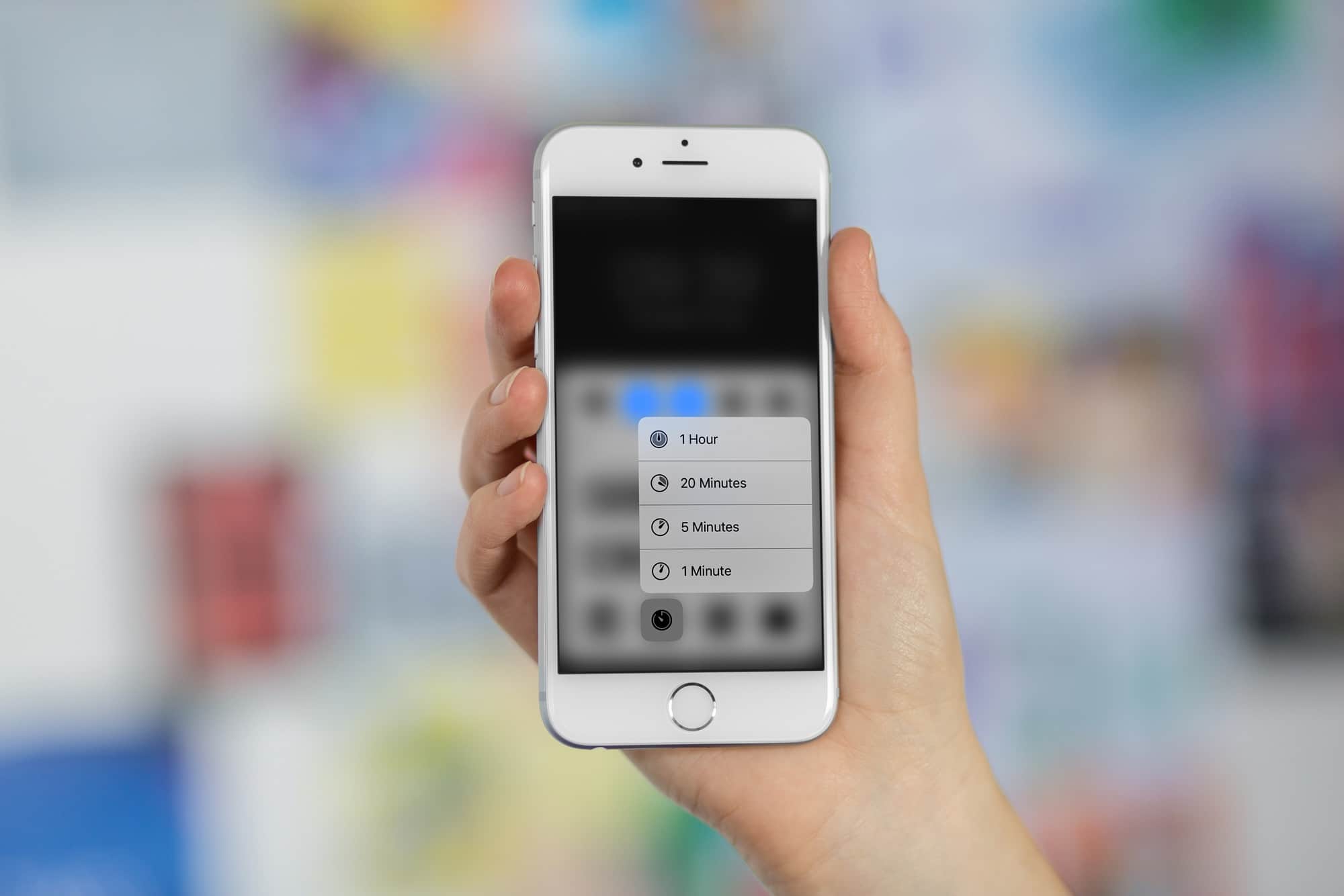
timer iOS 11
The old timer is lame compared to the new one in iOS 11.
Photo: Cult of Mac

betaIf you’re using iOS 10 in an iPhone with 3D Touch, you can press on the timer widget in Control Center and pick from one of the preset timer shortcuts. In iOS 11, on the other hand, you get a full-featured, interactive timer widget that you can adjust, pause, and resume, all without ever launching the actual clock app. Let’s see it in action.

iOS 11 Dock makes Handoff worth using again

By

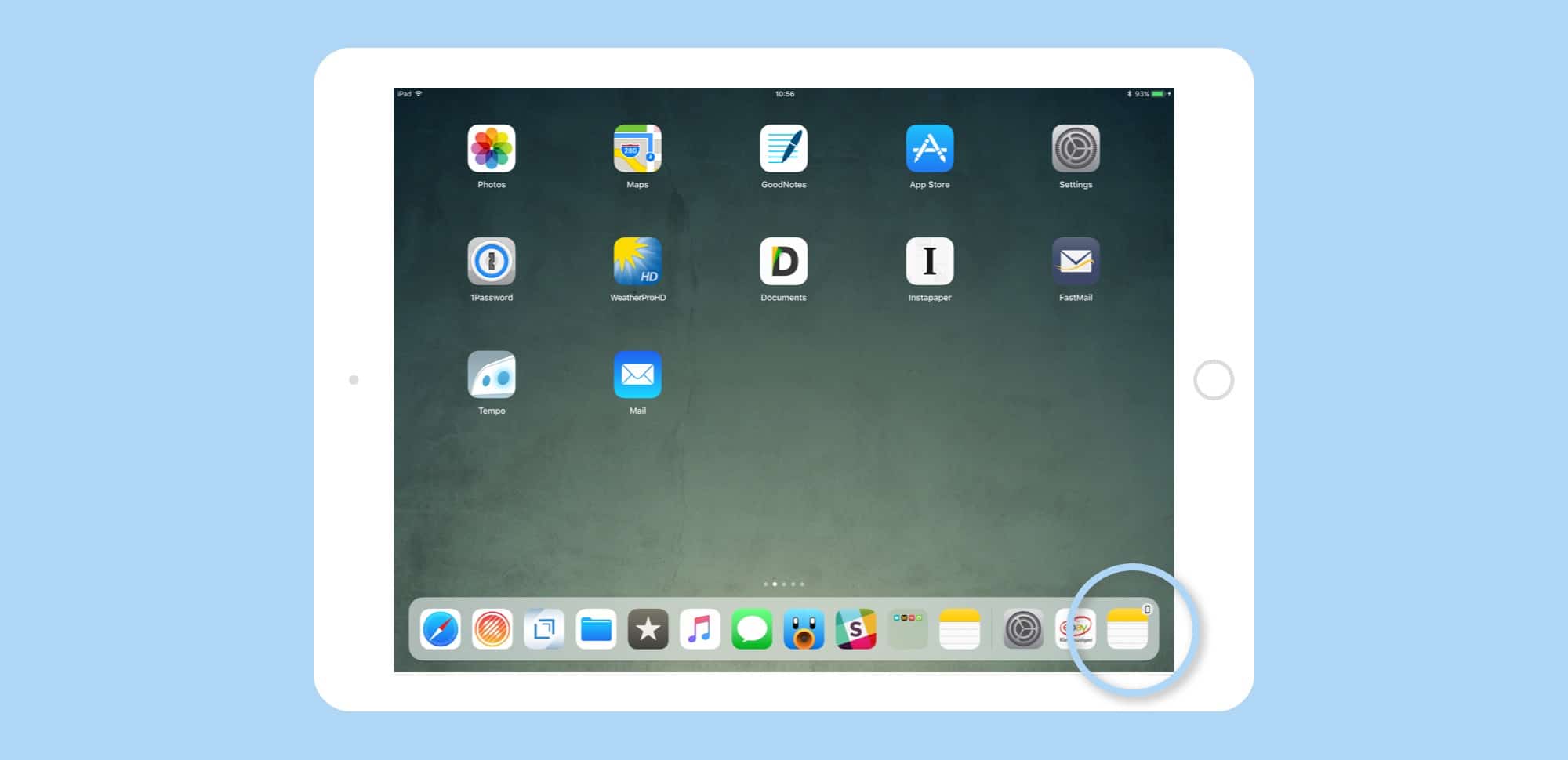
iOS 11 handoff
Handoff apps appear in the Dock's rightmost spot.
Photo: Cult of Mac

Handoff is one of those iOS/Mac features that seems great, but is limited in use. However, a simple tweak has made Handoff waaaay better in iOS 11. Now, instead of having a tiny app icon appear in the corner of your lock screen, Handoff apps show up right there in the new iOS 11 Dock.

This simple change has gotten me using Handoff again, instead of ignoring it like I have for the past however many years.

How to use iOS 11’s new Automatic Setup

By

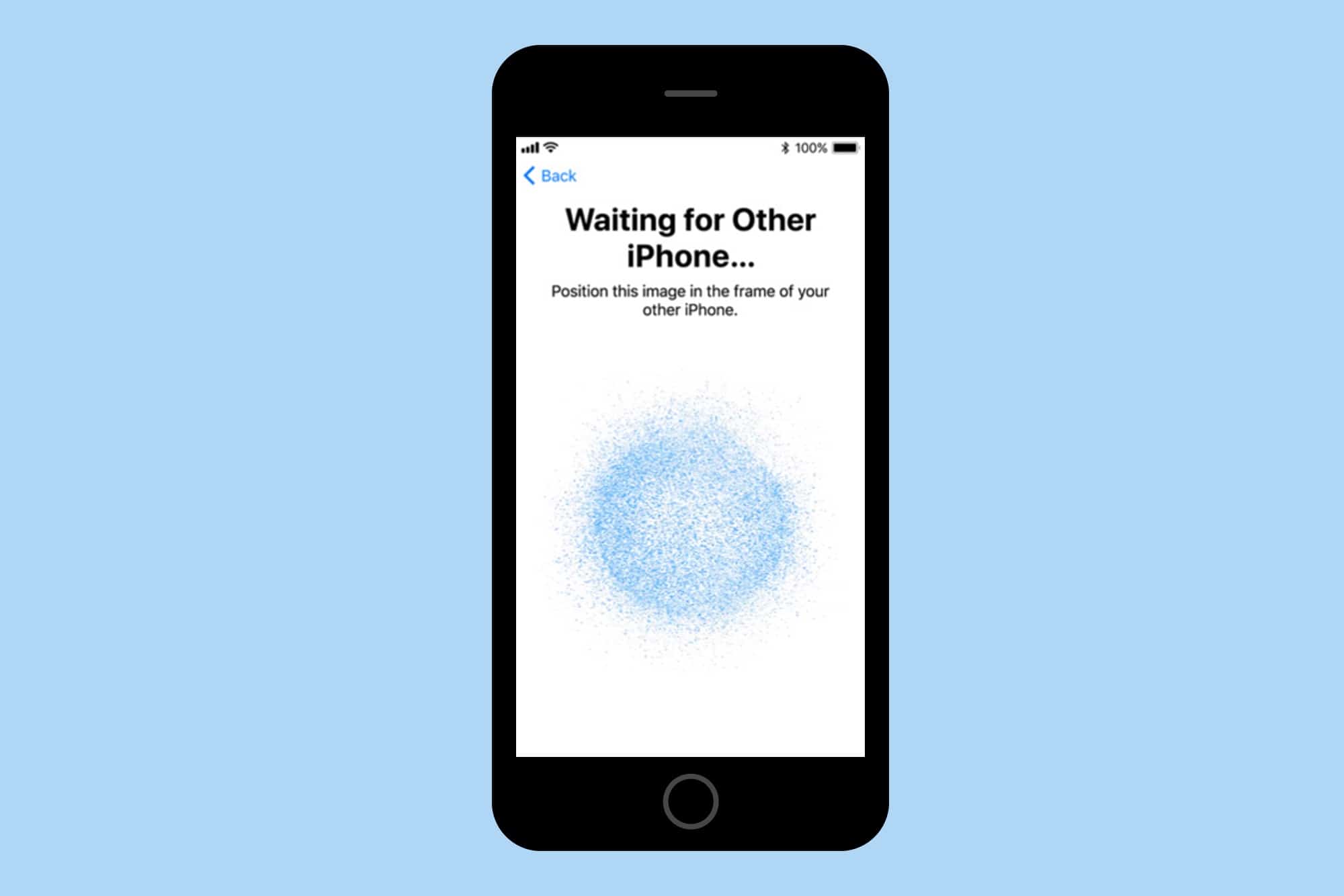
automatic setup
In iOS 11, you won't need to remember anything when you get a new iPhone.
Screenshot: Cult of Mac

Setting up a new iOS device is pretty easy, but it’s about to get even easier thanks to iOS 11’s new Automatic Setup feature, which lets you hold your old device near your new one to transfer across essential info.

All you need to set up a new iOS device are your iCloud login details, and the password for your WiFi network. But even that can be a bit of a pain, especially if you use a super-secure passwords that you store in something like 1Password. In order to get to your passwords, you need to install 1Password. But in order to install 1Password, you need to input your iCloud ID and your WiFi login. Automatic Setup will put an end to that.

How to scan and mark up paper with Notes app in iOS 11

By

scan notes
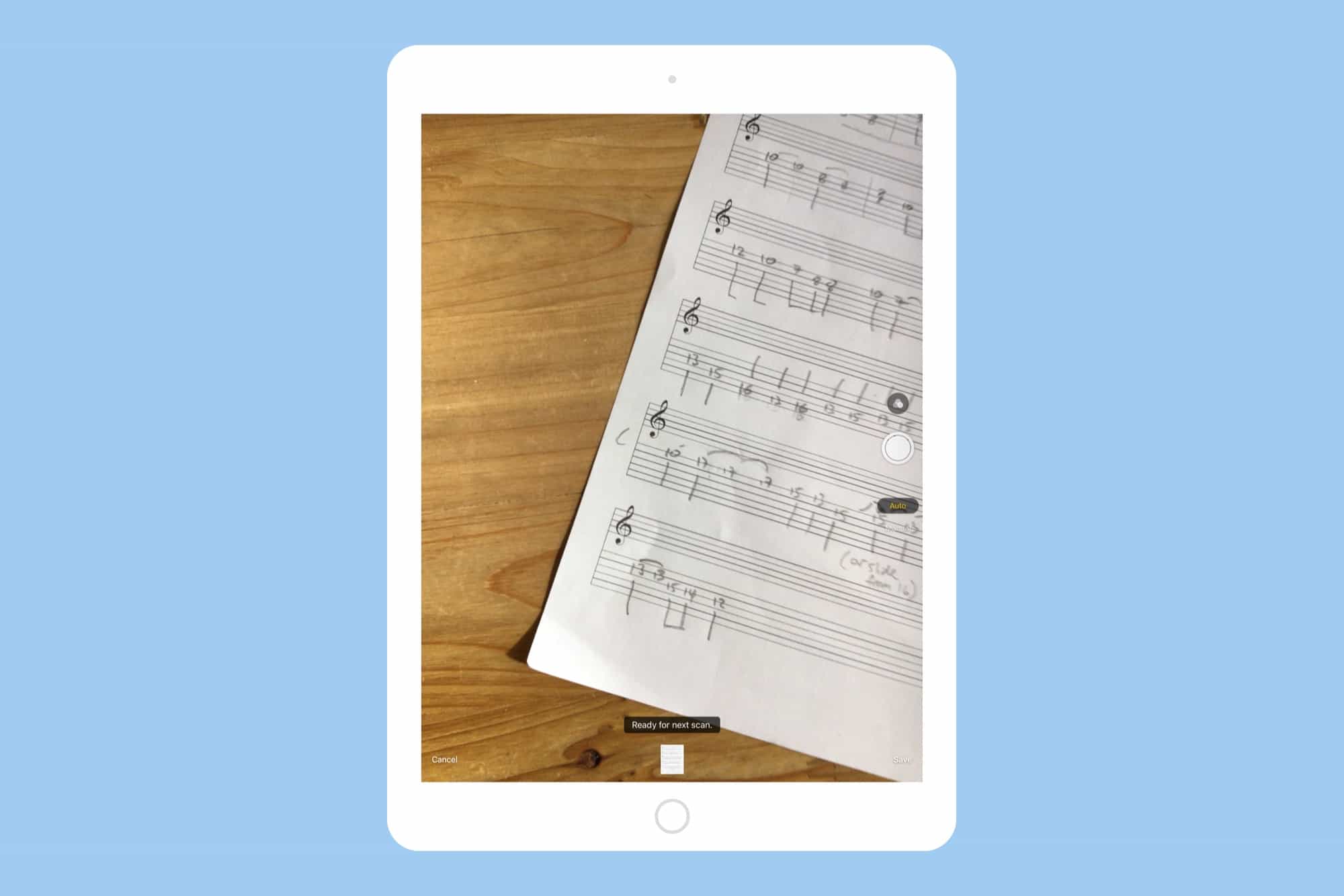
Scanning paper documents is easy in the iOS 11 Notes app.
Photo: Cult of Mac

In iOS 11, the Notes app really wants to become the go-to place for you to dump all your ideas, all your snippets, and all your, uh, PDF scans. New in iOS 11 is the ability to scan a sheet of paper right there in the Notes app, then scrawl on it using the new PDF markup features built into Apple’s new mobile OS>

Potentially, the Notes app in iOS 11 will be able to replace apps like Evernote (aka “Everbloat”), as well as purpose-built scanning apps like Scanner Pro. Let’s see how to make a scan, and if the Notes app does enough to be your sole go-to notes destination.