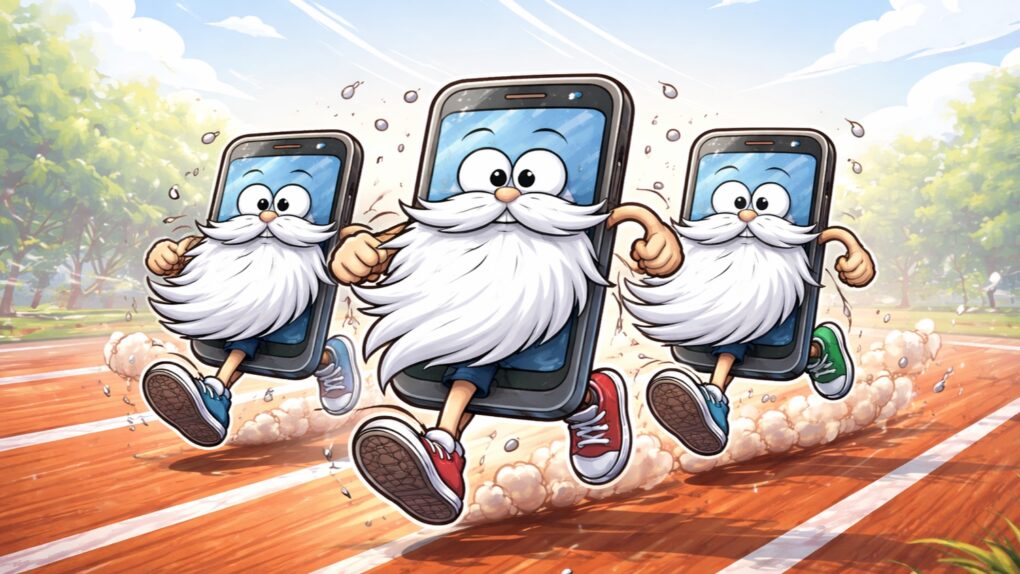
Stop me if this sounds familiar: Your old iPhone just doesn’t have the same pep it used to and you’re desperate to speed it up. Ignore the nasty iPhone conspiracy theory — the real reason for the slowdown is rooted in battery chemistry, diminishing amounts of available memory, and the evolving demands of modern iOS apps.
Fortunately, you can take steps to improve the speed of your older iPhone. Here’s what to do.
How to speed up an old iPhone
Let’s get the conspiracy theory out of the way. Apple does not slow down iPhones to force you to buy a new one. Apple makes loads of money off older iPhones, so it does not deliberately slow down older ones to force us to upgrade. A quarter of Apple’s revenue comes from services ($416 billion last year).
That’s a massive amount of money pouring in from App Store purchases, iCloud, Apple Music subscriptions and the like. The number is so high because Apple keeps iPhones in users’ hands as long as possible. Estimates vary quite a bit, but there are between 225 million and 400 million iPhones worldwide that are more than 5 years old in active use today.
Also, if Apple actually instructed its developers to make sure older models ran poorly, the news would leak out and make headlines around the world. That hasn’t happened … because the company doesn’t do this.
But older iPhones do inevitably slow down. Here’s what’s going on. And what you can do to prevent it.
Table of contents: How to speed up an old iPhone
- Fix battery problems to increase iPhone performance
- Clear out storage to speed up your iPhone
- Stop apps from updating in the background and slowing your iPhone
- Accept that newer software versions are more demanding
1. Fix battery problems to increase iPhone performance
All lithium-ion batteries wear out, including the one inside every iPhone. Over time, the battery becomes less capable of handling sudden spikes in power demand, particularly during intensive tasks like gaming or video processing.
If a spike happens that the battery can’t handle, the iPhone will restart. And that will automatically turn on Peak Performance Capability, with a warning that “performance management has been applied.”
That’s a complicated way to say that iOS will slow down your iPhone to prevent it from crashing again because of a worn-out battery. You can turn off this feature, but your handset will occasionally reboot itself.
To stop this automatic, battery-related throttling, go to Settings > Battery > Battery Health and look for Peak Performance Capability. Within that section, you should see an option labeled Disable. (If Peak Performance Capability isn’t listed, that’s because your battery is still too new to have crashed during a power spike, so Apple does not throttle its performance.)
All that said, the best solution for a worn-out battery that’s slowing down your iPhone is a new battery. Apple will handle this, but any decent phone repair shop can do the same job (and probably for less money).
2. Clear out storage to speed up your iPhone
The longer you use your iPhone, the more its storage fills up. What seemed like loads of capacity years ago is now likely running low because your phone’s jam-packed with photos, videos, etc. As a device nears its storage capacity, the operating system has less room for temporary files and system operations. That can make an overstuffed iPhone feel sluggish.
To get a bit technical, when you start maxing out your iPhone’s storage, iOS must work harder to find and organize free blocks of memory. The result: slower read and write speeds, which makes everything from saving a photo to loading an app take longer.
The solution? Stop storing every single picture you’ve ever taken in your entire life on your iPhone. Next time you have some time to kill, open the Photos app, scroll up to near the top of the list, and start looking at years-old images.
You’ll be reminded of that great party in 2018 — and also that you don’t need all 37 pictures you took that night. Delete the 34 bad ones. Carry on, and you’ll free up storage, and that will speed up your iPhone. (Pro tip: You can use a tool like MacPaw’s CleanMy®Phone to speed up the process.)
A side benefit: You’ll end up with a list of pictures you actually enjoy looking at.
Alternatively, you can move all the images now on your iPhone onto an external drive. It’s quick and easy.
With more empty storage space to work with, your iPhone will run faster.
3. Stop apps from updating in the background and slowing your iPhone
People often tend to add new applications to iPhones without getting rid of old ones. Those old apps take up storage space (which you now know slows down your iPhone). But they also can hurt your handset’s performance even more directly.
Lots of apps want to update in the background. Background app refresh isn’t something underhanded. Usually, they update content, so the software is ready to go as soon as you open it.
It’s a great system for apps you use every day. But those games you haven’t played in months are also doing it. And frequent updates for software you almost never use put a completely unnecessary strain on your iPhone’s performance.
If you want to speed up your iPhone, you should address this situation. One solution is easy and gets you maximum benefit: Delete all the apps you haven’t opened in months. You can easily get them back if you change your mind.
Alternatively, go to Settings > General > Background App Refresh. There you’ll find a list of all the apps that update their content on the down low. You can toggle off any that you don’t use very often.
A bonus: Background App Refresh also drains your iPhone battery. The more you prevent it, the longer your aging battery will last.
Accept that newer software versions are more demanding
Finally, a reality check. Newer versions of third-party apps can run more slowly than previous versions. Over the years, apps almost inevitably grow more complex as developers add new features. This means they require more processing power and RAM than earlier versions.
This won’t speed up your iPhone — in fact, it will do the opposite. You just need to comes to terms with the fact that you can run the exact same apps you did several years ago, and they’ll still perform more slowly, because they aren’t actually the same software. They’ve been rewritten for devices with faster processors and more RAM.
Let’s look at an example. The iPhone 11 from 2019 comes with 4GB of RAM. Starting in 2024, every iPhone comes with at least 8GB of RAM. Software written (or rewritten) on the assumption that most models have 8GB of RAM will run more slowly on devices with half that.
Of course, Apple does this, too. iPhone users insist that iOS keep offering new features, so each major new version of the software is more demanding than the last.
Unfortunately, all you can really do about this is manage your expectations. Essentially, all the software on your iPhone — third-party apps and iOS — will be written and rewritten for devices with faster processors and more RAM. Which means over time, your older iPhone will run more slowly.
Hopefully, the other changes you make, like getting a new battery, freeing up storage space and stopping everything from doing Background App Refresh, will speed up your iPhone to the point where you get many more years of use from it.

Ed Hardy has been writing full-time about tech for 26 years, and using it for much longer than that. His intro to Apple was a Macintosh SE/30 (which he still has), but now he uses a 13-inch iPad Pro as his primary computer.
That’s because he’s a “tablet first” type of guy. Rather than use a Macbook, he connects a keyboard case to the iPad. And instead of a desktop Mac, he connects his tablet to a 27-inch display and full-size keyboard. (So don’t try to tell him that everyone has to use a Mac to be productive.)
Before coming to Cult of Mac, Ed wrote for NotebookReview, TabletPCReview and Brighthand, as well as other sites.

