Mobile menu toggle

How-To - page 106

How To Greatly Increase Your Mac’s Speed [Video How-To]

By

spinningbeachball

Sometimes, even Macs get laggy. Logging in can be sluggish, and even just routine tasks can start to crawl. Whether you know it or not, resource hogs can be lurking in your system and slowing down your work. After following these five simple steps though, your Mac can be almost as good as new.

Man Recovers Stolen MacBook Thousands of Miles Away, Here’s How To Recover Yours

By

Using free, open-source software to identify the perp and the help of some Twitter friends, one man was able to reclaim his stolen MacBook fromthousands of miles away.

Sean Power, a Canadian tech consultant and author, recently had his MacBook stolen along with some other valuables in his bag, including his birth certificate and cell phone. Using a free piece of software, Sean was able to track down his belongings and organize their safe return with the help of a bunch of friends on Twitter… and we can tell you how to do the same if it happens to you.

Turn Your iPad Into An External Monitor [Video How-To]

By

idisplay

While the iPad has seemingly countless uses, one fairly uncommon one is the ability to use it as an external display for your Mac. iDisplay, a simple little app from the App Store, lets you achieve this. After all, if you already have the iPad, why not use it to your advantage? This video will show you how to set up iDisplay and tweak it to your liking.

How To Make Help Viewer Behave Like Regular Windows [100 Tips #53]

By

20110510-helpviewer.jpg

It’s a safe bet that most Cult of Mac readers – and certainly all the Cult of Mac writers – are broadly in favour of almost everything Apple creates.

Almost everything.

If there’s one feature of OS X (Snow) Leopard that drives me and every other Mac user I’ve ever known mad with fury, it’s the Help Viewer, and its obstinate insistence on floating on top of every other window in sight.

Maximize Your Desktop With GeekTool [Video How-To]

By

geek

GeekTool is a neat little System Preferences add-on that  lets you expand the usability of your desktop. Whether it be adding the time, date, weather, or even your Twitter feed, GeekTool can change your desktop from a boring backdrop to a useful information center. This video will show you how to setup GeekTool to fit your needs, as well as where to find many useful add-ons for it.

When Things Go Awry Troubleshoot Your iOS Updates [How-To]

By

Slow-Computer-Collage2

Apple’s iOS updates lately have been interesting because they haven’t performed a complete restore and recovery of my data — in other words I didn’t have to reload all my apps, media, etc. after the firmware was updated. This happened recently with iOS 4.3.3 and previously with iOS 4.3.2.

In some cases after short firmware updates like these I’ve experienced problems with apps, my internet connection, multitasking, and a few other things. Here are some tips that will help you eliminate these problems if you encounter them.

I often take these basic iOS troubleshooting tips for granted and I thought that this would be a good time to share them with all of you.

Create An iTunes Account Without A Credit Card [Video How-To]

By

itunes

Don’t trust your kids with open access to your credit card? I can’t blame you. In order to let your kids have an iTunes account though, you need to enter your credit card information, giving them free reign over your purchases, right? Wrong. While it may appear this way, there is a way to set up an iTunes account that involves absolutely no credit cards at all. This video will show you what to do.

Renew Your Old iPod Nano With Some Software Mods [How-To]

By

The main menu of Rockbox.

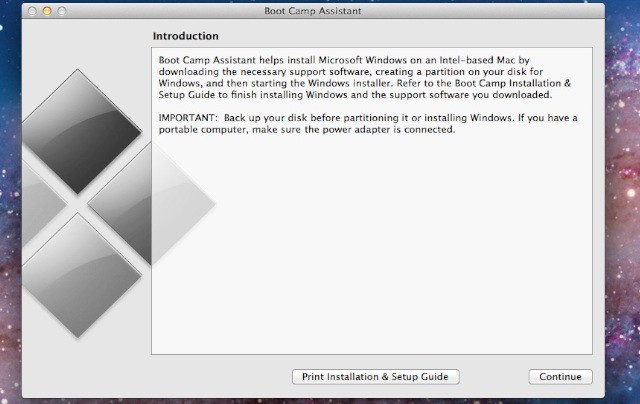
Have an old iPod Nano? Want to spruce up its interface and software a bit? You’re in luck! This post is going to tell you how to really Pimp Your Pod! It’s rather straightfoward, and shouldn’t take more than 10-15 minutes to complete from start to finish. Please be aware that the iPodWizard portion is using software that’s Windows only, so you should get that virtual machine or Boot Camp install cookin’ for a little while. Read the rest of the post for more information.

Formatting External Hard Drives In OS X [Video How-To]

By

diskutility

When you buy an external Hard Drive for use with Time Machine, Apple’s backup software, you will most likely need to format it before you can use it, since chances are that it is formatted for a Windows based computer. You could always spend the extra money to get a Mac formatted Hard Drive, but what’s the sense in that? You can format your own external Hard Drive right from Mac OS X. This video will show you how.

Use Dashboard Widgets On Your Desktop [Video How-To]

By

Dashboard

Sometimes Dashboard can seem like a hassle. While it can be very handy for quick tasks, having to open a specific application to access these widgets can become cumbersome. It is also impossible to perform other tasks while using these widgets. Well, a simple command can fix all of that, and let you enjoy widgets alongside Mac OS X applications. Find out what to do in this video.

Figuring Out What Keys Generate What Symbols In OS X [Video How-To]

By

newkeycaps

Have you ever needed to insert a special character while typing a document in Mac OS X, but didn’t know how? Apple doesn’t provide an easily accessible way to view which keys generate which characters. Buried in System Preferences though, is a keyboard viewer which will let you figure out which keys give which symbols. This video will show you how to enable this function and use it to discover helpful key combinations.

Finding And Deleting The Big Files On Your Hard Drive [Video How-To]

By

Omni

It happens to everyone. Over time, large files will build up on your hard drive and take up space needed for important files, such as photos, music, and the like. It can be frustrating trying to find these files to see if they are of any importance. Enter OmniDiskSweeper, a free utility that solves all those problems. As you’ll see in this video, it’s a handy tool that can help you free up a lot of space.

Keep Your Mac Mac Running Like A Mean Machine [Video How-To]

By

onyx

It happens to everyone. After time, your Mac will start to slow down. This can get awfully frustrating, but it’s not the end of the world. The free application OnyX can help your Mac run just like it did the day you bought. With some simple maintenance, your Mac will be just like new! In this video, you can find out how to get Onyx and use it to tune up your system.

How to completely uninstall software under Mac OS X [MacRx]

By

Mac Uninstall

Uninstalling software under Mac OS X is generally a straightforward procedure — just delete the program from the Applications folder. Few vendors offer uninstallers on the Mac, and generally they’re not necessary. Most programs don’t run background components or alter system settings files (like the Registry on Windows), and leaving old preferences and support files on the hard drive generally doesn’t do much harm.

But if you are trying to remove an old or corrupt component, reinstall software to change a serial number, or just free up disk space, removing all components of the old application can be important. These components include the application itself, preferences and support items, and sometimes hidden files or kernel extensions. Anyone who’s had problems installing an Adobe CS application or removing Symantec AntiVirus will appreciate how hard it can be to fully remove old software.

Keeping An Eye On Your Kids’ Online Activities With Parental Controls [Video How-To]

By

parental


As a parent, it is always important to keep tabs on what your children are doing on the computer. Whether it’s the sites they are visiting, the amount of time they spend online, or even what applications they are using, Mac OS X can cover it. OS X includes a set of parental controls that can be tweaked to anyone’s liking. In this video, you will see how to set up parental controls and use the features that work best for you.

Tighten Up Safari’s Security With One Click [100 Tips #52]

By

Safari security

Photo: Safari/Apple

You want your computer to be as secure as possible, right? Here’s one thing that newcomers to OS X might want to change pretty soon after getting their hands on their first Mac.

The OS X web browser, Safari, is a pretty good browser in almost every respect. But it has one default option that, personally speaking, I’ve never felt very comfortable about leaving switched on.

Simple iPad 2 Hack Enables Users to Take X-Ray Photos

By

post-88775-image-a474716b251857653a9a3026477ca249-jpg

httpvhd://www.youtube.com/watch?v=pFJxt8lZQjg

Jason Bradbury, the self-proclaimed Apple Expert, has discovered a simple hack that allows owners of the iPad 2 to take X-Ray style photographs through clothes. By applying a filter after blasting a subject with infrared light, the iPad 2’s camera can see through clothing. The best part of the hack is that you don’t need any type of training in radiology as it is incredibly simple and utilizes everyday household objects (infrared light and cellophane) to make it work.

The steps are quite simple:

1: Flood a subject with infrared light. Bradbury recommends using a digital camera with a night vision mode, or a children’s toy that uses infrared light. The infrared light penetrates the clothing and will be able to be picked up with the right filter.

2: Cover the camera on your iPad 2 with two layers of cellophane. The cellophane acts filters out the natural light enough to wear the infrared light comes in stronger and is picked up by the iPad 2’s camera lens.

3. Start snapping pictures. With your infrared source in place and your filter setup you are now ready to start taking some amazingly cool photos.

Saving Energy With Your Mac [Video How-To]

By

Energy

Have you ever found yourself thinking that your Mac takes too much power or that your MacBook battery is draining too quickly? If you have, you’ll want to check out this video. In it, I’ll show you some of the best, yet most overlooked options for saving energy on your Mac.

How To Organize Your iPad The Right Way [Video How-To]

By

iPad

So you just got your iPad, and have loaded it up apps. Now what? It may seem like a hassle to hunt around for the apps you want and to page through all of those home screens. Well, there is an easier way. In this video, you’ll find out the best way to arrange your apps on your iPad.