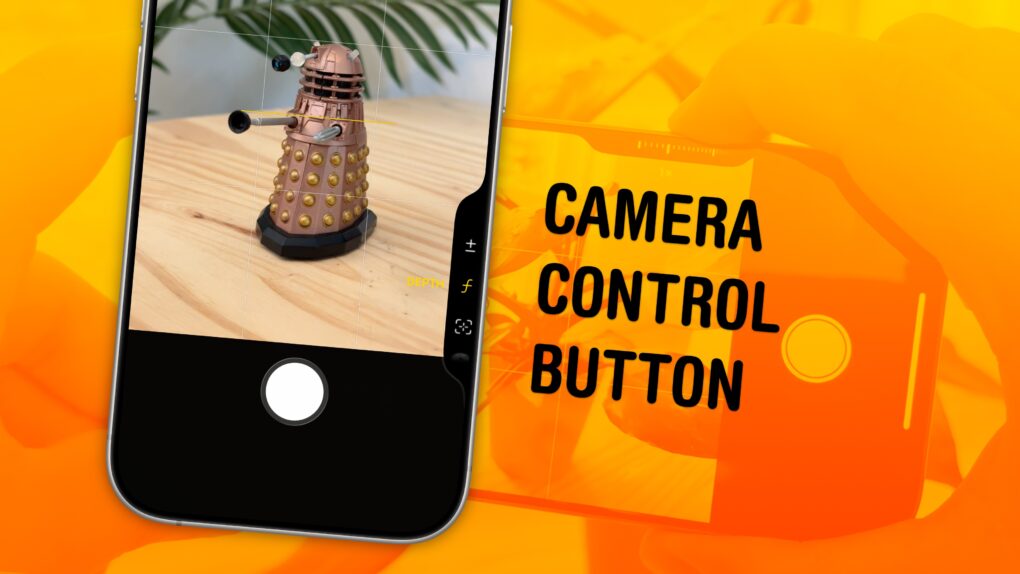
The Camera Control button on the iPhone opens the Camera app, takes pictures and can even adjust camera settings on the fly. It offers a quick shortcut to using one of the most popular and important iPhone features.
By default, it’s a simple button to quickly take pictures, but there’s so much more you can do with it — if you choose. The physically clicking button also accepts touch input when you swipe your finger along it. And it utilizes pressure sensitivity and haptic feedback for you to adjust different camera settings.
Learn how to master the iPhone’s Camera Control button in our guide below, or watch our quick video.
How to use the Camera Control button on iPhone
Apple introduced the Camera Control on the iPhone 16 lineup, and carried it over to the iPhone 17 as well. (Although the budget iPhone 16e and 17e do not have it.) Alongside Apple Intelligence, it’s one of the marquee features of the latest models.
Apple went above and beyond a basic button that opens the camera. It’s both touch sensitive and pressure sensitive with haptic feedback. Apple’s initial idea was a Swiss Army knife of an interface that can zoom in and out, lock focus and exposure, switch between photographic styles and more by half-clicking, swiping and double-half-clicking.
But everyone found that a bit complicated and annoying, so by default, it’s now a basic button that opens the camera. You can enable all the advanced features again if you really want to figure it all out. Here’s how.
Table of contents: How to use the Camera Control button on iPhone
- Click to open the camera and take pictures
- Enable more gestures and features on the Camera Control
- How to use the light-press and swipe gestures to change camera settings
- Click and hold to lock focus and exposure
- Tweak the Camera Control button force and speed
Click to open the camera and take pictures

Photo: D. Griffin Jones/Cult of Mac
The basics of the Camera Control seem really easy.
Click the button, located toward the bottom of the right edge, to open the Camera app. If your phone is locked, the first click will wake up the screen, and the second click will open the camera. If the screen is already on, a single click will immediately switch to the Camera app. (This can be adjusted in Settings > Camera > Camera Control > Require Screen On, but I don’t recommend disabling it. I tried it and discovered my phone kept accidentally opening the camera and recording in my pocket.)
With the camera open, click the Camera Control to take a picture. Click and hold the button to record a quick video; it’ll stop recording when you let go.
Enable more gestures and features on the Camera Control
Screenshot: D. Griffin Jones/Cult of Mac
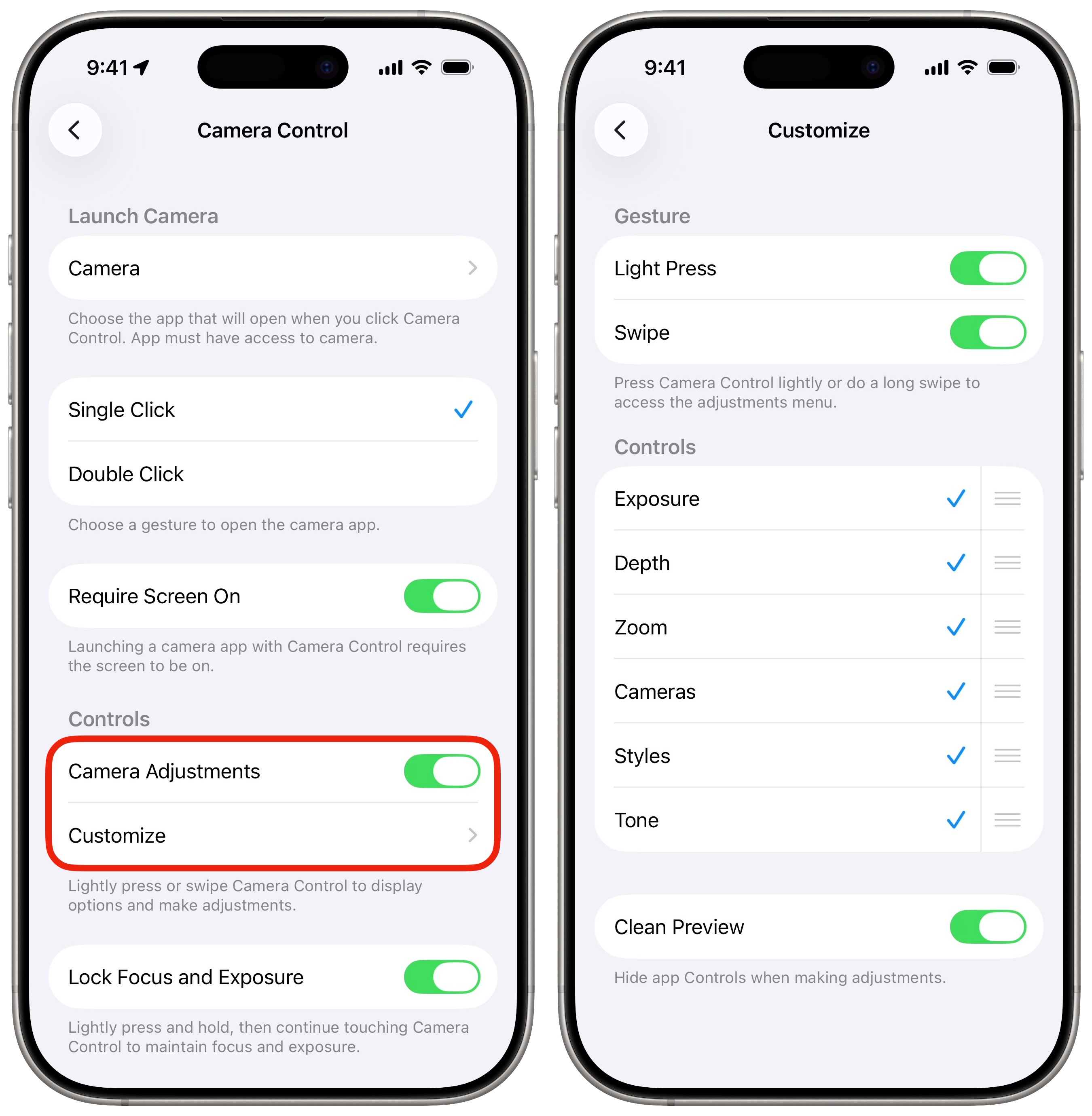
To enable more advanced swipe gesture features, go to Settings > Camera > Camera Control and enable Camera Adjustments. Tap Customize to set what they do:
- Light-Press to turn off the half-click gesture.
- Swipe allows you to slide your finger up and down on the Camera Control to adjust a setting without doing a light-press first. With both Swipe and Light-Press disabled, the Camera Control will act as if it’s just a simple button — click it to open the camera, click it to take a picture. I recommend this setting if you find the swipes and half-presses too fiddly.
- You can tap to enable or disable what controls appear in the list of settings. Drag them up or down using the grabbers to reorder them.
- The Clean Preview setting hides the other camera UI while you’re using the Camera Control. If you still want to see the other buttons, turn it off.
Go back to Camera Control settings to find more settings:
- Set Launch Camera to choose which app it should open. By default, it opens the iPhone’s stock Camera app. However, it works with other Apple apps as well as third-party apps like Snapchat. If you use the Magnifier app often for accessibility, this might be a better use for the Camera Control. If you set it to None, clicking the button won’t open the camera, but you can still use it to take pictures if the camera is active.
- Set either Single Click or Double Click to open the camera. I have mine set to Single Click because it’s faster.
- Require Screen On means that when your phone is locked or the screen is off, you need to click it one extra time to launch it. I recommend enabling this to prevent the camera from being activated accidentally as you pull your phone out of your pocket or bag.
- Lock Focus and Exposure enables a click-and-hold gesture to lock autofocus and exposure, like a traditional camera. I find this feature a little finicky to use. I kept hitting it accidentally. I turned it off.
- Enable Press and Hold to open Visual Intelligence, a feature that lets you look up businesses and products, translate text, scan QR codes and more.
How to use the light-press and swipe gestures to change camera settings
Screenshot: D. Griffin Jones/Cult of Mac
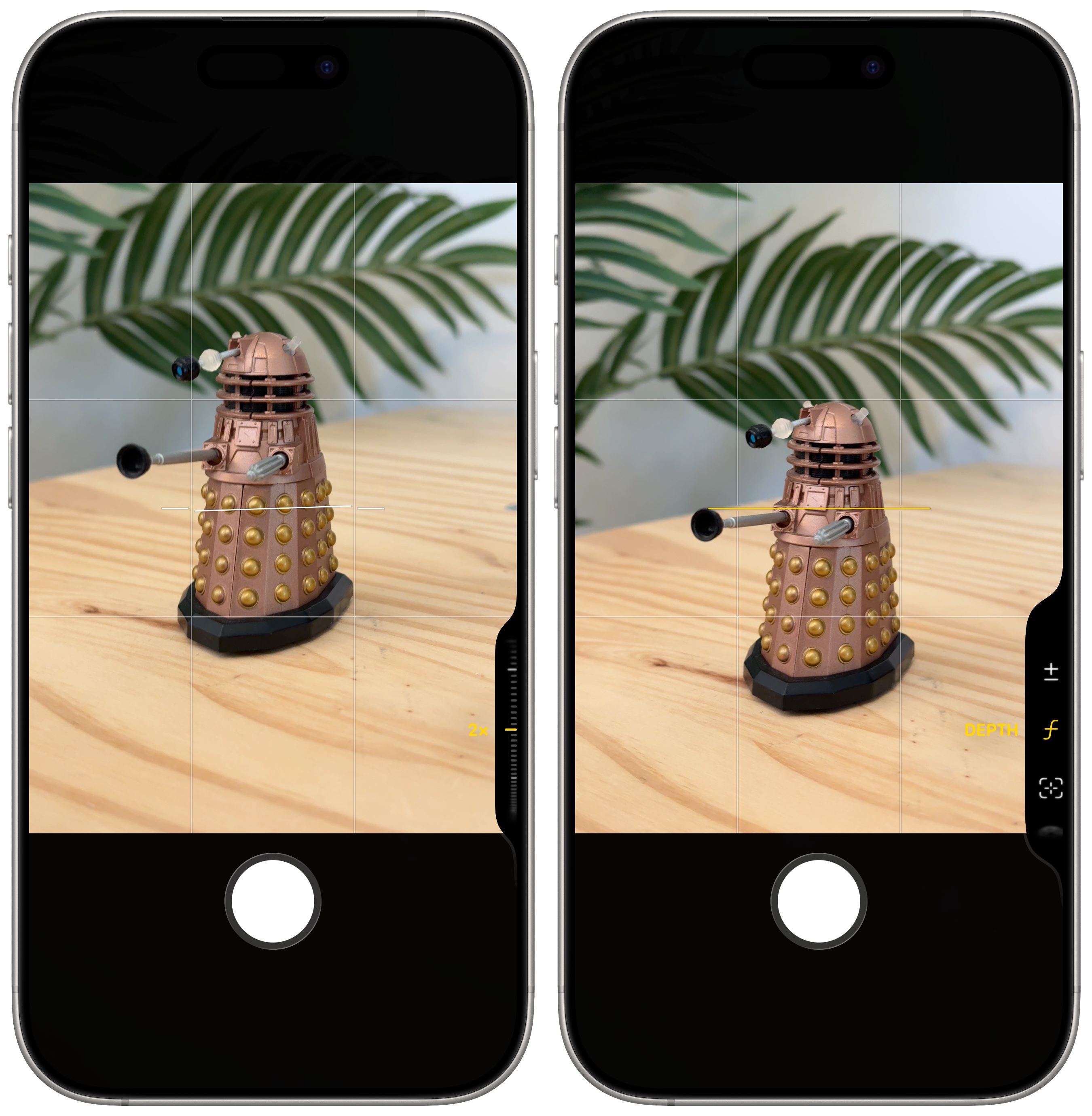
If you enabled the Camera Adjustments setting above, you can change camera settings all from the button.
If you apply a little bit of force to the button without clicking it entirely, you’ll bring up a menu that lets you zoom in or out. A quick swipe on the Camera Control will always zoom to the next optical zoom level — 0.5× to 1× to 2× to 4× to 8× on the iPhone 17 Pro. Slowly roll your finger to zoom precisely.
Double-light-press the Camera Control to switch between other functions. The options at launch include Exposure, Depth, Zoom (default), Cameras, Styles and Tone. Swipe to move between them, light-press to select one of the options.
Whatever setting you leave the Camera Control on will stay there the next time you open the camera. So if you find the menu too fiddly to mess with when out and about, you can set it where you want and leave it there.
Since the iPhone’s screen already offers gestures that control the zoom (pinch-to-zoom and the on-screen buttons) and exposure (tap on the subject, then drag your finger up or down), I recommend setting the Camera Control to something unique like Depth or Styles.
Click and hold to lock focus and exposure
If you have Lock Focus and Exposure enabled, you can lock those settings in place to quickly capture exactly the shot you need.
Click and hold the button for a moment. You’ll see the yellow square appear in the center of the frame and an “AE/AF Lock” badge indicating that focus and exposure are locked. You can move the camera around or adjust objects in the frame, and your iPhone won’t refocus anywhere else or change the brightness of the image. It’ll stay locked as long you hold the button down, and go back to automatic adjustments when you let go.
Tweak the Camera Control button force and speed
In Settings > Accessibility > Camera Control (in the Physical and Motor section) you can adjust the physicality of the button:
- Change the Light-Press Force setting from Default to Lighter or Firmer. This changes the amount of force needed to bring up the menu. If you set it to Firmer, you need to click harder — but you’ll need to be more precise differentiating between the on-screen menu and the full button click. If you’re not worried about accidental input, set to Lighter. I left mine on Default.
- Set Double Light-Press Speed and Double Click Speed to Slow or Slower if you have a hard time doing double-clicks.
More camera features
- Photographic Styles built into your iPhone’s camera can give your pictures a radically different aesthetic.
- Take 48-megapixel photos that capture eagle-eye details at incredibly high resolution, shooting in Apple’s ProRAW format, on an iPhone 14 Pro and later Pro models.
- Three tips to take better pictures and upgrade your photography skills.
- Photograph fireworks with these special tips and achieve great results. Just pointing and shooting with no prior planning can lead to blurry, unexciting fireworks photos.
We originally published this article on how to use the Camera Control button on October 1, 2024. We updated it with the latest information on December 17, 2024, April 22, 2025, and April 18, 2026.

D. Griffin Jones was a writer, podcaster and video producer for Cult of Mac. Griffin has been a passionate computer enthusiast since 2002, when he got his first PC — but since getting a Mac in 2008, he hasn’t turned back. His skills in graphic and web design, along with video and podcast editing, are self-taught over 20+ years. Griffin has a bachelor’s degree in computer science and has written several (unpublished) apps for Mac and iOS. His collection of old computers is made up of 40+ desktops, laptops, PDAs and devices, dating back to the early ’80s.
Griffin writes for his personal blog, Extra Ordinary, and is currently looking for work.


One response to “How to use the iPhone’s Camera Control”
Jack of All Trades, Master of None Button.
Never used. Disabled it.