
Apple’s iOS updates lately have been interesting because they haven’t performed a complete restore and recovery of my data — in other words I didn’t have to reload all my apps, media, etc. after the firmware was updated. This happened recently with iOS 4.3.3 and previously with iOS 4.3.2.
In some cases after short firmware updates like these I’ve experienced problems with apps, my internet connection, multitasking, and a few other things. Here are some tips that will help you eliminate these problems if you encounter them.
I often take these basic iOS troubleshooting tips for granted and I thought that this would be a good time to share them with all of you.
Close Your Apps Before Updating

Every time you perform an update you should prepare your iOS device before hand by performing these recommended steps:
- Launch the task manager by pressing the Home button twice while you are at any home screen.
- Tap and hold any app icon in the task bar until they start to jiggle.
- Now press the white minus inside the red circle on the upper left corner of each app icon to close each one. Repeat until all the apps are closed.
- Perform a hard reset on your device (as shown below).
- Perform the firmware update in iTunes.
I recommend this because I’d have apps that were suspended in the task manager that acted oddly after performing one of these short updates. The odd behavior I noted was poor performance, loss of data or loss of settings when relaunching an app that was suspended prior to updating iOS.
I’ve had people argue with me about this tip, but I’m sticking to it. I think that iOS is a lot cleaner if I close apps versus just leaving them hanging around suspended after running them on an older version of iOS. After all they do wake up with a new iOS to run under and I cannot imagine that is good under every circumstance you could run into.
Hard Reset Your iOS Device
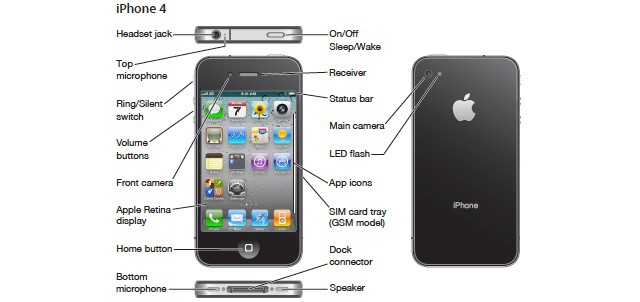
If your iOS device is acting oddly, running slowly, screen refreshes are slow, apps malfunction, etc. you might try a hard reset by pressing and holding the Home button and the Sleep/Wake button until you see the Apple logo then immediately release both buttons.
You should ignore the red slide to turn off button that appears, continue to hold both buttons, and wait for the Apple logo to appear.
Note: that a combination of the first tip and this one solves a lot of problems you might encounter with Apple or third-party apps. Try one or both if you don’t get good results. If problems persist with a particular app contact the developer that created it. Perhaps it needs to be updated to support the new version of iOS you just installed.
Reset Your Network Settings
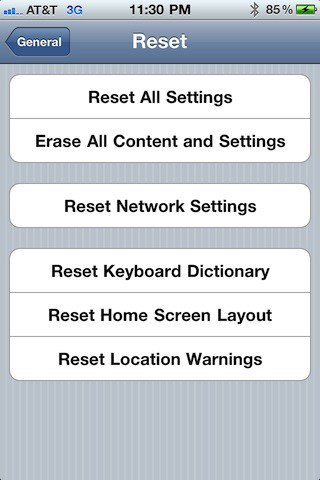
I was prompted to write this post after the iOS 4.3.3 update caused problems for me this evening. I suddenly found my iPhone 4 to be unable to connect to the internet. My 3G connection was no longer active or working. I didn’t have Wi-Fi access at the time. I had to reset my network settings using these steps which restored my 3G internet connection:
- Launch the Settings app.
- Tap General.
- Tap Reset.
- Tap Reset Network Settings (if prompted enter your PIN).
Your iOS device will reset the network settings to the factory defaults and your device will reset.
Ultimate Fix – Restore Your iOS Device
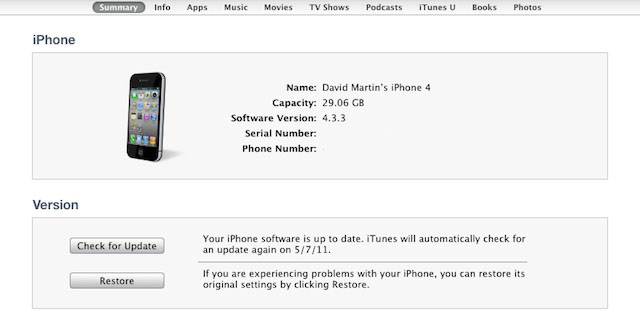
If none of these troubleshooting tips work then the ultimate fix is to perform a complete restore in iTunes. Here’s how:
- Launch iTunes.
- Perform a sync and back up on your iOS device. Verify that this completed – especially the backup without errors.
- Locate the Summary tab for your iOS device in iTunes.
- Click Restore.
- Follow the on-screen directions to perform a Restore on your iOS device.
The restore will completely erase your iOS device, reinstall the most recent version of iOS, and restore all your data, apps, and media to your device for your backup or iTunes library. This may take a considerable amount of time depending on the amount of data, etc. that you have. So plan to spend some time waiting before you get started. It could take an hour or longer in some cases.

David W. Martin has more than 20 years of experience in the industry as a programmer, systems and business analyst, author, and consultant. David has written for CNET’s iPhoneatlas.com, MacLife.com, CultofMac.com, BYTE.com and recently for aNewDoman.net. He comes to Cult of Mac’s website with deep knowledge and passion for the all things Apple. Follow David on Twitter @david_w_martin or see what he’s up to now at davidwmartin.com.


11 responses to “When Things Go Awry Troubleshoot Your iOS Updates [How-To]”
one thing to keep in mind about that ‘ultimate fix’. If the issue is a bonked setting or such and you restore and then set up from a back up of your device, you just stuck the bonk back on. So you may end up having to sacrifice your own SMS messages on your iphone and set up as a new device to get things back in business
I wipe The memory from my iDevices running a app called xsysinfo
When troubleshooting apples devices, use PAIR. Probe to find the issue, analyze the situation, investigate a resolution, and resolve. It’s what the Apple genius’ do, and it works great. Self explanatory, so if you don’t get it…sorry bout your luck.
When the iOS 4.3.3 apears inmediatly up date my iphone and since this day I have the issue with my 3G conecction the messenger app, iTunes, App Store, Twitter, and all apps who required log in apears the same window “The conection to the server failed” or “Cannot connect to iTunes Store” somebody have the same issue??
Beware! This latest completely locked up my iPhone 4. After trying everything under the sun to unfreeze, I had to do a complete restore, and sync’d backups in iTunes do not backup your settings, photos, text messages, etc.
Fix Your iPhone, iPad or iPod Touch Yourself!
Easy To Follow Guide ONLY $2.99 99 Cent Articles for Specific issues also Available
http://www.simpleiostroublesho…