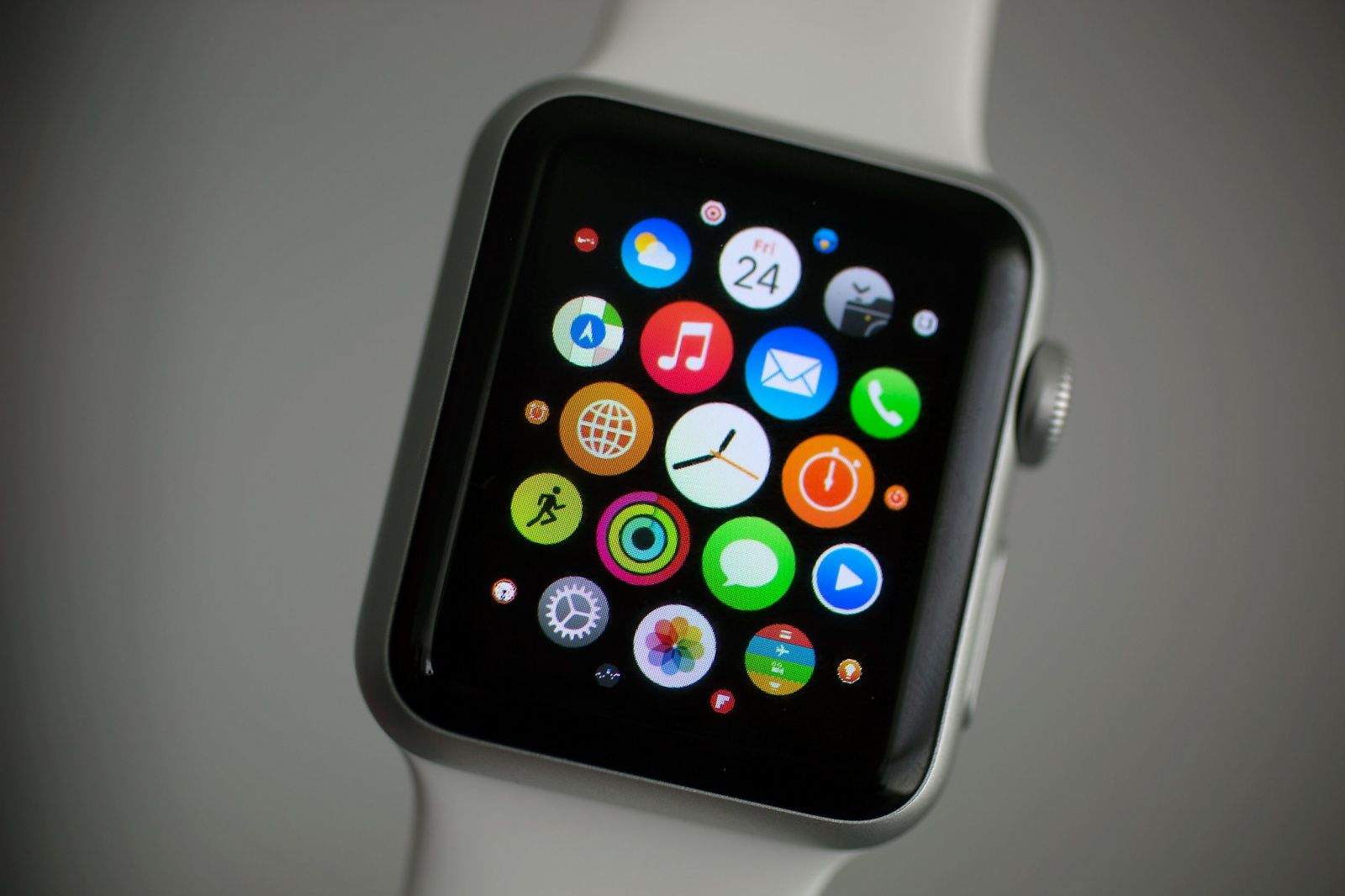
The Apple Watch’s tiny screen has already proven to be a boundless landscape for creatively organizing app icons, but one obsessive reddit user has created the most scientifically convenient app layout we’ve seen yet.
A redditor posted his “best app layout” explanation for the Apple Watch today.
Photo: Jim Merithew/Cult of Mac
It’s based on Fitts’s law, a scientific model of human behavior that basically says, “Time spent is relative to the size of the target and the distance you have to travel to get there.”
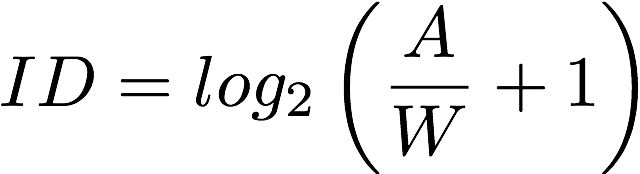
For applying Fitts’s law to the Apple Watch, the redditor thought about how difficult it was to tap the app icons on the wearable’s tiny screen.
“I don’t have fat fingers, but I found myself tapping the wrong app constantly,” he said. “I was being mindful, too, and still was hitting the app adjacent at least one out of every five taps.”
He came up with the idea that “the best way to shorten interaction time on the app screen is give yourself more space for error.” The less of a chance there was for accidentally tapping another app, the better.
So he turned his home screen into a series of circles. Six apps form a circle with an empty space inside it.
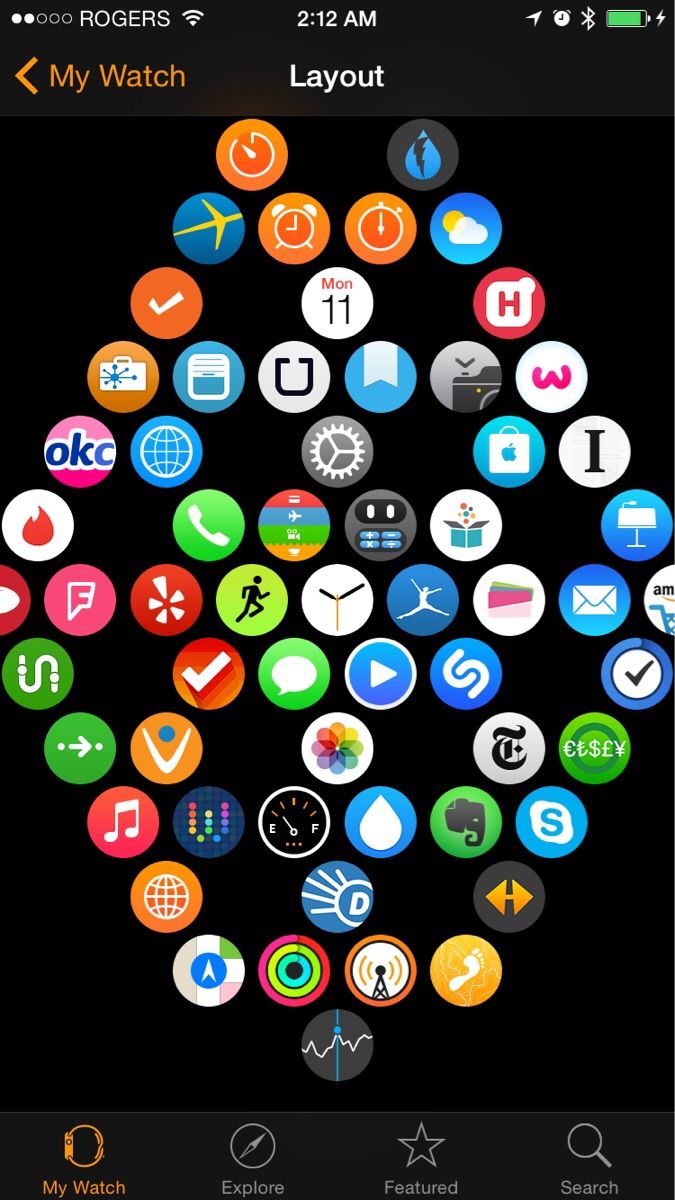
The circle approach makes getting to apps a lot quicker than forming a giant line of icons or some other weird shape.
Another plus is that you’ll significantly cut back on the risk of tapping the wrong icon by mistake. “Once you get used to aiming for the app you want but on the side that’s facing the space, you’ll pretty much eliminate most accidental taps,” he said.
Start with the Watch icon dead center and build circles going out diagonally. The first circle contains your most-used apps.
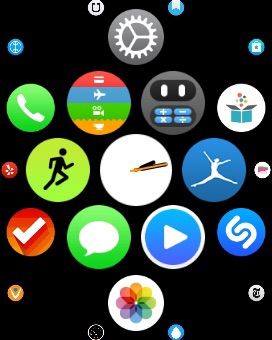
Building out horizontally could work, too, but he found that diagonally felt more natural to his finger. The Digital Crown helps you zoom in and out on circles if need be.
It’s a pretty smart layout for saving time on small interactions.
It’s helpful to organize your apps “partly by the category they belong in and partly by the frequency of use.” The more an app is used, the closer it is to the center circle with the Watch’s icon. You could cluster around ideas or categories of apps, like travel or productivity.
If an app has a Glance you’re using, you won’t have to manually find its icon very often. So leave it in an outside circle and forget about it.
For the redditor who came up with this theory, saving time on completing actions is what the Watch is all about.
“The thing people say the most when they know you got a watch is that ‘you can do all of it on the iPhone.’ It’s, of course, true. But the reason I got the Apple Watch is Fitts’s law. Each ten seconds you’re saving per day per app is an hour saved a year.”

Alex Heath is a journalist who works for Tech Insider. He’s the former co-host of The CultCast. He has been quoted by the likes of the BBC, KRON 4 News, and books like “ICONIC: A Photographic Tribute to Apple Innovation.” He lives in Lexington, Kentucky. If you want to pitch a story, share a tip, or just get in touch, additional contact information is available on his personal site. Follow him on Twitter.


6 responses to “The scientifically perfect way to organize your Apple Watch apps”
Lol I’m going to get my apple watch today, I’ll try it ^^
They look more like hexagons than circles. Just sayin’
How do you get spaces between apps? I can’t seem to do it on either the phone app or watch.
I’m with you there. Every time I try to move one out of the center, another pops into it’s place, both on the watch and on my iPhone 6.
This is pretty cool, and I just might spend some time getting my apps into this arrangement.
However: I’ve found a pretty much failsafe way to always open the app that I want: long press the Digital Crown to invoke Siri, and then say “Launch Wunderlist” or “Launch 2Do” or “Launch Activity” and so on. Interestingly, the command Open will also open some apps — but Siri has trouble with others. For 2Do, for example: she canNOT find the right app to open if I say “Open 2Do” – but she always gets it right with the Launch command.
I realize this might not be practical for folks who need to open an app in a situation where they can’t be talking at their wrist…. But it’s really useful for times when you CAN talk at your watch with impunity!
Similar to Paul and arybaryba: do you have a tip for getting app icons to stay where you place them? I have mine arranged in an hourglass shape, and I eventually got what I wanted — but it was really frustrating to have to fiddle a lot more than seemed necessary! Any tip you have for this would be really helpful.
GUDANGBET99.COM
Prediksi Dundee vs Aberdeen
http://167.114.12.138/~gudangbet99/prediksi-dundee-vs-aberdeen-16-mei-2015/