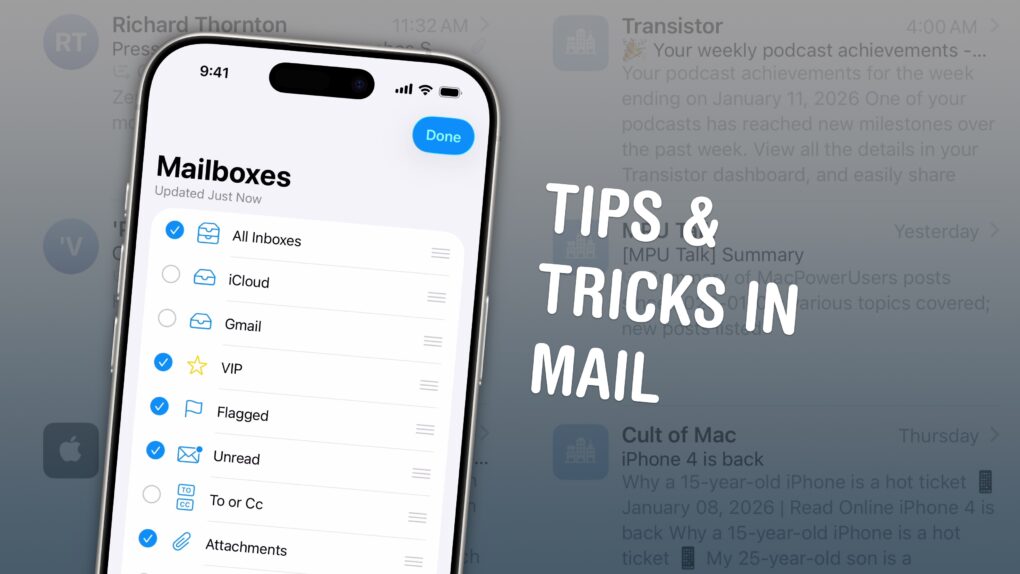
Some people achieve and maintain zero unread emails; some let that red badge climb into the thousands. It’s never too late to change your ways — you can become one of those clean inbox people like me. These six tips will help you get to Inbox Zero using features in Apple’s Mail app that you might not have known about.
The obvious Tip No. 0 is this: You should always hit the Unsubscribe button at the bottom of every unsolicited promotional email as soon as you get the first one.
After you kill all those unwanted subscriptions, these six lesser-known features of the Apple Mail app on iPhone, Mac and iPad will make you a true pro at managing your email.
Secret features in Apple Mail app
Show me someone who has a grip on their email and I’ll show you an actual, real-life unicorn. There is nothing more hellish than looking at someone else’s email inbox.
But it doesn’t have to be this way. If you spend a lot of time in Apple’s Mail app, you can utilize these tips to sort out the madness. There are actually quite a few power features in Mail, even though the app might seem kind of basic at first glance.
If you’re too busy to read our roundup of lesser-known Apple Mail app tips, you can watch our quick video:
Table of contents: Secret features in Apple Mail
- Redirect instead of Forward
- Customize the swipe gestures
- Turn on additional mail categories
- Compact multi-window mode on the Mac
- See multiple emails at once on iPhone and iPad
- Bigger previews
No. 1: Redirect instead of forwarding
Screenshot: D. Griffin Jones/Cult of Mac
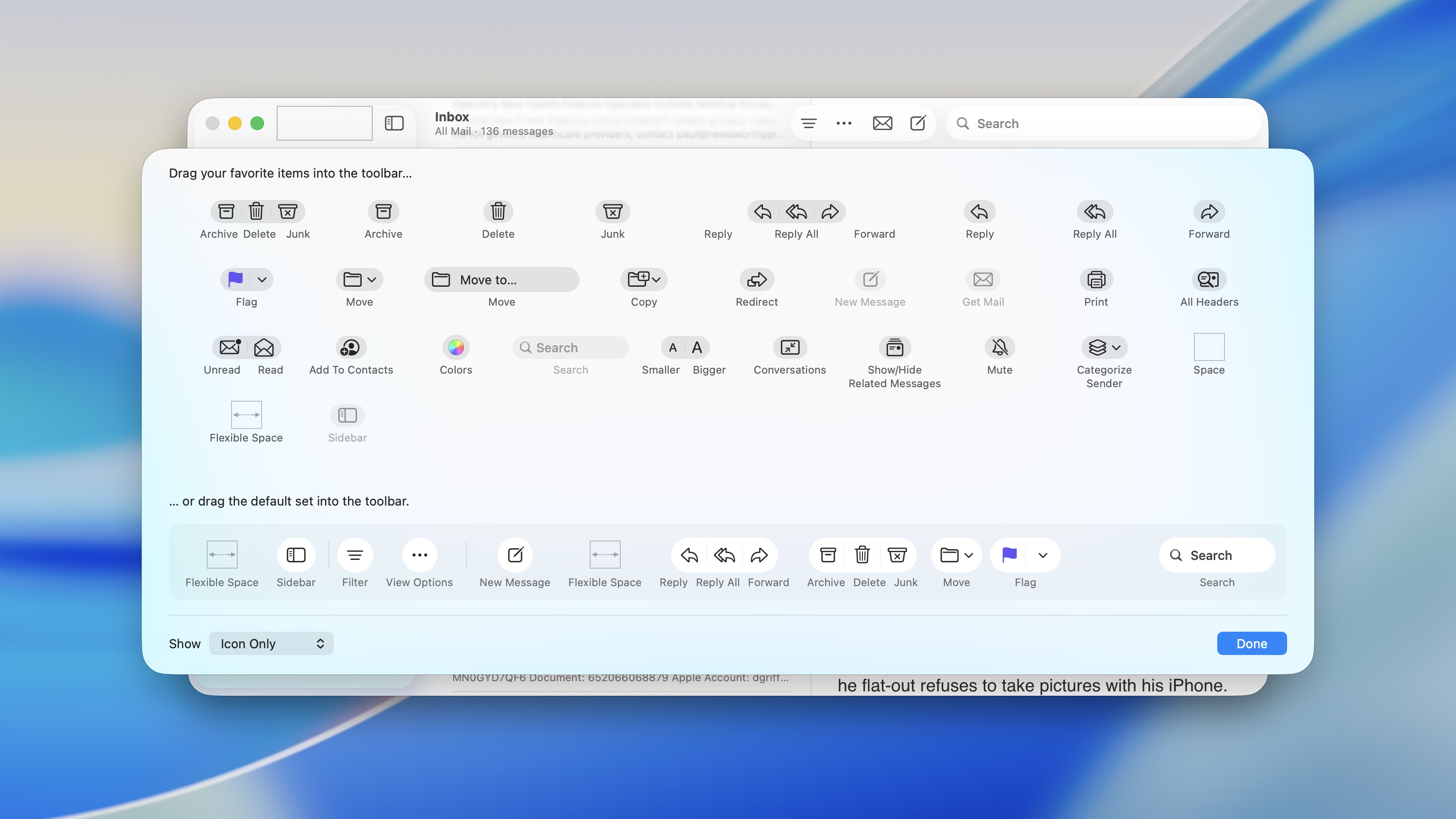
Imagine someone sends you an email that you need to pass along to someone else, but you don’t want to be involved in the conversation anymore. There’s a better way to handle this than simpling forwarding that email, and it’s called “Redirect.”
Redirecting the email will remove you from the conversation from here on out, so you’re no longer at the whim of everyone else in the chain. According to Apple Support, “Only the address of the original sender is shown to the recipient, and the recipient’s reply goes only to the original sender.”
To enable this on the Mac, you need to add a Redirect button to the Mail app’s toolbar. Right-click (or hold the Control key) on the toolbar and click Customize Toolbar. Click and drag the Redirect button into the toolbar.
Unfortunately, this feature has not yet made its way to the iPhone or iPad.
No. 2: Customize the swipe gestures in Apple’s Mail app
Screenshot: D. Griffin Jones/Cult of Mac
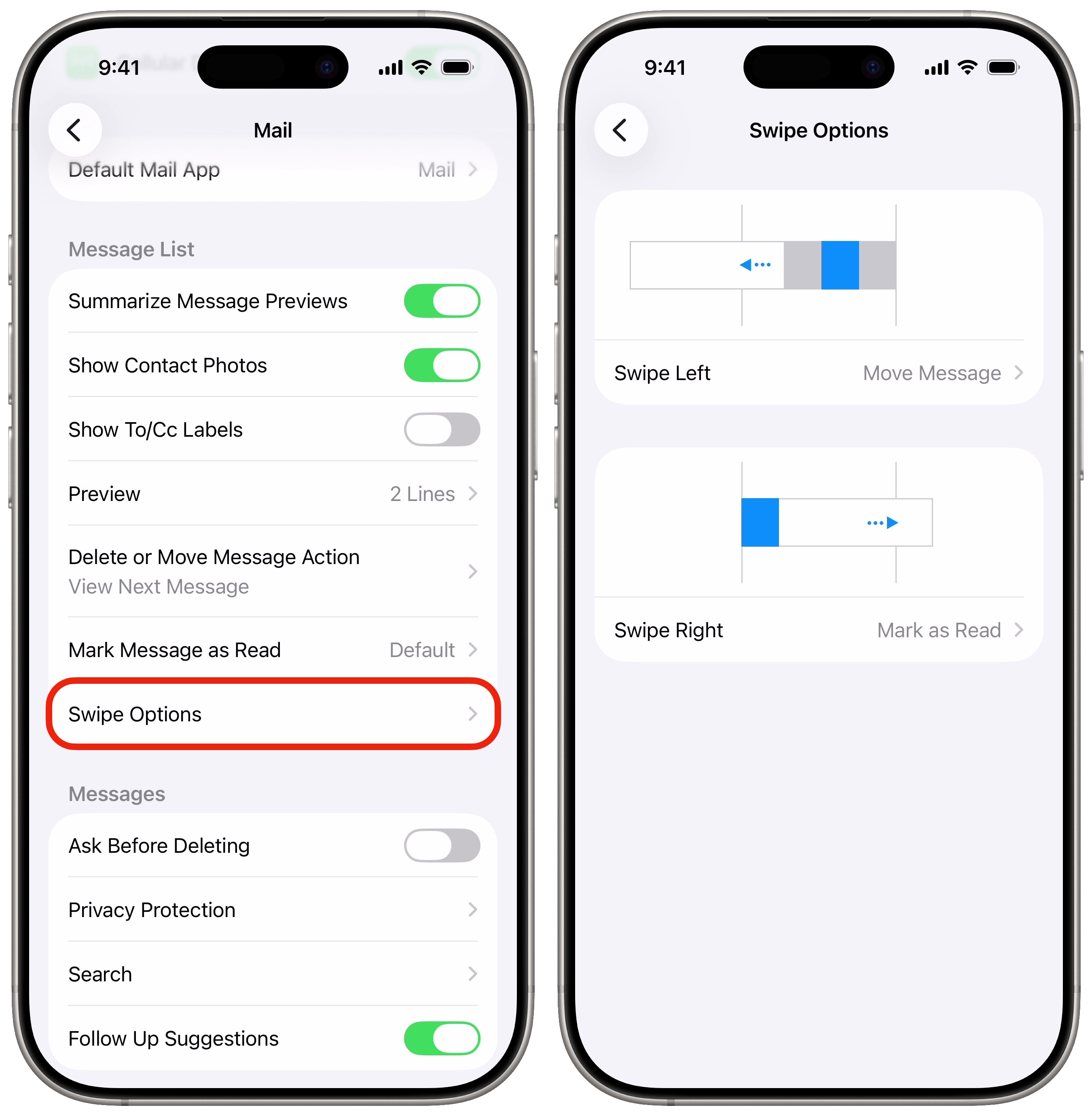
I rarely delete emails; I’m a serial archiver. In fact, I’m always alarmed when I set up a new device and find the default swipe-left action tries to delete my emails instead of archiving them. (Also, NetNewsWire, my beloved RSS client, has trained me to use swipe-right as Mark Unread.)
Maybe your brain works totally differently and you find holding on to all your old email horrifying. Luckily, we can all have what we want if we customize the swipe actions in Apple’s Mail app.
On the iPhone and iPad, go to Settings > Apps > Mail > Swipe Options. You can set different actions for left and right swipes. I recommend keeping it consistent with your Mac settings so you don’t get confused.
On the Mac, hit ⌘, (the shortcut is actually Command-comma) or go to Mail > Settings in the menu bar. Click the Viewing tab. Unfortunately, you can’t really customize which swipe action does what. Swipe-right always toggles Read or Unread; swipe-left always discards the message. But you can pick whether discarded messages go to Archive or Trash.
No. 3: Turn on additional mail categories
Screenshot: D. Griffin Jones/Cult of Mac
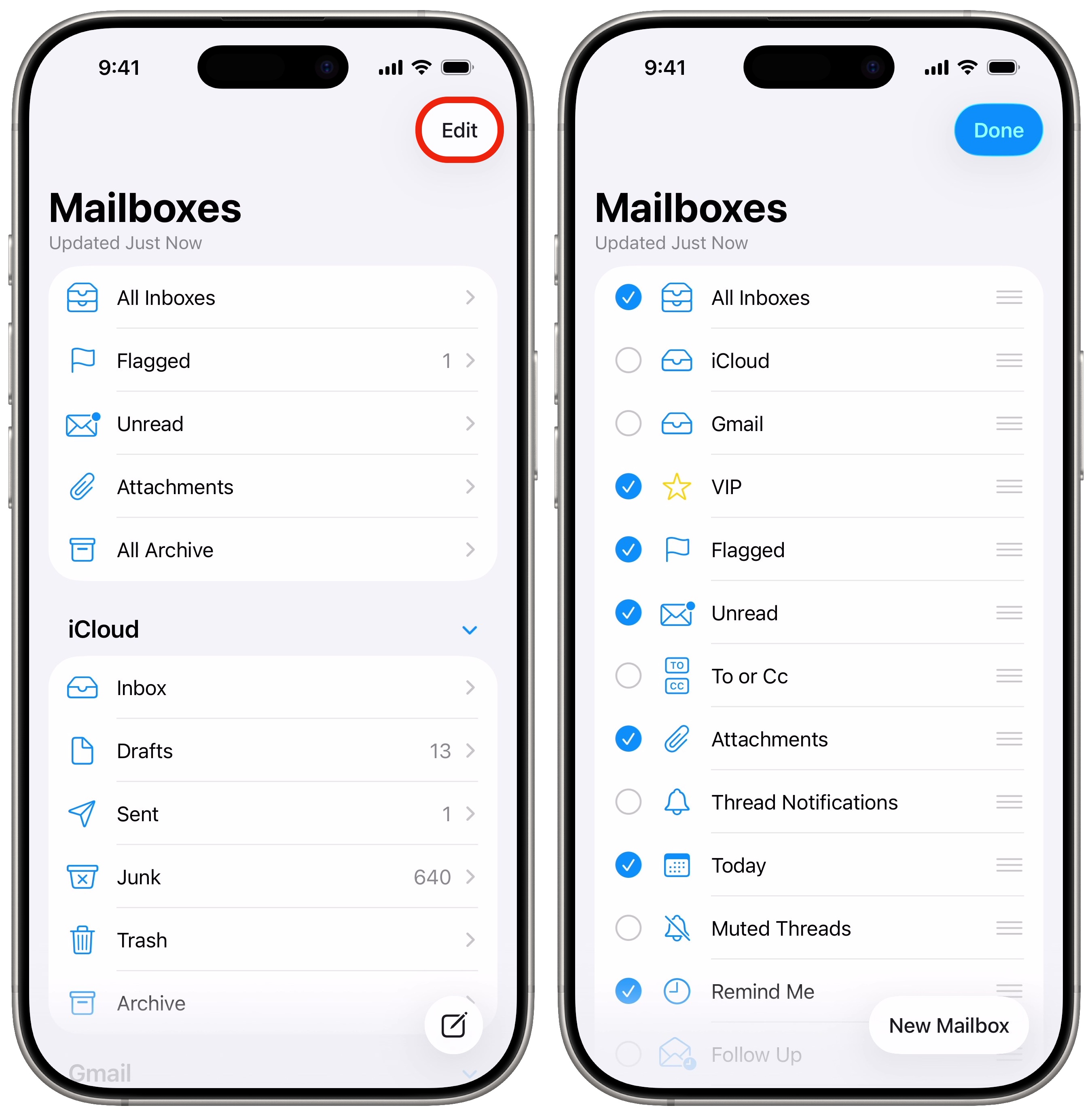
Swipe back on your list of emails and you will see a list of mailboxes with all the usual suspects: Flagged, Unread, Archive, etc. But if you tap Edit in the top right, you can customize this list.
You can turn on smart folders that show your muted threads, email that came in today, email with attachments, sent mail you should follow up on, and emails from VIP contacts. I think these are the most useful smart folders, although there are a few more you can choose from.
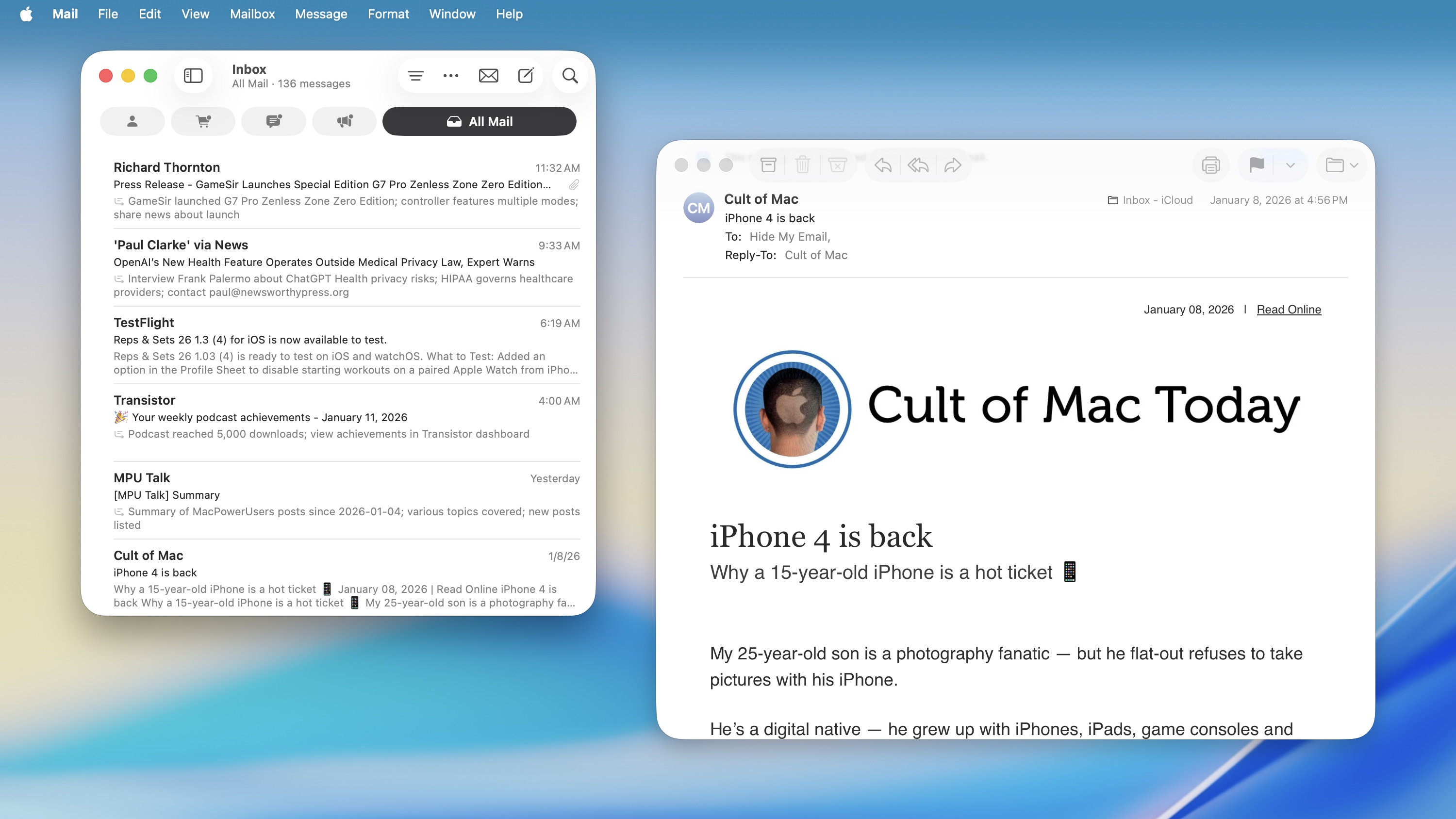
No. 4: Compact multi-window mode on Mac version of the Apple Mail app
Screenshot: D. Griffin Jones/Cult of Mac
The full three-column layout in Apple’s Mail app can take up a lot of your Mac’s screen space. If you use a 13-inch MacBook Air, you might not want the mailbox list and the email preview on the screen all the time.
To change things up, hover your cursor over the divider between the two columns. Click and drag it so that the preview column disappears. You can do the same thing for the sidebar (or just go to View > Hide Sidebar). Then, you can shrink the Mail window to a much smaller size than before.
To open an email, double-click it in the list. It’ll open in a new window that you can move around, resize and close completely independently of the message list. You can easily have a bunch of emails side by side. To navigate different mailboxes like Sent and Archive, you can use the keyboard shortcuts ⌘1 to ⌘7.
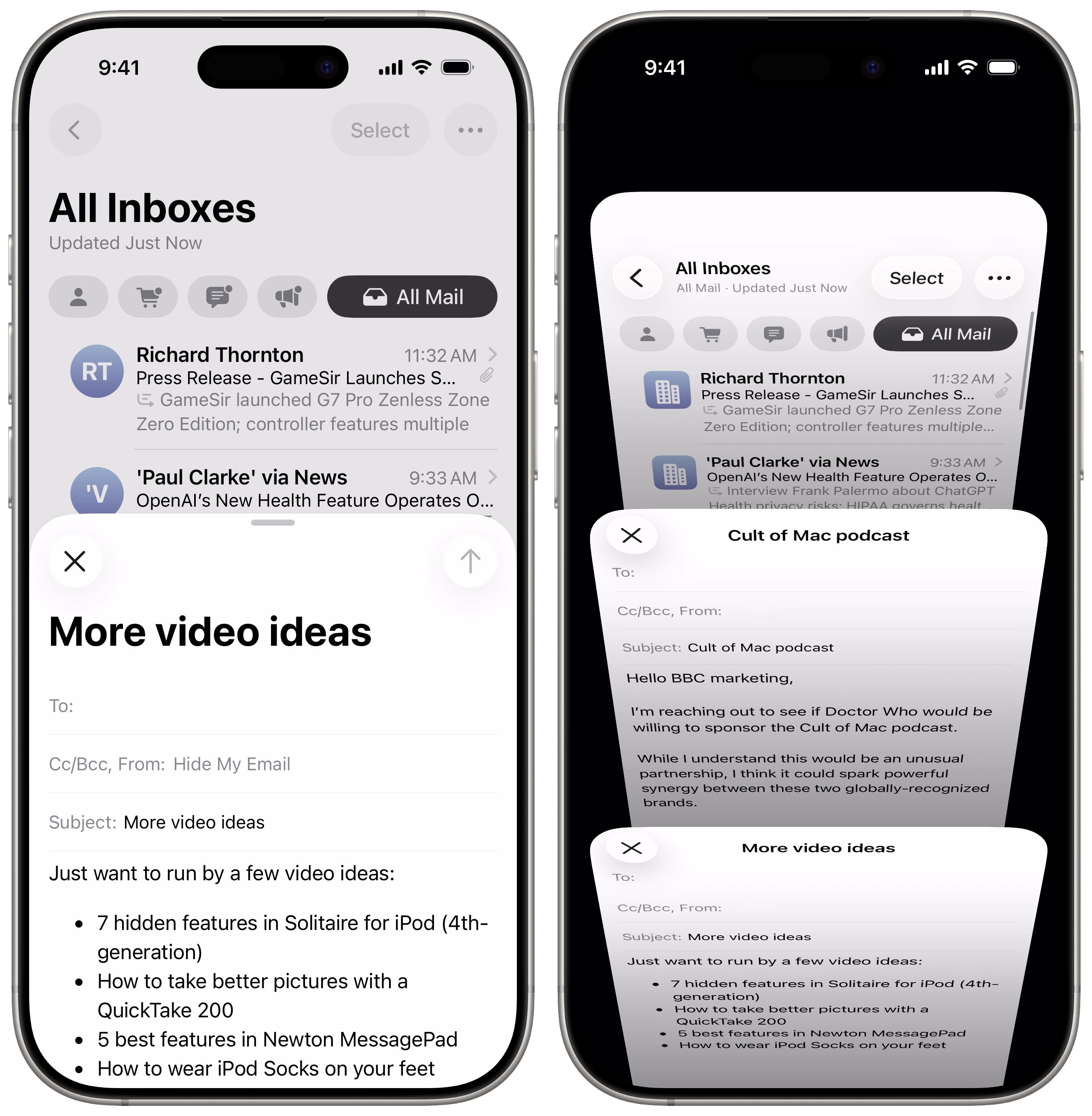
No. 5: See multiple emails at once in Apple Mail app on iPhone and iPad
Screenshot: D. Griffin Jones/Cult of Mac
In the Mail app on the iPhone, the New Mail window slides up and takes over the whole screen. But what if you want to go back and look at a different email for reference? What if you need to compose several emails at once?
Luckily, there’s an easy way to view multiple emails at once. Just swipe down on the New Mail pop-up and keep browsing the app. Come back to it at any time by tapping on the minimized title bar.
In fact, you can compose another email at the same time. Tap on the title bar at the bottom to see everything you have open and switch between your drafts.
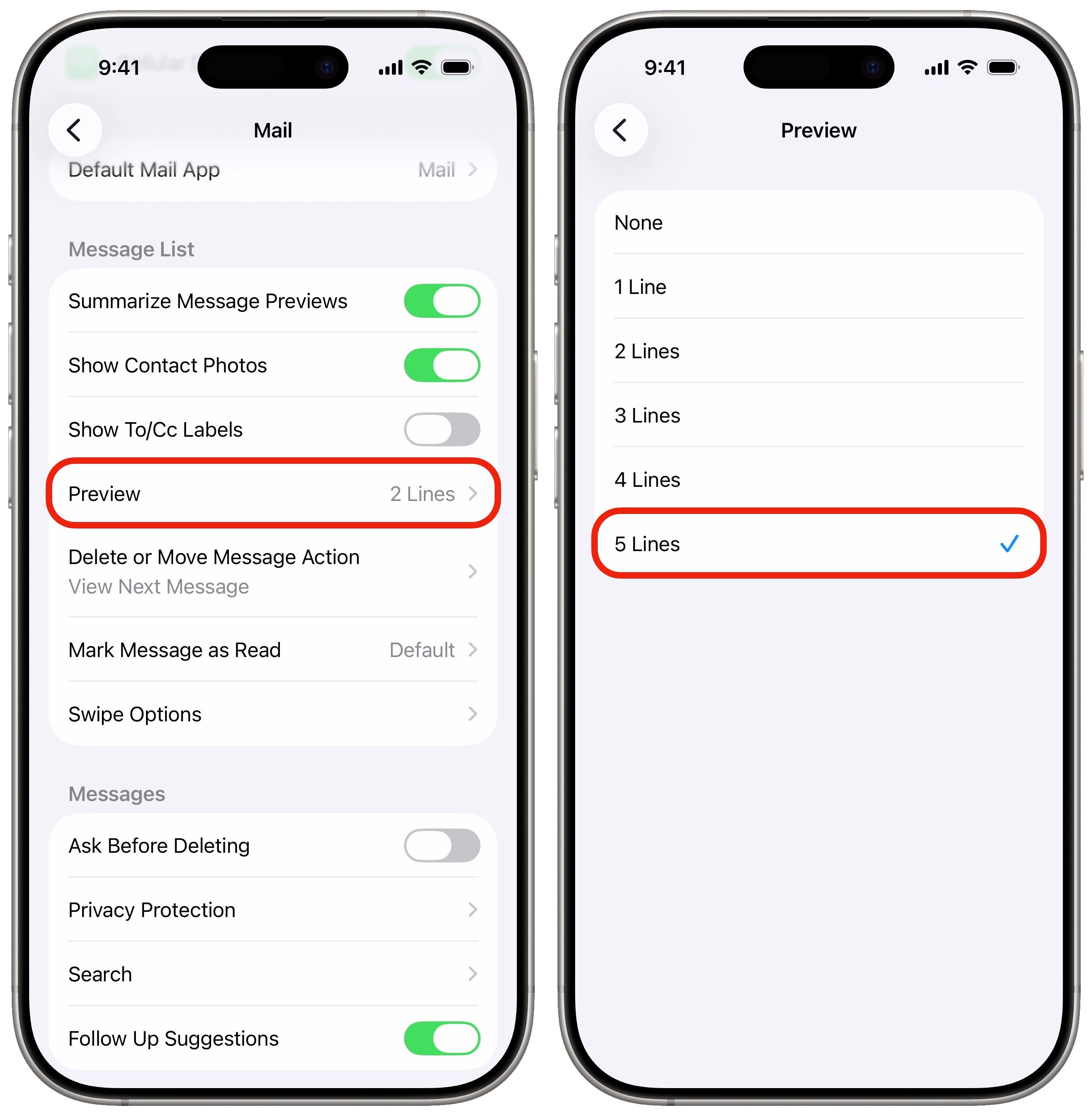
No. 6: Bigger previews
Screenshot: D. Griffin Jones/Cult of Mac
By default, the messages list of the Apple Mail app shows two lines of text to preview the contents of the email. You might want to see more; you might not need email previews at all. The good news is, it’s easy to customize exactly how much or how little of a preview you see. On the iPhone and iPad, go to Settings > Apps > Mail > Preview and set it anywhere from None to 5 Lines. On the Mac, that’s in Mail > Settings > Viewing > List preview.
Some people set the mail preview to five lines so they can see a good chunk of the email’s contents before opening it. Personally, I tried turning off previews entirely for a while. However, I didn’t like how dense the list got, so I set it back to two lines.
Get even more Apple Mail tips
Can’t get enough Apple Mail tips? We’ve got loads of other how-tos that explain advanced features like unsending messages and making the most of Apple’s privacy features:
- Schedule an email for the future so you never forget to send it, and you can send emails at times more convenient for others.
- Automatic inbox organization intelligently sorts the newsletters and junk out of your email, letting you see the personal messages that matter. (You can also turn it off for one big traditional inbox.)
- Screenshot an entire email and save it to your camera roll or as a PDF.
- Automatically unsubscribe from mailing lists you don’t want to be bothered with anymore.
- Undo send, Remind Me Later, Follow up and other smart Mail features.
- Manage your Sign In with Apple and forwarding email addresses.
Learn them all and you’ll definitely spend less time dealing with email.
We originally published this article on six hidden features in the Apple Mail app on May 20, 2023. We updated it with the latest information on September 4, 2024, and January 12, 2025.

D. Griffin Jones is a writer, podcaster and video producer for Cult of Mac. Griffin has been a passionate computer enthusiast since 2002, when he got his first PC — but since getting a Mac in 2008, he hasn’t turned back. His skills in graphic and web design, along with video and podcast editing, are self-taught over 20+ years. Griffin has a bachelor’s degree in computer science and has written several (unpublished) apps for Mac and iOS. His collection of old computers is made up of 40+ desktops, laptops, PDAs and devices, dating back to the early ’80s. He brings all of these creative and technical skills, along with a deep knowledge of Apple history, into his work for Cult of Mac.

