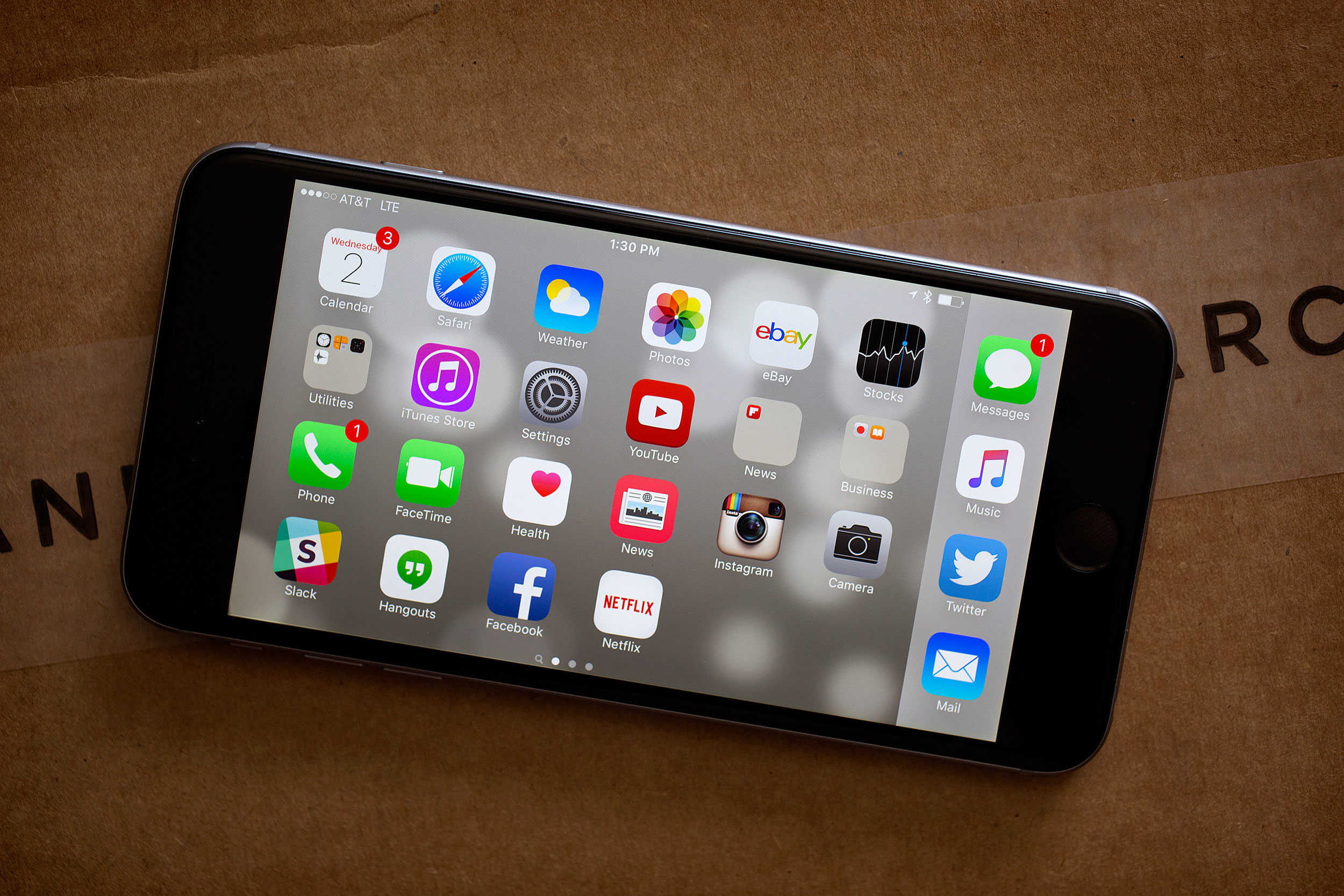
Some users trying to upgrade to iOS 9 this week have run into a serious problem: After the download happens, they find themselves stuck on the “Slide to Upgrade” screen upon restart. This bug renders their iPhones unusable, which is about the least useful state for an iPhone to be in.
But Apple has noticed, and it’s offering a fix. Here’s what you do to fix the annoying Slide to Upgrade bug.
According to Apple’s official support document, aptly named “If the Slide to Upgrade screen won’t go away after you update to iOS 9,” you’re just three steps away from getting your device back up and running iOS 9.
The official word is:
-
1. Connect your iOS device to your computer and open iTunes.
2. Select your device. If you don’t see it listed, force restart your device by pressing and holding both the Sleep/Wake and Home button for at least 10 seconds until you see the Apple logo.
3. If you made an iTunes backup of your device before updating to iOS 9, restore your device from that backup. If not, you need to make a backup of your device in iTunes, and then restore from that backup.
The good news is that even if you didn’t back up your data in iTunes (which you should have), you can still do it even if your phone has succumbed to the Slide to Unlock bug.
Really, all this solution boils down to is “Restart your iOS device and then restore it,” but at least it isn’t anything convoluted.
iOS 9’s launch hasn’t gone quite as smoothly as expected. Even before this issue could arise, people attempting to upgrade repeatedly faced frustrating download errors if they tried to get the new firmware directly through their devices. The solution to that was similarly easy: Download the update from iTunes.
But this week’s update woes aren’t limited to iPhones and iPads, however. Apple Watch owners were supposed to get their hands (wrists?) on watchOS 2, which will feature customizable watch faces, native apps, and third-party complications, but a “critical bug” kept Apple from releasing the new OS, and we aren’t sure when it will be out.
Still, for all the hiccups we’ve gotten from iOS 9’s premiere, at least the fixes are relatively easy. Now we can go back to the important work of complaining about how much better iOS 8 was, and how much we miss it.

Evan Killham is a freelance writer who lives in Nebraska and isn’t interested in football, so he has plenty of time to play and think about video games. He has written for Bitmob and GamesBeat and sometimes, he even goes outside. But not too often because he’s heard there are bees out there. Occasionally, companies send free units for review. Evan subscribes to Cult of Mac’s Reviews Policy and also does not keep the items he receives for possible coverage.


23 responses to “How to fix iOS 9’s Slide to Upgrade bug”
I’ll just wait until the new iPhones come out before installing this in my 5_.
Allow me to show you a fantastic ways to earn a lot of extra dollars by finishing basic tasks from your house for few ~short hours a day — See more info by visiting >MY_DISQUS_PROFILE
My upgrade and subsequent restore attempts got stuck at the Apple symbol. Solution was to do the restore with the SIM removed.
I haven’t tried this, I’ll restore it again but now without the SIM, thanks
This fix doesn’t work!!!!!!!!! When I go to restore iPhone it tells me to go to settings on my phone & turn off “find my iPhone”!!!!! Now how in the hell can I do that if I can’t even get into my phone!!!!!!!!!!!!
i opened icloud and removed my device from “find my iphone” on pc. tried attempting restoring again from itunes, and same pop up appears turn off find my iphone in settings on phone, clearly this is impossible when the phone is frozen. if your told to do this, it still doesnt work. think i will be visiting an apple shop!!!
I resorted to contacting Apple. The iPhone 5s is 18 months old, they didn’t charge the usual £25 for online support. The guy said that anyone with this issue won’t be charged
It didn’t work for me either. You have to go into an Apple store and get a new phone. That’s what I did.
If you can´t remove the phone from icloud, you need to place the iphone in recovery mode, and then restore it using itunes, I don´t advise you to restore a backup yet, you might end up on the same slide to upgrade screen after restoring the backup. Just wait until they release a new build (probably this week), and meanwhile just use it as new.
iPad2, Wi-Fi, plenty of free space, was running iOS 7 (which is apparently the problem, other articles indicate if you get 8.4.1 from whatever shady location you can find it, install that, THEN install iOS 9, everything will work fine).
Got the “slide to Upgrade” non-responsive screen. Plugging in to iTunes required entering passcode, which of course you can’t do since it won’t respond. Forcing a reboot backs it up a few steps to where you can enter the passcode and allow iTunes to connect (as I recall, I had to enter passcode once, do a few things, then enter it a second time – iTunes didn’t connect until after the 2nd one).
Did a full restore (reset), device works fine, but of course none of my data is on it.
Attempting to restore from backup results in a constantly repeating crash once I get past the initial setup. It will crash, reboot, start loading, then crash again and repeat. No “slide to Update” problem, but no improvement over the previous situation.
Forced it into recovery mode, wiped it again, waiting until Apple issues a fix before attempting to restore all my stuff from the backup. Did they not test upgrading from earlier versions of iOS on various devices?
SUCCSESS!!!! right or wrong it worked here is what i did
opened icloud on pc, removed my device from “find my iphone”, for those not computer litarate there is a visual guide on youtube.
forced shut down on my phone by pressing the top and home button at the same time. open itunes.
i then plugged in my phone and held down the home button at the SAME TIME, keep holding down until you see the itunes logo, arrow and cable picture on phone.
wait for itunes to sync the phone, then press restore iphone.
wait the for “get started” page from apple to appear, once it dose click the blue get stared button. (took a while for this page to appear)
then you will get a welcome page
unplug your device, go through all the set up on phone but do NOT complete, save for later, ie set up passcode later/next, set up wifi later/next, do not even enter apple id. this is because it will freeze again.
you should now have your phone like new and able to see home screen.
now go to settings and enter icloud id once signed in, your contacts should now be back on device providing they where backed up, mine were done automaticly before hand with my free 5gb of icloud storage.
set up wifi. and try “back up” in settings
on pc click windows start button, then pictures, select icloud photos under favorites menu bar. open my photo stream. on here should be your pics that were backed up, unfortunatly i lost quite a few.
#as far as i got
THANK YOU!! I was able to restore from iOS 9.0 connected to iTunes, rather than downgrading. iTunes finished and came up with a message that said “There is a problem with your iPad.” and told me to see their online service answer center. However, I looked down at my iPad, and it said Welcome. and was ready to set up as a new device. Worked for me!
Dear Jade, could you please provide your solution with another words? As a non native english speaker, I am bit confused what I have to do exactly based on your solution. Many thanks in advance!
My iPad was stuck on slide to upgrade, the fix worked but i had to set up as new iPad for it to work, restoring from an older backup didn’t work for me and I tried this way several times. Fortunately when I first plugged my iPad into my laptop it downloaded pics right away, then I did the fix with the restore as new iPad and viola, ios9 is pretty cool. Hope you all find a way to get yours fixed
Apple’s suggested fix did not work for me at all. While installing the OS works fine, it’s restoring your original backup that hangs the setup. Sometimes it’ll be in a different place. On my iPhone, it was on the Apple logo with a progress bar with no progress at all. On my iPad it was with the progress bar about 30% completed.
The only solution I’ve been able to find is to not do a restore from backup. Like others suggested, put the iOS device into recovery mode by restarting and holding the home button while it restarts. Then restore to iOS 9. Once that’s done, set it up as a new device. You’ll have to completely redo all your settings but I’ve found no way around it.
One thing I’ve discovered that once you have a stable iOS 9 configuration and backup, you can’t go back. Yes, you can restore iOS 8.4.1, but try a restore to an 8.4.1 backup will lock up your device in exactly the same way it did when trying to go from 8.4.1 to 9. Once you’re on 9 and have a stable configuration, forget going back.
If you have a lot of photos on your device and don’t want to lose them, use the computer’s Photos app to import them all from your device to your computer. You can do this even if your device is hung on the Apple logo. Create an album in Photos and drag all those photos and videos to that album. Once you’ve got iOS 9 on your device, go to the Photos tab in iTunes and tell it to sync with that album. One caveat to this is that the photos/videos will no longer be on your device’s Camera Roll, but that has two advantages. One, it make the restore from backup much faster. With my 4,700 photos/videos, it took about 40 minutes to restore. Without them, it took about 2 minutes. Of course, syncing comes later so you don’t really save much time, but if you want it up and running fast, that helps. The second is that if you have an Apple Watch, you can further subdivide your photos into smaller albums that you can sync to your WatchOS 2 device (I am running GM of that) and display your photos on you watch face.
On the iPad, Safari on iOS 9 still has a broken select/cut/copy/paste, since iOS 7! Also, the new Podcast app, for some insane reason, no longer allows you to view video podcasts full screen! You get a small window in the middle for your video and two huge white borders top and bottom!
Apple keeps making freakin junk software ever since Steve Jobs and Scott Forstall were no longer part of the company.
I lost a lot of important notes
yea this didn’t work for me because when I go to restore my device it says ‘turn off find my …’ . please helpppp
My iPhone 4s is out of working….
I’ve had some experience with a few sufferers of this Slide to Upgrade bug, and I would modify your instructions as follows:
1. Restore from Backup using iTunes
If you don’t have an iTunes backup, try to make one using iTunes
2. If the Restore from Backup fails (and it fails for many), do a Recovery Mode restore
3. If the Recovery Mode restore doesn’t work, try to find out why (it should not fail, the Slide to Upgrade bug does not cause it to fail) or call Apple about it
Make sure your PC doesn’t have any antivirus turned on during the restore
4. When you are presented with the three options (Set up as new, Restore from iCloud or Restore from iTunes), set up your device As New
5. After setting up your device, go to iCloud settings and check if you have iCloud backups from before the iOS 9 upgrade
6. If you do have a recent iCloud backup or iTunes backup that you can use:
a. temporarily turn off iCloud backups so that your good recent backup is not overwritten
b. set up certain apps and settings so that you can temporarily use your device, e.g. Gmail, Facebook, etc.
c. Restore from backup when Apple releases their fix (in the form of update 9.0.1 or 9.1) – it’s a matter of days according to Apple
7. If you don’t have a recent iCloud backup, set up your device as new – you lose some data, but that’s the price you pay if don’t do a backup before an upgrade
My sleep/wake button doesn’t work so I can’t restart it and when I plug my phone into my computer to iTunes, it says I need to select my device but there is nothing coming up on my phone so I am completely stuck!
how to fix this,when i go to “restore iphone – find my iphone must be turned off” how can i turned off when my touch screen is freeze…i need help plssssss
I got a problem with both my ipad and itunes. Firstly my ipad 2 stop downloading after i slide to upgrade. And i connected my ipad 2 on my itunes. But!!! I cant even click on back up and restore from back..