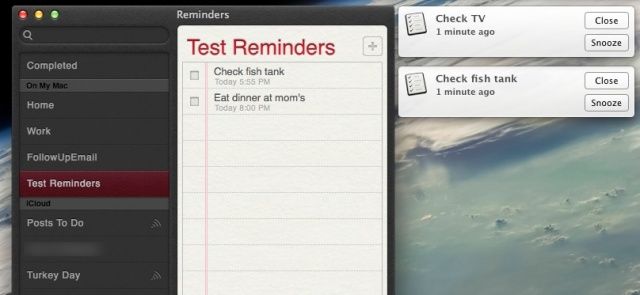
Ah, Reminders. They’re boring, but essential. Keeping track of the crazy number of things I have to do on a daily, weekly, even hourly basis relies on my remembering them, first of all, and a reminder now and then is essential.
One of the cool things about Apple’s Reminders app is that it allows you to set due dates and times with each task you enter. You can set these times and dates manually, or you can use natural language expressions with the app to set up your time-sensitive tasks a lot more quickly.
Here’s how to do it.
First up, launch Reminders, typically found in your Applications folder. Select a list of Reminders you want to add tasks to, or create an entirely new list. Then, click on the little Plus icon in the upper right; this should create a spot for you to make a new reminder. Now, type in your natural language request, like “Dinner with mom tomorrow at 6:30.”
Reminders will create the actual task, but will also set up a notification to let you know when the event is about, according to the settings you have in Reminders. You don’t have to create the reminder, select the info button, and put in the details one at a time. Sometimes, it’s the little things that really help.
Via: Macworld Hints

Rob LeFebvre is an Anchorage, Alaska-based writer and editor who has contributed to various tech, gaming and iOS sites, including 148Apps, Creative Screenwriting, Shelf-Awareness, VentureBeat, and Paste Magazine. Feel free to find Rob on Twitter @roblef, and send him a cookie once in a while; he’ll really appreciate it.

