It’s true: sometimes Macs do crash. More often than not, though, crashes will be limited to a single application, rather than the entire system.
You’ll know an app has crashed because it simply stops doing anything. Clicking on controls has no effect, scrolling gets you nowhere; the app simply doesn’t respond to your usual commands. So what do you do next?
First, don’t panic. OS X is designed to keep crashes under control. Even if an application has crashed, in most cases you’ll still be able to carry on just fine with work you’re doing in other applications. All you have to worry about is the one that’s crashed, and any unsaved work you had inside it.
Second, click outside the application’s window boundary, if you can. Or click the icon of another application in the Dock.
You need to do this so you can take back control of the computer. The crashed application will be displaying its own menus in the Menu Bar, and they won’t respond because it’s crashed. You need to bring another application to the front, so that you can do the next step via its menus.
Now, click the Apple menu. Yup, the little Apple symbol that’s always at the top-left of your screen. This is present in all applications, because it gives you access to system-wide controls.
About half-way down the Apple menu you’ll see a command called Force Quit. Click it.
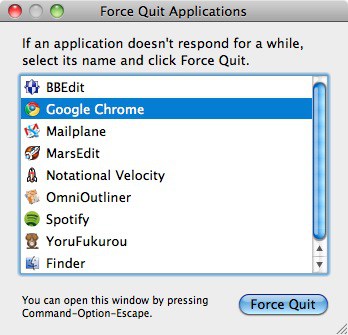
Now you see this little window appear. It displays a list of all the applications you have running right now (so your list will look different to this example). The application that’s crashed will almost certainly be highlighted with red text, and the words “Not responding”. At the bottom of the panel is a button saying “Force Quit”. All you need to do is highlight the crashed app (by clicking on it once), then click the Force Quit button.
Zap! The crashed app has now been put out of its misery, and you can restart it again if you wish to.
Be warned: using Force Quit does what it says on the tin. It forces a hung application to quit instantly. Any work you hadn’t already saved will be lost. The “save often” mantra remains as true today as it ever has.
(You’re reading the 51st post in our series, 100 Essential Mac Tips And Tricks For Windows Switchers. These posts explain to OS X beginners some of the most basic and fundamental concepts of using a Mac. Find out more, or Grab the RSS feed.)

Giles Turnbull is a freelance writer in England. He also writes for the Press Association and The Morning News. You can find out more at his website, and follow him on Twitter @gilest.

