Mobile menu toggle

Search results for: watchos 2

How to track your Apple Watch activity rings and pause your streak

By

Take A Break From Your Rings
You can pause them without losing your streak.
Image: D. Griffin Jones/Cult of Mac

The Apple Watch doesn’t just take your step count — it has three activity rings that track different levels of energy you burn throughout the day.

New to watchOS 11, you have additional options for customization and for taking a break when you need it. You can have different goals for each ring for different days of the week, so it can fit your workout schedule. When you want a rest day or if you fall ill, you can take up to a month-long break without losing your streak.

If you’re all-in on the fitness tracking, you can add widgets that show your rings on your Apple Watch face and widgets on your iPhone. Or, on the other hand, if you find it a bit annoying, you can turn off all the notifications so they won’t bother you anymore.

Here’s everything you need to know about the Apple Watch activity rings.

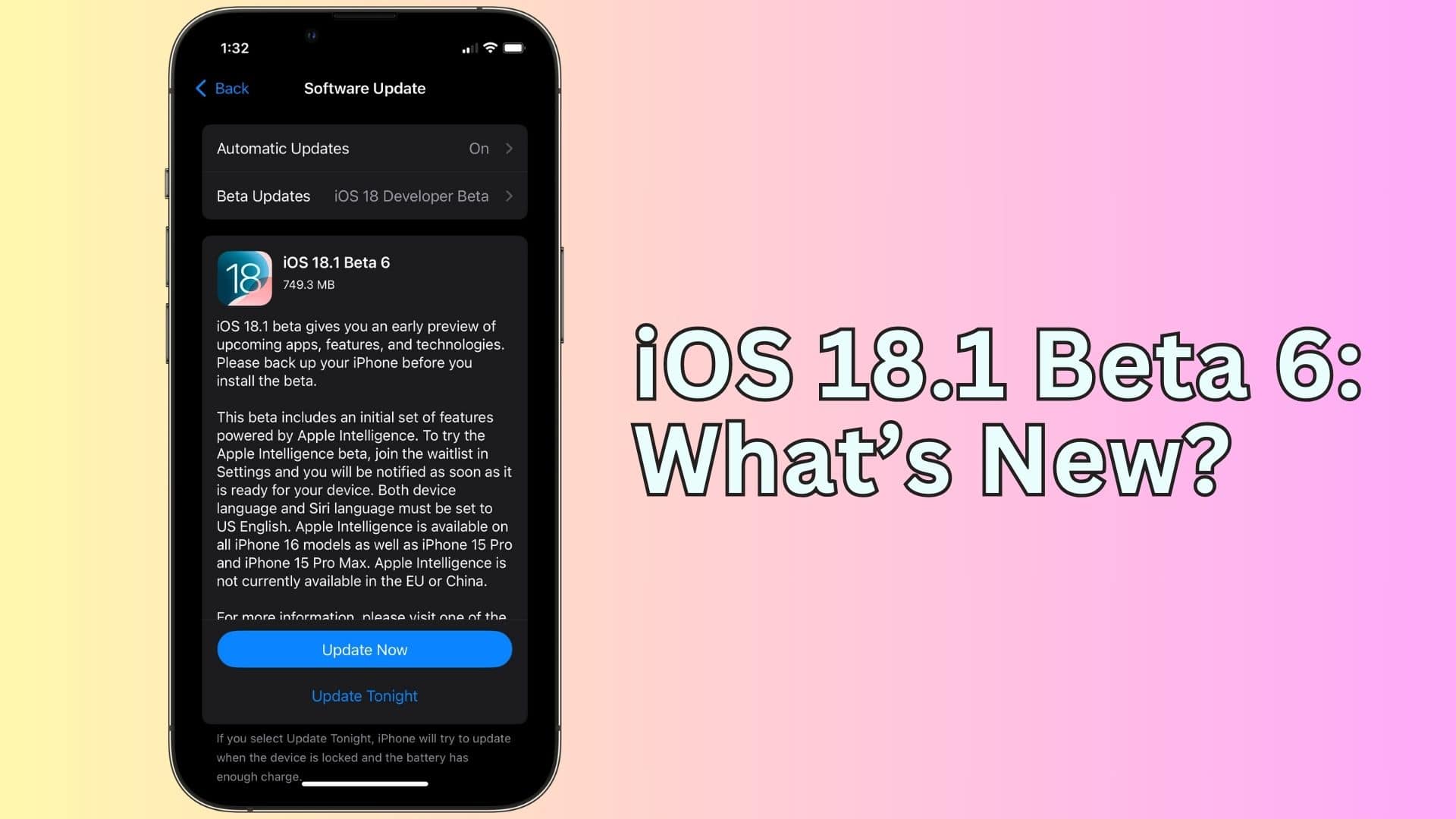
iOS 18.1 beta 6: All the new features and changes

By

iOS 18.1 beta 6 is here with small but important refinements.
Apple Intelligence is finally here!
Photo: Rajesh Pandey/Cult of Mac

Apple continues beta testing iOS 18.1 ahead of its potential public release on October 28. Besides Apple Intelligence, iOS 18.1 will pack several other changes and improvements.

Below is everything new in the latest iOS 18.1 and iPadOS 18.1 beta 6.

8 best new features in the Notes app in iOS 18

By

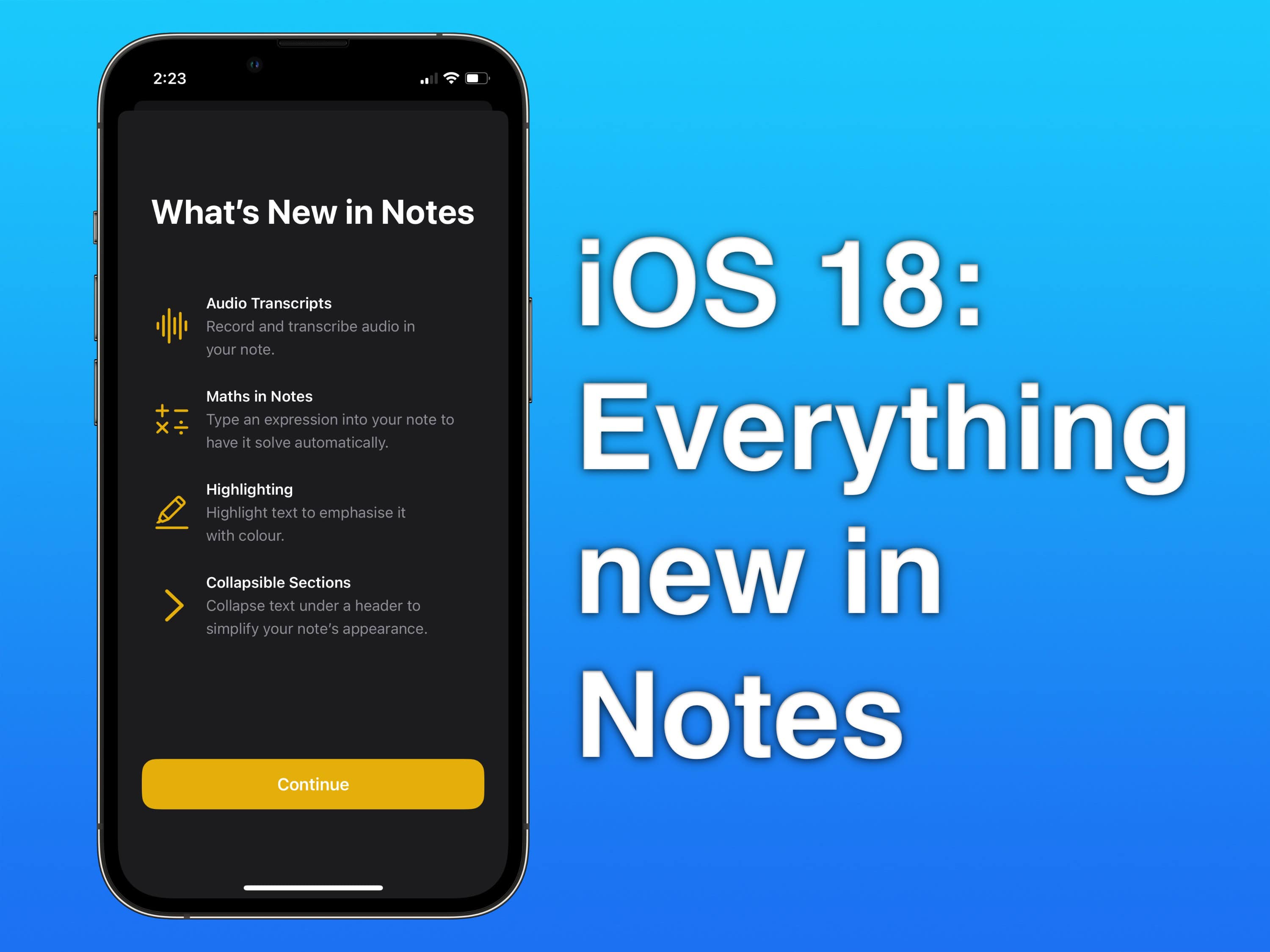
Everything new in Notes app in iOS 18
Notes gets some useful usability upgrades in iOS 18.
Photo: Rajesh Pandey/Cult of Mac

 In iOS 18, Apple adds several handy new features to the iPhone’s Notes app. These upgrades will help you create better, easier-to-follow notes while significantly speeding up the overall process of creating said notes.

AI-powered summaries should make it easy to review long notes, while Smart Script will help make handwritten notes legible. For those who want to convert transcript to notes AI seamlessly, these enhancements will make the process even more efficient. Below are the top new features coming to the Notes app this year.

What do the Apple Watch buttons do? Click, double-click and hold.

By

What do the buttons do?
The buttons on the Apple Watch switch apps, activate Apple Pay, open Siri and more.
Image: Apple/D. Griffin Jones/Cult of Mac

What do the buttons on the Apple Watch do? The Apple Watch borrows a lot from the iPhone, but the biggest difference between the two devices comes down to the way their buttons work. They do different things whether you click, double-click or hold them down.

In watchOS 10, Apple changed a lot of these features. The software update added a new Widgets view, assigned Control Center to the side button, and changed what double-clicking the Digital Crown does. (For older devices, consult our article about what Apple Watch buttons do in watchOS 9.)

Here’s a guide to the buttons on the Apple Watch.

Apple Watch 10: The best gets gloriously better [Review] ★★★★★

By

Apple Watch 10 deals★★★★★
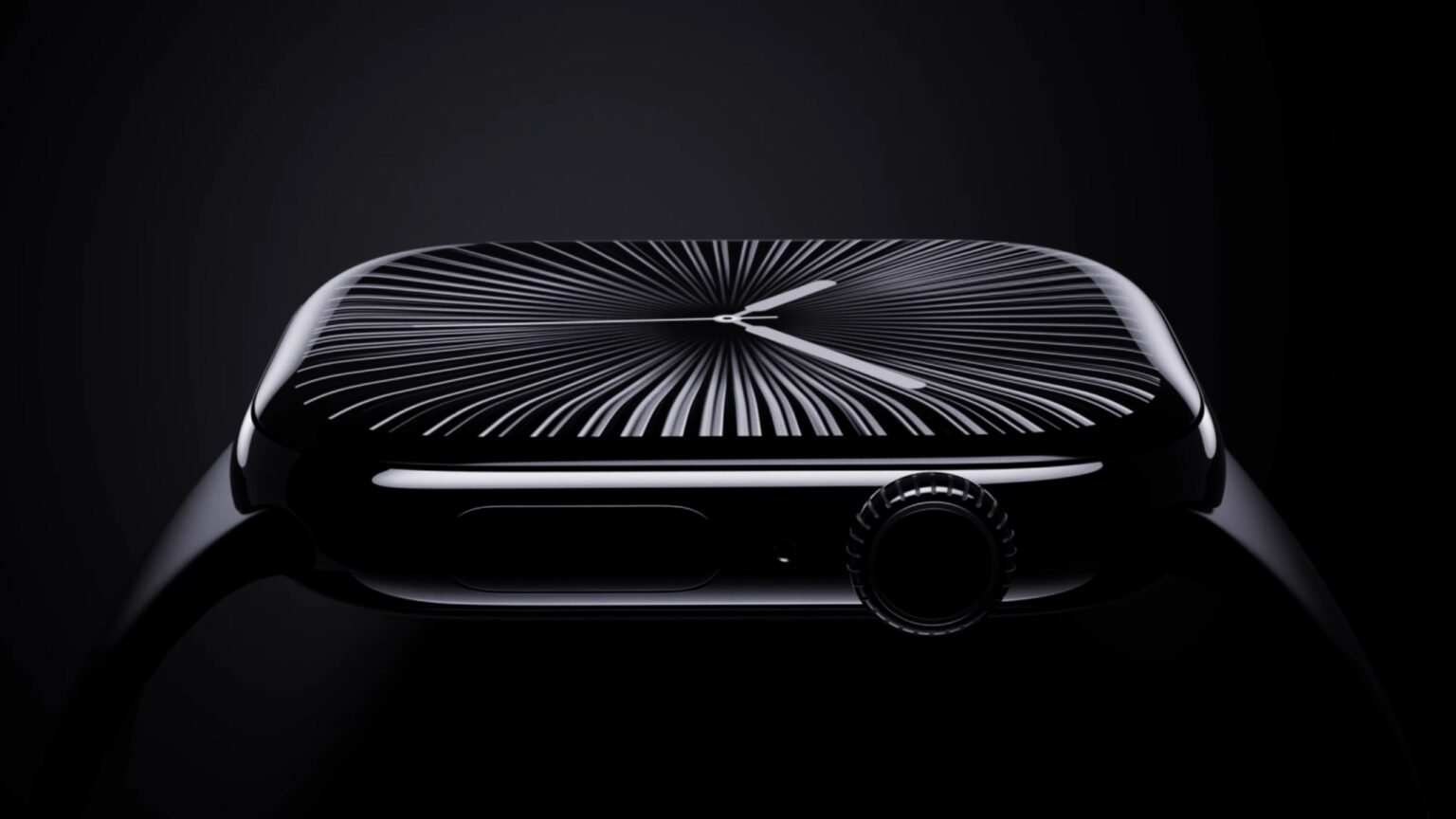
Apple Watch 10 is quite the looker (seen here with Sport Loop).
Photo: David Snow/Cult of Mac

I find going to the mall for an Apple Store sales event exciting yet brutally soul-sapping, even when a preorder makes pick-up relatively easy. But it’s well worth it when it results in the excellent new Apple Watch Series 10 on my wrist. I actually couldn’t wait to write this Apple Watch Series 10 review.

Larger, thinner, lighter and more lushly curvaceous than predecessors, the 10th anniversary Apple Watch is, technically, a redesign. But it feels like a bunch of iterative improvements more than a huge overhaul. And yet those small changes simply add up to great — with only a couple of small caveats.

How to make a good-looking custom Home Screen in iOS 18

By

iOS Home Screen customization
You'll be able to customize your iPhone's Home Screen in fun new ways.
Photo: Apple

You’ve probably seen some of the beautiful custom iPhone Home Screens on social media after the iOS 18 launch. Some people go to great lengths to creatively customize their iOS 18 Home Screen layout, icons and widgets.

It makes sense. After all, you open your phone and look at your Home Screen dozens (or even hundreds) of times every single day. A custom Home Screen that matches your style can bring a little spark of joy to your daily life every time you whip out your iPhone. And iOS 18 makes Home Screen customization easier than ever.

Keep reading (or watch our video) for a quick introduction into the world of custom Home Screens. You’ll find out about new features coming in iOS 18, how to go above and beyond using Shortcuts, and how you can top off your iPhone aesthetic with widgets. I’ve scoured the internet (Reddit, mostly) to find the finest examples.

Don’t install iPadOS 18 on your M4 iPad Pro

By

iPadOS 18 bug
A installation bug supposedly bricked some M4 iPad Pro units while upgrading to iPadOS 18.
Image: Apple/Cult of Mac

Apple temporarily stopped allowing access to the iPadOS 18 upgrade for the M3 iPad Pro. A bug apparently bricked some tablets during the installation process for the new version.

The problem only affects the iPad Pro M4. And if you already made it through the update process, there seems nothing to worry about.

Apple Watch 10 review roundup: More refined than revamped

By

Apple Watch 10 review roundup
That glossy Jet Black color is new to the Apple Watch 10 aluminum cases this year.
Photo: Apple

As Apple Watch celebrates its 10th anniversary, Series 10 has arrived with a suite of refinements rather than revolutionary changes, our Apple Watch 10 review roundup found. And that’s despite the fact that a redesign took place to make the wearable larger yet slimmer. Let’s dive into what reviewers say this latest iteration brings to the table, including a larger display, faster charging and sleep apnea detection.

Apple Sports app brings scores to your iPhone Lock Screen

By

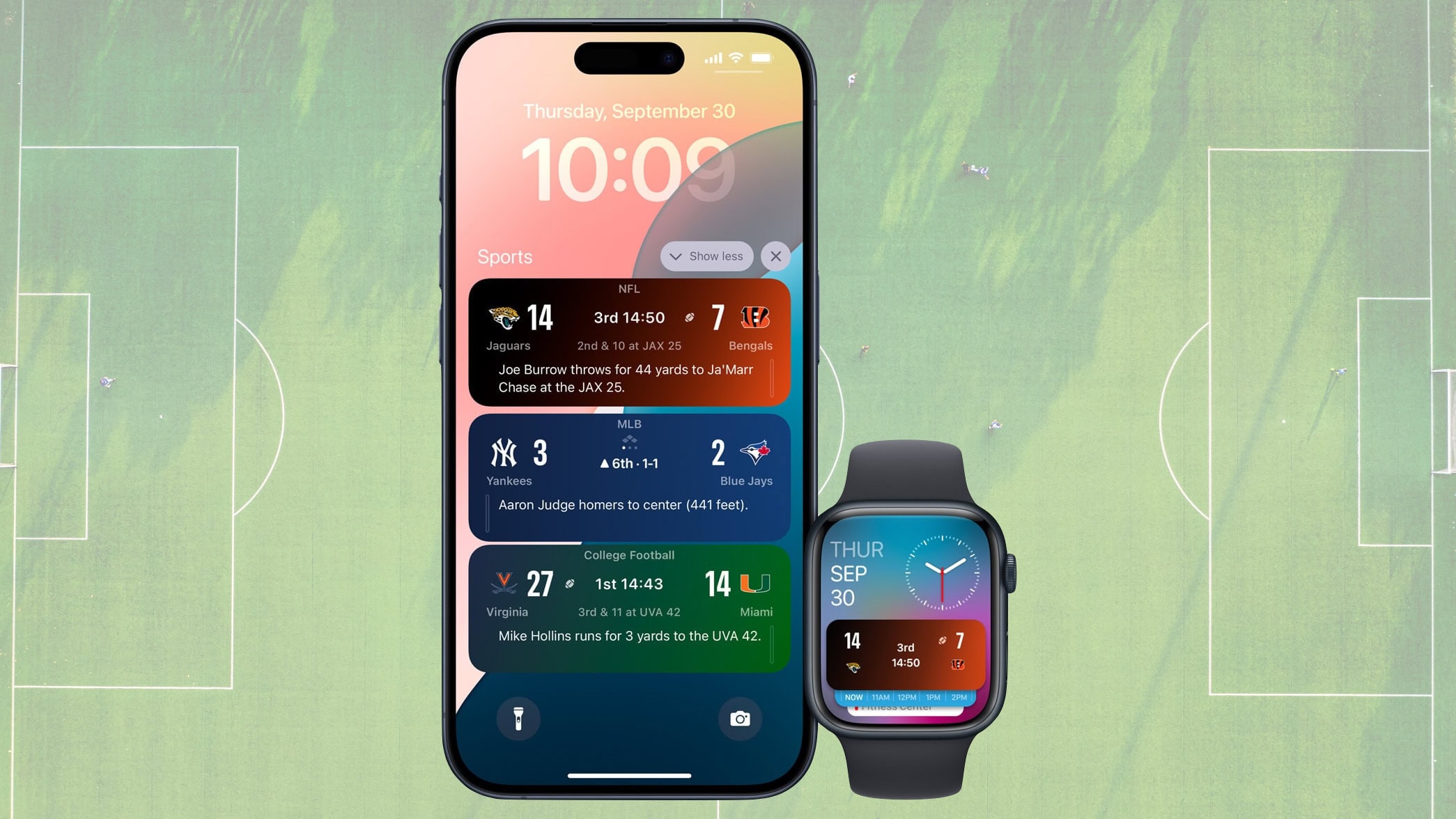
Apple Sports app brings scores to your iPhone Lock Screen
Apple Sports app now supports Live Activities to make following games easier.
Image: Apple/Cult of Mac

Apple Sports 2.0 launched Monday, adding support for Live Activities so real-time game updates appear on the iPhone and Apple Watch Lock Screens.

The free app also takes over displaying scores in the iPhone Dynamic Island.

Everything new in macOS Sequoia

By

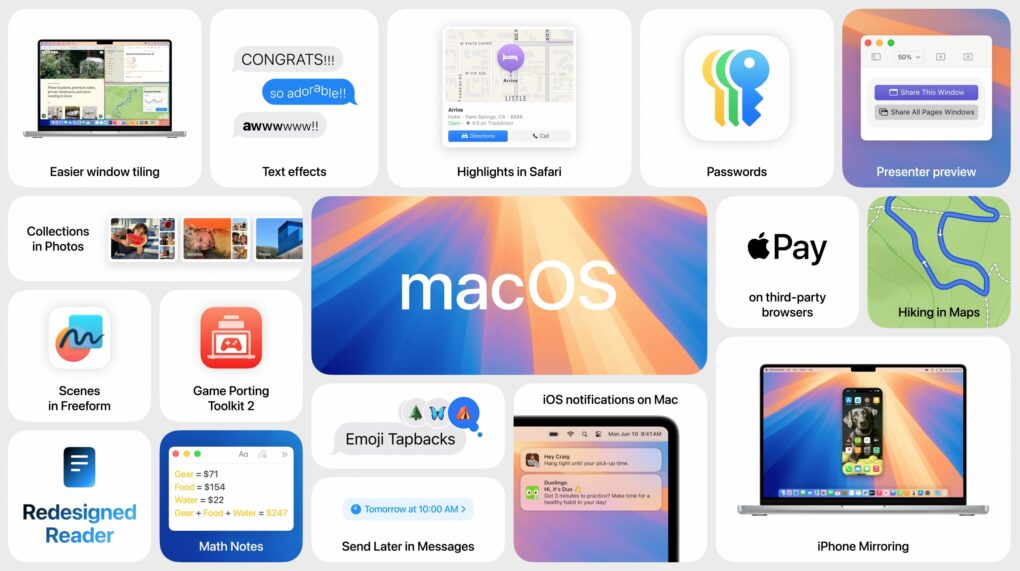
macOS Sequoia features
macOS Sequoia brings your iPhone and Mac closer.
Photo: Apple

macOS Sequoia is a pretty comprehensive update with some fantastic new features, like iPhone mirroring, window tiling, and text message formatting. Although Apple Intelligence — the AI features coming to Mac, iPhone, and iPad — will continue grabbing headlines for the next year, it won’t arrive until later in the fall. Plus, only Macs with Apple silicon will support Apple Intelligence. Additionally, users can look forward to a new shaking head emoji, expanding the ways people can express disagreement or disapproval in messages.

Still, macOS Sequoia brings some game-changing new features — and it’s out right now. Find it in System Settings > General > Software Update. It’s compatible with most of the same Macs as macOS Sonoma, dropping support for the 2018 and 2019 MacBook Air.

After you update, here’s the big list of things you can check out.

1 61 62 63 64 65 136