Mobile menu toggle

Search results for: shortcuts

How to manipulate iOS text using the keyboard

By

manipulate text
Keep your hands on the keyboard with these iOS text-wrangling tips.
Photo: Cult of Mac

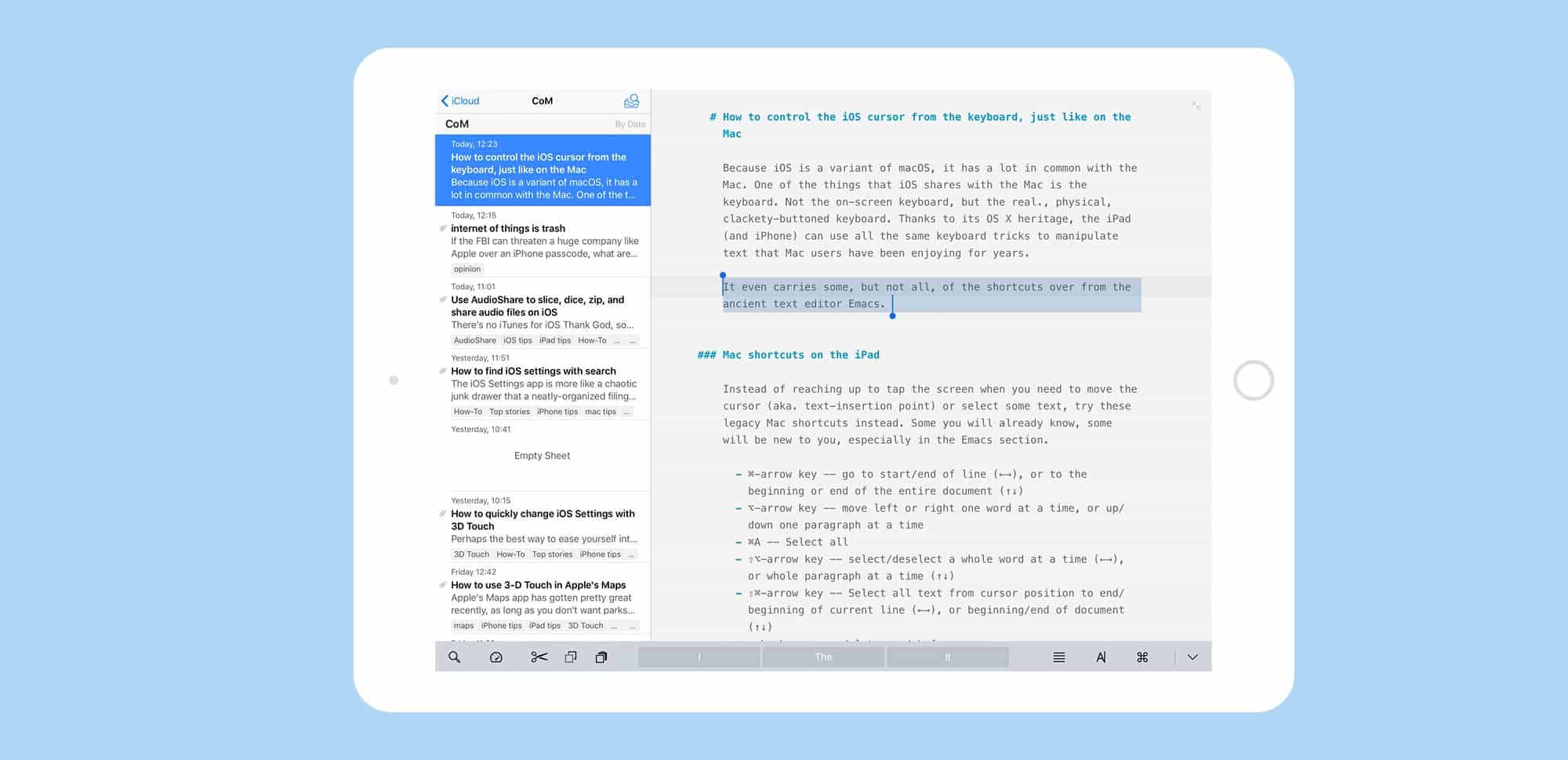
Because iOS is a variant of macOS, it has a lot in common with the Mac. One of the things that iOS shares with the Mac is the keyboard. Not the on-screen keyboard, but the real, physical, clackety-buttoned keyboard. Thanks to its OS X heritage, the iPad (and iPhone) can use all the same keyboard tricks to manipulate text that Mac users have been enjoying for years.

It even carries some, but not all, of the shortcuts over from the ancient text editor Emacs. What? Don’t worry, it’s not too dorky.

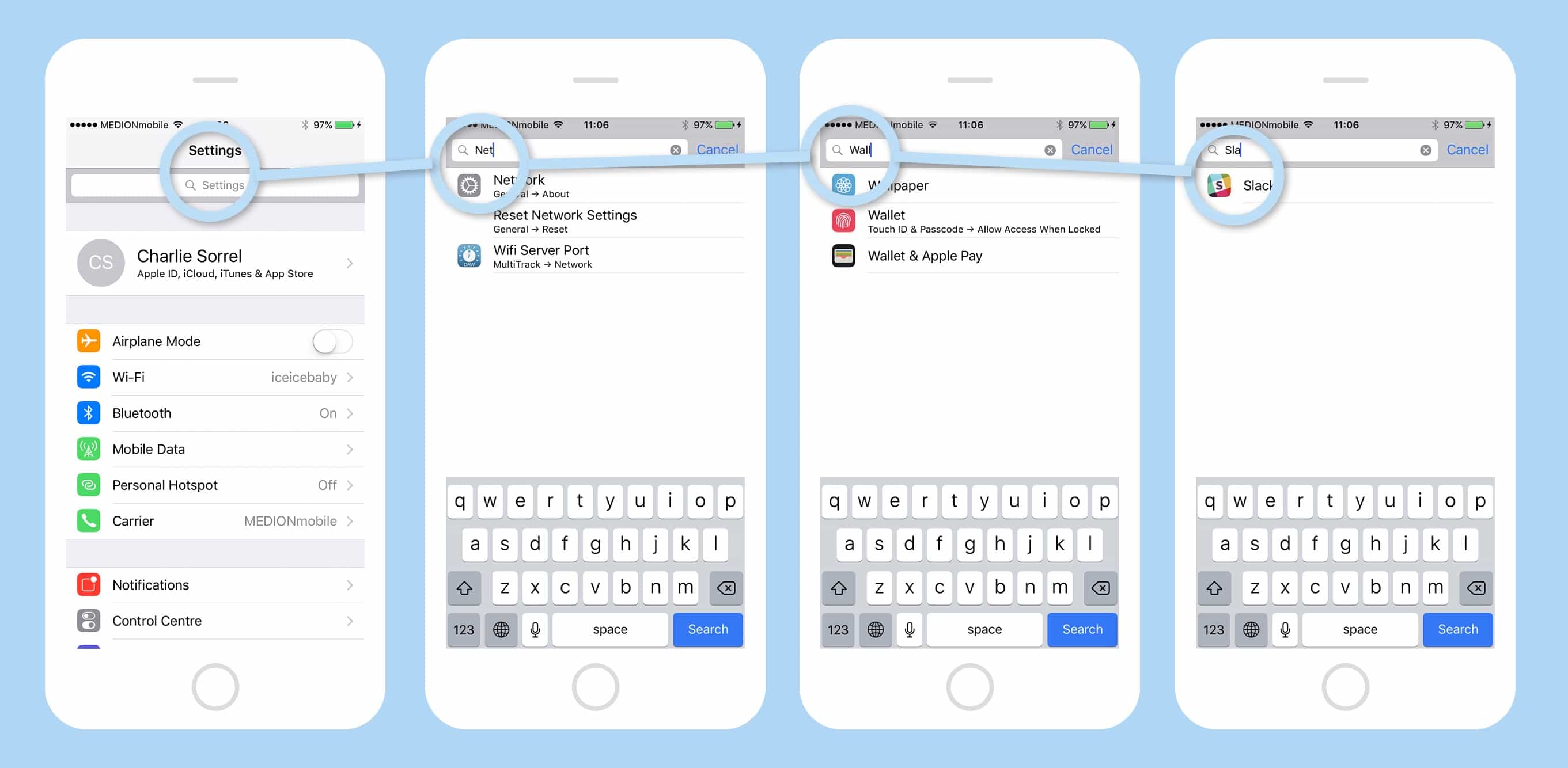
How to quickly search settings in iOS

By

iOS search settings
You'll be surprised at the how many settings are unearthed by a simple search.
Photo: Cult of Mac

The iOS Settings app is more like a chaotic junk drawer that a neatly-organized filing cabinet. Back when the iPhone launched, it was tidy, with only a few items, all methodically arranged. Then, as more and more features were added to iOS, their settings were tossed in there like you toss spare keys into that kitchen drawer with the rubber bands and spare fuses. Unlike a real junk drawer, though, which will slice your fingers with hidden tools and pieces of broken teacup if you rummage too hard, the Settings app has a way to ignore the detritus and get straight to the setting you want: Search settings. This feature is essential, but very few of the folks I asked about it this week even knew it existed. This how-to is for them, and for anyone else who hates changing settings.

How to quickly change iOS Settings with 3D Touch

By

3d touch settings shot
Get quick access to the settings you change the most.
Photo: Cult of Mac

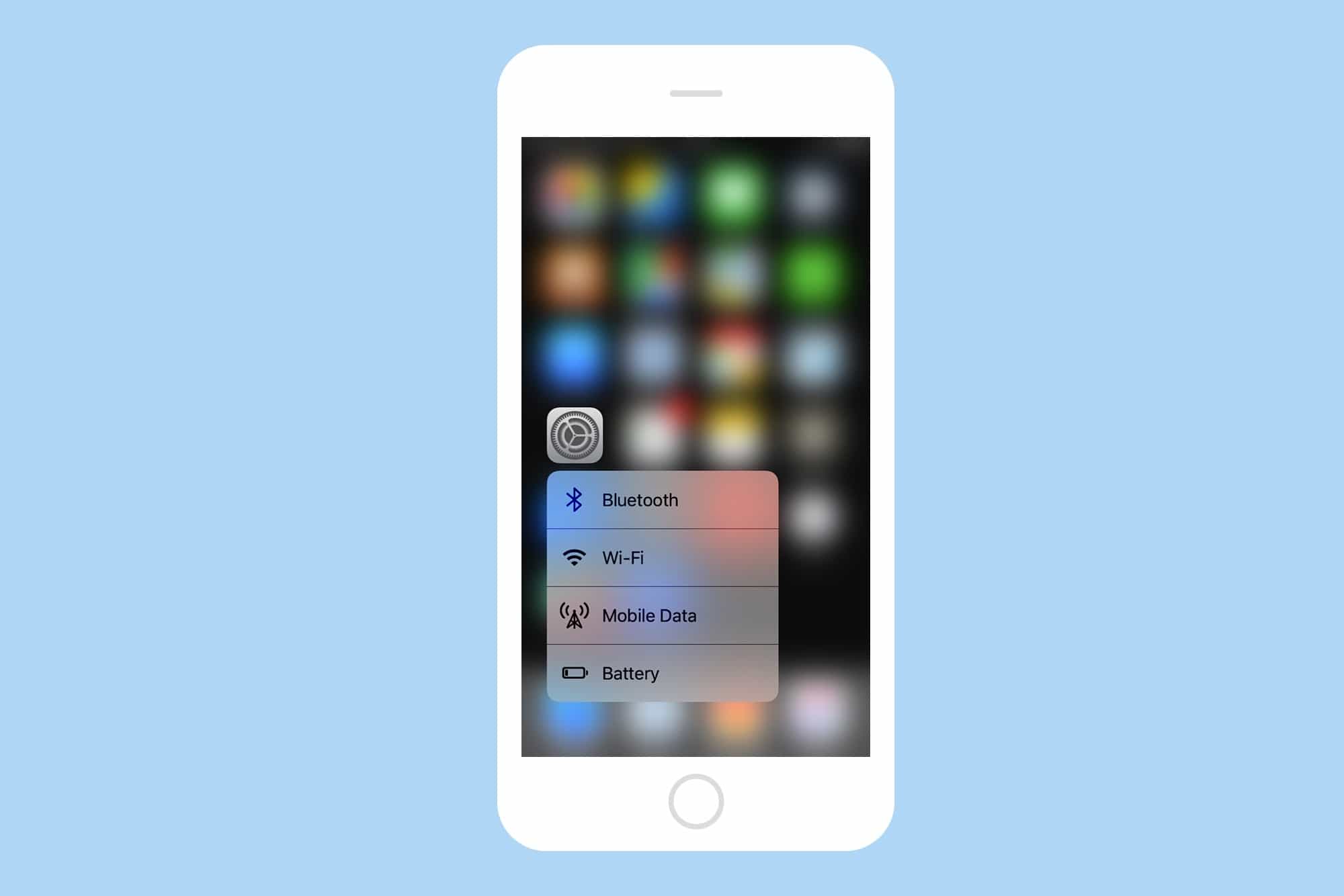
Perhaps the best way to ease yourself into the relaxing, time-saving bathtub of increased productivity that is 3D Touch is to start by pressing a little harder on Apple’s own app icons. Specifically — in today’s article at least — the Settings app icon, where you will find quick-access shortcuts to your most often-used settings. Let’s take a look:

How to use 3D Touch in Maps to see the weather anywhere

By

maps app 3d touch weather
One of the neatest tricks in Maps app is the ability to quickly check the weather anywhere in the world.
Photo: Cult of Mac

Apple’s Maps app has gotten pretty great recently, as long as you don’t want parks and forests marked in green. Like most of Apple’s built-in apps, Maps is even better when used with 3-D Touch. By pressing on everything from the app icon to the tiny weather can on the corner, you can access shortcuts and extra info. Let’s take a look.

How to use Text Replacement to avoid typing the words you hate

By

Text Replacement shortcuts in iPhone
Text Replacements are easy to set up, and save a ton of time and hassle. You can even use them with emoji.
Photo: Cult of Mac

What if you could type out any of your email addresses just by tapping on the same key a few times? Or do Google searches over and over on a favorite website just as easily? What about easily typing that special symbol that’s so hard to reach on the iOS keyboard that you usually never bother? All this, and more, can be yours, if only you’ll spend a minute or two setting up some text replacement shortcuts. Let’s do it right now.

Screens 4 for macOS brings new look, file transfers and more

By

Screens 4 has landed on macOS.
Photo: Edovia

Screens, arguably the finest and most attractive VNC client for Mac and iOS, is now even greater.

Its version 4 update for macOS brings a more polished user interface, the ability to transfer files between your devices, Touch Bar support for the new MacBook Pro, and more.

How to quickly take charge of your photos with 3D Touch

By

3d touch photos
Depending on where you are, 3D touching a photo offers different options.
Photo: Cult of Mac

3D touch is the feature that keeps on surprising you. Just when you thought you’d discovered all its tricks, up pops another one. Today we’re going to see how pressing on pictures in the Photos app offers all kinds of handy shortcuts for wrangling Faces, Albums, and Moments.

Microsoft is stealing the iOS Control Center for Windows 10

By

Windows-10-Control-Center
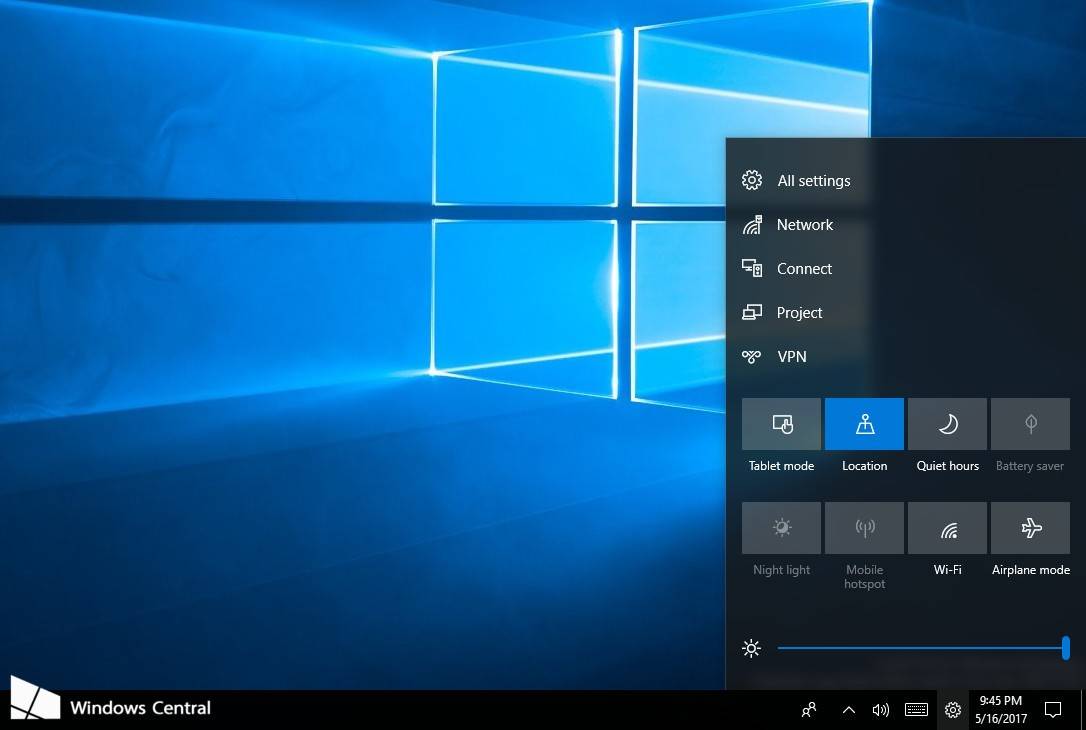
Control Center in Windows 10 looks very familiar.
Photo: Windows Central

As part of some big improvements coming to Windows 10, Microsoft is stealing the iOS Control Center to give users a quick and easy way of changing display brightness and toggling settings from the desktop.

Unlike Apple’s Control Center, however, Microsoft’s will be customizable.

Activate iOS Mail’s hidden folders

By

secret mailboxes
Apple's mail app has some handy superpowers hidden in plain view.
Photo: Cult of Mac

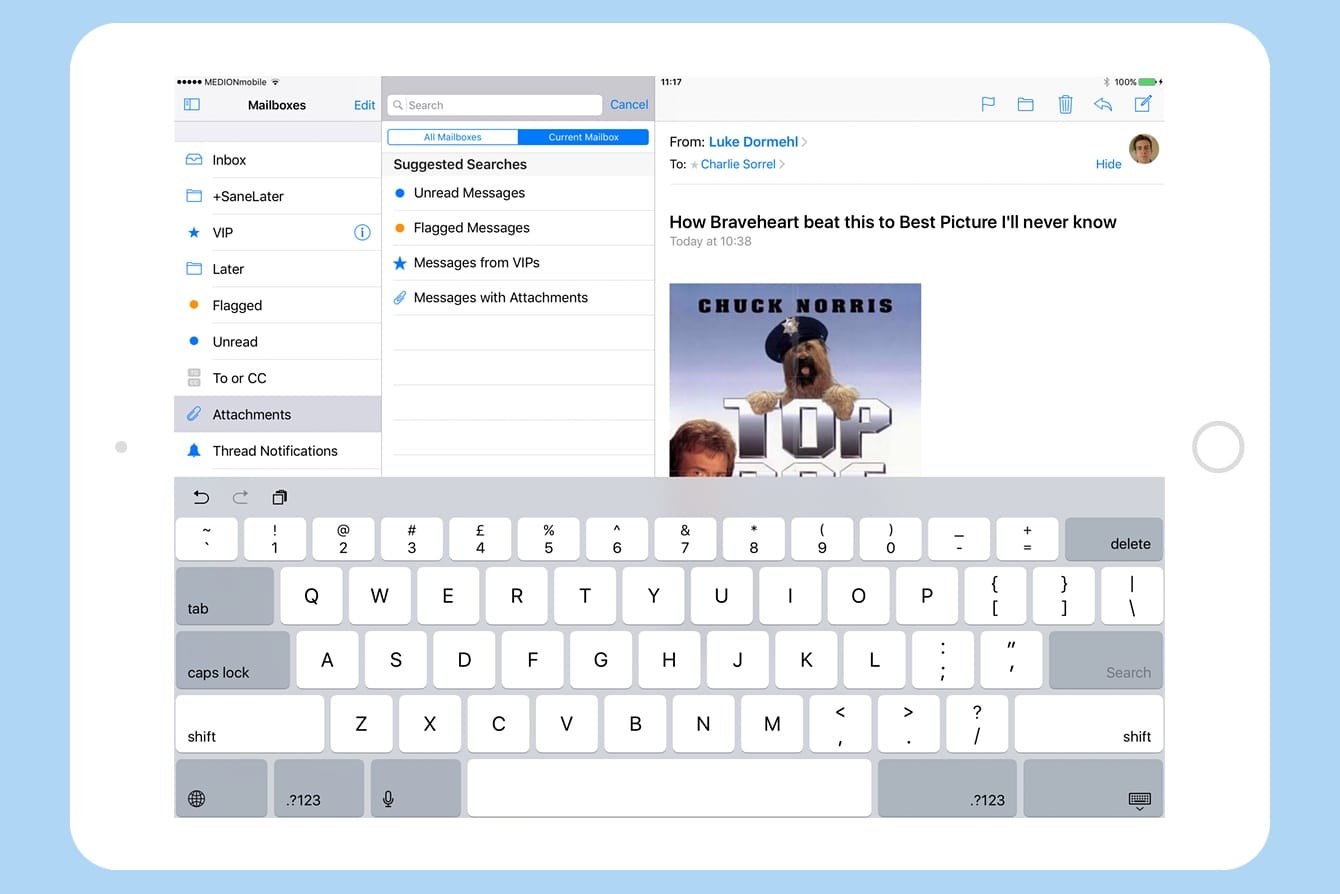
iOS 10’s Mail app may look just like its previous pedestrian iterations, but it packs a whole lot of hidden superpowers under the hood. While you still can’t export a message to, say, a to-do list app, you can do pretty much everything those fancy third-party mail apps do, and then some.

Let’s take a look at quickly setting up your iOS Mail app so you can slice and dice incoming messages easily using its hidden folders.

Galaxy S8 review roundup: Samsung just schooled the iPhone

By

Galaxy S8 Infinity Display
Samsung has a winner in the Galaxy S8.
Photo: Samsung

The first reviews of the Galaxy S8 and Galaxy S8+ have dropped a day ahead of their official launch in many markets, and there’s one thing to take away from them: Samsung just knocked it out of the park with its best smartphones to date.

Despite the problems the company encountered with the Galaxy Note 7 last fall, it has managed to produce two new devices that don’t disappoint. From gorgeous design and impressive cameras to the best display on the market, the Galaxy S8 series has it all.

It might not perfect, but the changes and improvements Samsung has made show Apple what a smartphone should be in 2017, and make it even more difficult for the iPhone to catch up.

Here’s our review roundup.

1 75 76 77 78 79 121