Mobile menu toggle

Search results for: How to customize and swap Apple Watch faces

How to customize and swap Apple Watch faces

By

cult of mac
Switching to a new watch face is almost too easy.
Photo: Ste Smith/Cult of Mac

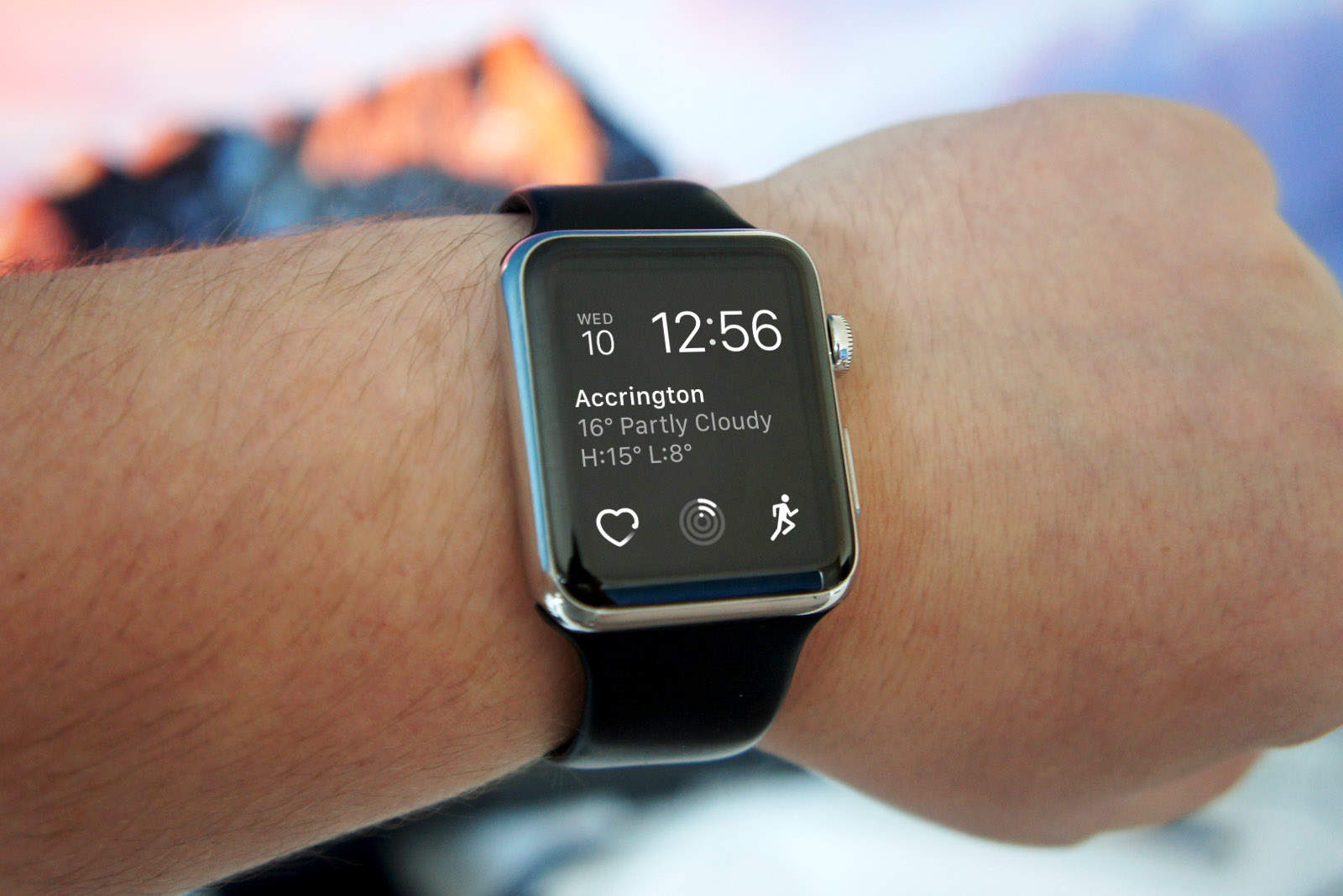
Apple is making it a lot easier and faster to switch up the look of your Apple Watch thanks to some new features in watchOS 3.

 Starting this fall, Apple is adding a bunch of new faces that can be customized like never before. All the faces can be added via the Watch app for iPhone, and there are so many great options you’ll be swapping all the time. If you’re an Ultra user, check out the best Apple Watch Ultra 2 faces to maximize your experience.

Here’s how to do it:

These are the best and coolest Apple Watch faces

By

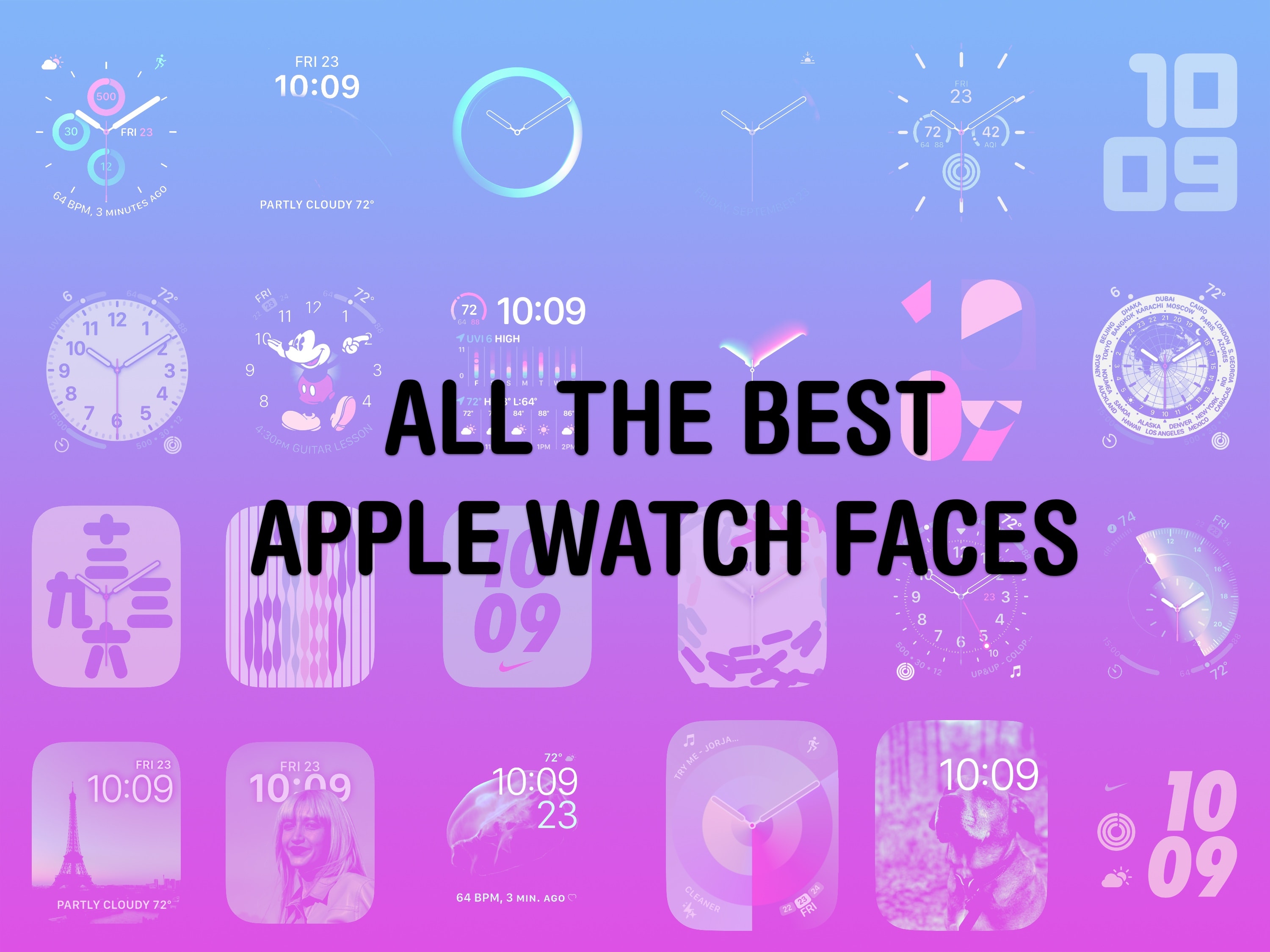
All The Best Apple Watch Faces
There are so many options — and several good ones.
Image: D. Griffin Jones/Cult of Mac

Out of the many dozens of options, which is the coolest Apple Watch face? Every time I see someone wearing an Apple Watch, I try to scope out which watch face they use. Nine times out of 10, they use either the Modular face or the Photo face (with a Sport band).

This is despite the Apple Watch offering dozens of watch faces, allowing for all kinds of customizability.

If you want to spice up and individualize your Apple Watch, here are the best and coolest faces. And in our video, I rank every watch face on a tier list.

Live weather, awesome astronomy, fun faces: Customize your iPhone Lock Screen

By

There are a lot of ways to customize the Lock Screen in iOS 16.
Image: D. Griffin Jones/Cult of Mac

You can radically customize the Lock Screen of your iPhone with a bunch of widgets, aesthetics and styles. If you liked the themed custom Home Screens people were putting together using Shortcuts and Widgetsmith, you’ll love the level of creativity you can express with customized Lock Screens.

Read on to see all the features or watch our video.

Sign into email, get your photos and more on the iCloud website

By

Find your photos and files online.
All of your photos and files are in the cloud anyway — with iCloud.com, you can access them from any computer.
Image: Matthew Bowden/Wikimedia Commons, D. Griffin Jones/Cult of Mac

You can use the iCloud website to access all of your online Apple services from any computer, tablet or phone. This includes Find My, Mail, Photos, Invites, Files, Pages, Numbers, Keynote, Notes, Calendar and Reminders. It’s really convenient if you need to find a lost device, print a file or download a picture from a different computer you’re not signed into.

The iCloud website provides easy access to all of Apple’s cloud services — and it’s even customizable for those who use it often. Let me show you how it works.

Download the Apple Watch face Tim Cook uses

By

Image of Tim Cook with his Apple Watch highlighted.
There’s just enough detail in this photo to go from.
Photo: Apple

How does Tim Cook customize his Apple Watch face? During his recent tour of India, people zoomed in on this picture of him meeting with developers to dissect his choice of watch face and complications.

I’ll break down Cook’s watch and show you how to download it yourself.

After all, the Apple Watch is celebrating eight years since its release on this very day in 2015. What better way to mark the occasion than with a celebratory new watch face?

Sail through Apple Watch setup with these handy tips

By

The Apple Watch is gorgeous (and comfy, too).
Your Apple Watch setup will be a breeze with these handy tips.
Photo: Jim Merithew/Cult of Mac

You’ve got your Apple Watch, you lucky devil. Now it’s time to tweak it to make it as personal as possible with these Apple Watch setup tips.

Although Apple walks you through many of the basic steps, there are plenty of choices to be made before you’ll be able to squeeze maximum utility and joy out of your sleek, stylish smartwatch.

Cult of Mac’s roundup shows you exactly how to make the most out of your new favorite gadget.

How to use watchOS 3: Tips, tricks and hidden tweaks

By

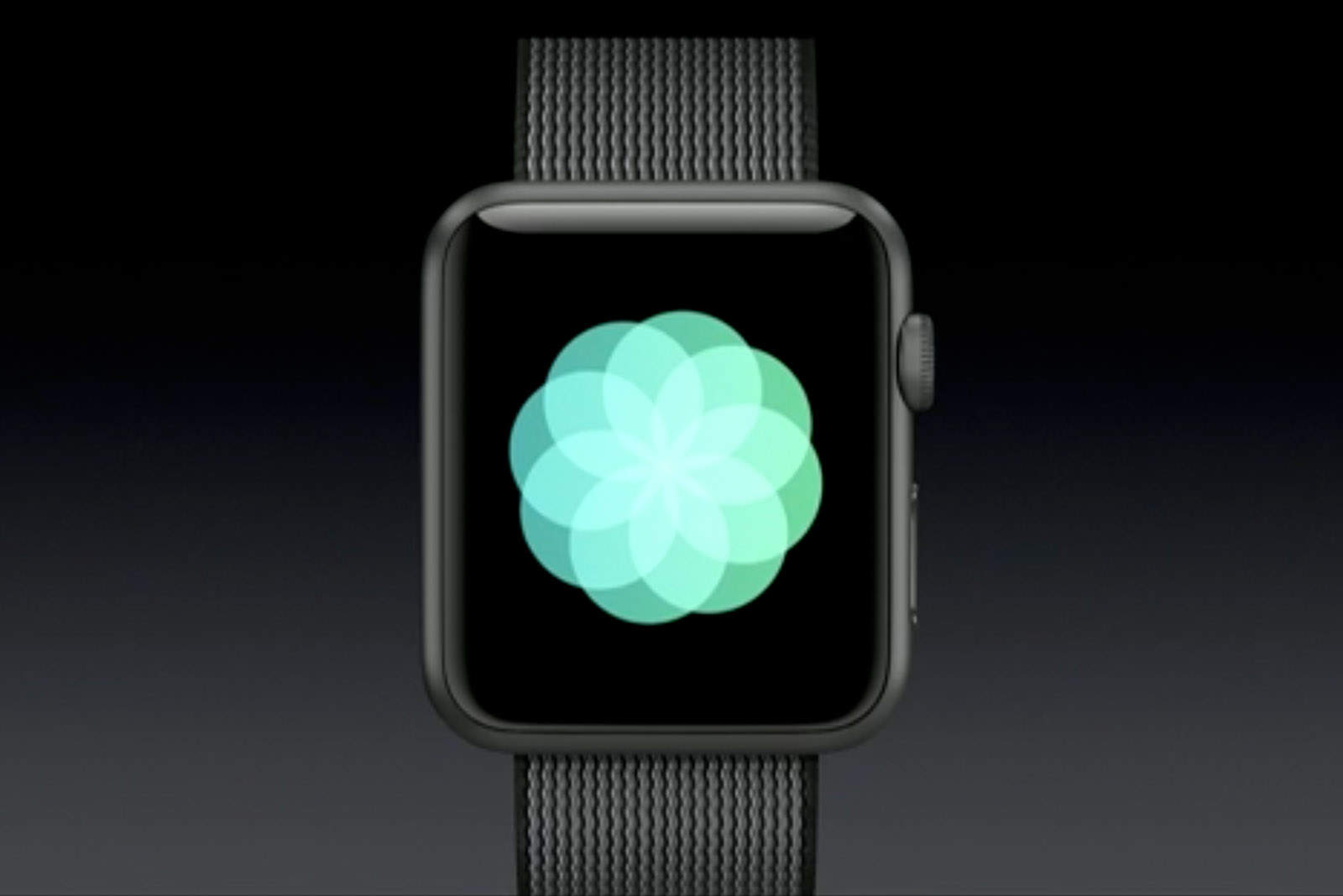
Breathe app in watchOS 3
The new Breathe app in watchOS 3 turns Apple Watch into a meditation machine.
Photo: Apple

Your Apple Watch Series 1 or Series 2 has arrived! Introduced at Apple’s keynote last week, the third version of the Apple Watch does a heck of a lot more than tell time and Cult of Mac has some tips to help you make the most of its myriad new features.

Mastering the various features is a bit of a learning curve on this highly advanced wearable operating system, but we’ve rounded up a cheat-sheet of tips and tricks to try out with the fitness, graphics, games and media features.

What’s your favorite new watchOS 3 feature?

The Best iWatch Prototypes

By

iwatchconcepts

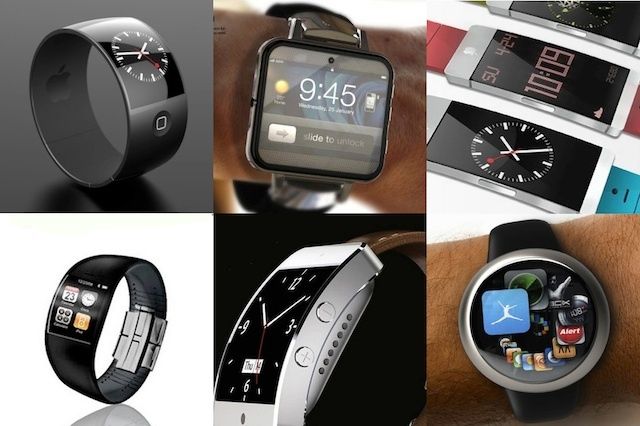
Fans across the globe have already embraced the idea that Apple will most likely release a smartwatch, but the biggest question everyone has is, what will it look like?

Artists and designers have been trying to imagine the design of the iWatch for a few years now and while no one has really blown us away with a perfect concept, we have seen some timely ideas that Apple will probably implement. To get a better idea of how the iWatch will look, function and feel, take a look at these six concepts.

Esben Oxholm iWatch
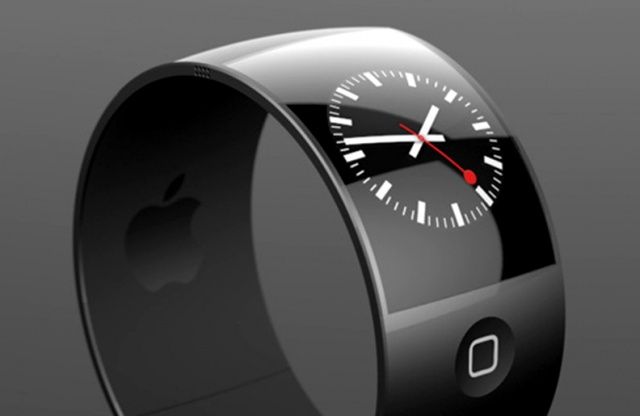
iwatchconcept

When design engineer Esben Oxholm created his iWatch concept he decided to make it as simple as possible. It features a black metal and rubber wristband. The display is shiny while the body is matte. And it has the rumored curved display. Apple’s iWatch probably won’t be as circular, but the minimalist look that Oxholm achieves will also be Apple’s aim as everything about the watch will defer to the screen.

Oxholm’s concept is probably the closest to what the iWatch will actually look like, though we imagine that Apple’s watch will be more oval in shape rather than a perfect circle. This concept almost looks like a bulked-up Nike Fuelband, which isn’t outside the realm of possibility. Tim Cook sits on Nike’s board, after all.

MacUser iWatchiwatch2
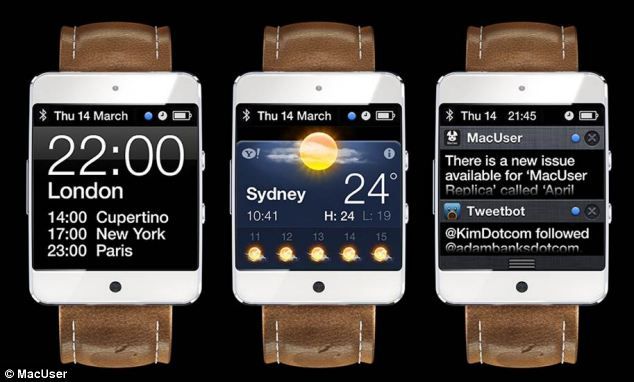
Created by Dutch 3D modeler Martin Hajek, this MacUser iWatch concept tries to embrace traditional elements of watches while updating the technology of the watchface. In truth, Martin’s concept looks like a miniaturized iPhone strapped to some leather, but it gets a time out because of the UI.

The iWatch will have a touchscreen display, however, no one is going to want to interact with the display for extended periods of time. Our fingers are too tiny to hit the small X’s on this iWatch’s screen. The iWatch will be used to display information, but it won’t be used to interact with that info. Your iPhone will do all of the heavy lifting, while the iWatch acts as a secondary display to alert you of the most important information throughout the day.

ADR Studios iWatch
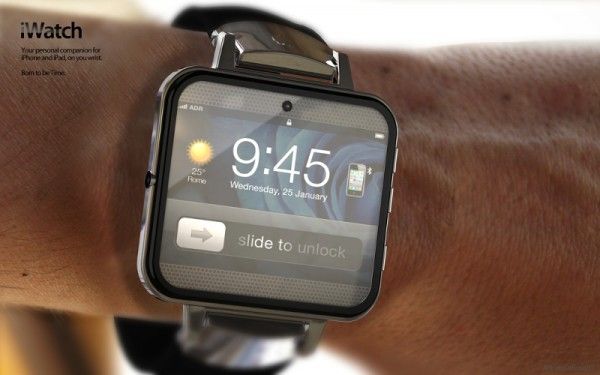
iWatch concept design by ADR Studios.

ADR Studios has made a couple of iWatch concepts, but this is their best one yet. The size of this concept iWatch is pretty small so it won’t feel like you’re wearing a computer on your wrist. Apple’s design team is obsessed with having the thinnest, lightest and smallest devices on the planet, so even though Apple will try to cram as many features into the iWatch as possible, it will also want to make a very small device. The actual face of the iWatch will probably be somewhere around this size unless Apple works out a curved display for it.

The UI for ADR Studios’ concept is one of the most on point we’ve seen so far. Notice that there is a small icon indicating that the iWatch is tethered to an iPhone. The ‘Slide to Unlock’ feature probably won’t be as big as it’s portrayed here, where it eats up half the screen. The iWatch display will take advantage of all available screen real estate even when it’s locked, so expect there to be bigger font for the time and a more elegant solution for unlocking.

Nikolai Lamm iWatch
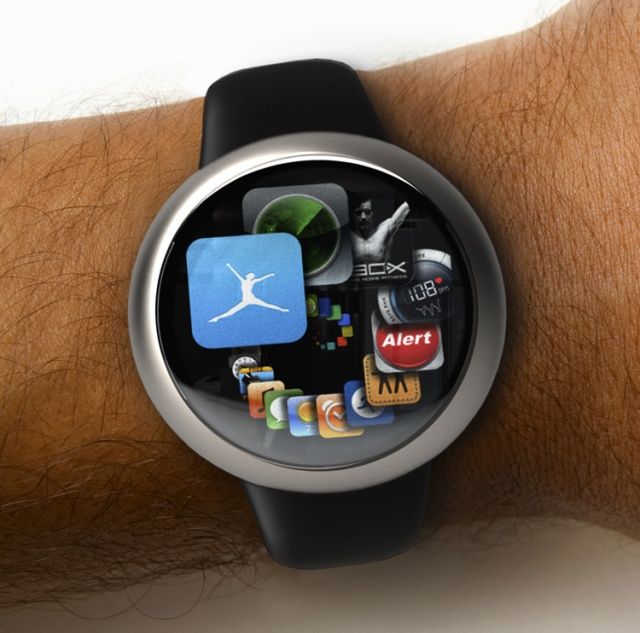
iWatch-Render

One thing that a lot of iWatch concept artists haven’t taken into account is the user interface. Most assume that the UI will be a watered-down version of  iOS, but Nikolai Lamm offers a different take. Rather than interacting with your iWatch the same way you do an iPhone, it might actually be closer to the controls of the iPod classic.

Lamm’s spiral interface is based off an Apple UI patent for iTunes and would appeal to people who want the look of a classic watch that interacts with an iPhone. The circular finger movements required to interact with Lamm’s iWatch would compliment the design of the hardware and you would only need to touch your device when you want to adjust notification settings for certain apps, while everything else is controlled from your iPhone.

The display of the real Apple iWatch probably won’t be circular like this, but you should expect some new UI from Apple as the iWatch will be a completely new device with new functions not yet in iOS.

Just Design Things iWatch
iwatchconcept530

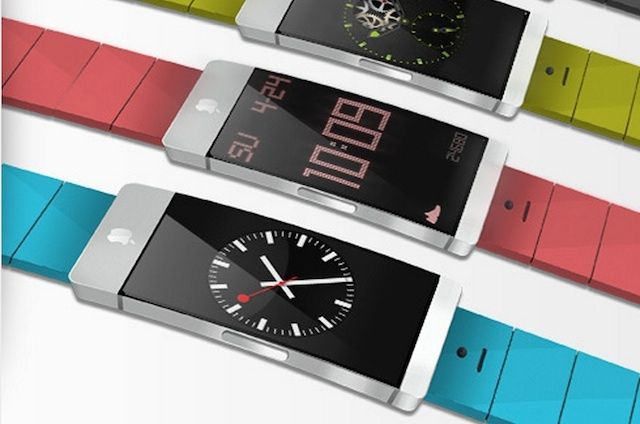
With the sixth-generation iPod Nano, Apple embraced the idea of the iWatch and offered multiple clock faces and wrist bands to convert your iPod Nano into a watch. Expect the real iWatch to come with similar features.

The concept from Just Design Things for the iWatch has swappable wristbands and clock faces so that users can customize their look. Even if the iWatch doesn’t offer changeable Swatch-like wristbands, Apple will at least offer it in multiple colors. The display of this concept looks too heavy and bulky to be worn comfortably as a wristwatch though, so we think it’s more likely that the display will be built right into the band to make it more comfortable for everyday use.

ItswithaKay iWatch
appleiwatchconceptd

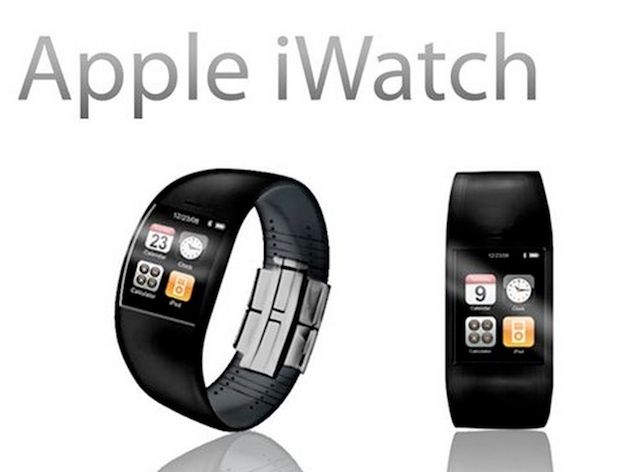
For this iWatch concept, artist itswithaKay modeled the watch after Nike’s Amp watch and added some iOS elements. It sounds too simple to be plausible, but we already know that Jony Ive and his design team requested a number of sport watches from Nike to study.

The iWatch has to have a durable design. Unlike the iPhone or iPad, the iWatch must take a licking and keep on ticking, so a thick rubberized band will help resist some of the wear and tear. Also take note of the tapered band on this concept. It allows enough width for a display while also being comfortable for the wearer. The display will probably be a bit bigger than in this concept, the UI will be different along with the clasp in the back too, but the physical outline of the iWatch will be pretty similar to what you see here.

The iOS 18 Photos app needs some major tweaks

By

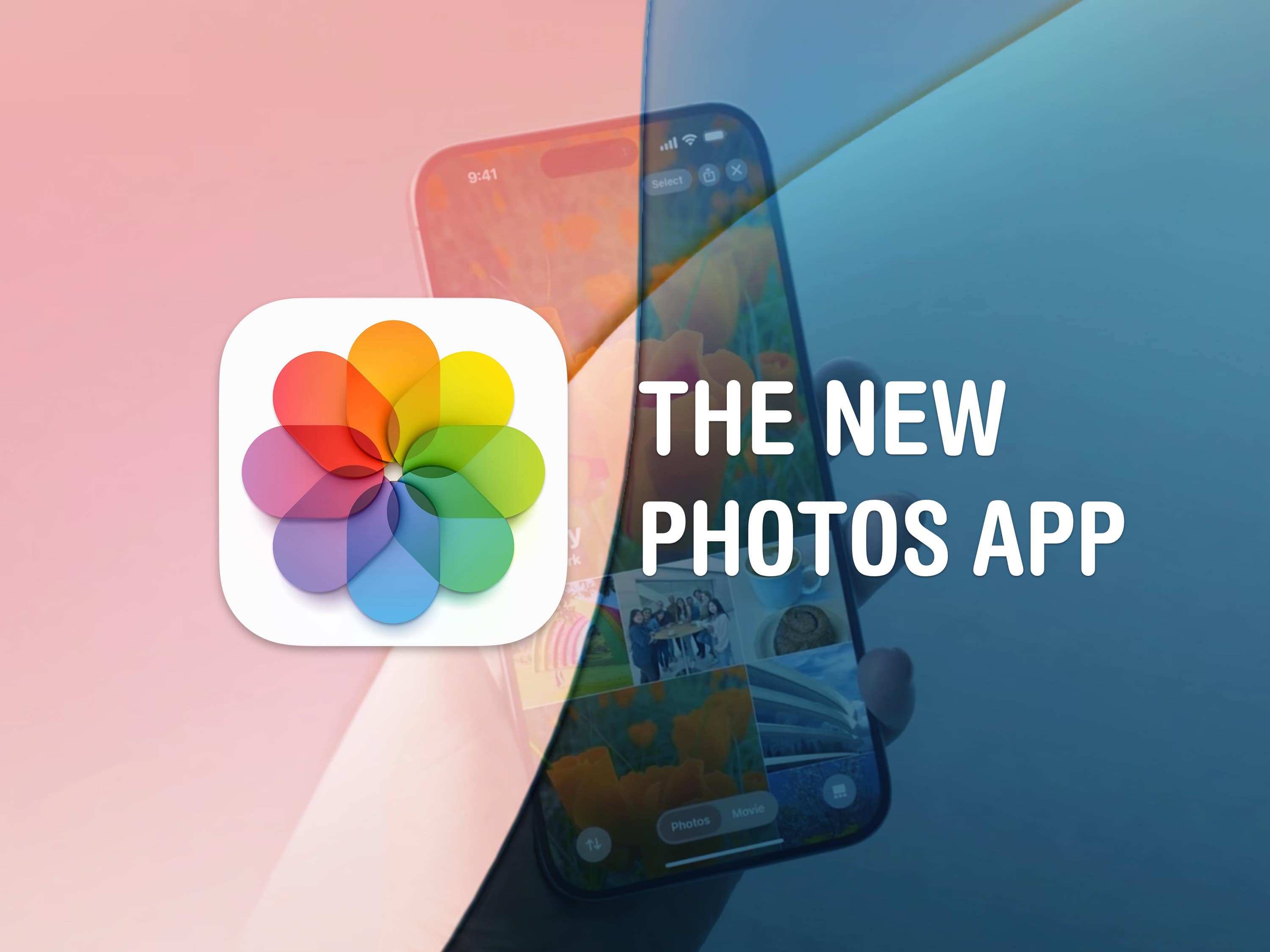
The New Photos App
The new Photos app is divisive.
Image: Apple/D. Griffin Jones/Cult of Mac

With the major Photos app redesign coming in iOS 18, Apple aims for simplicity. However, the version  of the Photos app in iOS 18 developer beta 3 is a hodge-podge of design that will confuse users. I think that if Apple doesn’t revise its approach, the company will face significant backlash when it releases the updated app to the public this fall.

Yes, iOS 18 is still in beta. And Apple very well could change the Photos app before its anticipated release in September. I certainly hope Apple tweaks things — I’m writing this as more of a wish list than a design critique. In fact, I already filed my suggestions through the official channel of Apple’s Feedback system (submitted as FB14289280).

As of iOS 18 developer beta 3, Apple has already made a few little tweaks to the Photos app redesign. But unfortunately, there’s been no movement on any of my major criticisms from beta 1. For that reason, I feel obligated to outline the goals of the new Photos app, applaud what it gets right, point out where the design fails, and explain what aspects prove confusing.

I don’t think Photos needs to be reverted entirely to the way it worked before. But these key features need changing ASAP. Keep reading or watch my video.

How to tweak your iPhone’s Home Screen

By

Edit Your Home Screen
It's easy to customize your iPhone's look by adding widgets and removing app icons you don’t want to see.
Image: Kristin Hardwick/Wikimedia Commons/D. Griffin Jones/Cult of Mac

Your iPhone doesn’t need to look like it came from 2012. You can easily swap out wallpapers and/or customize iPhone Home Screen layouts by adding widgets and folders (and by hiding unwanted apps from your view).

This guide will help set up your iPhone screen so it looks exactly how you want it to.