Mobile menu toggle

Search results for: "MacBook Air"

This 13-Pound Vintage Mac Laptop Was Killed By The Sony Walkman

By

Colby_Walkmac_1_610x458

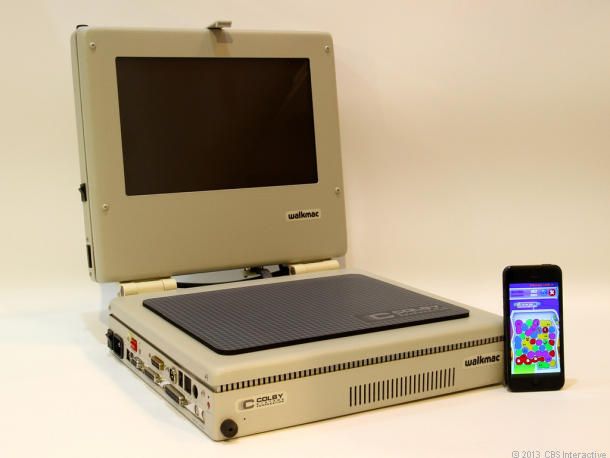
You probably already know the Macintosh Portable, Apple’s first Mac laptop released for $7,300 in 1989, which looked and weighed about as much as a small suitcase full of dark matter. No joke: you could ship an entire crate of MacBook Airs inside of one.

But can you believe that there was an even bigger, more unwieldy Mac laptop that preceded it? It wasn’t an official Cupertino joint, to be sure, but meet the Walkmac: a 1987 modded Mac SE with a working LCD screen and a battery pack.

Entry-Level MacBook Pro Now Costs $999 For Students

By

Screen Shot 2013-05-30 at 1.19.06 PM

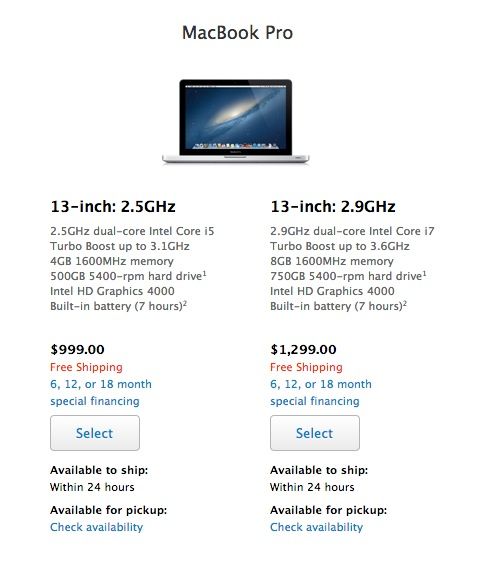
Apple’s on a roll today. Shortly after releasing a cheaper $229 iPod touch (sans iSight camera), they’ve lowered the price on another staple… at least for students. If you buy an entry-level MacBook Pro, it now costs $999, $200 off retail. That’s double the previous educational discount, and makes it as cheap as an entry-level MacBook Air. Nice!

Source: Apple.com

Make Your Mac Send Sound Output To Your Giant HDTV [OS X Tips]

By

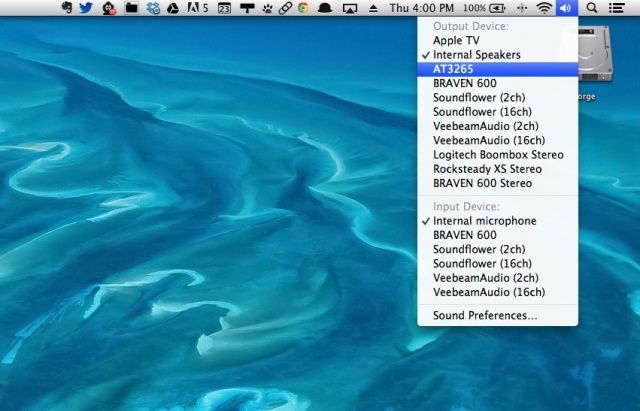
Audio through HDMI

At work, I use a big Acer monitor connected to my Macbook Air via an HDMI dongle from Moshi and an HDMI cable. For quite some time, I was content with having the sound come out of the Macbook Air, which I have set up just to the left of the big monitor as a second screen.

But the other day, since I have the huge TV in my office, the rest of the staff came in to preview a promotional video we’d done for our agency. The tinny sound of my Macbook Air speakers wasn’t enough. I wanted to hear it out of the TV.

This is what I did.

Five Tricky, Advanced Ways To Save Space On Your Mac Hard Drive [Feature]

By

Photo: Apple
So thin, so light, so...easy to fill with cruft.

 Saving space on your Mac’s hard drive is more important than ever, especially if you use one with a faster but smaller solid-state drive in it, like my MacBook Air. Being able to manage your space wisely is the key here, and once you’ve done the obvious things, like pare down your Applications folder and delete all those iMovie source files, it’s time to get tricky and a bit advanced. If you’re using a MacBook Pro M1, optimizing storage is even more crucial to ensure you get the best performance from your device.

Here’s five things that you can do to get rid of hard drive bloat, if you dare.

Samsung Shamelessly Photoshops A Galaxy S4 Into An iPhone Model’s Hand

By

tumblr_mmwdxmVZLH1r3kdlto1_1280 (1)

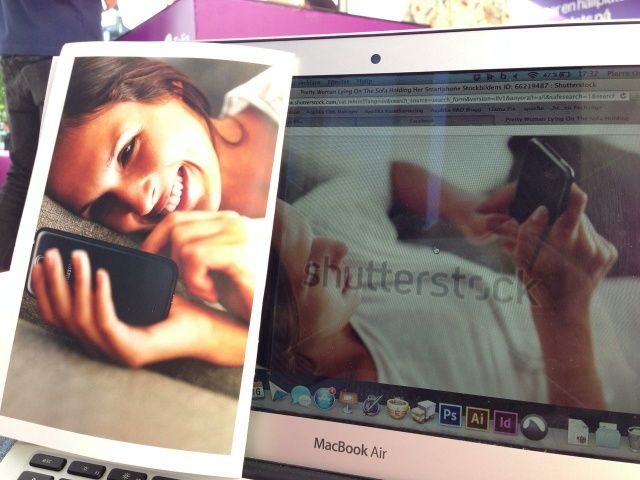
See that girl in the MacBook Air on the right? She’s a professional model for stock image site Shutterstock.com, who once did an entire set of images called “Pretty Woman Lying On The Sofa Holding Her Smartphone.” And that smartphone in question is clearly an iPhone 3G/S.

Okay. Now see the image on the left? That’s from a recent Samsung ad, and what do you know? The model’s iPhone has been artlessly photoshopped into a Samsung Galaxy S4… even though that device features a 5-inch display that is so large, the phone’s tiny size in the model’s hand implies a woman who is over eight-feel tall. Here’s proof. 

On the one hand, this is a photo from a stock photo site, meaning as long as Samsung paid for the image, they can do what they like with it. But still…. jeez, Samsung. Surely there’s one pretty girl in the world who prefers her Galaxy to an iPhone that you could track down for a photoshoot, right?

Via: Samsung Copies Apple

Save space on your hard drive: Delete unwanted speech voices from your Mac [OS X Tips]

By

Save space on your hard drive: Delete unwanted speech voices from your Mac [OS X Tips]
You can reclaim considerable space on your hard drive by losing these files.
Screenshot: Cult of Mac

Hard drive space is at a premium these days, with files getting larger and solid state drives (SSD) becoming more affordable and ubiquitous. I’m typing on a MacBook Air right now, and making sure I don’t clutter up the drive with unnecessary files is important to me.

One way to do this is to get rid of the voices that Mac OS X uses for text-to-speech. These files can take up a decent amount of space, which may well be why iOS only allows the one onboard, now that I think about it.

Anyway, if you’re not using those text-to-speech voices, you might as well clear them off your drive and save some space. Here’s how.

Save space on your Mac hard drive: Delete user cache files [OS X Tips]

By

Delete User Cache Files

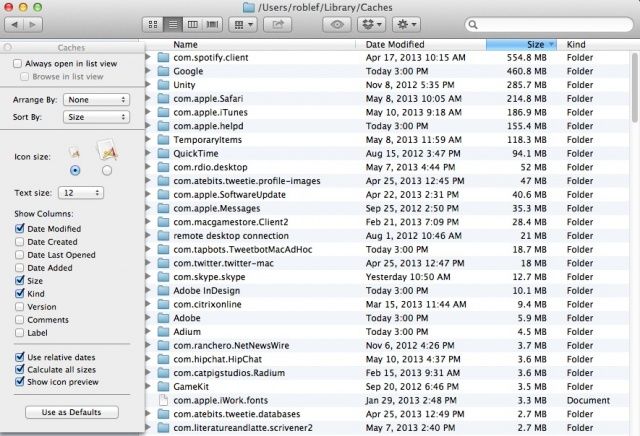
Saving space on your Mac hard drive is a key strategy, especially when you’re using a Macbook Air, with it’s strictly solid state drive (SSD). Even if you’re using a desktop Mac with a hard drive that seemed like “plenty of space” when you bought it, there will come a time when you’ll be looking to save some of it for more data. Why not get rid of the non-essential stuff on your Mac’s hard drive?

When you delete apps to help recover disk space, they can leave user cache files behind. These are the files that help improve the performance of OS X and various apps that are installed on your Mac. If you’re no longer using an app, you can delete these files to free up some space. Here’s how.

Mastering Notification Center On Your Mac [Feature]

By

My desktop is rarely this clean.

Notification Center, introduced with OS X 10.8 Mountain Lion, has quickly become an integral part of the Mac OS experience, replacing third-party apps like Growl and the like with a built-in system for notifying you of system and other events on your Mac.

Let’s take a look, then, at five tips and tricks to help you get the most out of your use of Notification Center, including getting rid of it all together, if that’s your thing.

Mastering Notification Center: Dump It Entirely From Your Mac [OS X Tips]

By

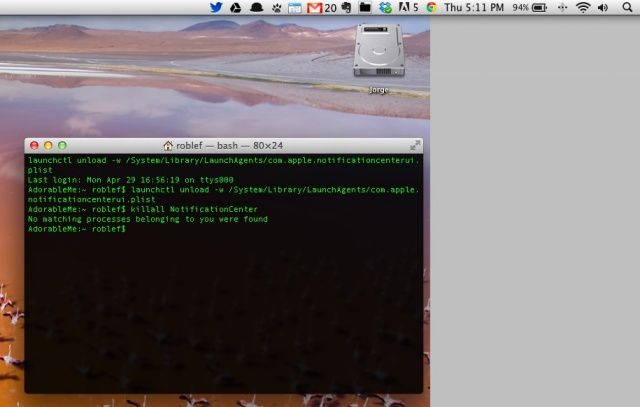
Get Rid of Notification Center

While I think I’m finally coming to terms with Notification Center, and it’s becoming a normal part of my daily work routine, there are some folks out there who may not like it at all.

For those people, here’s a pretty simple way to get rid of the Notification Center from your Mac, menu bar icon and all.

Last Chance to Pay What You Want For 10 Elite Mac Apps [Deals]

By

CoM - NYOP2

Our last “name your own price bundle” performed so well that we’re bringing a second one to our Cult of Mac readers. And once again we’ve delivered 10 top Mac Apps for a price that only you can name with The Name Your Own Price Bundle 2.0!

That’s right. You pay what you want for 3 different Mac Apps that will make you faster and more efficient on your Mac including: HoudahSpot, Elmedia Player Pro, and PhotoBulk. And, if you pay more than the average price, you’ll also receive Snapz Pro X, CrossOver XI, DiskTools Pro, Gemini, Mac Blu-Ray Player, Musictube, and Paperless.

We’ve chosen three charities, Child’s Play, World Wildlife Fund, and Creative Commons, that we believe make a significant positive impact across the globe. 10% of your entire purchase will go to help one of those charities – whichever one you choose!