Jarvis Siri, schedule a date with Pepper Potts. Photo: Marvel Studios
Apple is using a revamped, custom Apache Mesos scheduler to power its Siri search queries.
It’s been given the backronym “J.A.R.V.I.S.” — apparently standing for Just A Rather Very Intelligent Scheduler — and Marvel movie fans will likely recognize the name as a geeky nod to Tony Stark’s intelligent computer assistant from the Iron Man movies.
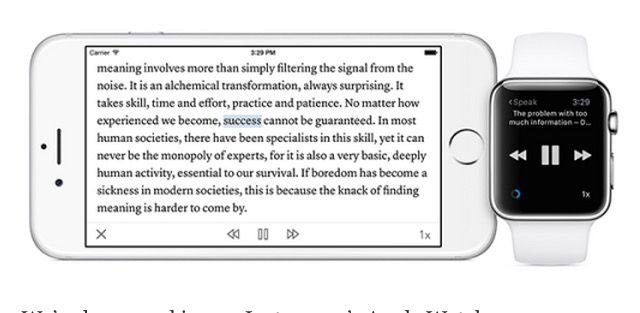
Instapaper for the Apple Watch is here. Photo: Instapaper
The Apple Watch may be good at telling you how healthy you are, tracking your steps, propelling you to move, and reminding you of upcoming appoints, but conventional wisdom says it’s rubbish for reading. The 38mm and 42mm screens are just too tiny to read anything more than a sentence or two long on, and certainly not any longreads.
So on paper (no pun intended), Instapaper for Apple Watch is a terrible idea. Amazingly, though, it looks like the Instapaper team at Betaworks has made it work.
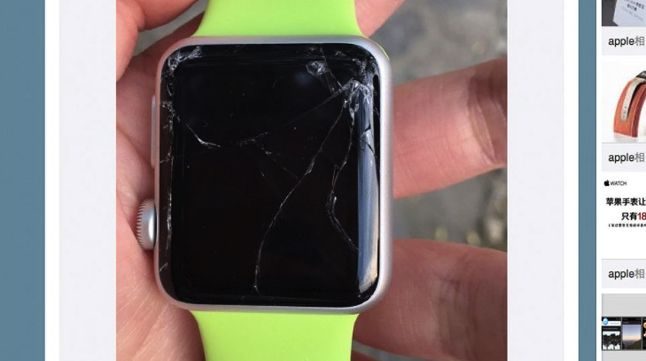
Even a broken Apple Watch is right zero times a day. Photo: Weibo
There’s an old adage about most sports car crashes happening within minutes of leaving the automobile showroom for the first time, and apparently the same is true of clumsy (or unfortunate) Apple fans enjoying their first weekend with a brand new Apple Watch on their wrist.
Almost like a badge of honor, social media already shows multiple people who managed to break their Apple Watches before most of us even got our hands on one of the devices.
Tidal could end up having a bit of a 'Hard Knock Life'. Photo: NRK P3/Flickr CC Photo: Flickr/NRK P3
Jay Z has long described himself as the boss of the Big Apple, but right now it seems the Tidal CEO is butting heads with Apple and other music companies over an alleged multimillion-dollar “smear campaign.”
In a string of tweets over the weekend, Jay Z took issue with tech giants trying to make him out to be the bad guy — acknowledging that, “We may not be perfect – but we are determined” and that “We are here for the long haul.”
Although perhaps not if Apple has anything to say about it!
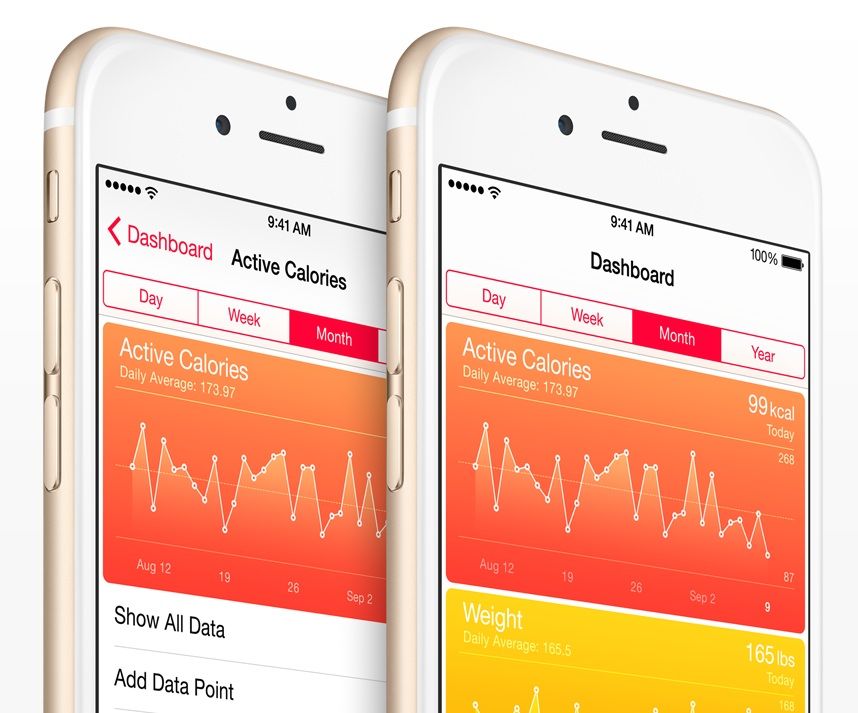
Apple's reputation as a mobile health company is growing. Photo: Apple
Apple’s ambitions as a mobile health company took a giant leap forward over the weekend, as HealthKit was connected to more than 80,000 patient files at Cedars-Sinai Medical Center in Los Angeles.
This means that Cedars-Sinai doctors now have the ability to take iOS Health data into account when making clinical and medical judgments — allowing physicians to easily access patients’ weight, blood pressure, steps taken, glucose levels, and oxygen saturation levels as gathered from their iOS devices.
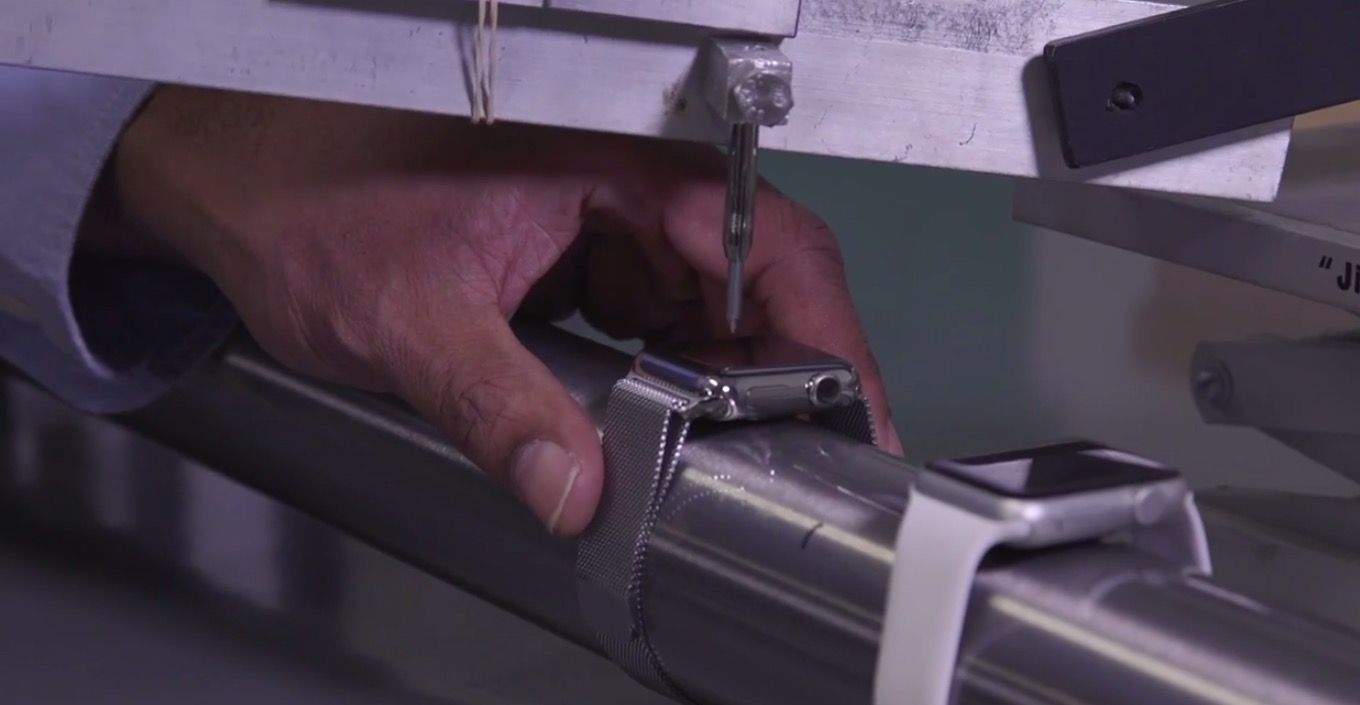
The Apple Watch glass going through a torture test. Screenshot: Cult of Mac
Consumer Reports has a history of being hard on Apple. They famously refused to recommend the iPhone 4 because of a so-called “flawed” antenna design.
To test the Apple Watch, though, Consumer Reports is being harder on Apple than ever. They’ve run a gamut of torture tests on Apple’s new wearable to see just how hard the sapphire display actually is. Here’s a spoiler: You won’t be able to scratch it with anything short of a nuke. And even the Apple Watch Sport’s display is nearly unscratchable (although it can be cracked).
It’s too early to tell exactly how well the Apple Watch will do in the grand scheme of things, or even if it will ultimately win the wearable war. But one thing’s for sure, it’s off to a hell of a good start, with statistics indicating that the Apple Watch sold more units in one day than Android Wear devices have sold. Period.
Cult of Mac is your go-to destination for major savings on top tech gear, services, and courses.
Grab the week’s best deals, including the Microsoft Office Mastery Bundle, a lifetime subscription to Theme.Works WordPress builder, Jive Jumbo Bluetooth speaker, and more.
Developers have some interesting ideas for what you’d want to do on your wrist. Here are some of the weirdest, goofiest and most downright bizarre Watch apps:
Apple Watch, inbound! And now that it is, we’ll take a look at some of the most useful Watch apps available, and just for fun, some of the stinkiest. Plus: the noteworthy differences between the Sport and steel editions; why those “scratch test” videos shouldn’t trouble you; and finally, you’ll never believe what our ol’ pal and ex-Apple exec Scott Forstall is up to now…
Our thanks for Freshbooks for supporting this episode. FreshBooks is the easy-to-use invoicing software designed to help small business owners get organized, save time invoicing and get paid faster. It also makes tax time a cinch. Get started now with a 30-day free trial.
These hand models from Apple's Watch videos look like they're fresh from the cloning vat. Not a hair in sight. Photos: Apple Photo:
The weird thing about all the promotional videos for the Apple Watch is how perfect the hand models are. The people wearing the watches look like citizens from Logan’s Run: fresh and young and perfect.
What you won’t see is a parade of hairy arms.
But now that the Apple Watch is out in the wild, that’s exactly what you get on Instagram. These pictures tell the real story.
Time to find a great programmer. Photo: Graham Bower
My friends, family and even complete strangers are constantly asking me how to get their million-dollar app idea in the App Store.
This is always a shocker for me because, after countless hours of hard work over the past two years, my app is barely breaking even.
But I can offer one solid piece of advice for anybody hoping to turn a clever idea into a world-beating app: Find yourself an amazing developer and hold on tight.
Apple doesn't want fart apps on the Apple Watch. Who knew? Photo: Fart Watch
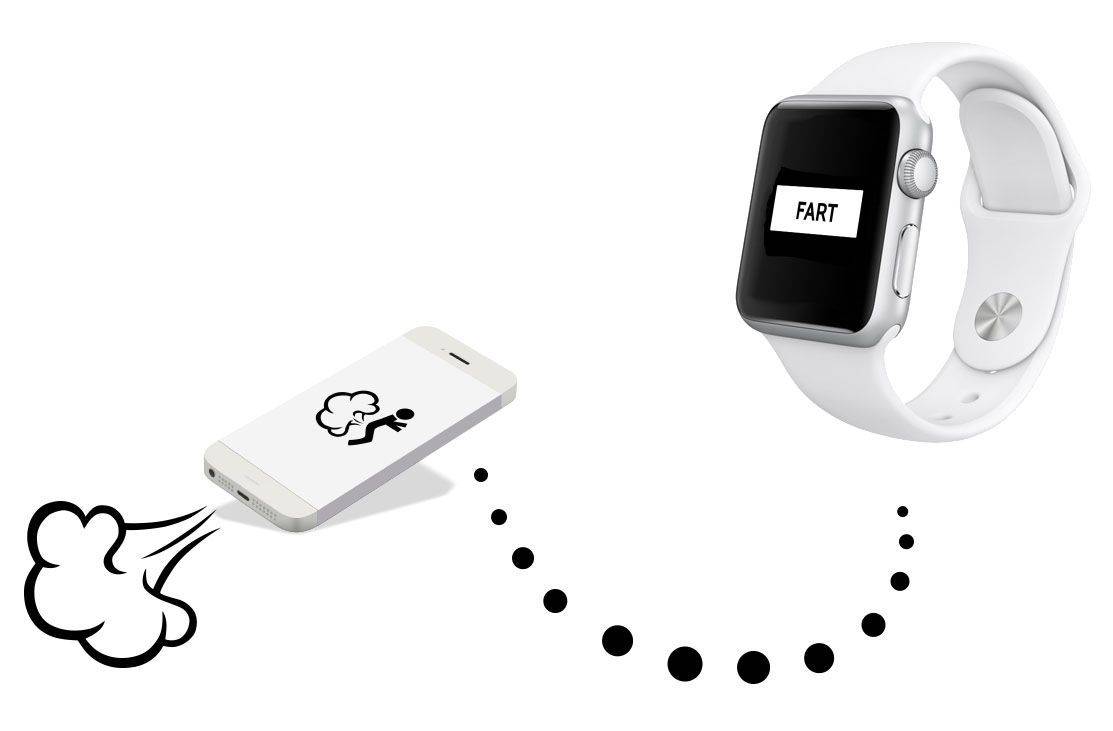
Those of you who were hoping the Apple Watch would usher in a new era of flatulence apps, prepare to be disappointed: Apple has already rejected the first app that serves no purpose other than to allow people to make fart sounds from their wrist.
It’s time for the Cult of Mac to mobilize. Apple co-founder, Segway enthusiast and all-around snuggly bear Steve Wozniak has won many honors and awards over the years, but this could be the greatest one yet: He’s up to be turned into a wax figure at Madame Tussauds!
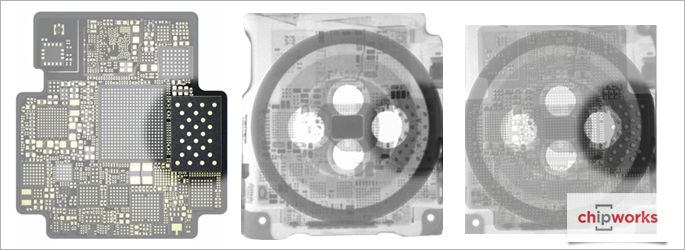
The Apple Watch sure looks cool under X-Ray. Photo: Chipworks
For anybody who wants a detailed look at what makes the Apple Watch’s chip tick, the silicon experts at Chipworks have posted an X-ray look inside the S1 processor.
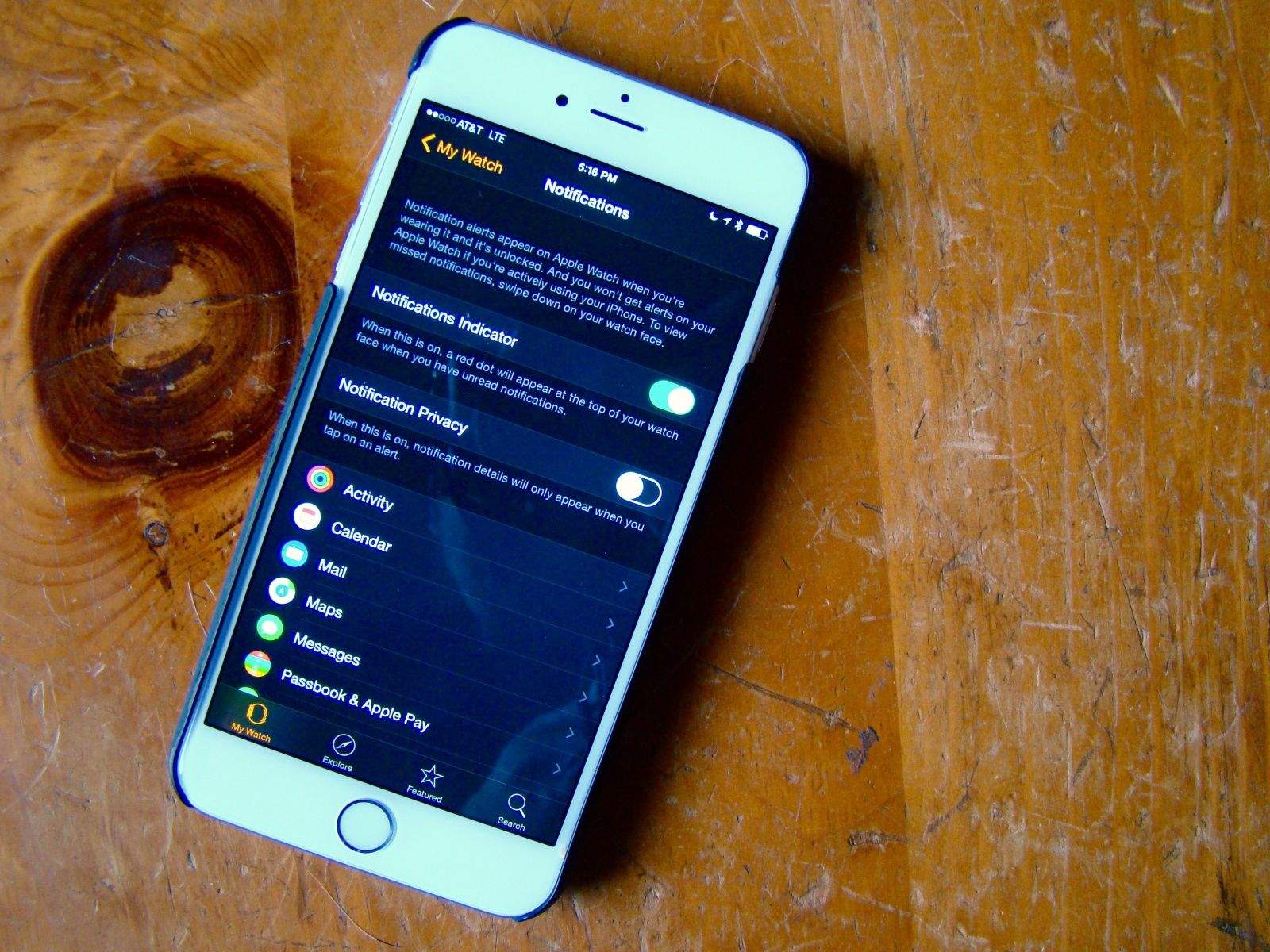
Manage your Apple Watch Notifications from your iPhone. Photo: Rob LeFebvre/Cult of Mac
Notifications are why we all got an Apple Watch, right? We want to be able to know what’s going on in our digital lives all the time, but we want to do it faster, without having to pull out an iPhone. Because that’s just rude.
However, getting every single Notification that you get on your iPhone shunted automatically over to your Apple Watch is going to get tiresome. No one wants to deal with a wrist tap every time someone takes a turn in Evil Apples.
Here’s how to manage all of the notification cruft a little bit better.
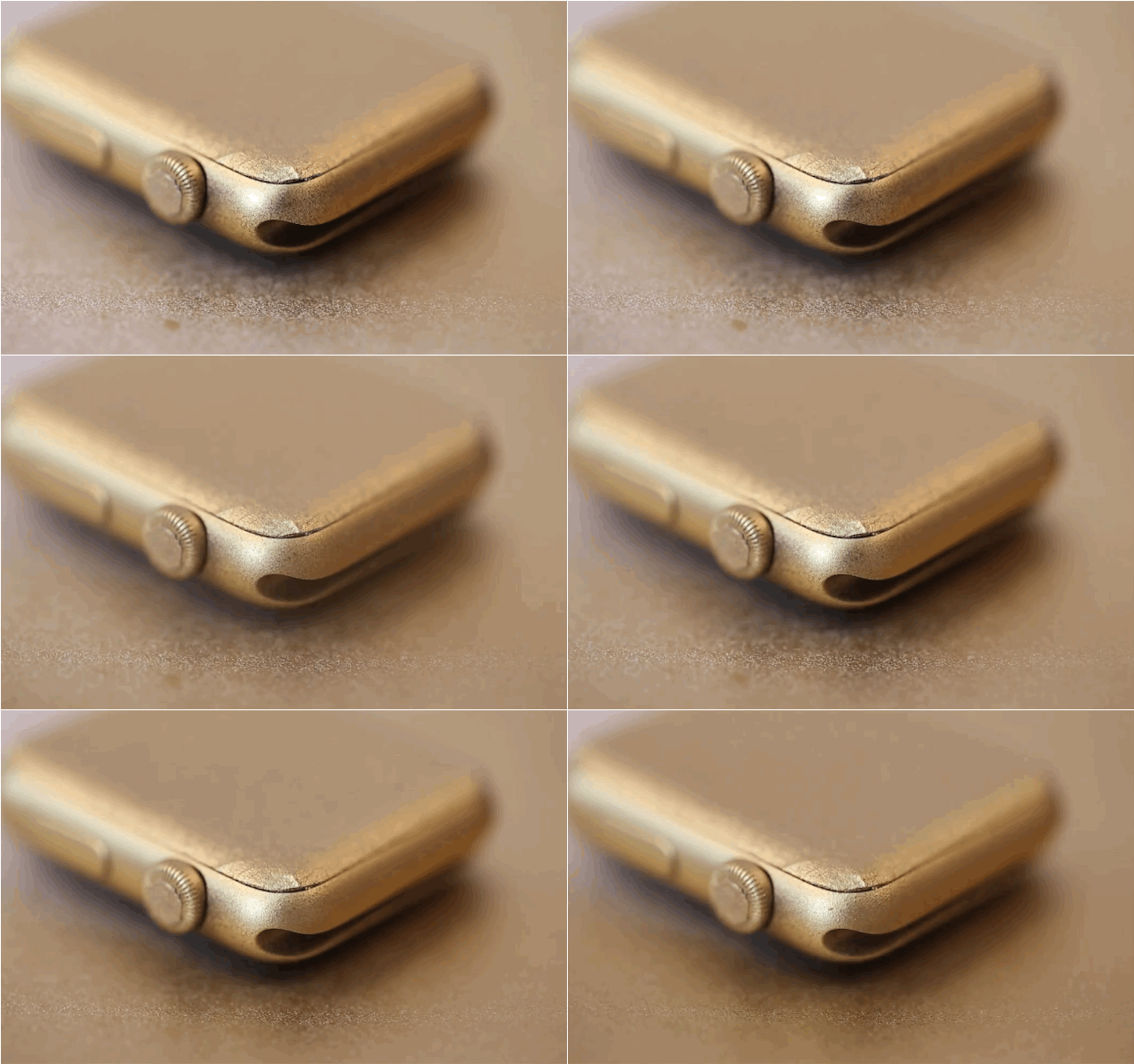
When life gives you an ugly Apple Watch, paint that shit gold. Photo: Casey Neistat Photo: Casey Neistat
Lusting after the gold Apple Watch Edition but don’t have the funds for Jony Ive’s $17,000 timepiece? You could take out a second mortgage on the house, or sell a kidney. Or you could do what artist Casey Neistat did and manually turn an Apple Watch Sport into a golden beauty.
Neistat only had $399, so he decided to preorder the black Sport model and then carefully painted it gold. Sure, his method might void your warrant, and it doesn’t look perfect, but it’s better than spending your kid’s college savings just to be as fly as Drake.
You can do it too, just follow the steps in the video below:
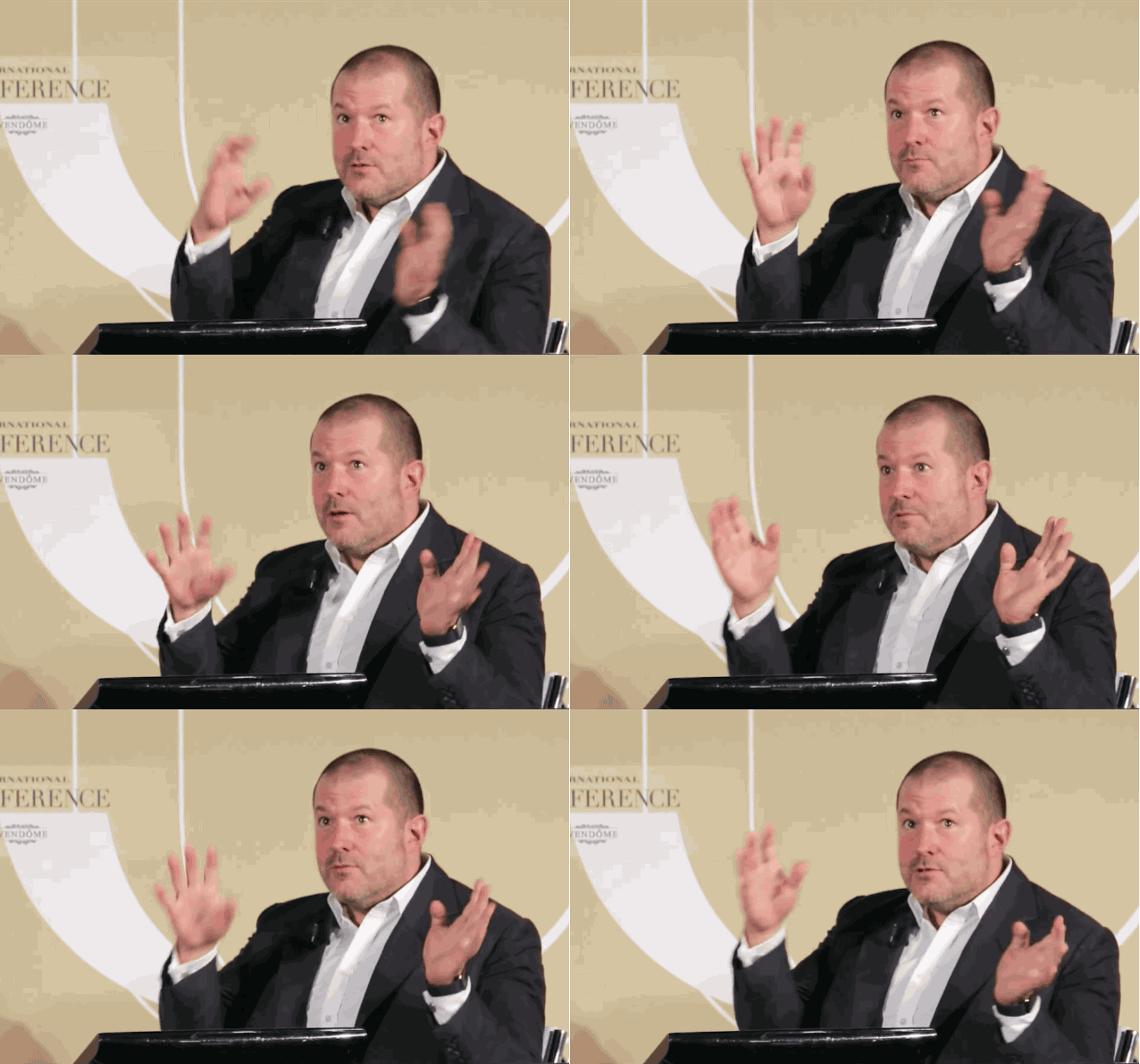
Jony Ive gets animated as he talks about Apple Watch. Photo: Vogue
Jony Ive and his BFF Marc Newson launched Apple into the luxury market this week with the Apple Watch, which expertly straddles the line between gadget and fashion accessory.
Apple’s dynamic designing duo sat down with Vogue’s Suzy Meeks this week to talk about their first foray into the fashion world — as well as what inspired them to create the Apple Watch. We rounded up the top 8 revelations from the pair’s appearance earlier this week, but Vogue just made the full interview available online, and it’s full of juicy insights into Jony and Marc’s thought processes.
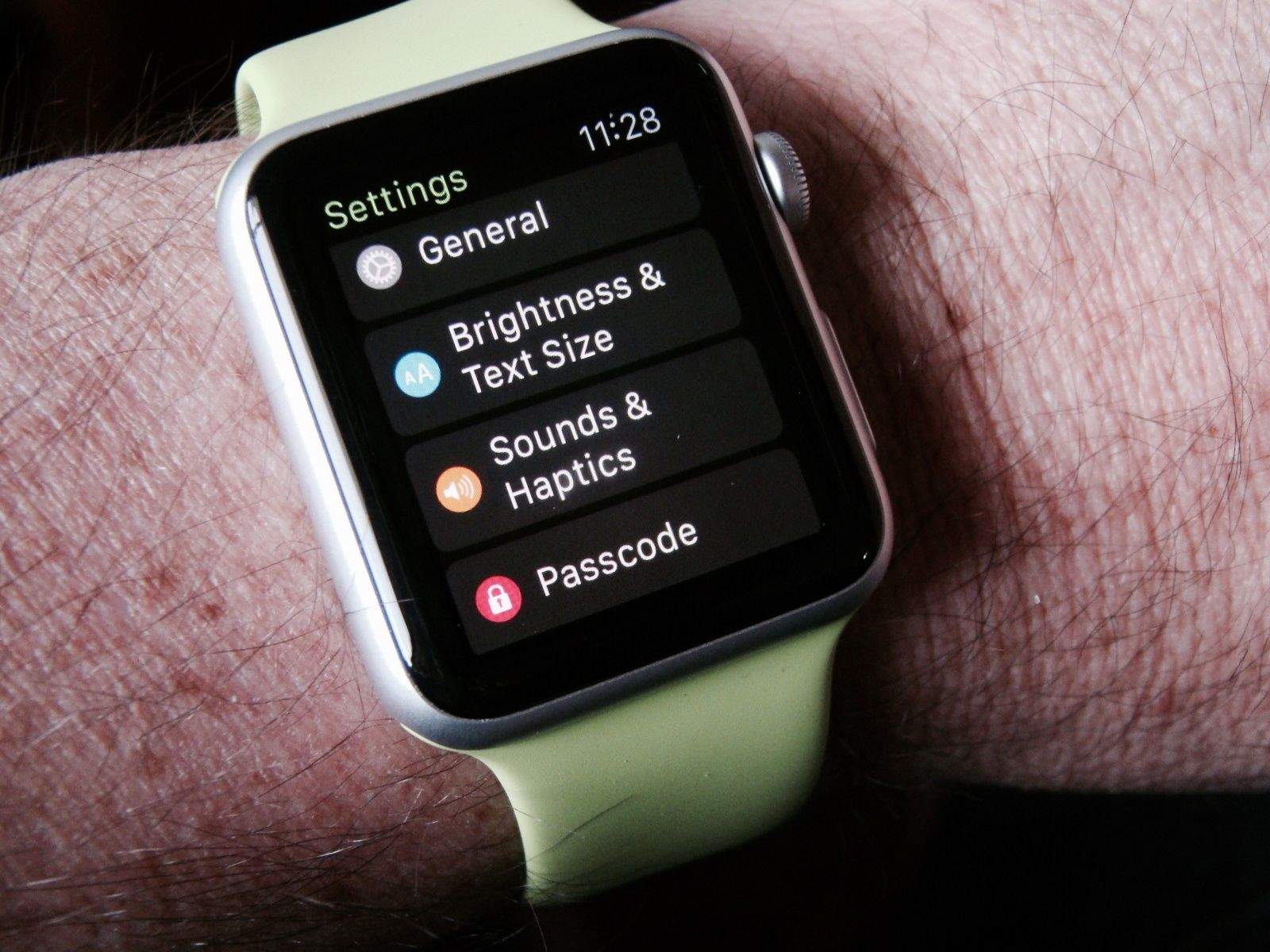
This screen is way too small for all the tweaks available. Photo: Rob LeFebvre/Cult of Mac
Getting your Apple Watch set up is fairly basic, but to truly make this your own personal device, you’ll need to dig into the Apple Watch settings.
You can do all of these things on the Apple Watch itself, but why force yourself to tap and swipe on that tiny screen? Use the Apple Watch app on your iPhone for a much more pleasant experience. You can thank me later.
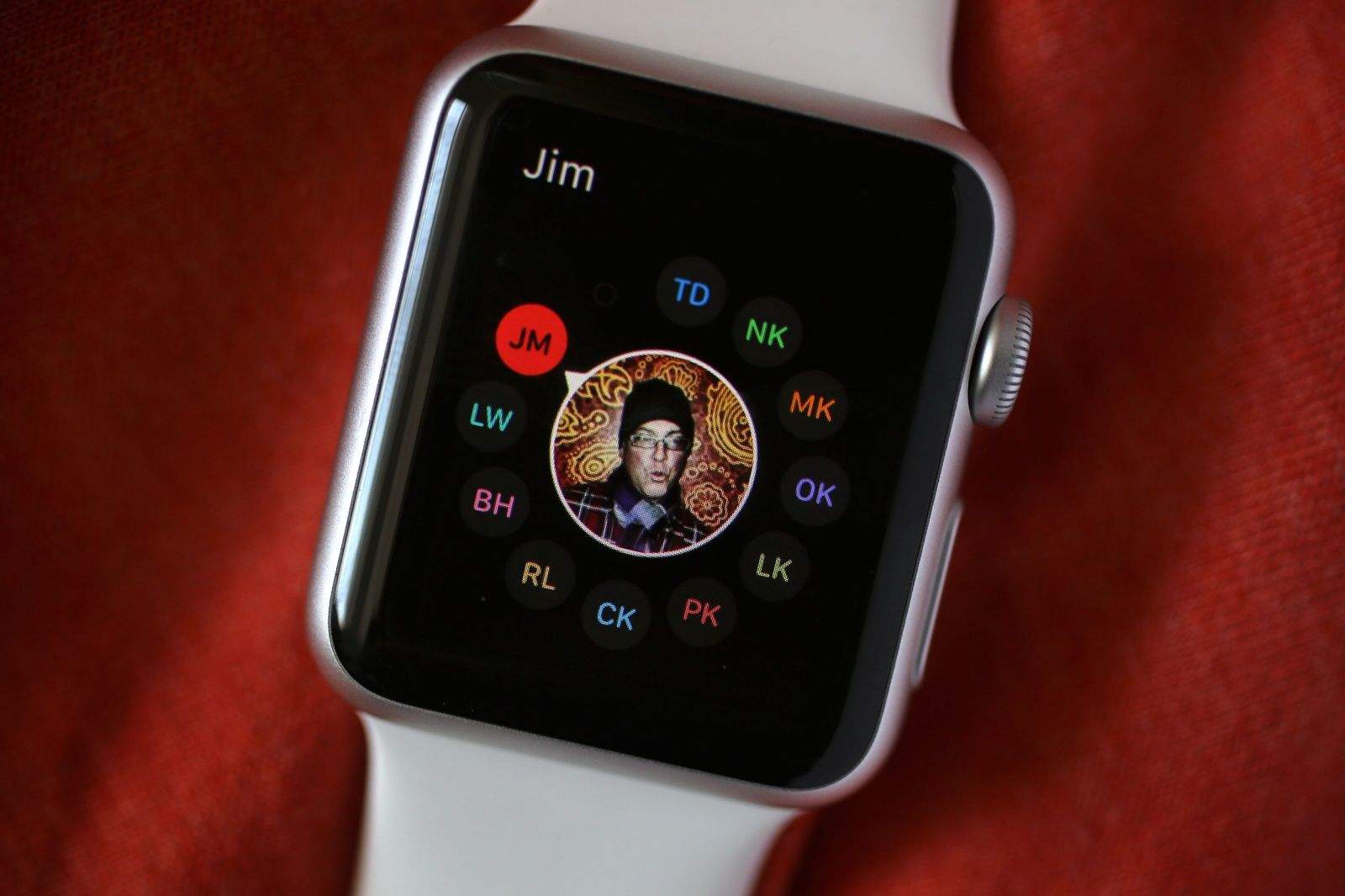
The Friends screen is one of the most important on the Apple Watch. Photo: Jim Merithew/Cult of Mac Photo: Jim Merithew/Cult of Mac
After linking your new Apple Watch to your iPhone, your favorite contacts are automatically synced over. But to get the most from the device, you’ll want to make a couple of tweaks to the Apple Watch Friends screen.
It’s truly one of the most important screens on the Apple Watch — here’s how to make the most of it.
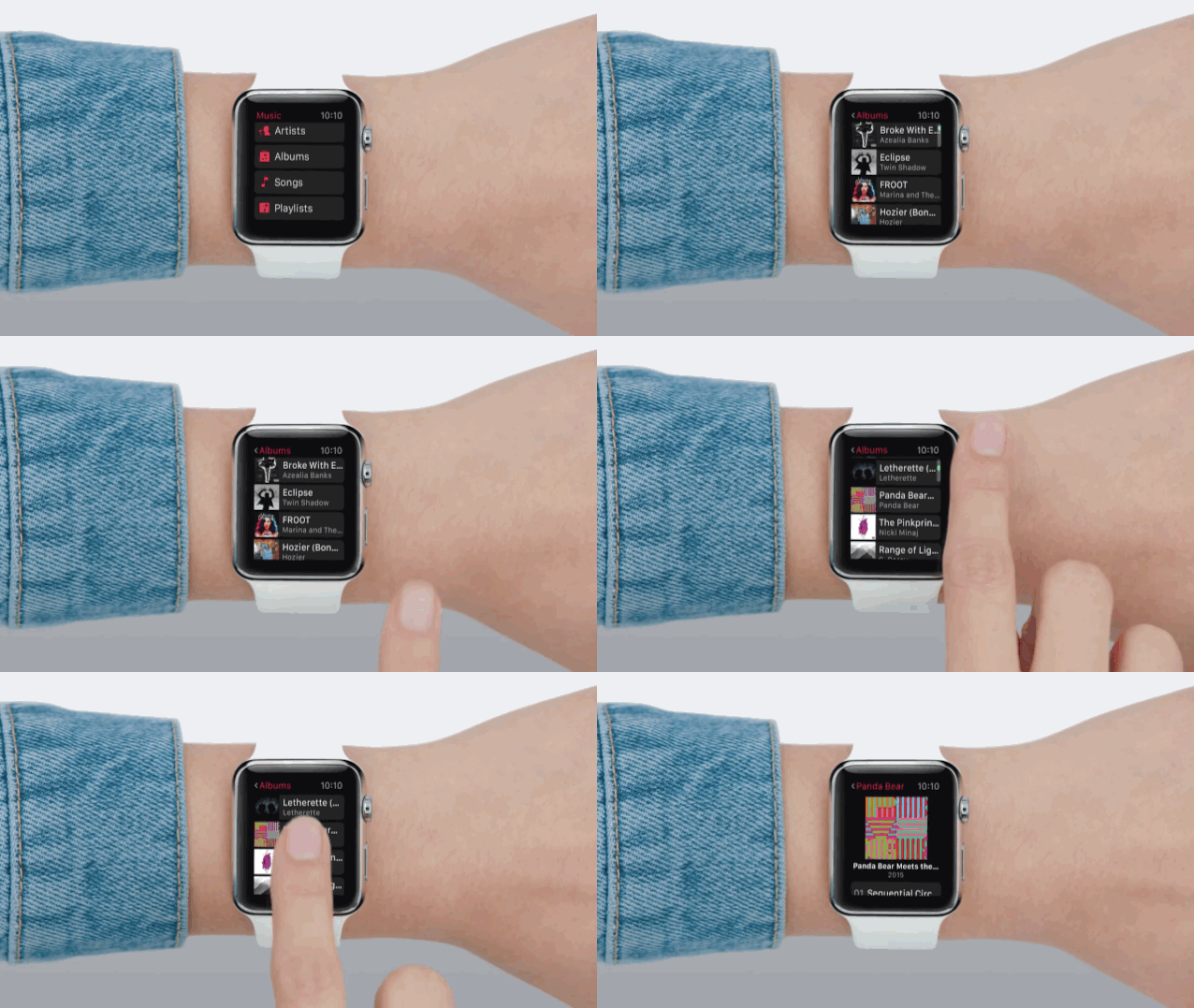
Get ready to rock with your Apple Watch. Photo: Apple
Apple’s smartwatch doesn’t come with much onboard storage, but that doesn’t mean you’re screwed when it comes to Apple Watch music. You can add your own playlists and listen to your favorite tunes using Bluetooth headphones or AirPlay speakers.
To get the songs you want, you need to create a playlist on your iPhone or iTunes, then beam it over to your Apple Watch. Here’s how to do it.
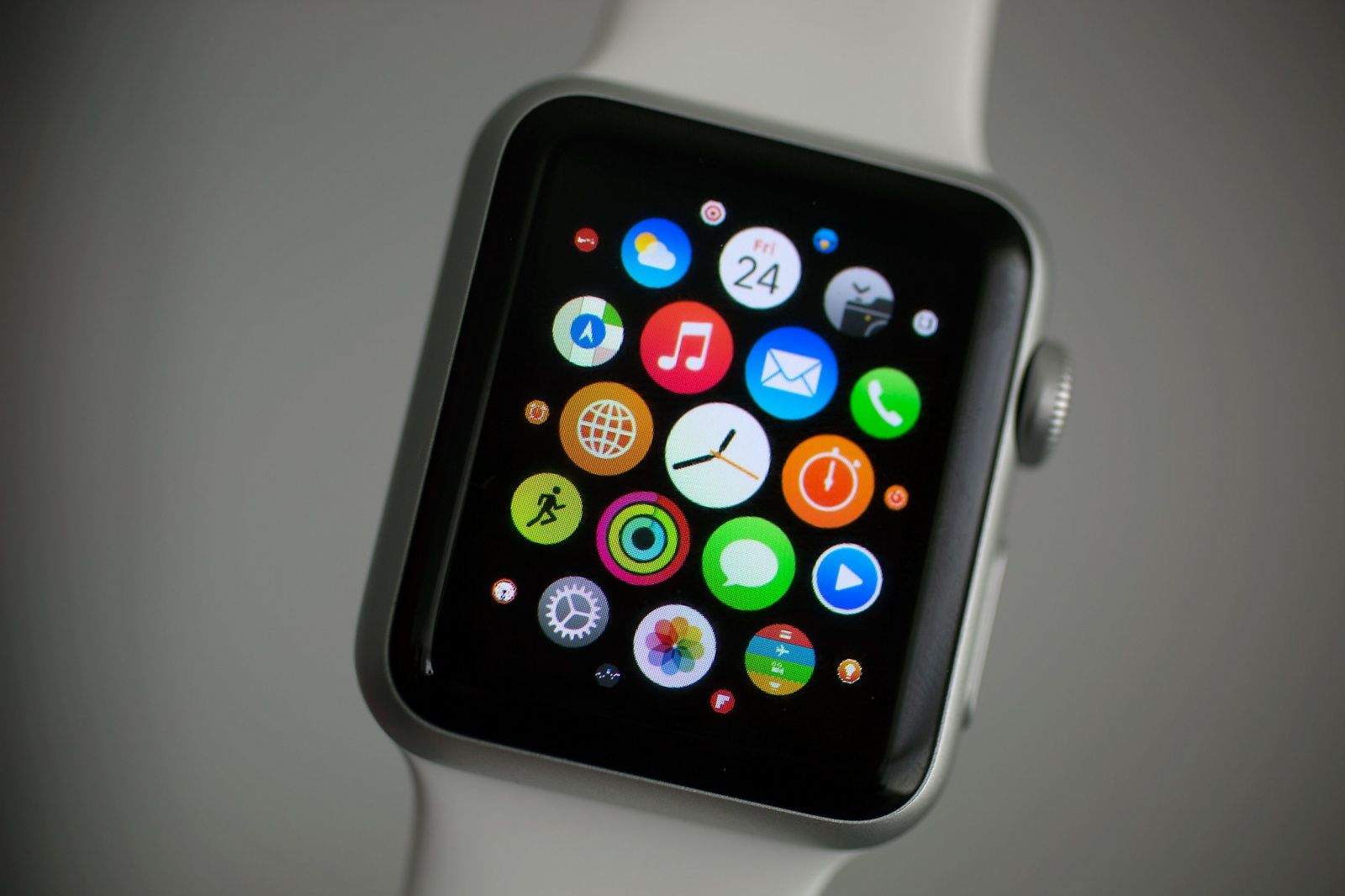
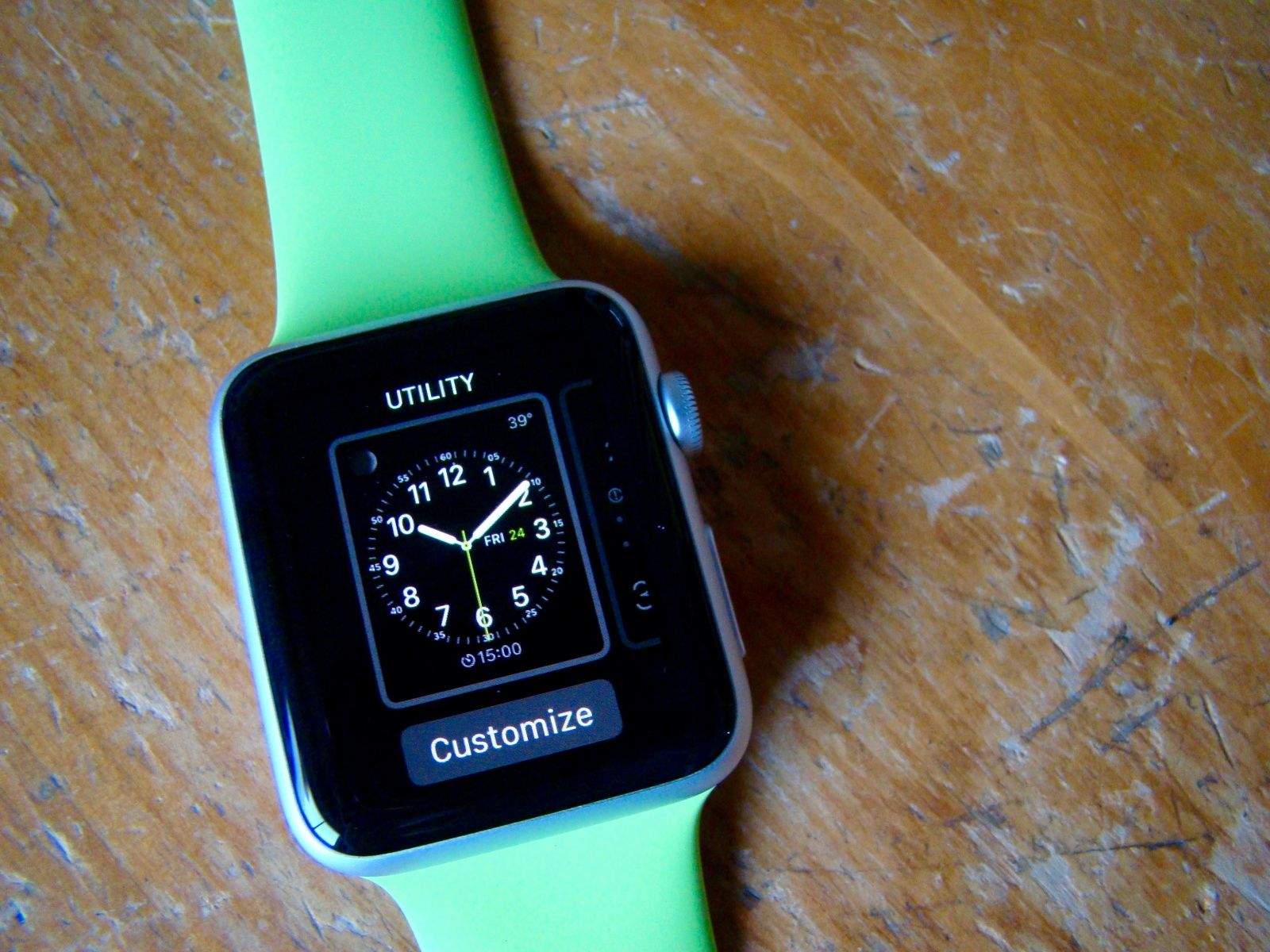
There's a lot of utility in this watch face. Photo: Rob LeFebvre/Cult of Mac
There are 10 Apple Watch faces to choose from, and each one comes with a crazy amount of options. The moon phases widget is pretty neat, but do I really want to clutter up my watch’s minimalist look? If you’re looking for thecoolest Apple Watch faces to match your style, there are plenty of customizable options.
The cool thing is that you can almost have it all. Apple makes it pretty easy to pick your preferred Apple Watch face and then tweak the specific options you want to add to (or delete from) your wrist.
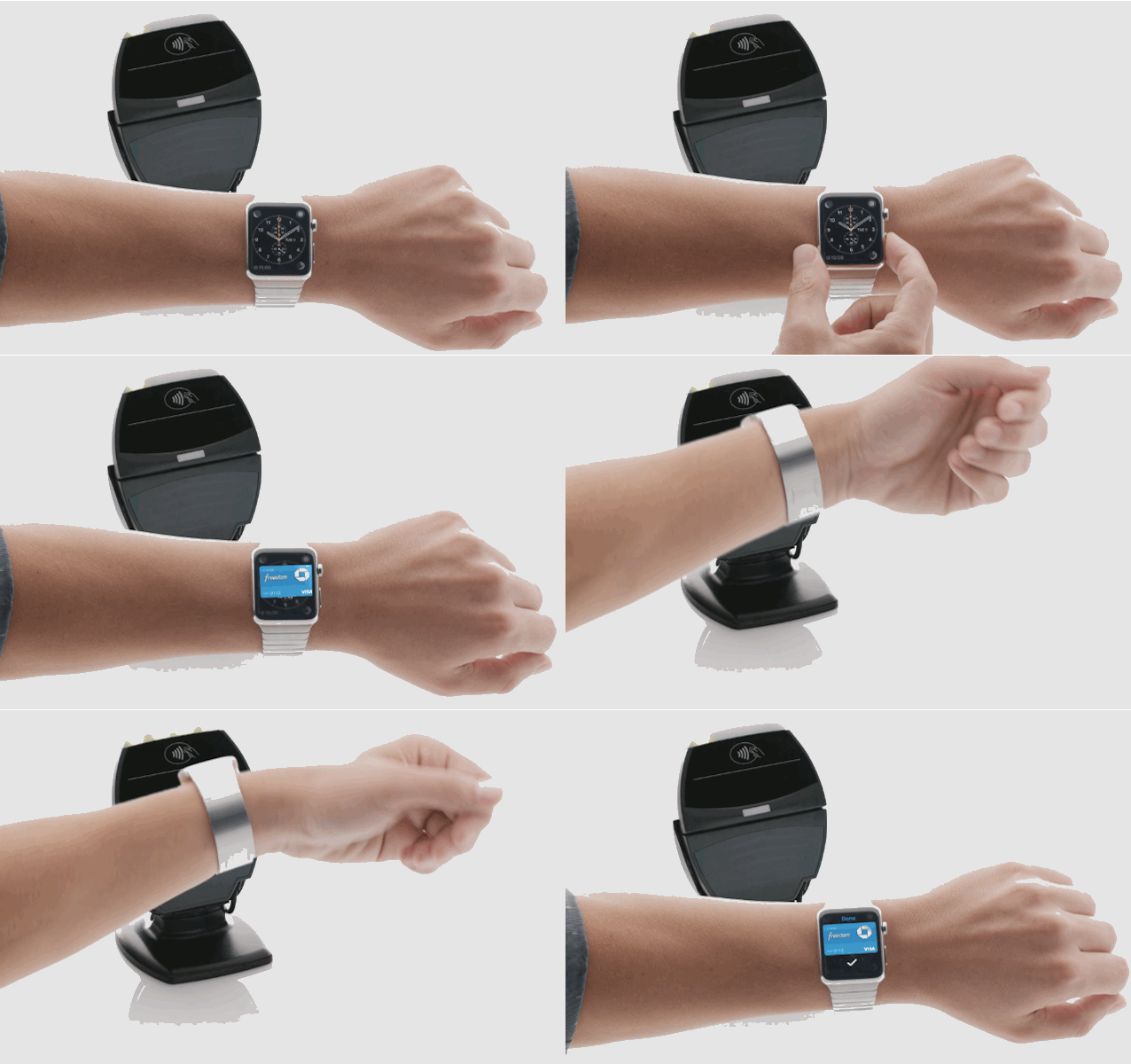
Once you get Apple Pay up and running on Apple Watch, you'll be breezing through checkout in no time. Photo: Apple
Using Apple Pay on Apple Watch is ridiculously easy. Once you get everything set up, all you have to do is double-click the side button and then hold the Watch face up to a terminal. Apple’s also made it super-easy to add new cards to your Apple Watch, or create a custom Apple Pay profile just for your wrist.
Here’s how to get started with Apple Pay on your Apple Watch