We’ve all been there, in a meeting or a quiet house and we just want to turn the volume down. The whole point is that we want to make things quieter.
We hit the F11 media “Volume Down” key on the keyboard to just keep quiet and all we hear is the Pop Pop Pop sound as the volume decreases.
Annoying.
Luckily, it’s super easy to fix in OS X Mavericks.
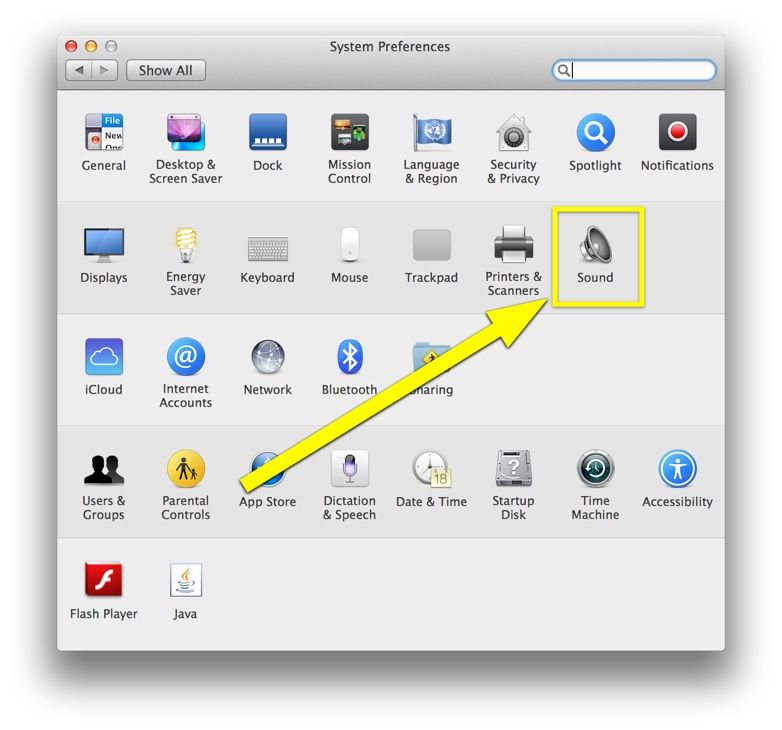
Launch System Preferences from the Dock, the Apple menu, or with an app launcher like Alfred. Click on the Sound icon to go to that preference pane.
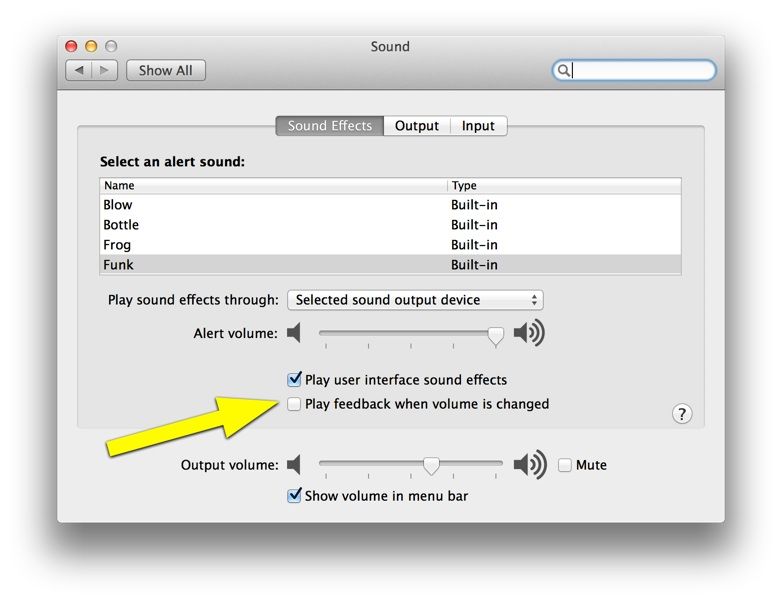
Once there, click on the Sound Effects tab at the top. Right underneath the Alert volume slider is a checkbox called “Play feedback when volume is changed.” Click that off.
Now, when you turn the volume up or down, that awful silence-shattering sound will no longer play. Ahhhh.
If you want to turn it back on (you masochist), just check the box again. Boom.
Update: As an intrepid commenter points out below, you can also hold a key down for a temporary fix. If you hold the Command key down while raising or lowering the volume, you’ll get a brief reprieve from the popping sound.

Rob LeFebvre is an Anchorage, Alaska-based writer and editor who has contributed to various tech, gaming and iOS sites, including 148Apps, Creative Screenwriting, Shelf-Awareness, VentureBeat, and Paste Magazine. Feel free to find Rob on Twitter @roblef, and send him a cookie once in a while; he’ll really appreciate it.


9 responses to “Turn Off That Annoying Volume Popping Sound In Mavericks [OS X Tips]”
For some reason this is not working for me. I have unchecked “Play feedback when volume is changed” and it is still making the sound. I guess I’m going to have to use shift every time I change the volume.
it still plays the annoying sound when i click it off. what do I do?
I can’t believe it took me so many years to turn that annoying sound off. I feel the Aaaaaah now. Thanks Rob.
I just got around to upgrading to Mavericks, and I now can’t disable the sound in System Preferences anymore. Even when unchecked, I still get the pop.
I also can’t understand why Apple would make such an annoying sound the default, and then to toggle it on for every computer.