iOS 7 came with a new look and feel, including the font used across the system. It’s a little thinner than earlier versions of iOS, so it might be a bit tricky to read, especially on the small iPhone screen.
You can always increase the size of text dynamically, but if you just need a little boost to the readability, try enabling Bold Text.
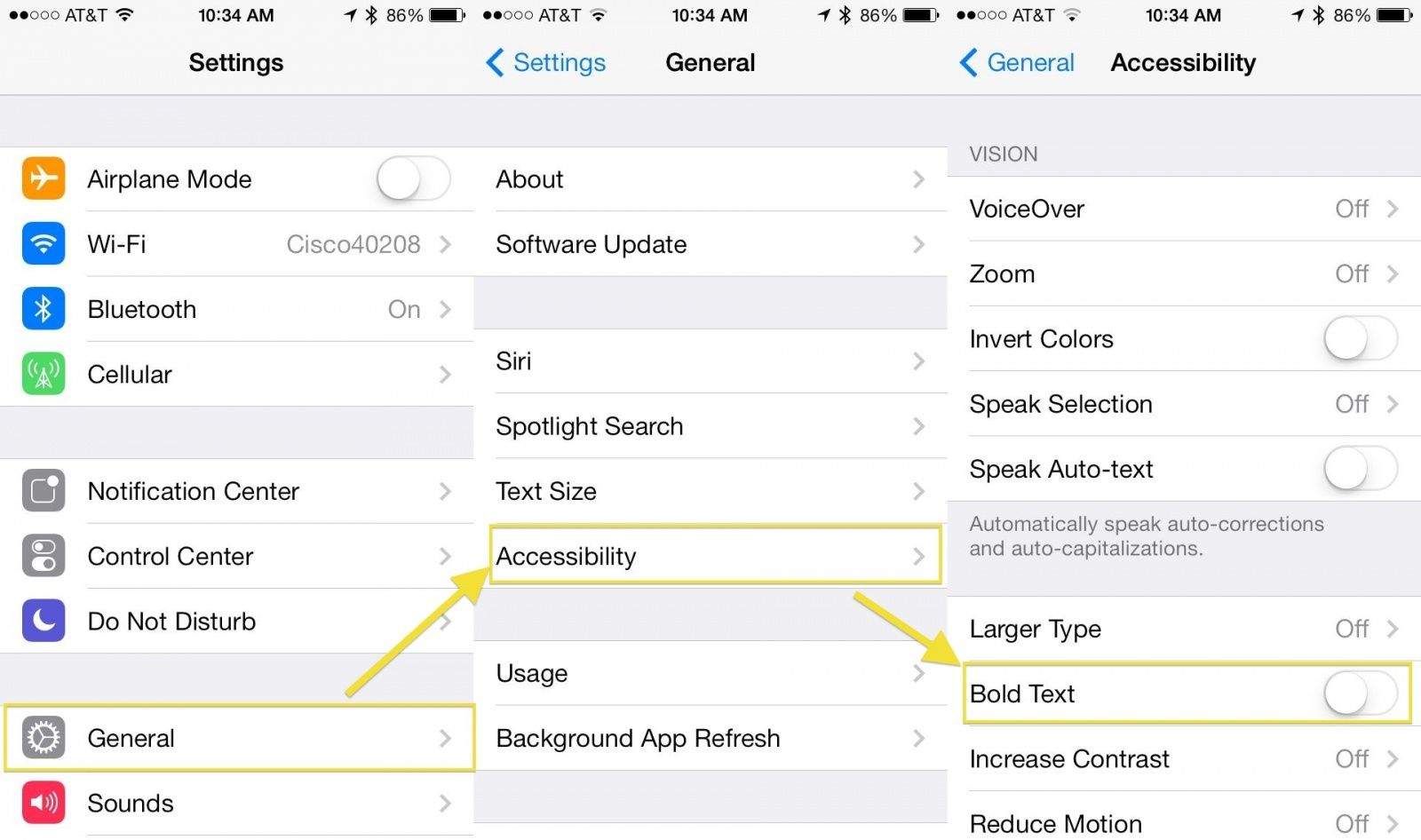
Launch the Settings app with a tap, and then tap on General. Swipe down a bit until you see Accessibility, and then tap on through.
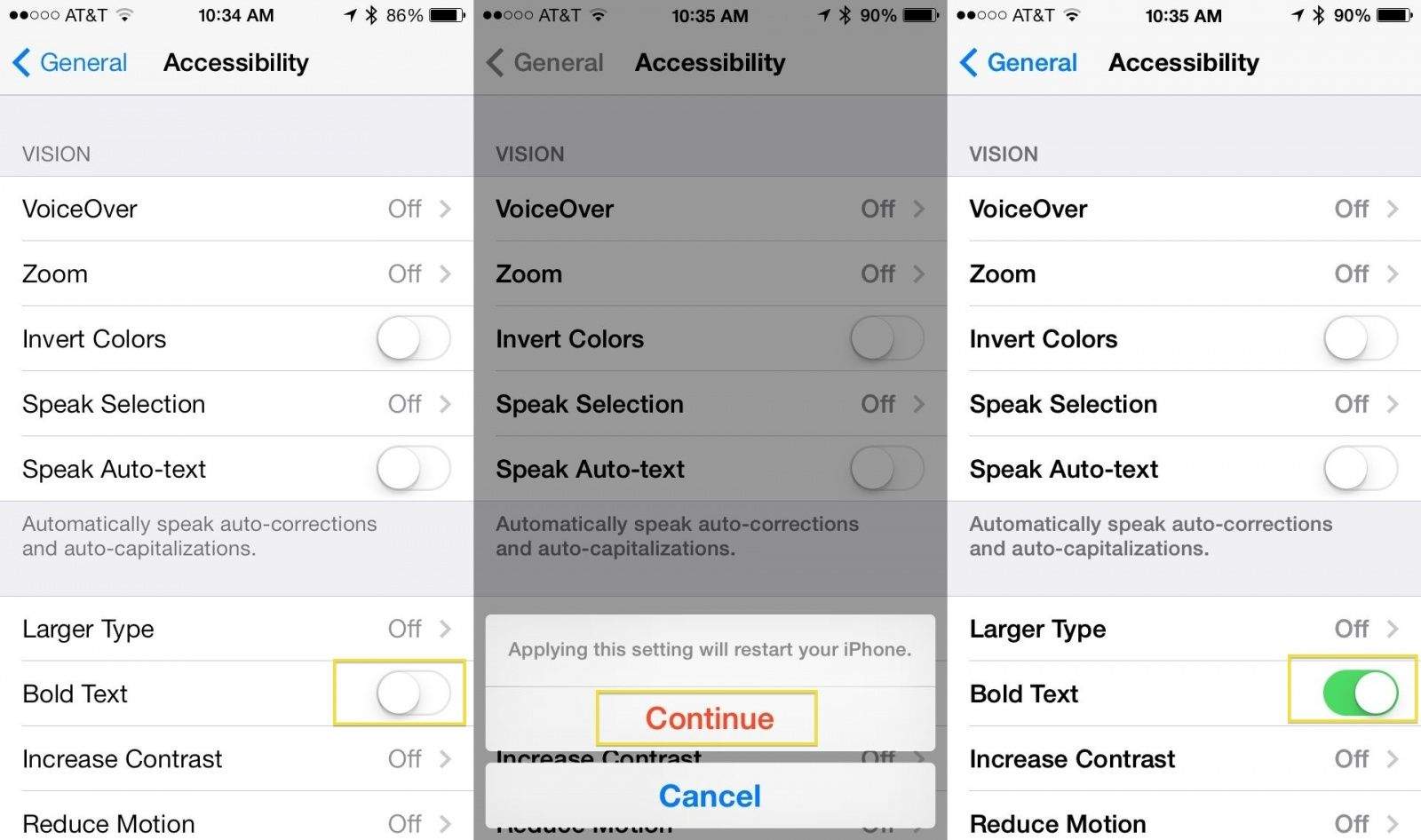
About halfway down the Accessibility section, you’ll see a toggle switch for Bold Text. Tap the switch to ON, and you’ll get a message saying that your iOS device will need to restart. Hit Continue if you want to apply the Bold setting and, after a brief restart, all the text on your iOS device will be a bit easier to read.
This will work on iPad, iPhone and iPod touch, and can be undone with a quick tap on the toggle to set it to OFF.
Via: AppStorm

Rob LeFebvre is an Anchorage, Alaska-based writer and editor who has contributed to various tech, gaming and iOS sites, including 148Apps, Creative Screenwriting, Shelf-Awareness, VentureBeat, and Paste Magazine. Feel free to find Rob on Twitter @roblef, and send him a cookie once in a while; he’ll really appreciate it.

