While traveling, it’s helpful to be able to find a strong WiFi signal, whether you need to check your email, review your latest notifications on Facebook, or actually get some work done. You can click the little WiFi rainbow icon in the menu bar obsessively, waiting for the “Searching for networks” message to end, of course, but it’s nice to have an app running that will just scan your environment and tell you what WiFi networks are available.
I used to do this with a third-party app, like MacStumbler or iStumbler. Not anymore, though, as there’s a built-in WiFi scanner right in Mac OS X Mountain Lion.
It’s rather buried, though, so you’ll want to take the following steps to get the app into your Dock, or your Launchpad. Click on the Finder icon in your dock, or Command-Tab over to the Finder. Press Command-Shift-G and type in the following file path: /System/Library/CoreServices/. Click the Go button and that folder will show up in your view. Scroll down to the Wi-Fi Diagnostics App, and then click and drag it to your Dock, or to your Launchpad icon for easy access later.
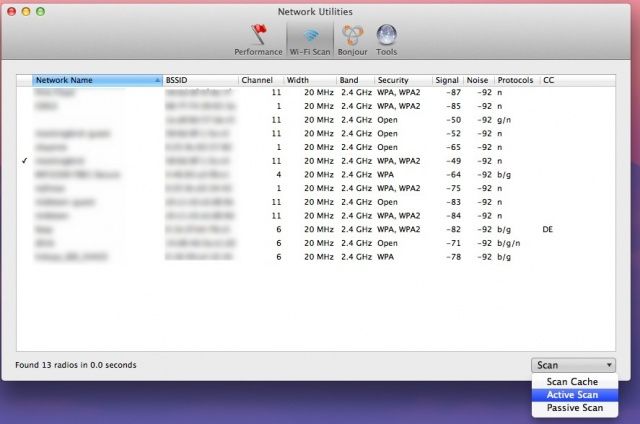
Once you’ve done that, launch the Wi-Fi Diagnostics App and hit Command-N as soon as the app appears (ignore the window that shows up first for our purposes here). When you do so, the Network Utilities window will appear. Click on the Wi-Fi Scan button in the top center, and you’ll see a list of all available Wi-Fi networks in your immediate area.
Click in the lower right, where it says Scan and choose Active Scan. Now you can leave the app running, and walk your Macbook around to find the best signal for your needs. You can find the strongest signal area in your house or place of business this way, or just use it to find the strongest free Wi-Fi signal when travelling. Good stuff, really. To join the network, though, you’ll need to click the Airport menu bar icon as per usual and connect that way. Still, it’s helpful to have this kind of tool built right in to the Mac OS X Mountain Lion features, right?
Are you using OS X Mountain Lion? Got a tip you want to share with us? Drop me a line or leave a comment below.

Rob LeFebvre is an Anchorage, Alaska-based writer and editor who has contributed to various tech, gaming and iOS sites, including 148Apps, Creative Screenwriting, Shelf-Awareness, VentureBeat, and Paste Magazine. Feel free to find Rob on Twitter @roblef, and send him a cookie once in a while; he’ll really appreciate it.

