
Mobile menu toggle

Quickly Switch Between Dashboard, Spaces & Full-Screen Apps in Lion [OS X Tips]

By

Mission Control

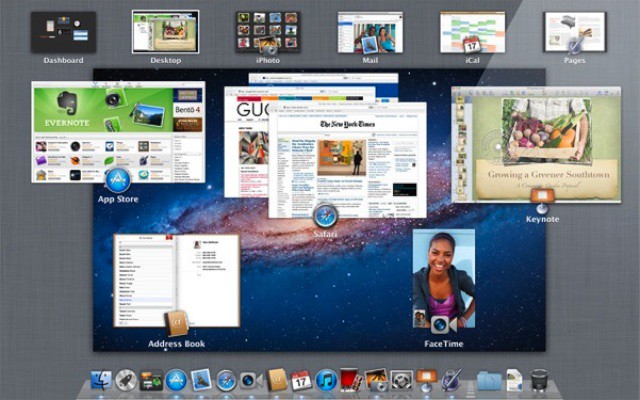
I don’t know about the rest of you, but I’m in love with Mission Control. I am especially fond of how easily it makes using spaces (virtual desktops) a part of my everyday work flow. Throw in a few full-screen applications like Mail or Safari and I’m happily zipping back and forth between them all. Now I’ve found a keyboard trick that allows me to move around my spaces zippy fast without taking my hands off of the keyboard.

If you have multiple spaces or full-screen applications open you can quickly switch between them or zip over to your Dashboard by pressing and holding the Control key and either the Left or Right Arrow key at the same time.

You use the combination of Control-Left to move through the available full-screen apps, spaces, or Dashboard in a left-handed direction and Control-Right moves in the opposite right-handed direction.

This is a quick and easy way to navigate through all these screens for those of you that prefer to do as much as possible with the keyboard.

  • Subscribe to the Newsletter

    Our daily roundup of Apple news, reviews and how-tos. Plus the best Apple tweets, fun polls and inspiring Steve Jobs bons mots. Our readers say: "Love what you do" -- Christi Cardenas. "Absolutely love the content!" -- Harshita Arora. "Genuinely one of the highlights of my inbox" -- Lee Barnett.

42 responses to “Quickly Switch Between Dashboard, Spaces & Full-Screen Apps in Lion [OS X Tips]”

  1. facebook-505899793 says:

    I’m still getting accustomed to the new way of handling Spaces in Lion. I’d prefer the previous methodology, but it won’t be long before I’ve finally gotten used to it.

  2. MacSnaps says:

    Because swiping between them is too easy?

  3. prof_peabody says:

    I completely agree about mission control.  I think Apple finally got it right with multiple desktops and expose.  I did pick up a track pad for this purpose though and find it well worth the price just for mission control alone.  Even though swiping is nicer for me, this is a great keyboard tip.  

    The only thing I find “wrong” with Apple’s implementation here is that a full-screen app seems to equal a whole new “desktop.”  So if you have three desktops say, and then make one of the apps temporarily full-screen it becomes desktop four.  Then if it’s not full screen, it’s back on desktop three etc.  I find that weird and kind of unnecessarily dumbed down but perhaps I’ll get used to it. 

  4. GooneyGooGoo says:

    I recently tried Lion and I have to say without going into the whole story, it really sucks.

    http://bit.ly/dI3hcF

  5. facebook-505899793 says:

    But this particular tip, no offense to the author, is nothing new. You could use keyboard shortcuts to move between Spaces before.

    The only significant change for the better in Lion’s implementation with Spaces is a multitouch gesture to swipe between them, and the ability to set a unique wallpaper per desktop.

    Every other change was for the negative:

    – Inability to rearrange on the fly
    – Linear vs grid
    – Removed interface to manage locking programs to a particular space
    – Set to “automatically rearrange for you” by default

    I don’t understand how giving us less in Lion = “finally getting it right.”

  6. DavidWMartin says:

    I also find the fact that windows on full-screen apps are “sticky” and that is bothersome so take Mail as an example since you cannot access the main window while a new message window is open – so I cannot cut n’ paste and drag and drop doesn’t work well either between that window and the now inaccessible main window. You have to turn off full-screen mode to do some of these things. I find that the one big draw back, but maybe I’m missing something…
     

  7. DavidWMartin says:

    Hi Ivey. I write these tips for everyone regardless of their level of expertise. So one tip might bore you, but that same tip might actually make someone else very happy.  – David
    PS and yes some may even work or used to work on Snow Loepard, but some new readers may never have used that OS.

  8. DavidWMartin says:

    Hi Ivey. I write these tips for everyone regardless of their level of expertise. So one tip might bore you, but that same tip might actually make someone else very happy.  Some of these tips may even work or used to work on Snow Loepard, but some new readers may never have used that OS.Think about all he MacBook Airs Apple is selling.

  9. Elliot George says:

    Because design is just as much about what you exclude as what include. 

  10. madaroda says:

    Good tip. But, not really new to Lion. Yes, Spaces is now integrated with the new Mission Control. But it’s been possible to switch between Spaces using the Control-Left and Control-Right since Spaces was first introduced. 

    In fact, before Lion, you could use Control-Up and Control-Down to navigate through Spaces, which were then presented in a grid, rather than horizontally as in Lion (I personally miss the grid). 

    Also, still present in Lion is the ability to switch to a specific Space using the Control key in conjunction with the number for the Space. For example, in Spaces, I assign Mail, Twitter and Adium to Space 9. So whenever I need to communicate, a simple Control-9 gets me to that Space. I have several Spaces assigned this way.

  11. JessicaSarah902049 says:

    I just p a i d $21.87 for an i P a d 2-64GB and my boyfriend loves his Panasonîc Lumîx GF 1 Camera that we got for $38.76 there arriving tomorrow by UPS.I will never pay such expensive retail prices in stores again. Especially when I also sold a 40 inch LED TV to my boss for $657 which only cost me $62.81 to buy.
    Here is the website we use to get it all from,http://bit.ly/Bid1st

    NOW 100% WORKING

  12. Ed_Kel says:

    I agree about full-screen apps being its own “desktop”. They should have at least given the option to move them around like you can with added virtual desktops.

  13. parameshwara11 says:

    Good to always know available options. Since I got my 13 inch Mid 2010 Macbook Pro, I can say 99% of the time i’m just using my right hand on the trackpad to get everything done. I hardly notice when I ever use my left hand anymore unless I’m typing on the keyboard.

  14. Jerry Rutten says:

    That’s right, nothing new in Lion.

    But it’s a pity that you can’t assign apps to specific Spaces anymore. Or am i missing something?

    Also the order of Spaces is mixed up after a while in Lion, also in 10.7.1.

    It would be nice that assignment to Spaces comes back, and that the order of Spaces is kept…

  15. Boris says:

    I believe that Mission Control should be complete yet. 

    When you open it and see those windows groups by apps, it is very natural next step – to choose one of the app and drill down somehow to see all the windows apart. But there is no way to do that. :(

  16. madaroda says:

    Wow. You are right. I just looked and did not find a way to assign an application to a specific Space in Lion. BUT . . . I my space assignments made in Snow Leopard are bing applied to Spaces/Mission Control in Lion. So I’m guessing there may be a clunky way to assign an app to a Space. 

    You can keep the order of Spaces in Lion, however, by unchecking “Automatically rearrange spaces based on most recent use” in Mission Control in System Preferences. 

  17. madaroda says:

    Playing around, I noticed there IS a (relatively) simple way to assign an application to a space. You can make the assignment ONLY to applications in your dock, but if you remove the app from the dock after making the assignment, OSX will remember its assigned space.

    Before assigning the application, go to the space you want to assign it to. Then right-click on the application icon in the dock. Under Options, you can assign the application to “This Desktop”. 

  18. Macstarter says:

    I’ve put together a whole bunch of how to’s and tips for Mission Control and Desktops. There’s even an offer of a set of cool wallpapers for anyone who wants to keep track of which Desktop they’re currently on – http://macstarter.com

  19. Jerry Rutten says:

    Thanks a lot for those suggestions!

  20. ARYBPRASETYO says:

    Control left and control arrow is indeed a very helpful feature, unfortunately we cannot alter them with say, fn+left or fn+right. I am using MS Word 2010 for Windows through Parallel extensively and I use cntrl+left and cntrl+right is used to move between MS Word and thus I had to disable these shortcuts from being used by Mission Control.

Leave a Reply

