Back in OS X Lion and then again in OS X Mountain Lion, Apple hid access to the user Library folder to prevent neophyte OS X users from messing around in the areas of the file system that could cause some damage to their Macs.
That’s fine, of course, but it took a lot of messing around in the Terminal to get that access back, and who remembers Terminal commands from last year? Not us, that’s for sure.
Luckily, Mavericks has a much easier way to turn Library access on.
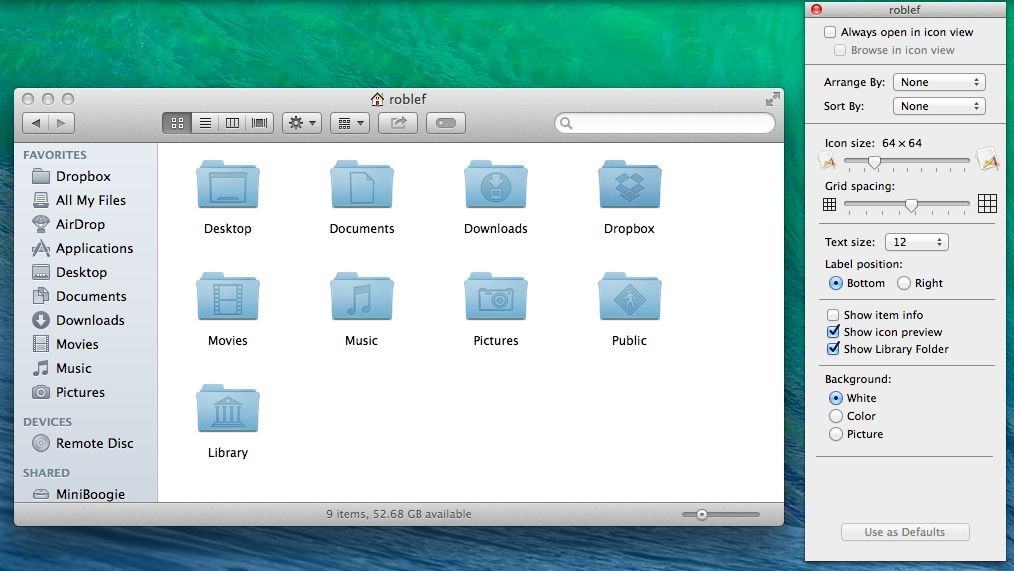
Open a Finder window and then navigate to the Home folder. That’s the one represented by the cute little house icon over in the sidebar. If you don’t see it, click on something like the Desktop or Documents folder, and then Command-click on the title bar of the window. You’ll get a drop-down menu that shows the file path of the current folder, which–if you’ve picked a folder from your Home directory–will show the Home folder somewhere in the list. Click on it to go to the Home folder.
Now, once you’re there, hit Command-J to bring up the View Options panel. You’ll see a checkbox to “Show Library Folder” somewhere in that panel, depending on the view your Finder window is in. Simply check it to show your User account’s Library folder. Now you can go in there and mess around to your heart’s content.
Update: Several readers point out that–as of OS X Mountain Lion, you can Option-Click on the Go menu in the Finder and access the Library folder, as well.

Rob LeFebvre is an Anchorage, Alaska-based writer and editor who has contributed to various tech, gaming and iOS sites, including 148Apps, Creative Screenwriting, Shelf-Awareness, VentureBeat, and Paste Magazine. Feel free to find Rob on Twitter @roblef, and send him a cookie once in a while; he’ll really appreciate it.


6 responses to “Mavericks Makes It Way Easier To Access Your Library Folder [OS X Tips]”
The “Cult of Mac” doesn’t remember two simple Terminal commands? That’s pretty sad.
chflags nohidden ~/Library
killall Finder
That, to me, is way easier than remembering a bunch of silly tricks like “hold Option when you open the Go menu” or “hit Cmd+J blah, blah…” If you want the folder not to be hidden, why not just unhide it and be done with it?