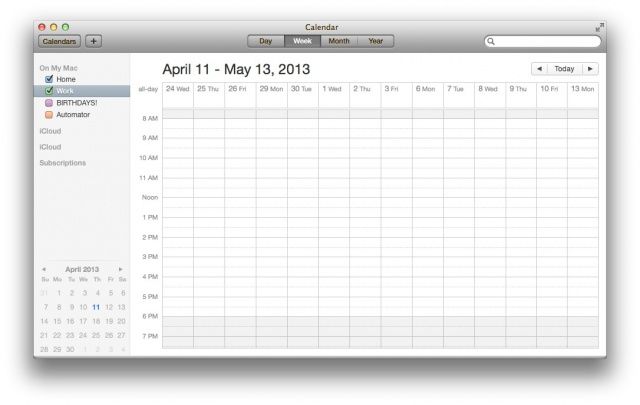
Remember that tip we gave you about showing more than seven days in a week in iCal? It’s been a while (and the app is now called Calendar), but there used to be a way to enable a Debug menu in iCal to allow you to open multiple windows, change the number of weeks that appear before and after the start date in Day View, and even show more than just seven days in a week.
Well, that debug menu has gone the way of Mac OS X Lion, but there is a cool Terminal command that does the same thing.
To start, launch Terminal from the Utilities folder and type or paste in the following command:
defaults write com.apple.iCal CalUIDebugDefaultDaysInWeekView 14
Then launch Calendar (or relaunch, if you had it up and running) to see that you’ve got 14 days in week view.
You can also change that 14 to anything. Try a huge number, try a small number–it’s all fun. When you’re done, repeat the command in Terminal and put the number of days you’d like to see in week view into the above command.
Myself, I keep putting the calendar back to 7 days a week, because it just weirds me out to have so many in one calendar view. One day, though, I’ll make Eight Days A Week official.
Via: MacWorld Hints

Rob LeFebvre is an Anchorage, Alaska-based writer and editor who has contributed to various tech, gaming and iOS sites, including 148Apps, Creative Screenwriting, Shelf-Awareness, VentureBeat, and Paste Magazine. Feel free to find Rob on Twitter @roblef, and send him a cookie once in a while; he’ll really appreciate it.

