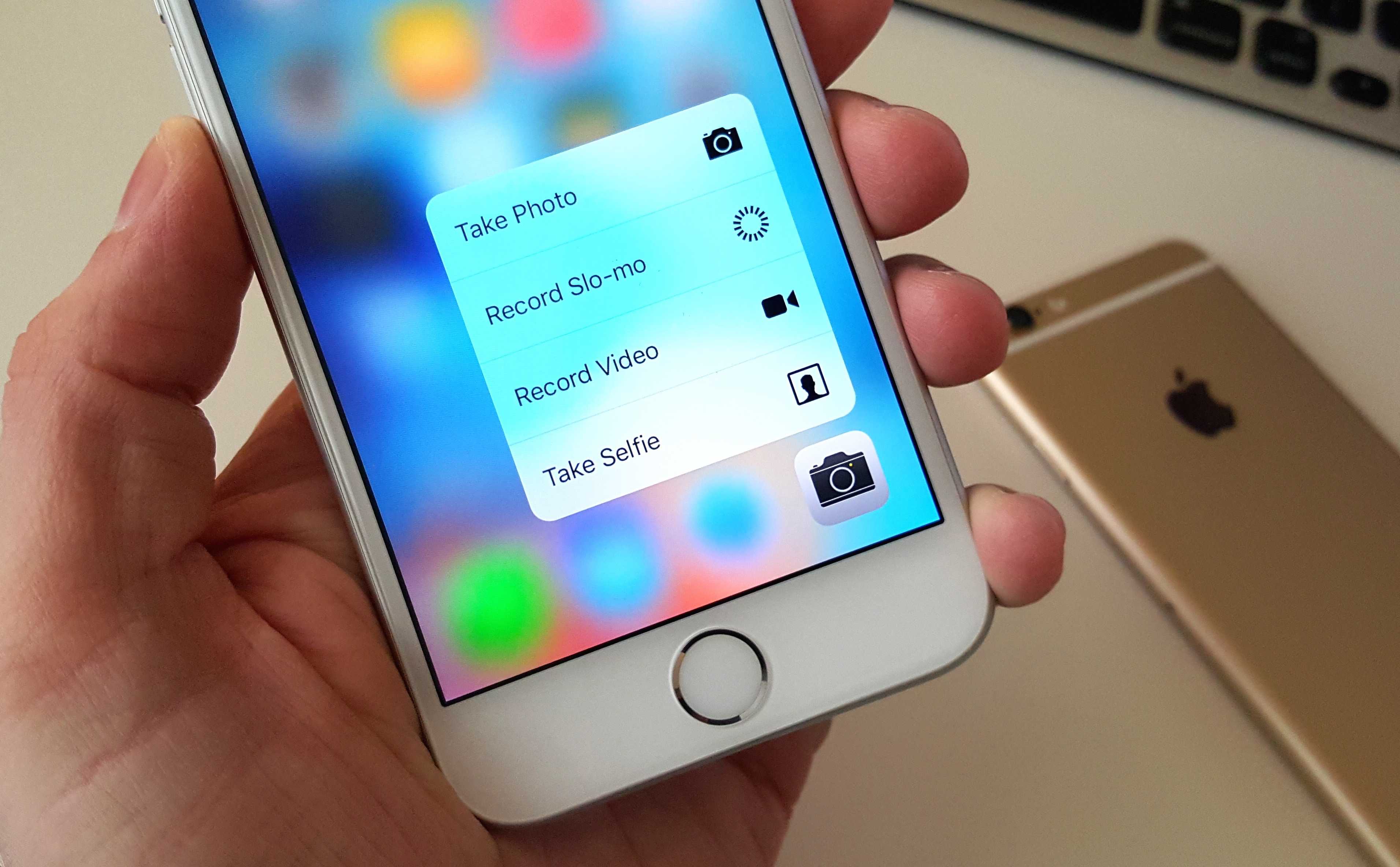
Even though the iPhone 6s look identical to its predecessor, using the new smartphone is actually way different thanks to 3D Touch and the new Peek and Pop gestures that essentially provide wormholes to other apps. Getting up to speed with the new input method can take some time, so we’ve compiled a list of all the sweet little features you probably didn’t know about.
Here are 11 killer iPhone 6s tips to help you master your new device:
Adjust 3D Touch sensitivity
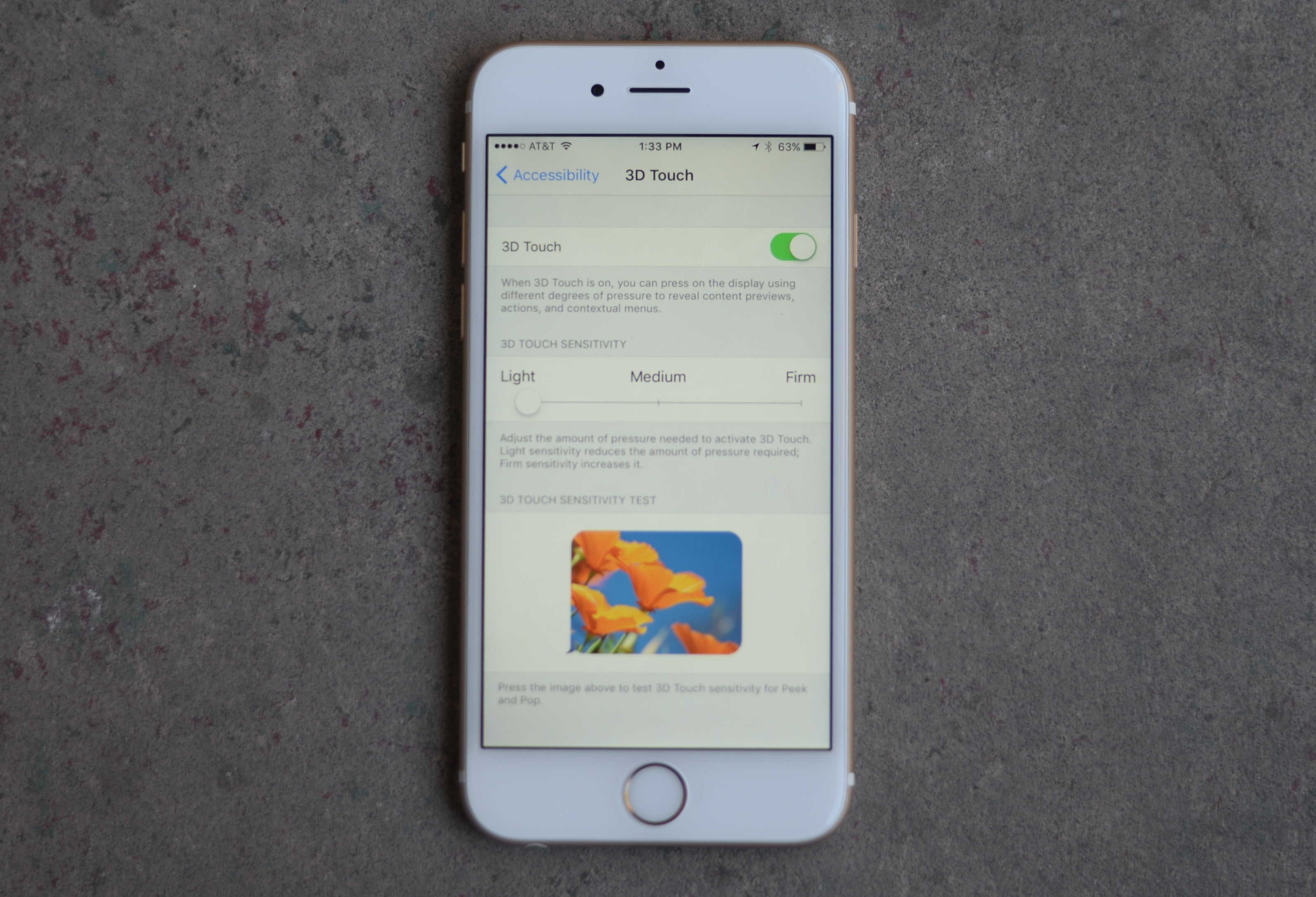
Mastering the perfect amount of pressure to apply for a Peek instead of a Pop can take some getting used to. It’s a little bit easier to use 3D Touch if you change its sensitivity from Medium pressure to Light. You can also change it to Firm if you have a habit of pressing too hard. Just go to Settings >> General>> Accessibility >> 3D Touch.
3D Touch to turn keyboard into trackpad
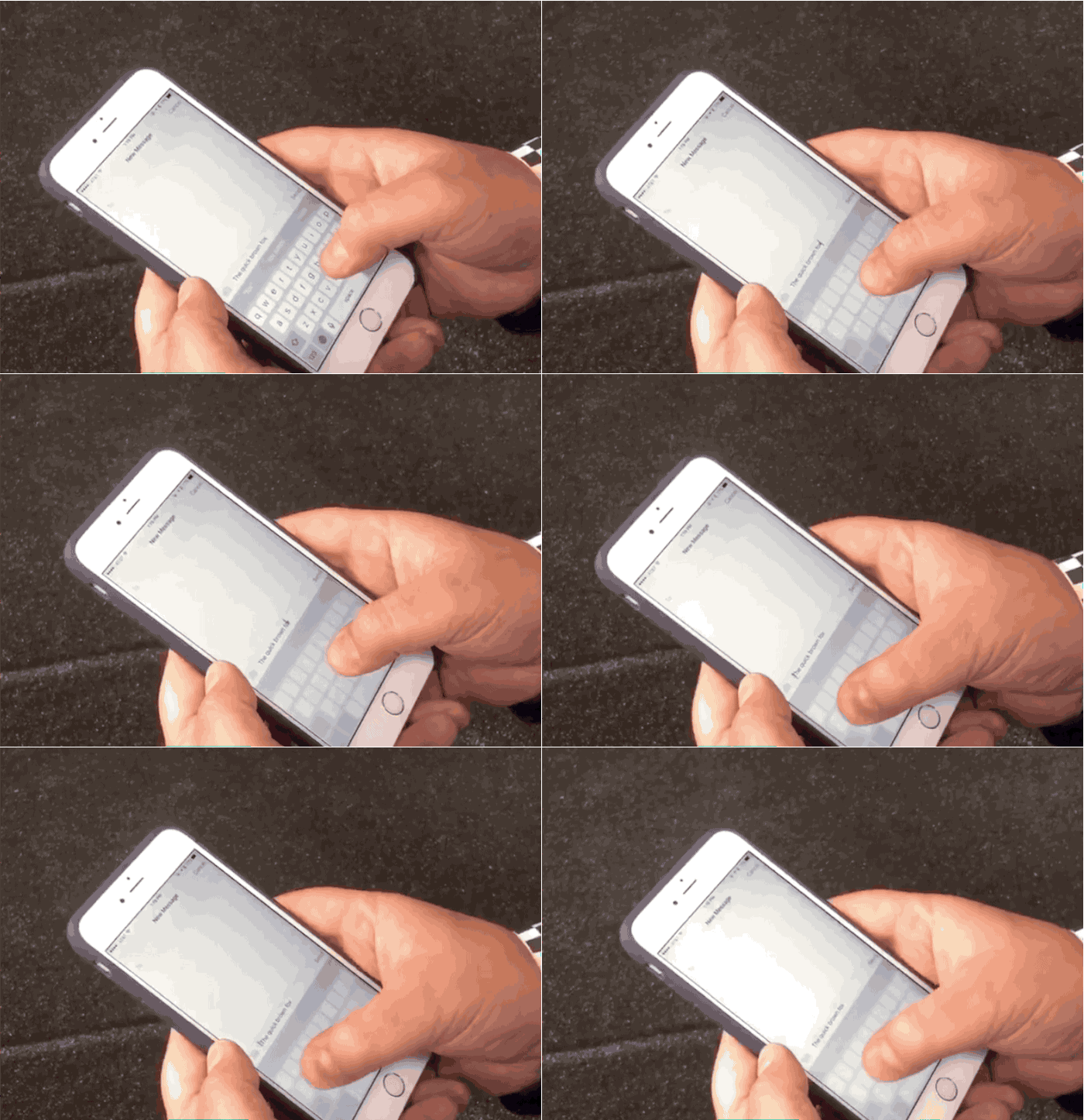
Photo: Matthew Panzarino/Twitter
Selecting a segment of text on an iPhone screen can be a pain, but 3D Touch makes it much easier. Just firm-press on the keyboard to turn it into a trackpad. You can then slide left and right to move the cursor. Hard-press to start highlighting text, then copy, cut or paste it as need be.
Peek at websites without visiting them
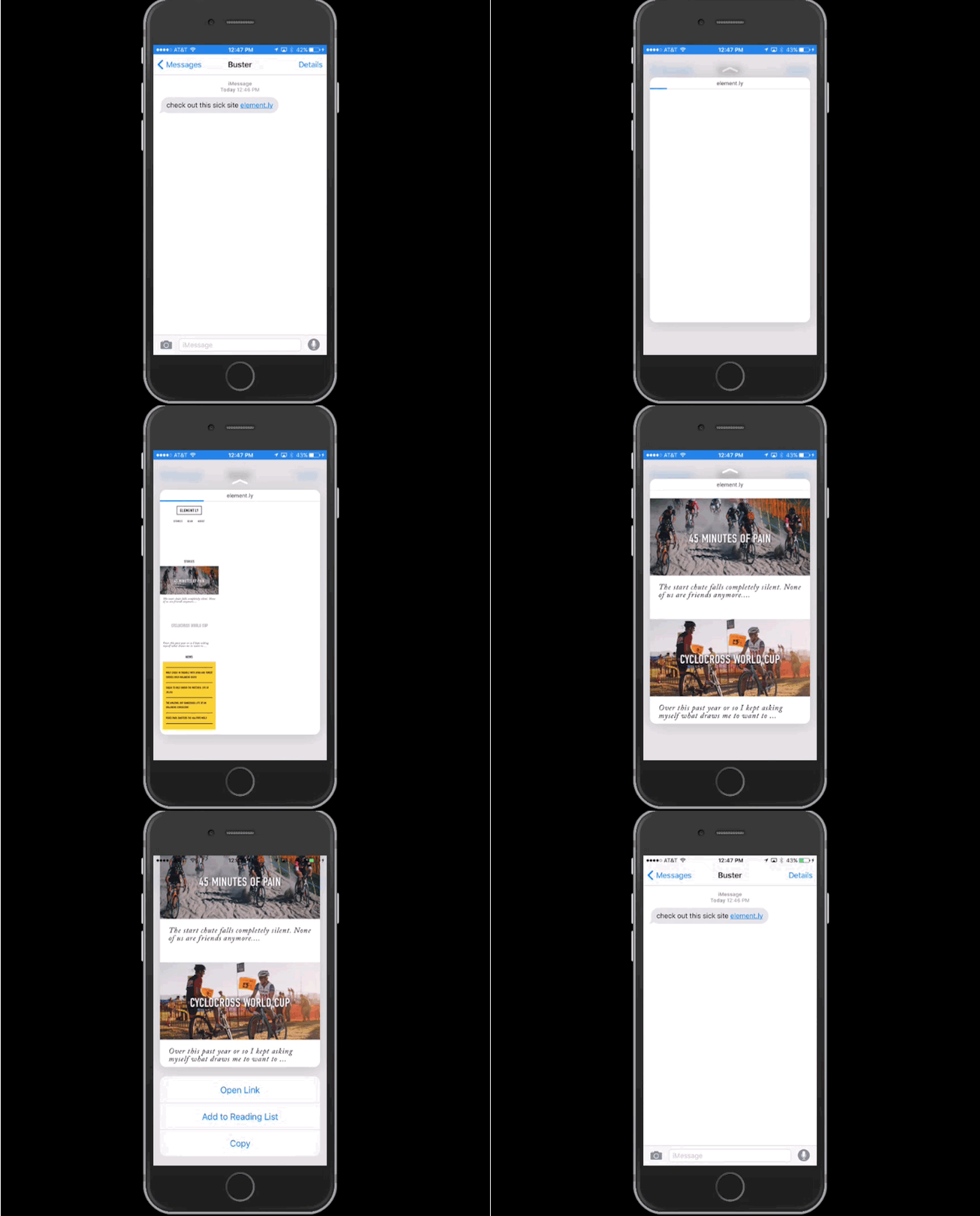
The best thing about 3D Touch is its ability to let you peek at other apps without leaving the one you’re in. For instance, if a friend sends you a web link, you can firm-press on it to bring up a card preview of the page, and then choose Open link, add to Reading List or Copy.
Manage email without opening messages
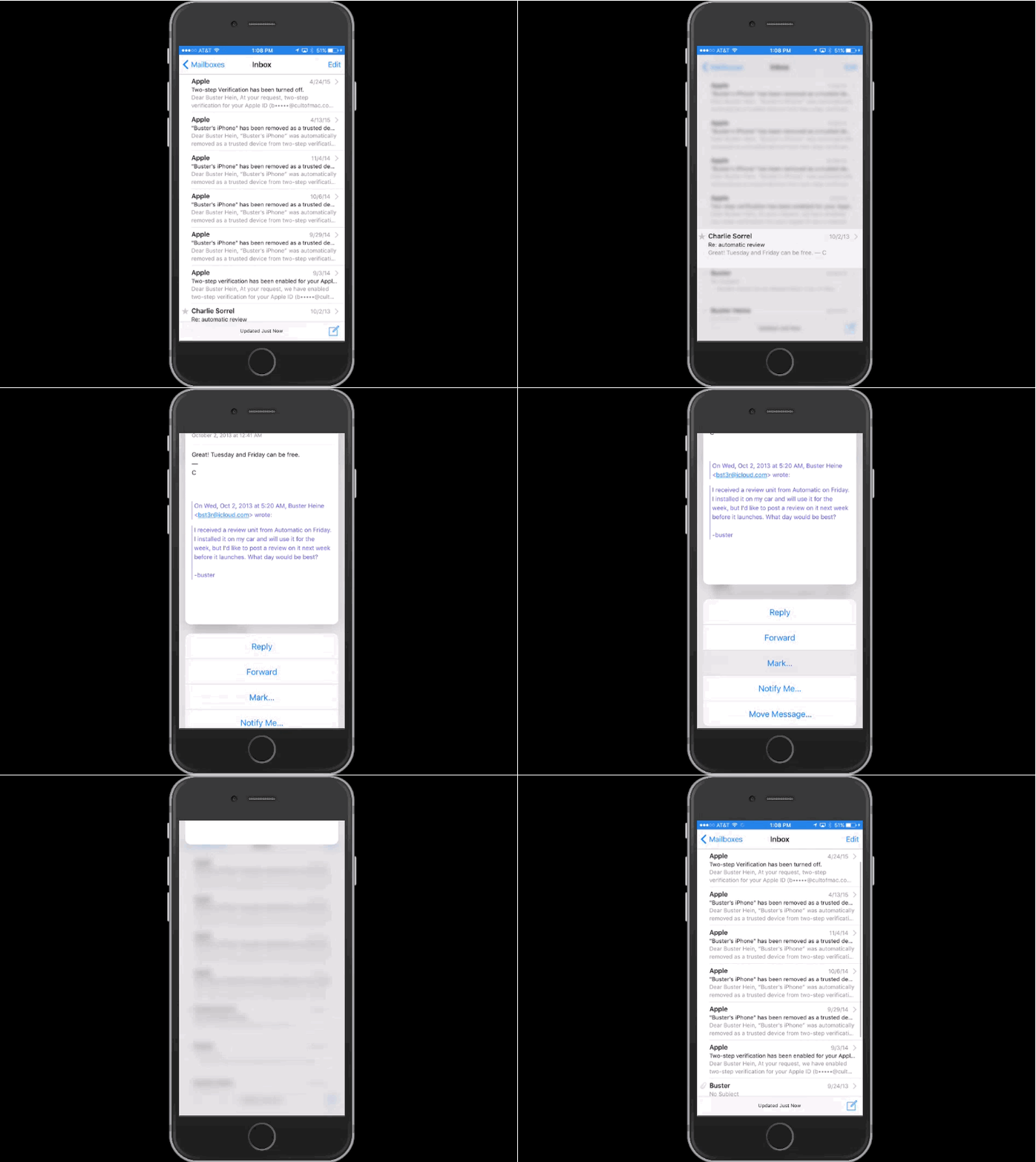
3D Touch shines brightest in Apple’s Mail app, which will help you reach inbox zero with ease. Users can peek into emails with a firm press, bringing up options to reply, forward, mark as spam, set a notification or move the message.
Pull up App Switcher with 3D Touch
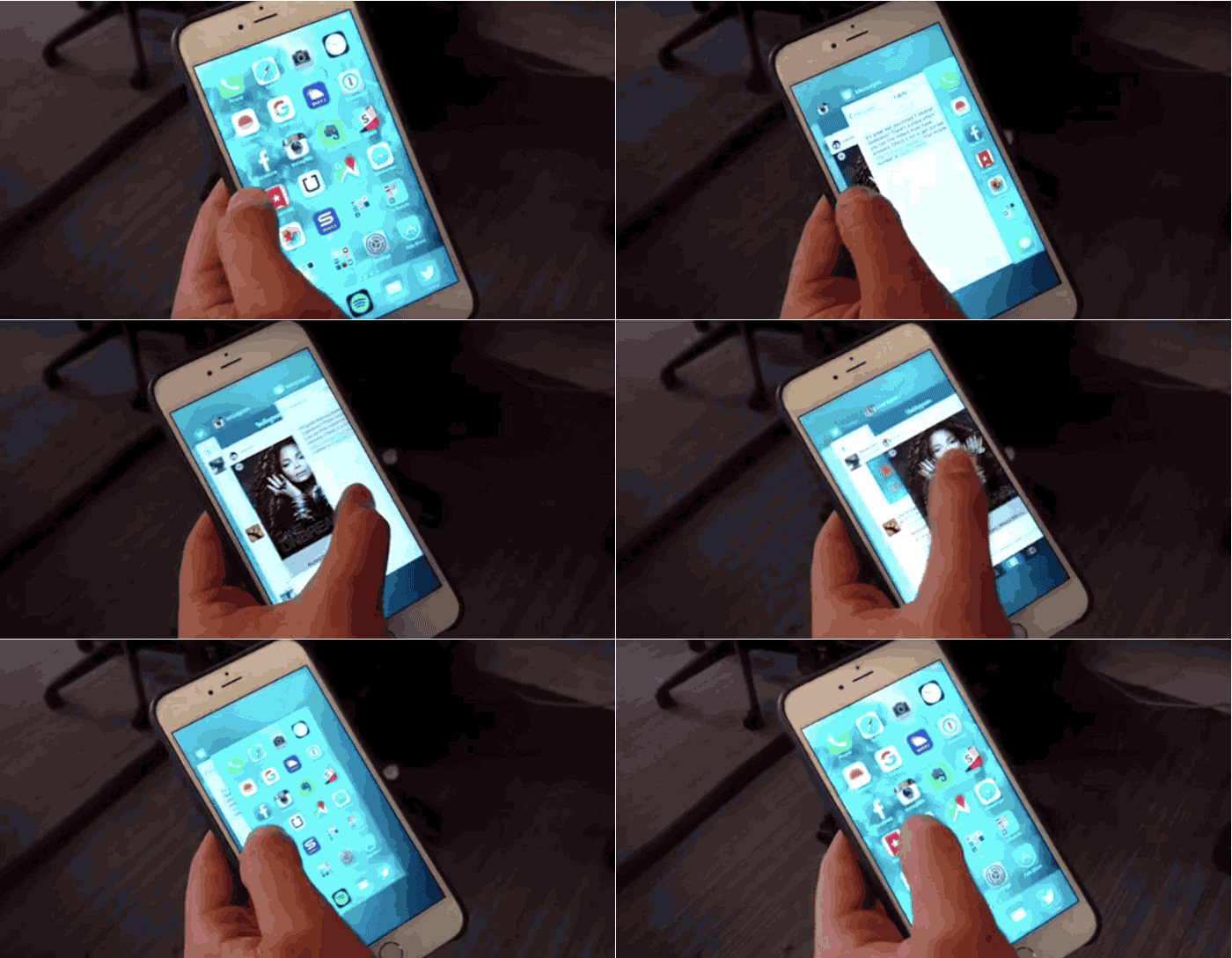
Double-pressing the home button is so 2014. With 3D Touch, you can hard-press on the left side of the home screen to bring up the app switcher window with all your active app cards.
Disable Live Photos
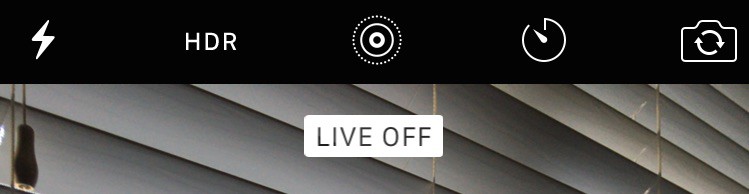
Live Photos are a really cool new media format, but the moving images also take up double the space as a normal still picture. If you’re worried about saving space, you can turn off the feature by tapping the Live Photos icon in the camera app.
Adjust video settings for higher/lower FPS
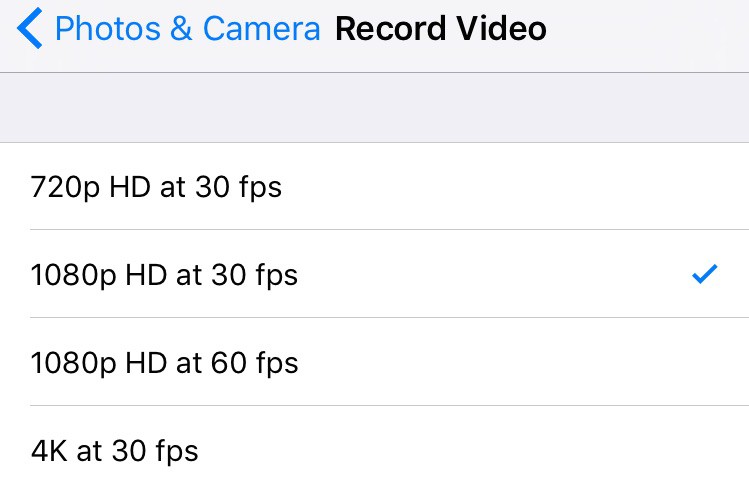
4K video is going to hog up way more storage space than Live Photos will. You can toggle between 1080p at 30 FPS, 720p at 30 FPS, 1080p at 60 FPS and 4K at 30 FPS by going to Settings >> Photos and Camera >> Record Video.
Press a contact’s picture anywhere to start a message or call
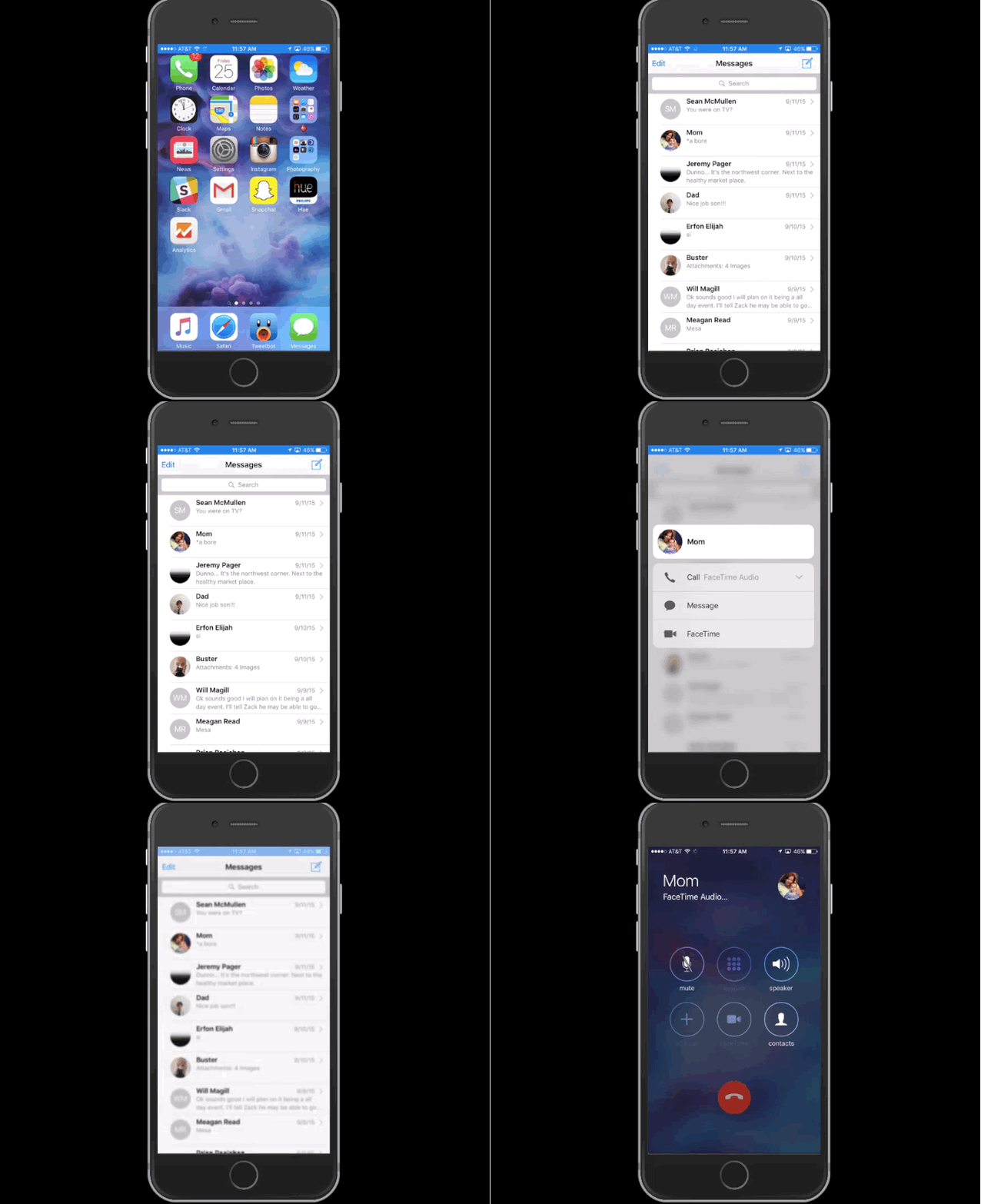
You can hard-press a contact’s photo from almost anywhere (Mail, Messages, Contacts, etc.) to bring up a menu to call, send a message or FaceTime.
Review recent pictures while snapping more
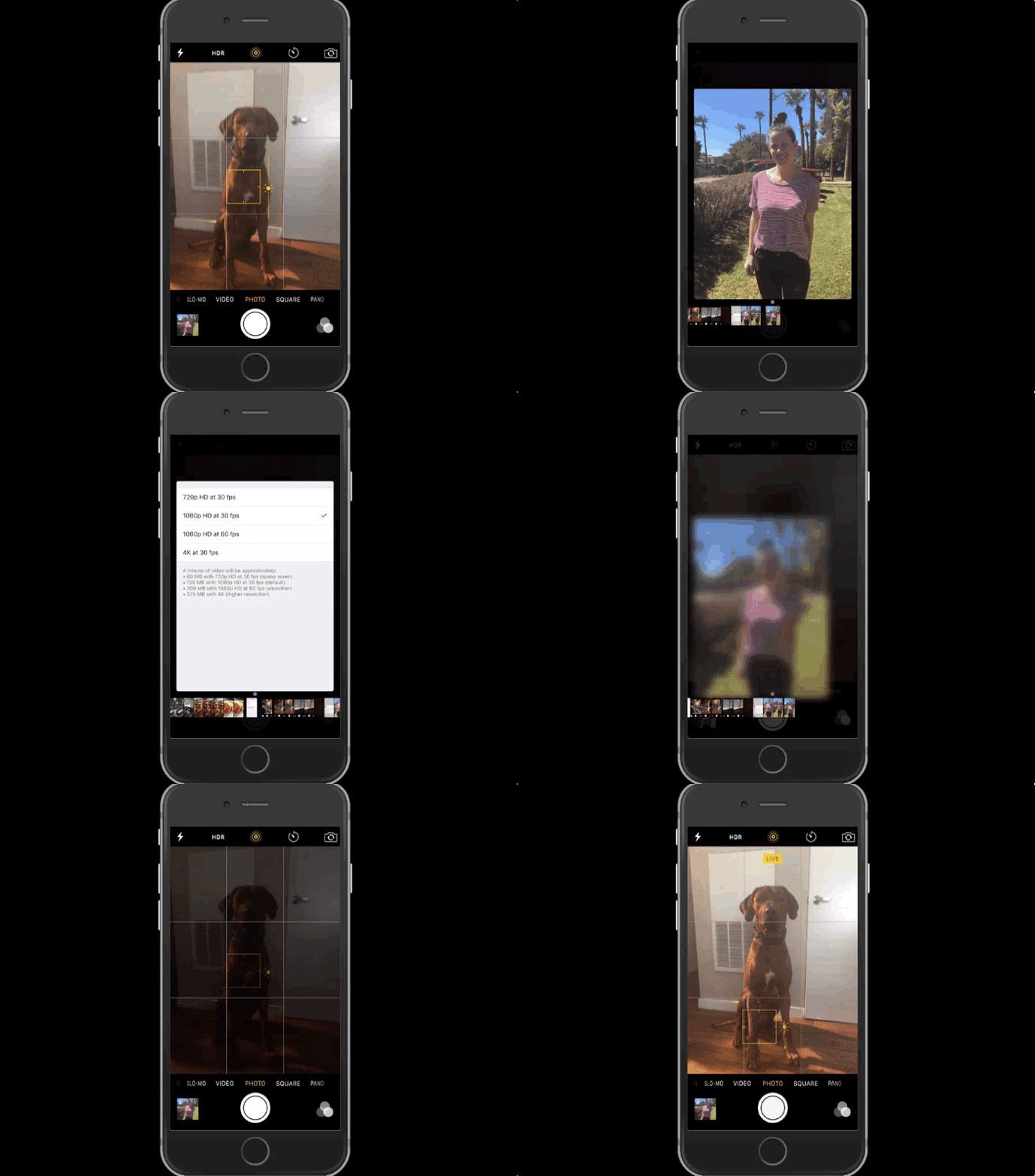
You don’t have to go all the way to your Camera Roll to view pictures in the Camera app anymore. Firm-pressing on the Camera Roll thumbnail inside the Camera app will now bring up a slide of your most recent pictures, so you can get back to snapping more quickly.
Create your own animated wallpaper
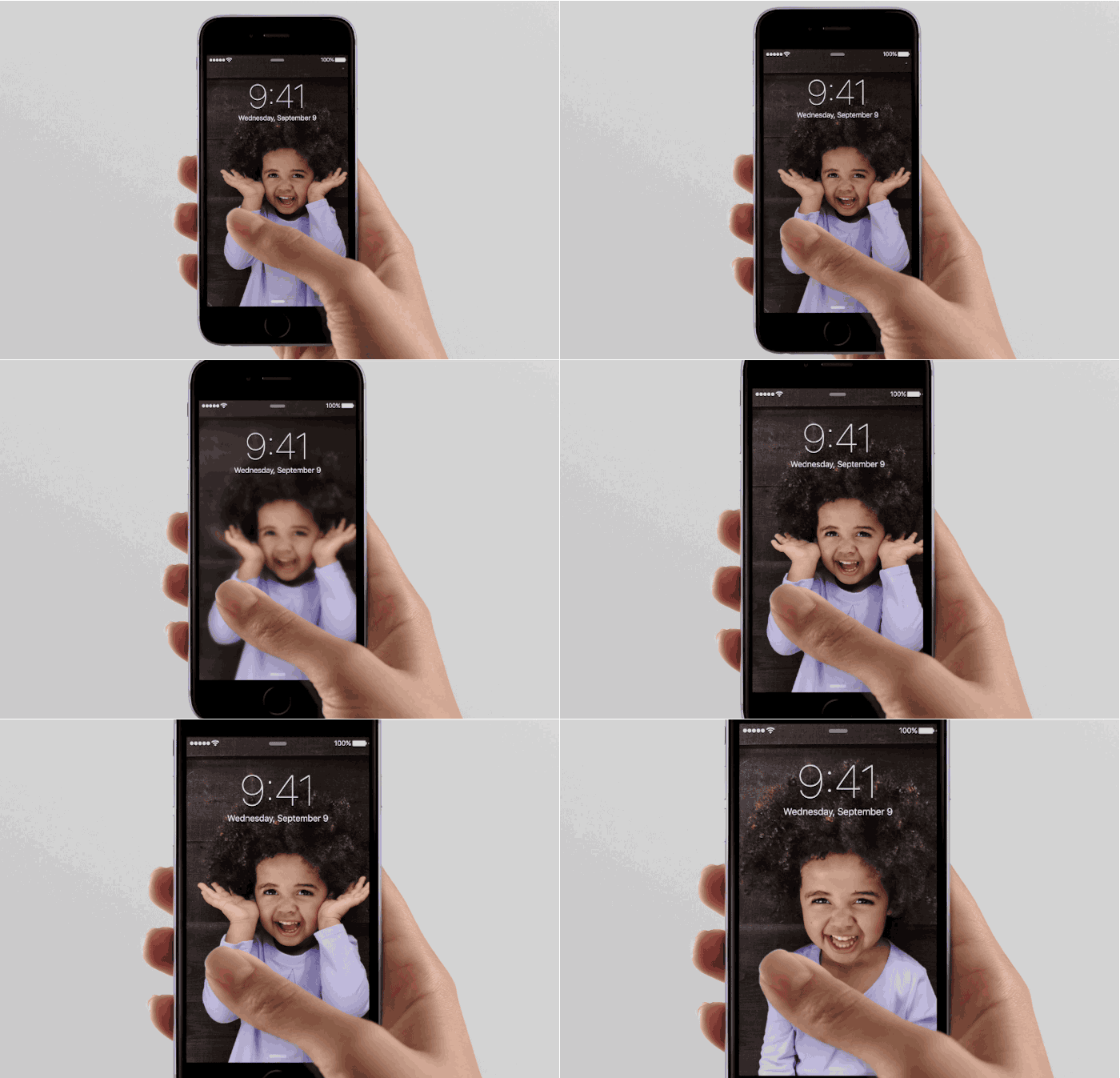
Apple included nine new live wallpapers with the iPhone 6s, but if colorful betta fish aren’t your thing, you can create your own live wallpaper. Just take any Live Photo from your camera, tap the share button, then choose Set as wallpaper. To watch your live wallpaper move from the lock screen, just firm-press on the display.
Peek at playlists
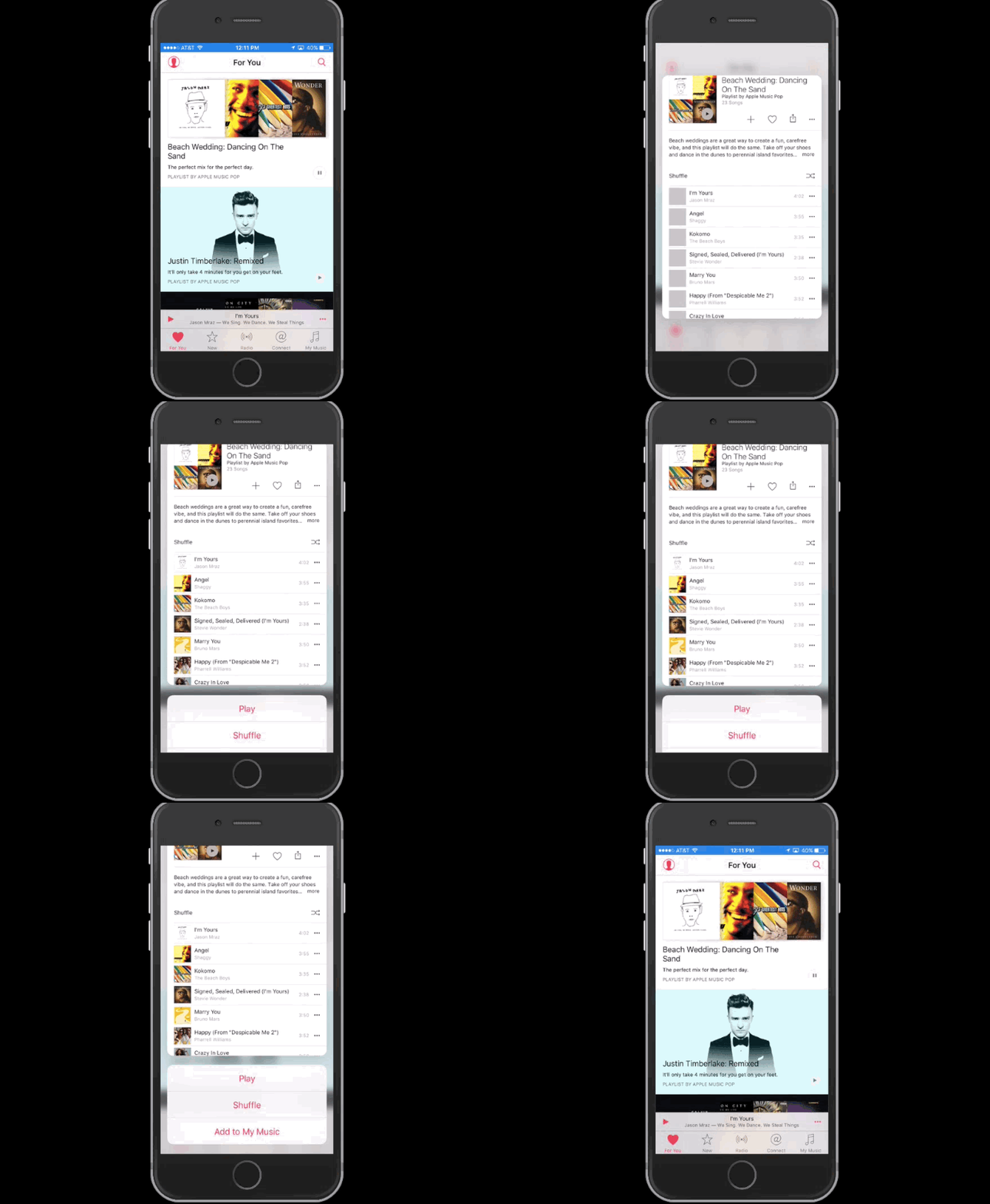
Just want to take a quick look at the tracks on Apple Music’s Justin Timberlake playlist? Hard-press and you’ll bring up a card showing the track lists, as well as the option to play, shuffle or add it to your music. Press even harder and you’ll go straight to the playlist page.

Buster Hein is a freelance writer who lives in Phoenix, Arizona. Twitter: @bst3r.


9 responses to “11 killer iPhone 6s tips everyone needs to know”
seems like a nice cool feature but why not just to do the same “3d” function by just pressing longer?
User experience. That’s all. Hard short press is 10x better than press and hold. Android uses or will use long press to load widget and the user experience on that sucks. Also, can’t use long press to activate functions during playing games.
Allow me to show& you a genuine way to earn a lot of extra money by finishing basic tasks from your house for few short hours a day — See more info by visiting >MY*&___(DISQUS)*%___ID)
Long presses are already bound to other functions (e.g. long pressing an app icon will allow you to move apps around on your home screen).
It allows a user controlled interim state – you can “peek” without triggering the hard press function (the “pop”) for as long as you’d like. If it was bound to a “long press”, it would trigger the pop function after some specific, pre-determined time. Like @disqus_OdyuatBpKK:disqus said, it’s significantly improved user experience (that I can confirm after having a 6S+ for ~2 days :D)
Agree with 3D Touch sensitivity on light setting. Much better IMO
BTW, not only can you hard press the thumbnail in the camera app to access a slideshow preview, you can hard press a _2nd_ time and “pop” into the Photos app (for edit, tagging, etc.), and you can return to the camera with ‘Done’, or go to All Photos to access the complete Photos app, then use ‘Back to Camera’ to get directly back to the camera app. Love this new navigation/workflow control.
Using gifs is great for purpose of demonstration. The problem with yours is that they’re made practically useless by their ridiculous speed.
No matter which one you choice, this video can help you transfer data from any old phone to new iPhone 6S/6S Plus
Visit my Profile for the Video from Facebook