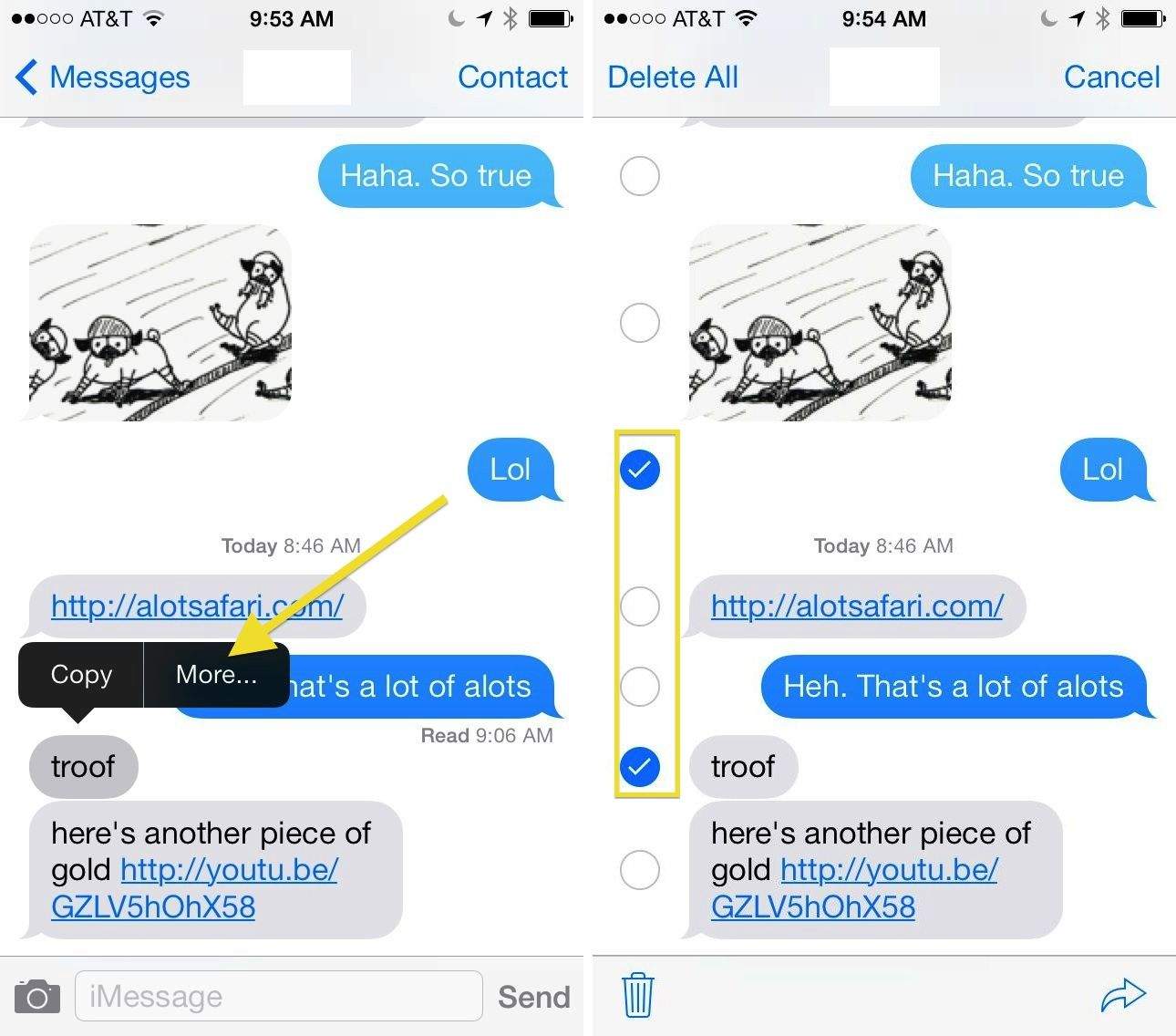
It used to be simple to delete text messages from your iPhone (or, I suppose, your iPad if you use iMessages), but with iOS 7, the cute little Edit button has gone away from the upper right corner. Instead, there’s a Contact button up there, which–while useful–used up the space where the Edit button used to be.
You can still delete entire message conversations by swiping to the left in the list of all your text messages, but how do you delete specific messages within a conversation? Swiping to the left just shows you the timestamps of the messages.
Never fear, we’ve got the answer.
When you’re in a text conversation, denoted by having a contact name at the top, and all the messages are from that contact or group, tap and hold on any one message bubble. You’ll get a pop-up menu that has two options: Copy, and More…
Choose More… and you’ll get a little blue circle to the left of all your messages. The one you originally tapped on will have a filled in circle with a white checkmark in the middle of it. Tap on all the other messages you want to trash, and then hit the trashcan icon in the lower left corner of the screen. Tap the Delete Message button that slides up from the bottom, and you’re good to go.
Coincidently, you can also send the selected messages to a contact as a message, which means this new method has a dual purpose. Just hit the little share arrow in the lower right corner, and you’ll be able to send the selected message (or image, or link) to any contact as a New Message. Slick.
Via: Telegraph

Rob LeFebvre is an Anchorage, Alaska-based writer and editor who has contributed to various tech, gaming and iOS sites, including 148Apps, Creative Screenwriting, Shelf-Awareness, VentureBeat, and Paste Magazine. Feel free to find Rob on Twitter @roblef, and send him a cookie once in a while; he’ll really appreciate it.


11 responses to “How To Delete Text Messages From Your iPhone In iOS 7 [iOS Tips]”
OMG thank you SO MUCH for this! I had given up, but like someone else mentioned, I’m now getting used to searching forums for how things are different in IOS7. I’m just so glad I can still delete individual messages.
Does anyone tell me how to transfer text messages from iPhone to PC?
http://www.leawo.org/tutorial/how-to-transfer-text-messages-from-iphone-to-computer.html
Thank you ! I’ve been spending hours trying to get rid of these old sms back ups, using iBackupBot seems to be very helpful ! : I could delete oldies from 3 years ago
stuck in my Iphone and using up storage for nothing,
I’m restoring now once again, fingers crossed ..
( https://discussions.apple.com/message/24806517#24806517 )
I think you need to delete everything on your iPhone before selling it, for the
sake of your privacy. But most people doesn’t know that simple deletion cannot
erase original data permanently, they can still be recovered by some
professional iPhone data recovery app, as long as the original data was not
overwritten, it is possible to recover deleted contacts, photos, messages, call
history from iPhone.
Maybe this article can help you:
http://www.safewiper.com/tutorials/how-to-erase-iphone-messages.html
This is a good little app to check for duplicates and delete multiple text messages all at the same time: https://itunes.apple.com/gb/app/delete-duplicates-+-
contacts/id508504148?mt=8
Download a free app from the app store called ‘Groups’
http://www.iphonefaq.org/archives/972922
It allows you to check and delete multiple contacts using the ‘actions’ button in the top right.
100% works
Hope this helps you
Chris