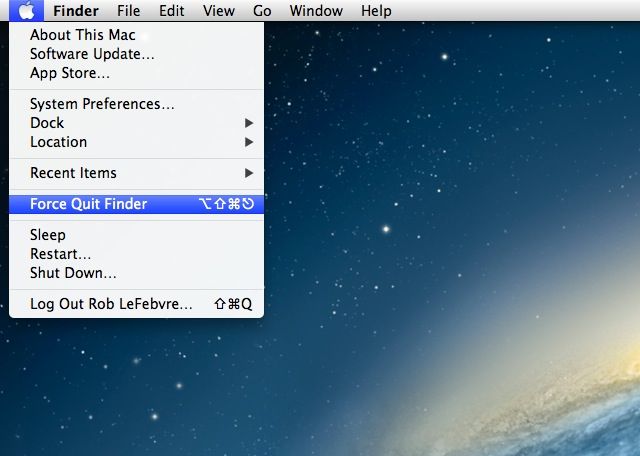
When an app gets stuck on my Mac, I typically force quit it by hitting Command-Option-Escape, and then clicking on the app that’s frozen, then hitting the OK button. Then, I hit the “are you sure” dialog button that invariably pops up. It’s a several step process, but I figured that was the price for having multi-tasking that no longer takes down my whole machine.
Turns out, there’s a quicker way to do that right from the Apple Menu. Here’s how.
When you’re in one of them frozen app scenarios that we occasionally face, simply press the Shift button on your keyboard and go up to the Apple menu in the upper left of your Mac’s screen. The Shift key will change the Force Quit… menu item to say Force Quit [Application Name]. Boom – you’ve just avoided the cascading clicks that are needed in the older method.
Now, if your app happens to have frozen to the point where the Apple menu no longer works? You’ll have to hit the keyboard command and do your due diligence. Sorry.
Via: Macworld

Rob LeFebvre is an Anchorage, Alaska-based writer and editor who has contributed to various tech, gaming and iOS sites, including 148Apps, Creative Screenwriting, Shelf-Awareness, VentureBeat, and Paste Magazine. Feel free to find Rob on Twitter @roblef, and send him a cookie once in a while; he’ll really appreciate it.

