
I ran into someone the other day and he told me that he had over 700 contacts in the Address Book app on his Mac. He expressed concern about losing those contacts. I asked him, “are you performing backups on your Mac?” He wasn’t. We talked about the various ways he could backup his Mac (i.e. Time Machine, external drive, etc.), but I also shared a tip with him that focuses on his contacts.
I told him to launch the Address Book app in the Applications folder of his startup disk. I then told him to select the File menu, select Export and then to select Address Book Archive.
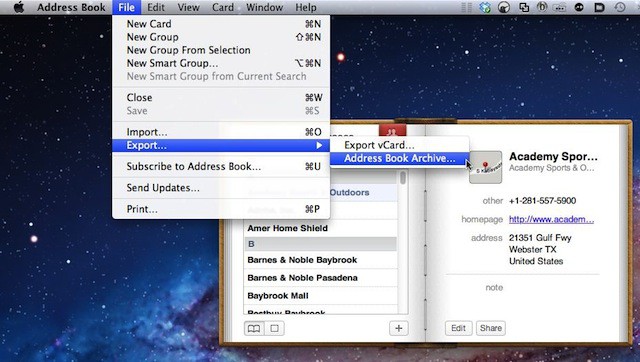
A dialog box will open with a default name for the Address Book Archive. The default name is generally the words “Address Book” plus the present date. You can accept the default name or enter your own. I told him he can save the file to an external USB, Firewire or Thunderbolt hard disk drive, SD card or USB thumb drive. Any of these could serve to back up his contacts and he could export them multiple times with different dates in the file names to keep a historical archive of his addresses.
My friend was relieved that he could backup his contacts this easily. He’d just gotten his first Mac about a month ago. Although this is a good start for regular Address Book contact backups, I’m hoping he’ll pick up a Time Capsule to backup the rest of the data on his Mac.

David W. Martin has more than 20 years of experience in the industry as a programmer, systems and business analyst, author, and consultant. David has written for CNET’s iPhoneatlas.com, MacLife.com, CultofMac.com, BYTE.com and recently for aNewDoman.net. He comes to Cult of Mac’s website with deep knowledge and passion for the all things Apple. Follow David on Twitter @david_w_martin or see what he’s up to now at davidwmartin.com.

