
Mobile menu toggle

How To Take The iOS Out Of Lion: Turn Off Autocorrect, Turn On Key Autorepeat

By

e93eb_Lion-Pic1

OS X Lion is the best version of OS X yet, but some of its design choices aren’t without controversy… especially the decision to make the whole operating system more like iOS.

Hate that stuff? Over the next few days, we’ll be posting some tips on taking the iOS inspirations back out of your Mac. Today, we’re going to focus on how to stop your Mac from handling your text input as if you were typing it out on your iPhone.

The two big changes that Apple made in OS X Lion to the default way that text input is handled is institute iOS-like autocorrect as well as turn off the ability to repeat a key just by holding it down.

Luckily, both are easy enough to fix.

To Turn Off iOS-Like AutoCorrect In OS X Lion
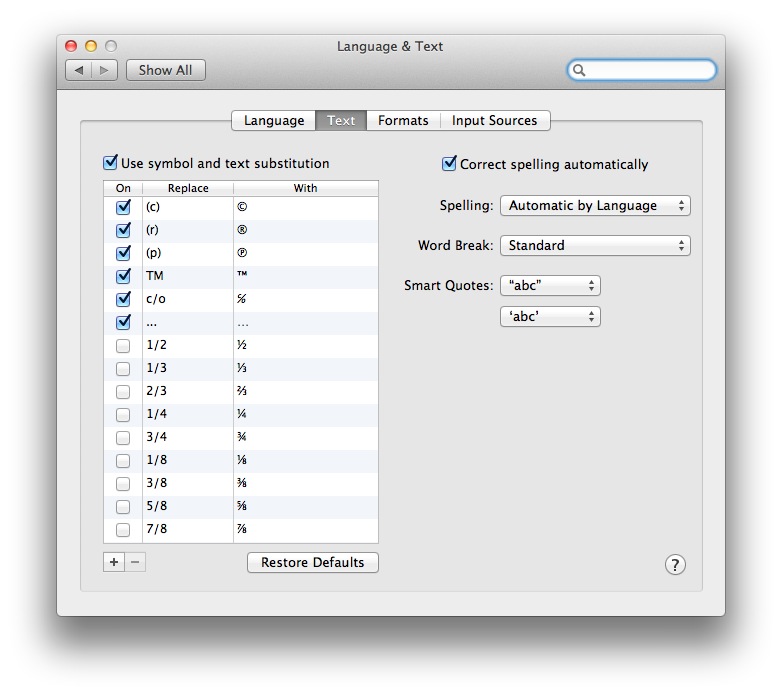
1. Open Applications > System Preferences > Language & Text.

2. Untick the box that says “Correct spelling automatically.”

Voila! OS X Lion will no longer presume it knows how to spell better than you… even though it probably can.

To Turn On Key Autoepeat
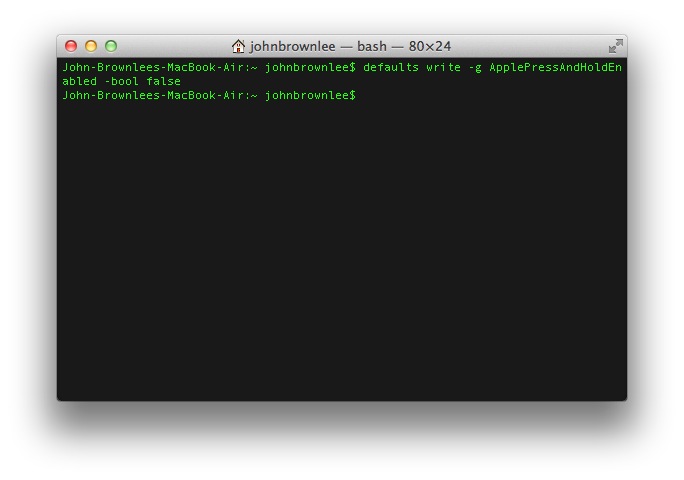
1. Open Applications > Utilities > Terminal.

2. Paste this into the Terminal.app window then hit Enter.

defaults write -g ApplePressAndHoldEnabled -bool false

Now you can hold down the ‘s’ key and make it hiss!

  • Subscribe to the Newsletter

    Our daily roundup of Apple news, reviews and how-tos. Plus the best Apple tweets, fun polls and inspiring Steve Jobs bons mots. Our readers say: "Love what you do" -- Christi Cardenas. "Absolutely love the content!" -- Harshita Arora. "Genuinely one of the highlights of my inbox" -- Lee Barnett.

44 responses to “How To Take The iOS Out Of Lion: Turn Off Autocorrect, Turn On Key Autorepeat”

  1. Michael Black says:

    I actually haven’t noticed the auto correct feature in Lion yet. I’ll keep it as it is if/until I find it annoying. Although the whole “natural scrolling” thing I find to be way too annoying.

  2. Soho22 says:

    Am I wrong or was that in Snow Leopard already? Snow Leopard was correcting stuff I wrote wrong too sometimes.

  3. Soho22 says:

    I noticed the key auto repeat thing on my first day with lion. Damn that is annoying! Whats the point anyway? It does not help at all, its just throwing rocks in my way.

  4. Brandon M says:

    I like it.

  5. David Penick says:

    Unchecking the “correct spelling automatically” box doesn’t work for me, at least in Safari. So I disabled spellcheck in Safari. Hopefully that will work. 

  6. Daibidh says:

    The more I use Lion the more I enjoy the greater UI continuity between my desktop and my phone.  Sure, it takes a little getting used to but thats what change is all about… and as we go increasingly mobile, the younger generations not brainwashed in the old paradigms will demand even more change of us old dogs. So I don’t think it is as frivolous as some suggest… it’s just the beginning.  I freaking LOVE the new way of inserting accents while I type.  I always wondered who frakked up with that “insert special character” or “change keyboard layouts” mess.  Seriously?!  Not even Redmond made it THAT complicated!  And Auto-repeat?  What exactly is that?  Holding down a key and have it repeat?  People use that?!

  7. John Branham says:

    and the instructions didn’t fix it for me either.

  8. Julian Velasquez says:

    I actually enjoy the autocorrect, and didn’t know about the non-repeating letters because I don’t often feel the need to repeat letters unnecessarily. ;]

  9. energyDude says:

    Thank you!  Thissss is awesome!

  10. wilkerlucio says:

    remember that you need to re-open the apps to make the key repeat work on them again ;)

    worked perrrrrrrrrrfect here :P

  11. Michael says:

    “Autoepeat?” Really?

  12. soopafly says:

    Should have left autocorrect set to “on” ;-)

  13. freediverx says:

    Coming soon, how to mimic Windows 7 UI conventions and enable floppy disk support.

  14. Mind WarrioR says:

    lol…

  15. Saulius Dumbliauskas says:

    Mac OS X Lion is stuffed with 250 new features which we will need to find and turn them off. It really sux. 

  16. Felicia DeGroot says:

    if you get rid of the auto repeat, how can you get it back?

  17. matthewmspaceyoutube says:

    Type in defaults write -g ApplePressAndHoldEnabled -bool true

  18. Gregg Girling says:

    Funnily (actually, unfunnily) enough, the disabling of auto correct described above doesn’t work for me.  I’ve de-selected the box “Correct spelling automatically” yet my computer insists on using US spellings (e.g. when I type “organization” it immediately changes it to “organisation”).  That’s also despite the fact that the pull down menu below the “Correct spelling automatically” box, I’ve selected “British English” and have removed the US dictionary options. 

    Supremely annoying (although, otherwise I’m loving Lion)

  19. mai duc chung says:

    The usual idea is that you would use NFC to set up the link between the two devices and then do an automatic hand over to a different protocol for doing the actual transfer of data – eg Bluetooth,iphone 5

  20. simon othen says:

    wouldn’t that be “stuff i had written incorrectly” :)))

  21. NathanHornby says:

    Um, that’s because the British spelling is Organisation; US english is Organization.

    Maybe you do need autocorrect…

  22. bradbell says:

    I had to deactivate spell check in Safari separately. 

    This change also seemed to affect TextEdit, which also has it’s own settings. Either that, or there is a time lag before the settings take. I’ve tested to figure out how it works, but the complexity of the results suggests it’s just very buggy. 

    In any case, changing the settings in Safari fixed everything instantly:
    Edit > Spelling and Grammar – untick (ONLY) “Correct spelling automatically”

Leave a Reply

