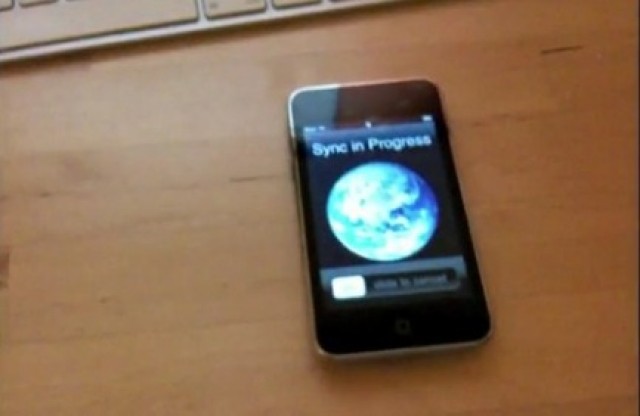
One of the neatest features of iOS 5 and iTunes 10.5 is Wi-Fi Sync, which allows you to finally leave the Apple Connector Cable in your computer desk drawer where it belongs, at least most of the time. It can be a little hard to figure out at first how to make Wi-Fi Sync work for you. Here’s our handy guide to getting Wi-Fi Sync working.

iTunes Wi-Fi Sync
- To activate iTunes syncing over Wi-Fi, plug your device into your computer and open up iTunes.
- Under the Summary tab, scroll down to the Options, then ensure Wi-Fi syncing is enabled. Your device should now sync automatically over Wi-Fi when plugged into a power source, but you can initiate a Wi-Fi sync manually using the steps below.
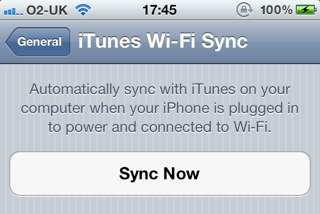
- On your iOS device, go to the Settings app and then tap on the ‘General’ tab.
- Select ‘iTunes Wi-Fi Sync’ and then select ‘Sync Now’.

John Brownlee is a writer for Fast Company, and a contributing writer here at CoM. He has also written for Wired, Playboy, Boing Boing, Popular Mechanics, VentureBeat, and Gizmodo. He lives in Boston with his wife and two parakeets. You can follow him here on Twitter.


35 responses to “How To Set Up Wi-Fi Sync With iTunes 10.5 And iOS 5 [How-To]”
Hi i have a problem that i couldn’t find the answer anywhere !!
i have 2 iphones,5s and 4 ,,they come up automatically under device in iTunes,,(sometimes they don’T !!! ) and i can click all the tabs (info,music,,,,,) BUT the APPs,,,whenever i tab the APP button ,,a message comes up ” Looking for iPhone ” and then my iPhone is gone from the device list !! and it never comes back ,unless i quit iTunes ,,,,
i have no control over them ! i could only sync via wifi only once !!
and one more thing my “Remote” app,,,sometimes works and my iTunes library shows up but most of the time ,there is nothing it just gives me the four digit code that i don’t know where to put (there is no remote Tab ,,)and believe me ,,i have read all the instructions out there ,,and all the troubleshooting and discussion groups but it seams there is nothing wrong but there’s no solution for my problem !!
i hope you could help me