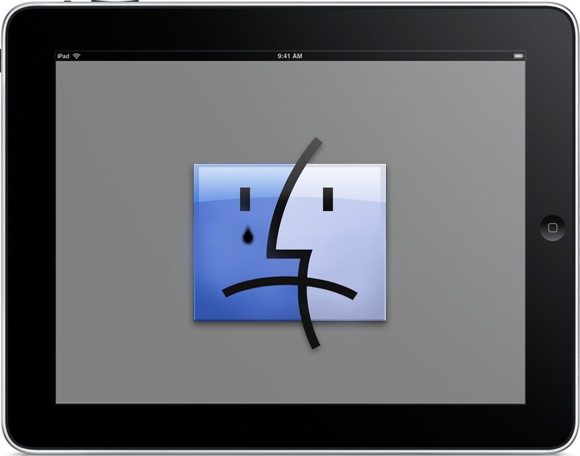
It happens to us all: frozen app. Yes, frozen app, the frustrating condition that causes your iPhone or iPad to suddenly seize up, forcing you to do a full restart because even your home button has stopped working.
Now while the causes of frozen app are varied, you can remedy its foul presence in two easy steps.
Here’s how:
- Press and hold the power button on the top right corner of your iPhone or iPad until you see the shutdown screen. All iPhone, iPod Touch, and iPad power buttons are on the upper right corner (if you’re facing the screen).

- Now you should be seeing the shutdown screen below. Next step is to press and hold the home button. Keep holding it until frozen app closes and you see your home screen.
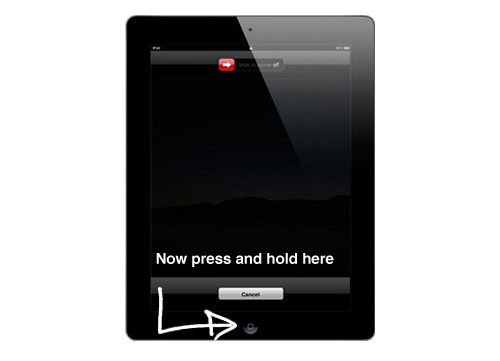
Voila! Your app is now closed, feel free to go about your business.

Erfon Elijah is the producer and host of The CultCast. When not editing podcasts or watching Mrs. Doubtfire, you’ll find him on Xbox Live hunting CoD Ghosts foes like the Predator. Here are his tweets…


31 responses to “Force Quit Frozen Apps On Your iPad Or iPhone In Two Easy Steps [How-To]”
I have encountered several troubles like this before, but what I only did is restarting my gadget and luckily it turned back to its normal system of the programs. Some other ways, you can still used the manuals and guides regarding same problems like this.
thanks very much, i did what you show here and it works perfect. So again, thanks.
apple sucks dik linux 4 lyfe