Hopefully you already know how great Preview is. It comes built in with every Mac, it handles PDFs and images with ease, and does a great deal of basic image editing just fine, saving you the bother of opening more substantial, more expensive image editors. Here’s a tip for getting perfect square crops inside Preview.
To crop an image in Preview, make sure you’re in Select mode and just start dragging on it. A selection box will appear, which you can resize and move around until it’s just right.
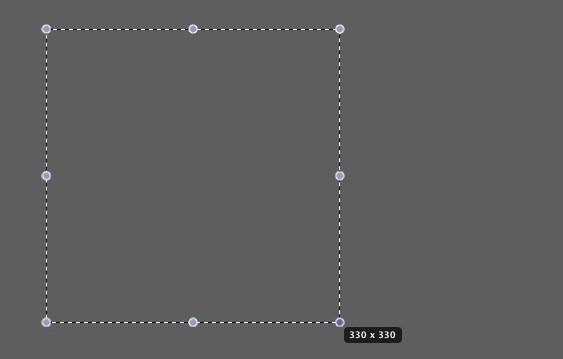
If you want to crop to a perfect square, you could do it manually, relying on the pixel measurements that appear at the bottom-right corner of your selection to tell you when the selection is square.
Or you could do it the easy way: hold down Option and Shift while dragging. Now, your selection will be constrained to a square.
(You’re reading the 54th post in our series, 100 Essential Mac Tips And Tricks For Windows Switchers. These posts explain to OS X beginners some of the most basic and fundamental concepts of using a Mac. Find out more, or Grab the RSS feed.)

Giles Turnbull is a freelance writer in England. He also writes for the Press Association and The Morning News. You can find out more at his website, and follow him on Twitter @gilest.

