
More than 15 years after its debut, Siri finally feels useful beyond the basics. While iOS 27, iPadOS 27 and macOS 27 pack plenty of notable upgrades, Siri AI is easily the highlight. It can find buried information, understand what’s onscreen and get things done across apps.
From comparing PDFs to organizing travel bookings, here are some practical ways to put Siri AI to work on your iPhone, iPad or Mac.
7 useful Siri AI features to try on your iPhone, iPad or Mac
Siri was one of the first digital assistants when appeared as a built-in feature of the iPhone 4S in 2011. But aside from basic functions like setting timers, Siri never proved itself as a truly worthwhile virtual assistant — until now.
Siri AI finally feels useful because of its ability to work with information already on my devices. I can describe an email I’m looking for, ask about a document or turn a photo of a school schedule into calendar events.
That’s what makes Siri AI feel like a true assistant, something which Apple promised over a decade ago.
Table of contents: 7 useful Siri AI features to try
- Compare two PDFs without reading both
- Save product serial numbers and other information
- Travel confirmations in one note
- Find photos without remembering the date
- Easily add multiple calendar events
- Responding to emails you forgot to reply to
- Get help with what’s on your screen
Compare two PDFs without reading both
I often need to compare two PDFs, such as contract counter proposals. In most cases, they contain the same information, with only minor differences. Or, in other cases, I need to go through some large PDFs to find the crux of the matter.
Siri AI makes all this easy now. On a Mac, you can right-click on a PDF, click the Ask Siri option and give it a focused question. For example, when going through multi-page agreements, I ask Siri AI to highlight the key financial figures and timelines.
When I need to compare two PDFs, say a counter-proposal to a contract, I select both PDFs and ask Siri AI to compare them and find the key differences.

Screenshot: Rajesh Pandey/Cult of Mac
Even better, I can ask follow-up questions without selecting the files again or repeating the original request. If Siri highlights a revised payment clause, I can ask it to explain what changed and point me to the relevant section. That makes it easier to move from a long document to the specific detail I need to check.
Save product serial numbers and other information
I tend to save important serial numbers and other information for all my devices in the Notes app. Usually, I do this by taking a photo of the serial number and later typing it in manually.
With Siri AI, this process is much faster. I take a photo and then ask Siri to save the model number and serial number within a specific folder in the Notes app. And I can do this right after taking the photo, instead of finding time later in the day to do this manually.
A sample prompt typically looks like this: “Save this monitor’s model and serial numbers in my equipment note.” Keeping those details together makes warranty claims and troubleshooting easier.
Travel confirmations in one note
Before any trip, I spend at least 20 to 30 minutes gathering the important information in one place. Flight tickets, hotel bookings, rental-car confirmations and activity details all arrive in separate emails. When traveling with my family and a toddler, I prefer to have everything ready instead of searching my inbox whenever I need a booking reference or address.
This is where Siri AI’s ability to find information across emails comes in useful. I can ask it to create a travel note containing the flight times, booking references, hotel address, check-in details and rental-car pickup information.
The note comes in handy once the trip begins. At the airport, I can pull up flight details without digging through my inbox. When we land, I can quickly find and reference the hotel address and booking reference, along with any taxi booking details.
Since this information is in the Notes app, it means I can share it with my family, so my wife or my parents can also go through it.
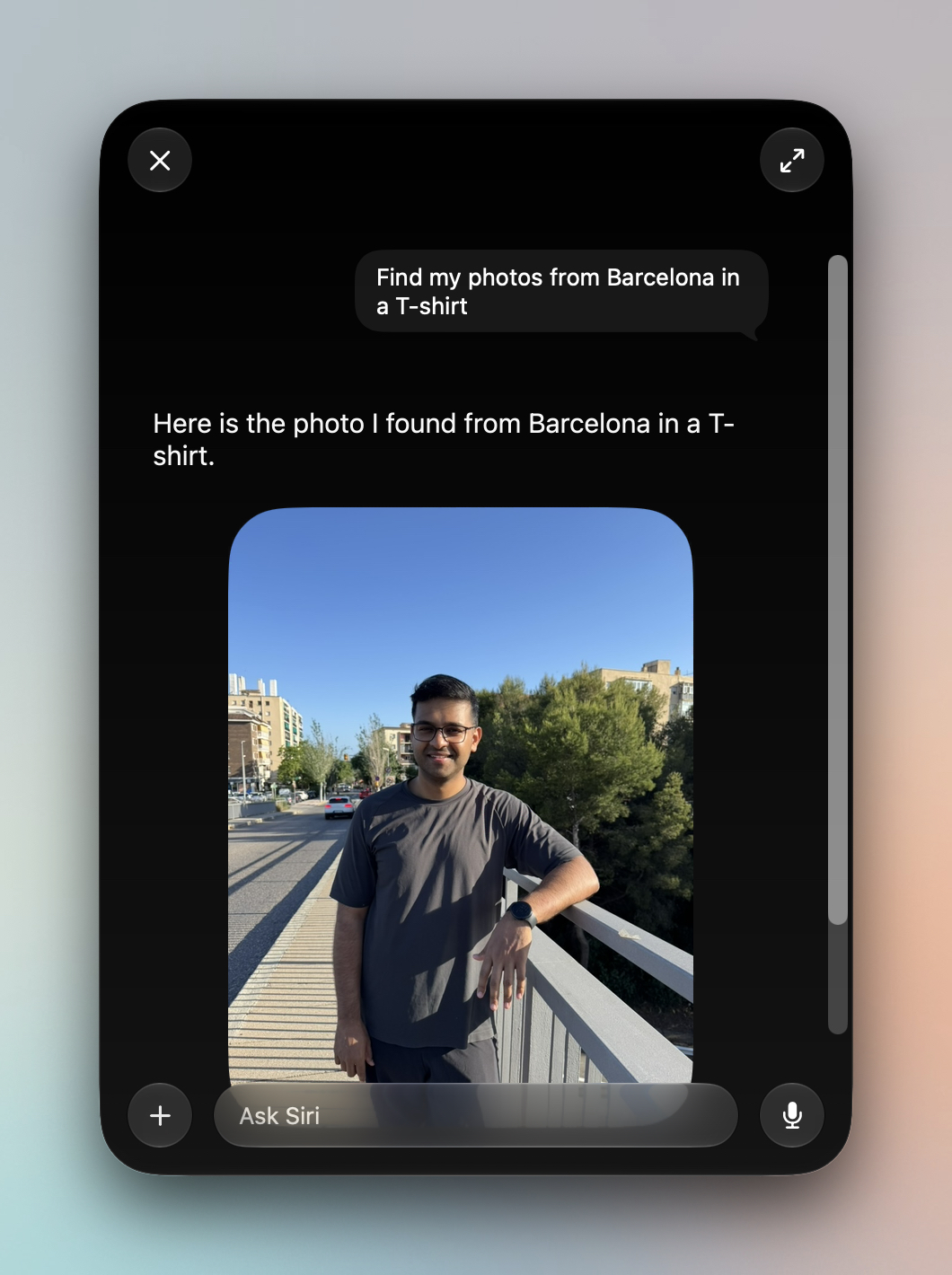
Find photos without remembering the date
Screenshot: Rajesh Pandey/Cult of Mac
I have a very large photo library comprising thousands of photos and videos going back more than a decade. I don’t always remember the exact date or event associated with a specific photo. In some cases, I may remember the trip or something specific about a picture, but that’s about it.
Siri AI now makes finding such photos a breeze. You can ask it to surface photos from a particular trip or event. You can even narrow your request to a specific person or location.
Once Siri brings up the relevant photos, select the ones you want, then ask it to share them with friends or edit them.
Easily add multiple calendar events
Adding one event to Calendar is straightforward. However, adding several at once can be tedious. You must manually fill in the title, date, description and other details for each event.
Siri AI now takes care of this. For my toddler’s school events, for example, I took a photo of the school calendar and asked Siri to add the relevant events to my calendar. Since my wife and I share the same calendar, the events also appeared in hers.
On iPhone, you can use Siri mode in the Camera app for this.
Responding to emails you forgot to reply to
I receive hundreds of emails every day. That makes staying on top of my inbox difficult. Plus, I often read emails and forget to reply to them, thinking I will get back to them later.
There are also times when I can’t find a particular email and remember only a few details about it.
Thanks to its understanding of my personal context, Siri AI is now much better at finding the right email. I can give it a description of the email I’m looking for, such as a party invitation from a colleague, and it will surface the relevant message.
Get help with what’s on your screen
When switching from an Android phone to an iPhone, I miss Circle to Search the most. On Android, when browsing the web or scrolling through my social media feed, I can quickly search for anything on my screen. So, if I come across a nice pair of shoes in a picture or a landmark, I trigger Circle to Search to find more information about it.

Screenshot: Rajesh Pandey/Cult of Mac
Visual Intelligence brings similar functionality to iPhone and now Mac. You can use it to search for on-screen items or ask Siri for more details about what you’re viewing. For example, you could ask about a place in a photo or ask it to explain a joke that you came across on Instagram but didn’t understand.
On iPhone, you can trigger Visual Intelligence by pressing the side and volume up buttons together. This will take a screenshot. From there, tap Search to find similar images online, or tap Ask to question Siri about what’s on the display. You can also highlight a specific part of the screenshot to focus on.
On Mac, press Command-Shift-Space to select a window for Visual Intelligence. Or, if you want to select a part of the screen, press Command-Shift-6. An Ask Siri field will appear, where you can enter your question. Or, you can select the Image Search option to find similar images online.
Siri AI can be slow, but it’s worth the wait
Siri AI may take a little longer to respond on older supported devices or when handling more complex requests. But when it saves me from digging through emails or manually entering a dozen calendar events, a short wait feels like a fair trade-off.

Rajesh has been writing about consumer technology for over a decade, with a strong focus on iPhones, Macs and Apple’s ecosystem. He enjoys digging into Apple software updates, hardware changes, and discovering new Mac apps that make work faster and more enjoyable.
You can reach out to him at mail[at]rajeshpandey.me.

