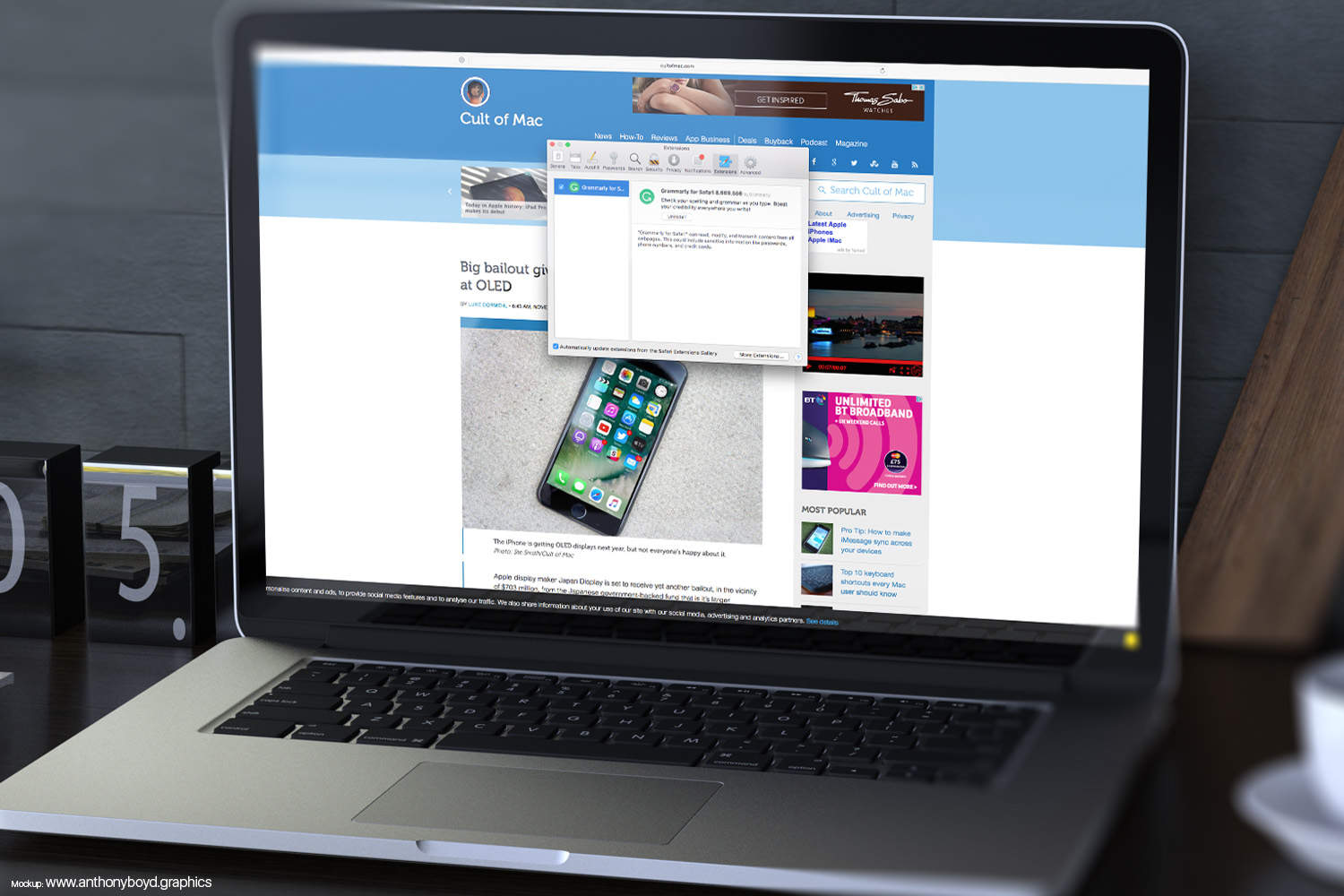
Extensions can be very useful on Safari for Mac, adding functionality, and — in Apple’s words — letting users, “explore the web the way you want.” But how do you get rid of them once they’re installed?
If you have issues with extensions causing crashes, glitches, or you just don’t plain want them anymore, here’s our easy guide to removing them.
You can do things the easy way …

Photo: Ste Smith/Cult of Mac
To start with, you’ll need to open Safari, then click the Safari menu and choose Preferences.
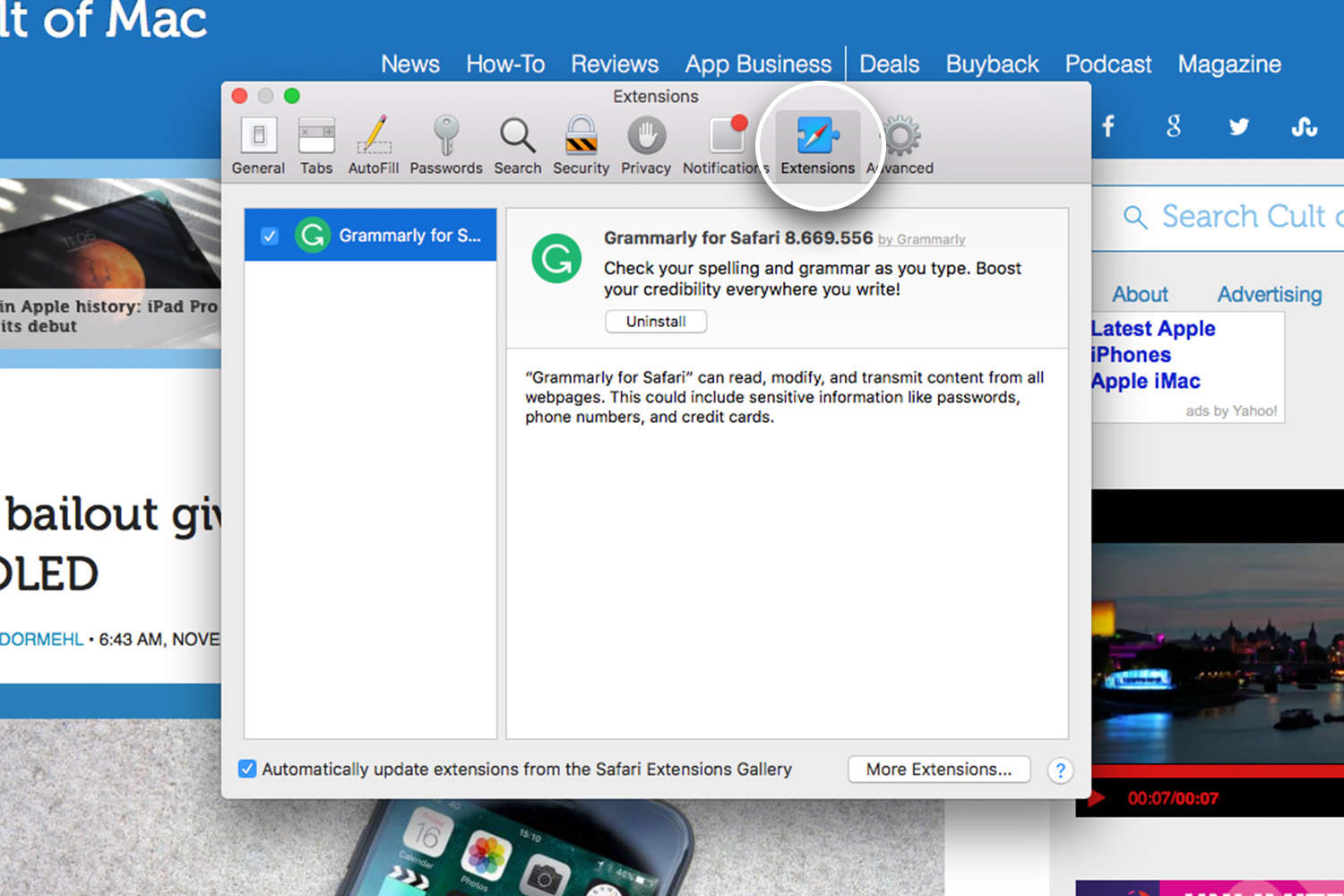
Photo: Ste Smith/Cult of Mac
After this, select the Extensions tab. Down the left-hand side, you’ll see all of your currently-installed Safari extensions. To delete them, simply select the particular extension you want to get rid of and click Uninstall.
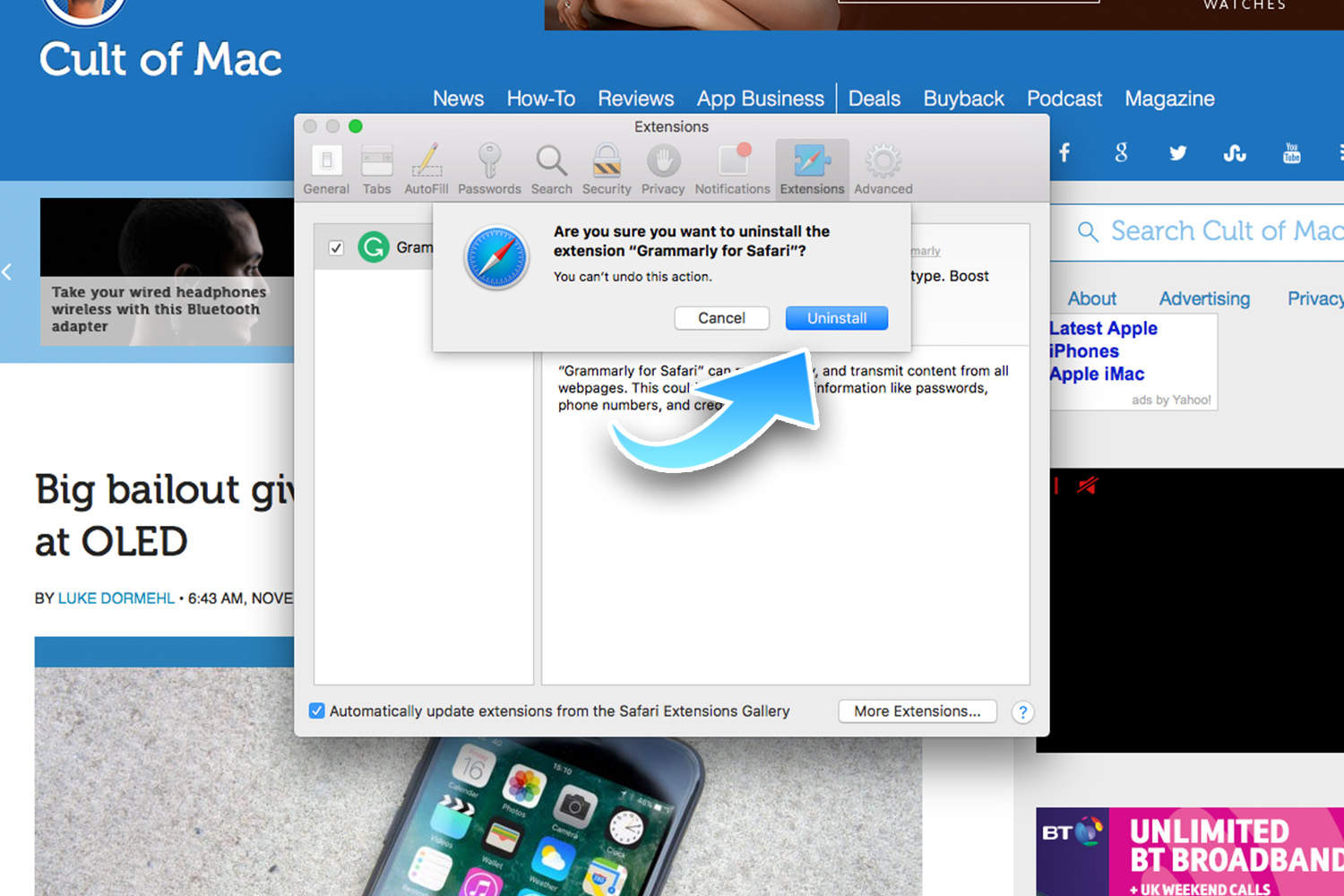
Photo: Ste Smith/Cult of Mac
As you would if you were deleting any file, or making any major change, you’ll get a chance to think it over before confirming your decision (or not) by clicking Uninstall or Cancel.
… or the hard way
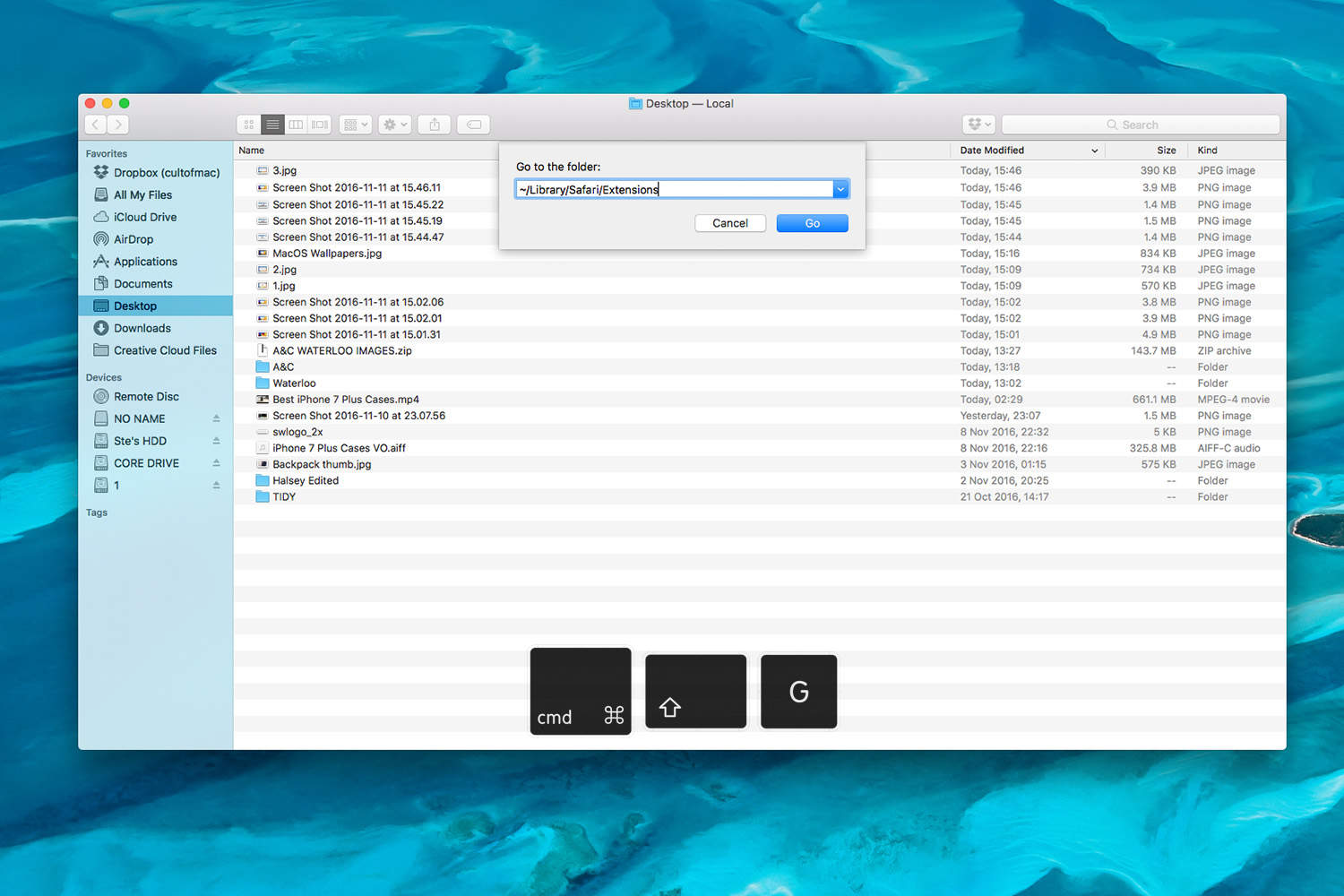
Photo: Ste Smith/Cult of Mac
It’s also possible to manually uninstall file extensions, should the above method not work for whatever reason. To do this, go to Finder, hit Command, Shift and G at the same time, and then enter the following address into the box which pops up on your screen: ~/Library/Safari/Extensions/
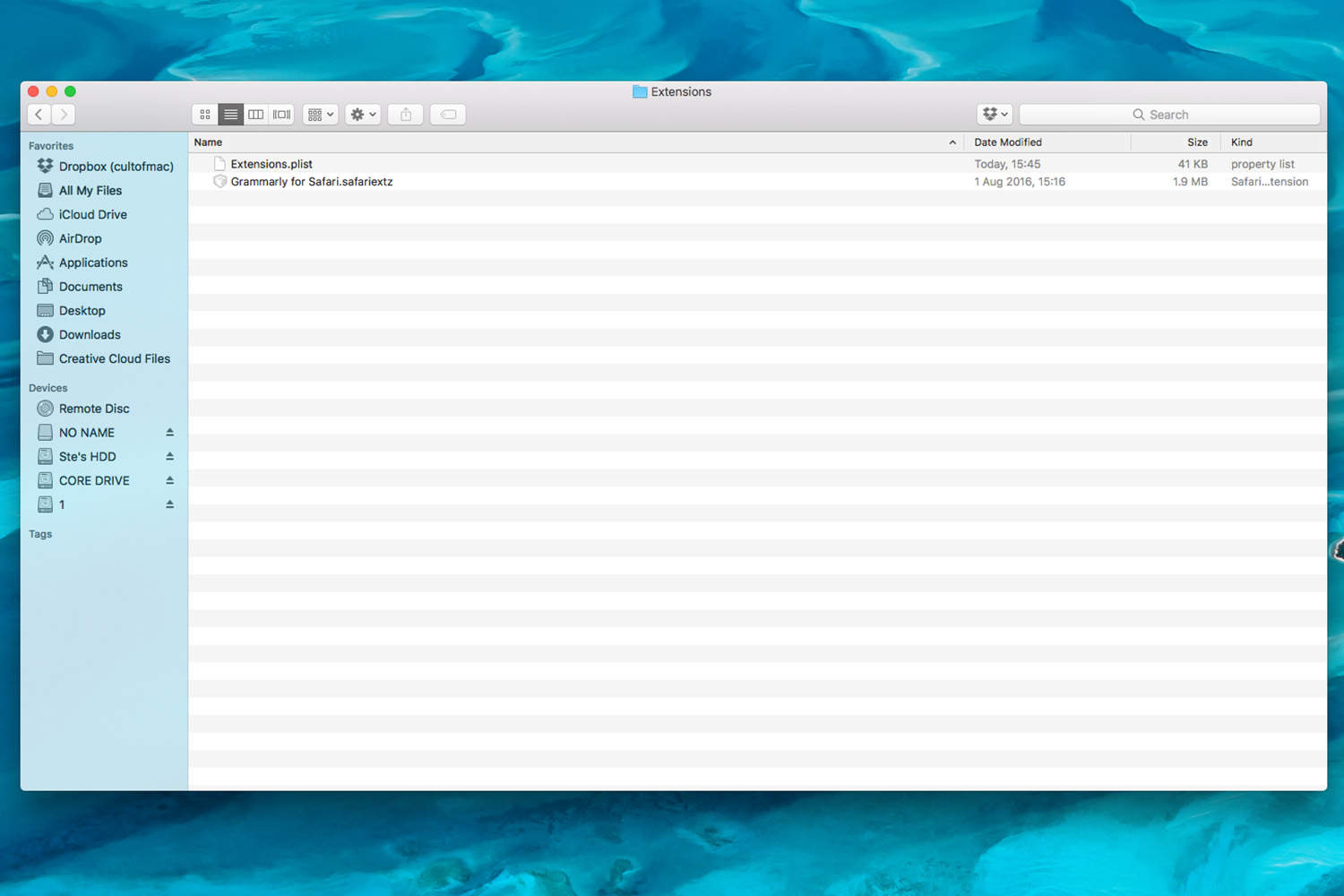
Photo: Ste Smith/Cult of Mac
Here you can delete particular extensions in the same way you would with any other file. Either right click and select Move to Trash or click and drag the file to the Trash Can icon on the dock.
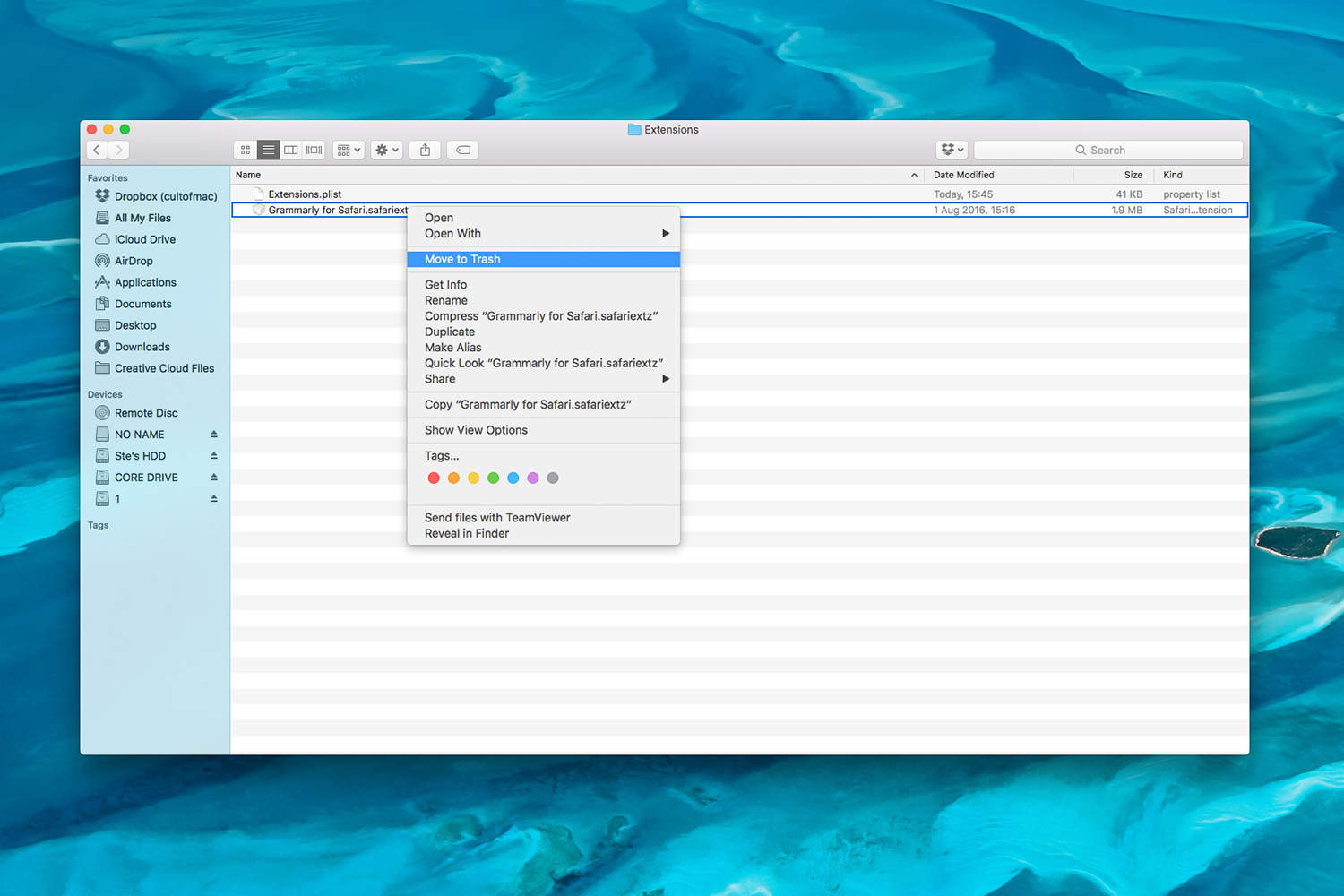
Photo: Ste Smith/Cult of Mac

Luke Dormehl is a U.K.-based journalist and author, with a background working in documentary film for Channel 4 and the BBC. He is the author of The Apple Revolution and The Formula: How Algorithms Solve All Our Problems … and Create More, both published by Penguin/Random House. His tech writing has also appeared in Wired, Fast Company, Techmeme and other publications.


One response to “How to delete Safari extensions on macOS Sierra”
Thanks for that. Incredibly useful, especially the convoluted and needlessly complicated method. Can you also show us how to type the letter Z without pressing the key but by using an applescript that is triggered by Siri?