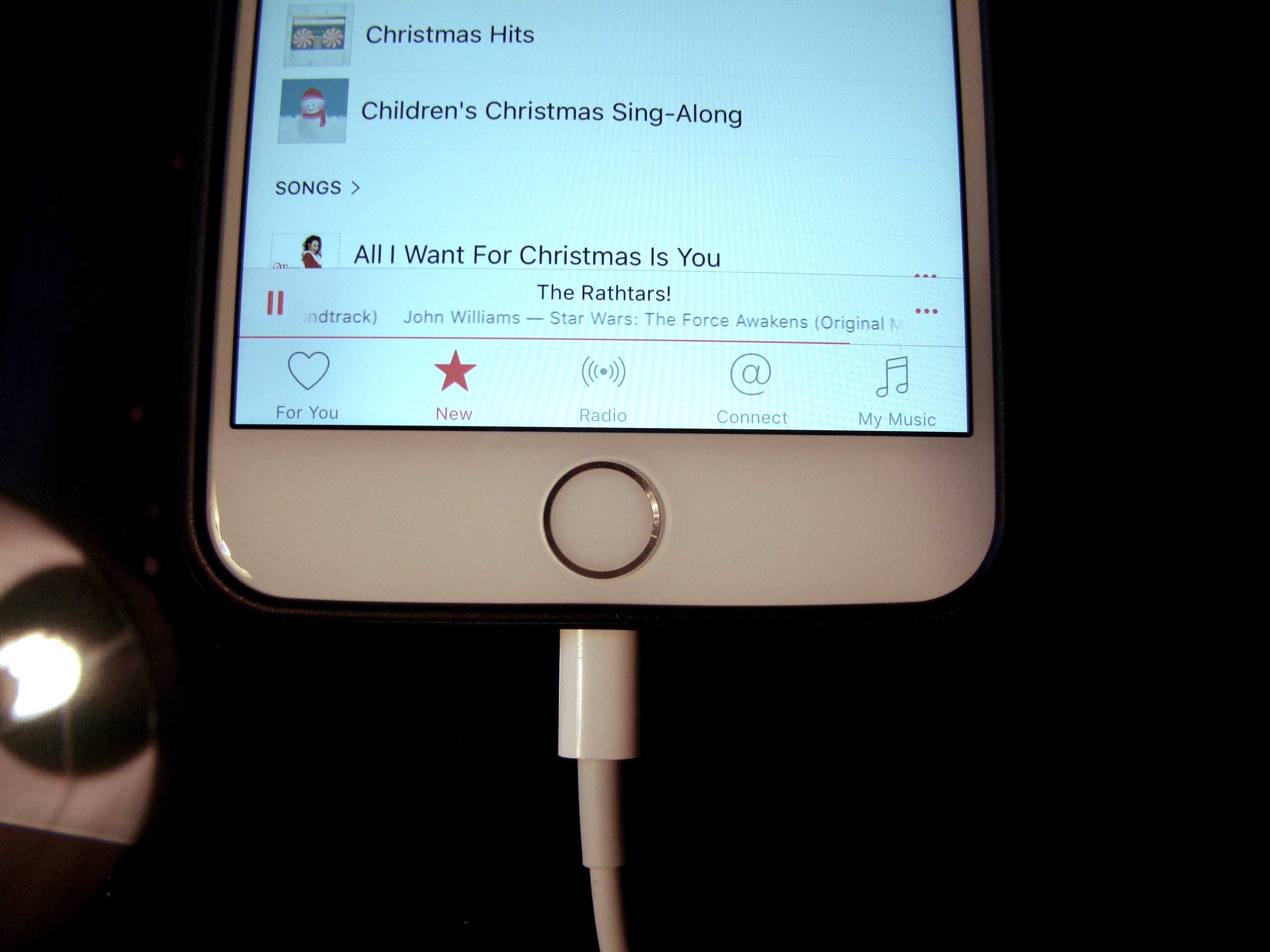
 Sometimes you just want to plug your iPhone into your Mac without having to deal with all that iTunes stuff, like synchronizing or backing up.
Or, maybe a friend of yours needs to sip off your Macbook’s power and you don’t want to have iTunes sync their iPhone.
Either way, you can eject the connected iPhone, thereby avoiding all the iTunes stuff but still letting the physically connected iPhone pull power from the USB port. Even better: when you’re done charging, just pull the USB cable out from your Macbook without any worry.
Here are three different ways to do just that.

Photo: Rob LeFebvre/Cult of Mac
First of all, you can eject from iTunes. If you have one iOS device connected, click on its little icon to the right of all the iTunes source icons (Music, Movies, TV Shows, Apps, and the like). You’ll get the iPhone info screen to the right, and you’ll see a little eject icon to the right of your device name. Click the eject button and your iPhone (or other iOS device) will keep charging, but it won’t try to sync up with iTunes until you plug it in again.
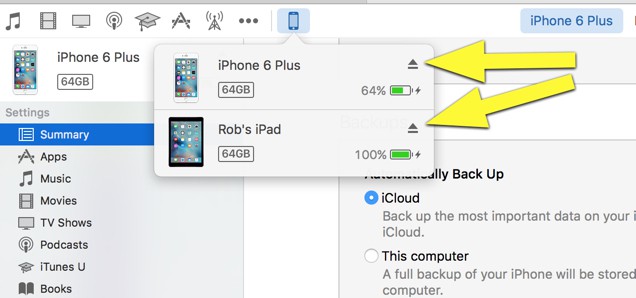
Photo: Rob LeFebvre/Cult of Mac
Secondly, you can just click and hold on that little device icon and see a list of all the connected devices. Click on the little eject icon from there and you’ll get the same result as above without having to even click on a specific device and then eject.
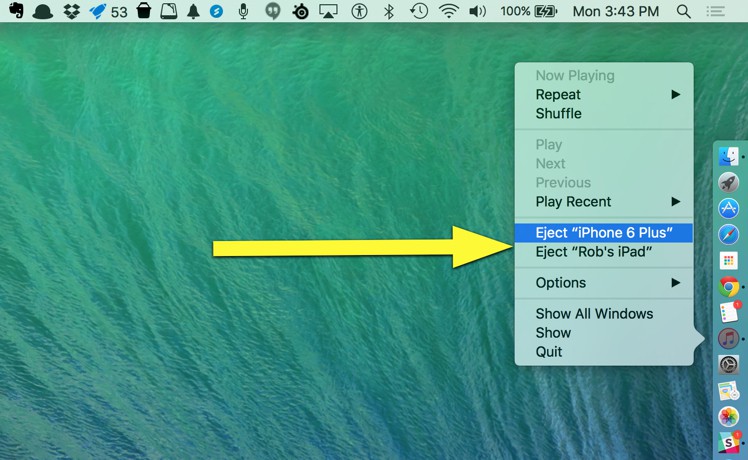
Photo: Rob LeFebvre/Cult of Mac
Finally, you can eject any of your connected devices from the iTunes Dock icon – just right click (or two-finger click, or command-click) on the iTunes icon in your Dock, then choose Eject for whichever device you want to disconnect.
Via: OS X Daily

Rob LeFebvre is an Anchorage, Alaska-based writer and editor who has contributed to various tech, gaming and iOS sites, including 148Apps, Creative Screenwriting, Shelf-Awareness, VentureBeat, and Paste Magazine. Feel free to find Rob on Twitter @roblef, and send him a cookie once in a while; he’ll really appreciate it.


2 responses to “Pro Tip: How to get iTunes to ignore iPhone while charging”
It might also be worth noting that you can prevent auto-syncing when you first connect to iTunes — Preferences> Devices> Prevent iPods, iPhones, and iPads from syncing automatically. In that way, you don’t necessarily have to eject, until you’re ready to do so.
I am echoing what Cmd-Z wrote and that’s how I have it set up, you manually open iTunes when you want to sync and a much easier way to prevent any problems!