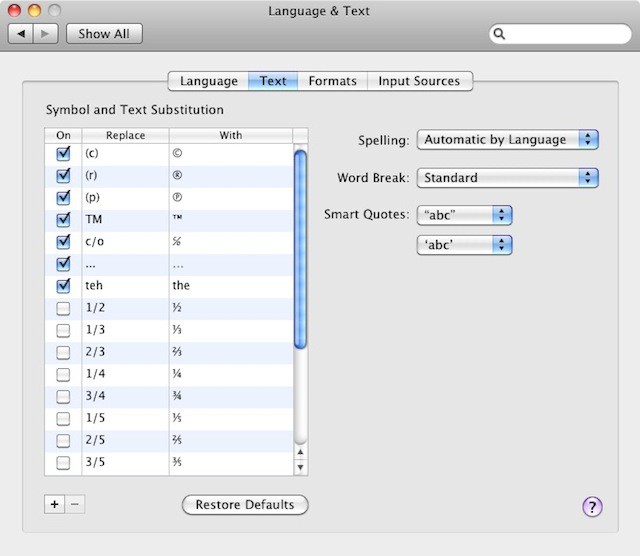
In the System Preferences application, you’ll see an icon called “Language and Text”. If you open this, and select the Text tab, you’ll see a list titled “Symbol and Text Substitution”, which provides some useful text shortcuts. You can use these to auto-correct common typos as you make them, or to replace short text mnemonics with longer words or phrases.
A handful of shortcuts are provided built-in. One will automatically change (c) into a © symbol. Another changes “teh” into “the”, automatically correcting a very common typo.
Each one can be switched on and off using the checkbox next to it. They don’t work everywhere, particularly in third-party applications, but almost all Apple-made apps support these shortcuts just fine.
You can use the controls at the bottom of this list to add your own shortcuts. Click the plus sign to create a new snippet. Enter the thing you want to replace, with the thing you want it replaced with.
For example, if there’s a URL you often type, or an address or email boilerplate you use all the time, just devise a simple abbreviation you can remember, but which won’t crop up during normal typing.
This built-in system is convenient, but pretty basic. If you need text replacement shortcuts with more flexibility, investigate third-party paid-for options like TextExpander or TypeItForMe.
(You’re reading the 50th post in our series, 100 Essential Mac Tips And Tricks For Windows Switchers. These posts explain to OS X beginners some of the most basic and fundamental concepts of using a Mac. Find out more, or Grab the RSS feed.)

Giles Turnbull is a freelance writer in England. He also writes for the Press Association and The Morning News. You can find out more at his website, and follow him on Twitter @gilest.


10 responses to “How To Correct Common Typos Automagically [100 Tips #50]”
Oh, thanks for sharing this one. I am actually a freelance writer as well and tend to type really fast to reach the deadlines and quite often I make typographic errors. Like tihs! lol
I’m a bit surprised that it doesn’t work in Mail or Pages. It only seems to work in Text Edit. What’s up with that?
It works in mail and other apps if you turn on “check spelling automatically” under the “Spelling and Grammar” from the right click menu.
My gripe is that you have to use the mouse to create these. Using the keyboard will only get you so far. Hitting any + symbol on any Apple or non-Apple keyboard doesn’t do the obvious.
This looks great! But … it’s not working for me. I went to “Symbol and Text Substitution,” see that everything is already enabled, and was annoyed because my series of three periods have never been turned into ellipses (neither in Mail nor in Safari). I’m running 10.6.6 on an Intel Duo Core, so it’s not as if I have an antique set-up here. None of the fractions works, either. Nertz! It looks so handy, too.