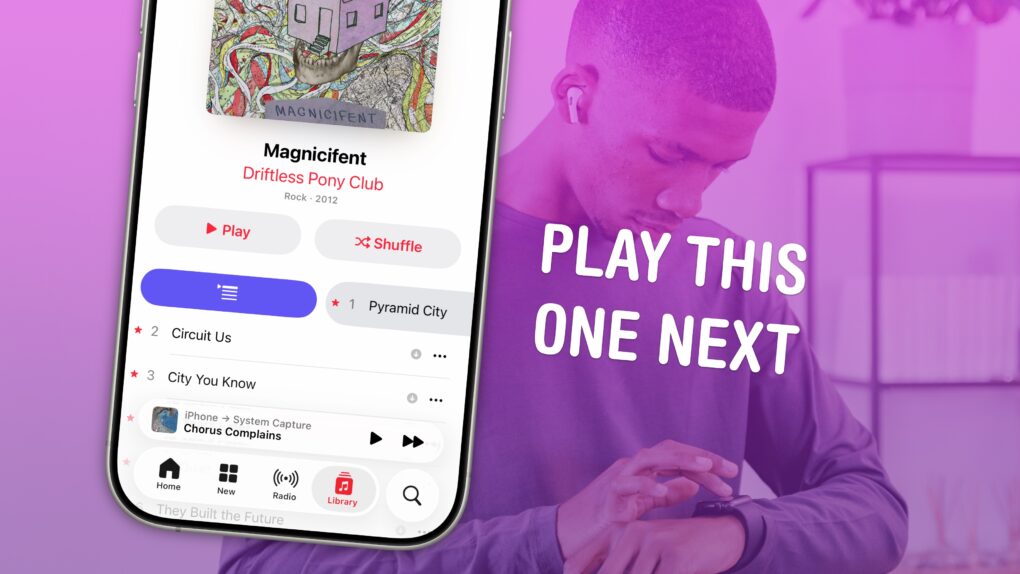
You can queue songs in Apple Music so the tracks you want to hear play automatically, one after another. You don’t need to wait for the song to end and manually play the next one. And if you want to start over, you can quickly clear the queue as well.
Plus, you can let friends add songs to the queue from their own phones — even if they don’t have an Apple Music subscription. Watch our video or keep reading below.
How to queue songs in Apple Music
The streaming era put the fabled celestial jukebox at our fingertips, but how do you pick what to play with so much to choose from? Apple Music’s Up Next queue lets you line up the perfect sequence of songs — with or without input from your friends.
Apple Music’s awesome features make queuing and sharing your favorite tracks easy. If you’re jamming out with friends in the car or at a party, you don’t want to keep passing your iPhone around or waiting for just the right moment to play the next request. You (or your friends) can add specific tracks, or an entire album, to the mix, and the queue will play everything you want in order.
With these two features, you can build an instant playlist that your friends can contribute to. They don’t even need an Apple Music subscription. In fact, you don’t even need a subscription to Apple Music to make these features work. You can import your own MP3s on a Mac and sync them to your iPhone.
Still, all this works better when you’re an Apple Music subscriber. It lets you look up and stream any song from the Apple Music catalog — which currently tops 100 million tracks. Plus, you can sync your library over iCloud, get live lyrics and more. (Not a subscriber? You can pick up an Apple Music subscription here.)
Table of contents: Queue Songs in Apple Music
- Swipe right on a song
- Add a song or album to the queue from the ⋯ menu
- Queue music with SharePlay
- Clear your song queue in Apple Music
- More great Music features
Swipe right on a song
Screenshot: D. Griffin Jones/Cult of Mac
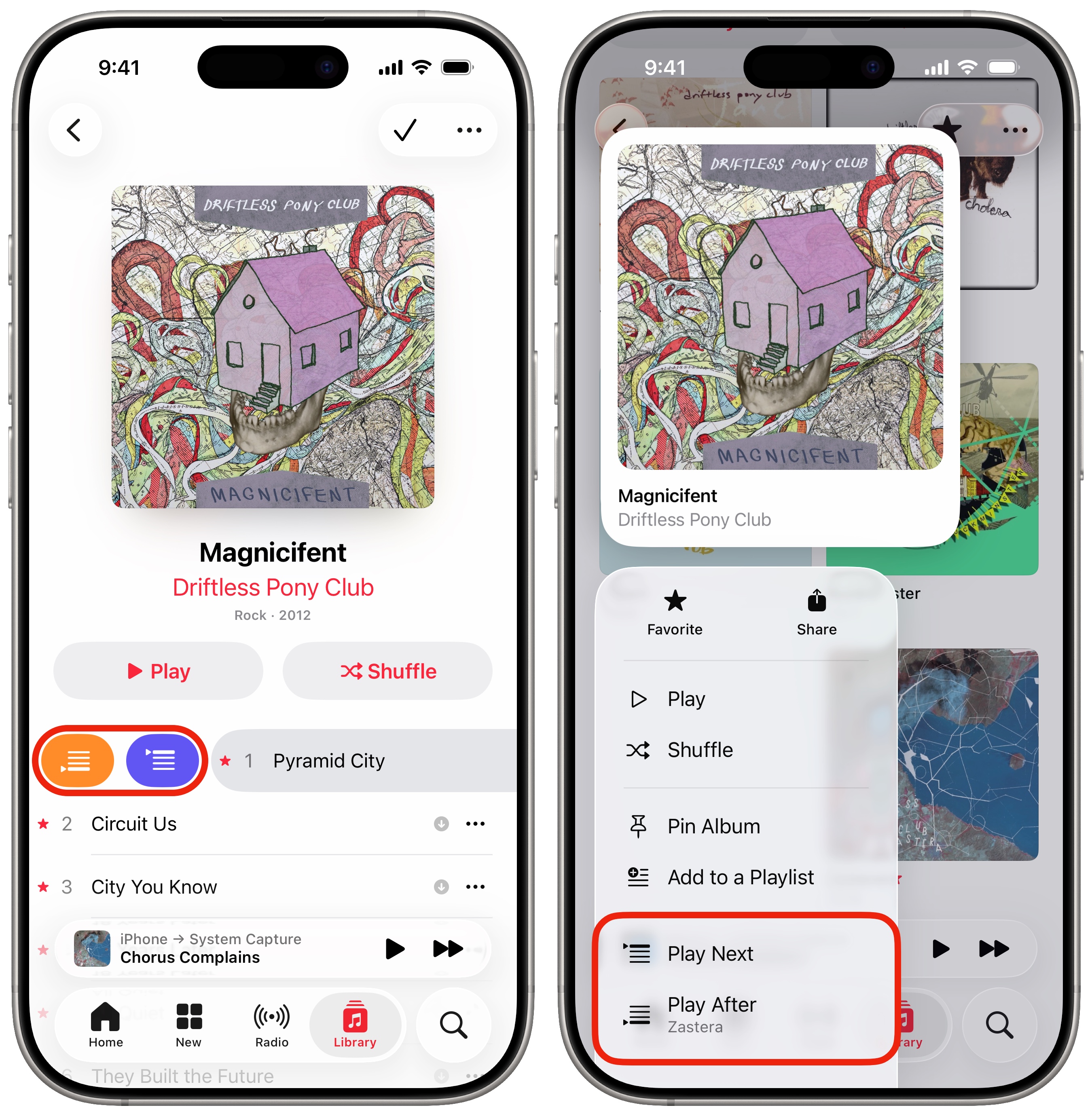
The fastest way to add a single song to your Apple Music queue is with a swipe gesture. Swipe to the right on a song and you’ll see two buttons. The orange button on the left is Play Later, which adds the song to the bottom of your queue. The purple button is Play Next, which will play the track after the currently playing song finishes, then go back to your Apple Music queue.
Keep swiping all the way to the right to Play Next.
Add a song or album to the queue from the ⋯ menu
Next to a song, you should see a ⋯ button. Tap it to bring up the menu, then tap either Play Next or Play Last.
You can use this method to add an entire album, station or playlist to your Apple Music queue. From the list view, the ⋯ menu is in the upper-right corner.
You also can tap and hold on an album, station or playlist to add it to the queue without opening it first.
Queue music with SharePlay
Screenshot: D. Griffin Jones/Cult of Mac
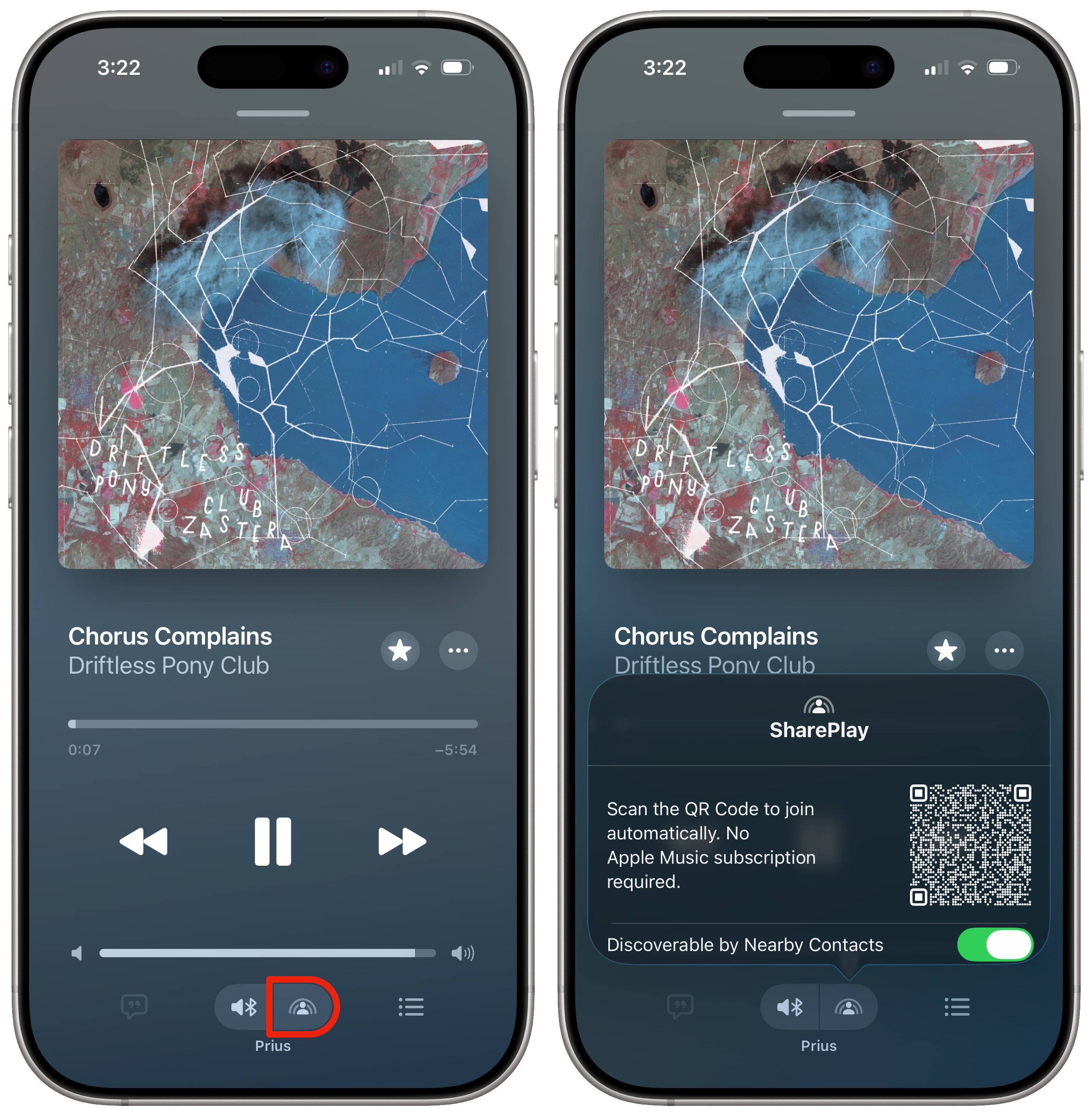
Other people want to play DJ with you? You can use SharePlay to build a queue of music collaboratively. You don’t need to pass your unlocked iPhone around in the car; people can add songs from their own devices. (They don’t need an Apple Music subscription, just the Music app.)
If your phone is plugged into a speaker, or connected to Bluetooth or CarPlay, you’ll see a SharePlay button on the Now Playing screen. To let other people join, you can simply hold your phones together top-to-top. Alternatively, you can have them scan the QR code or your phone.
They can add songs to the queue using the same swipe gestures or from the ⋯ menu.
Clear your song queue in Apple Music
Screenshot: D. Griffin Jones/Cult of Mac
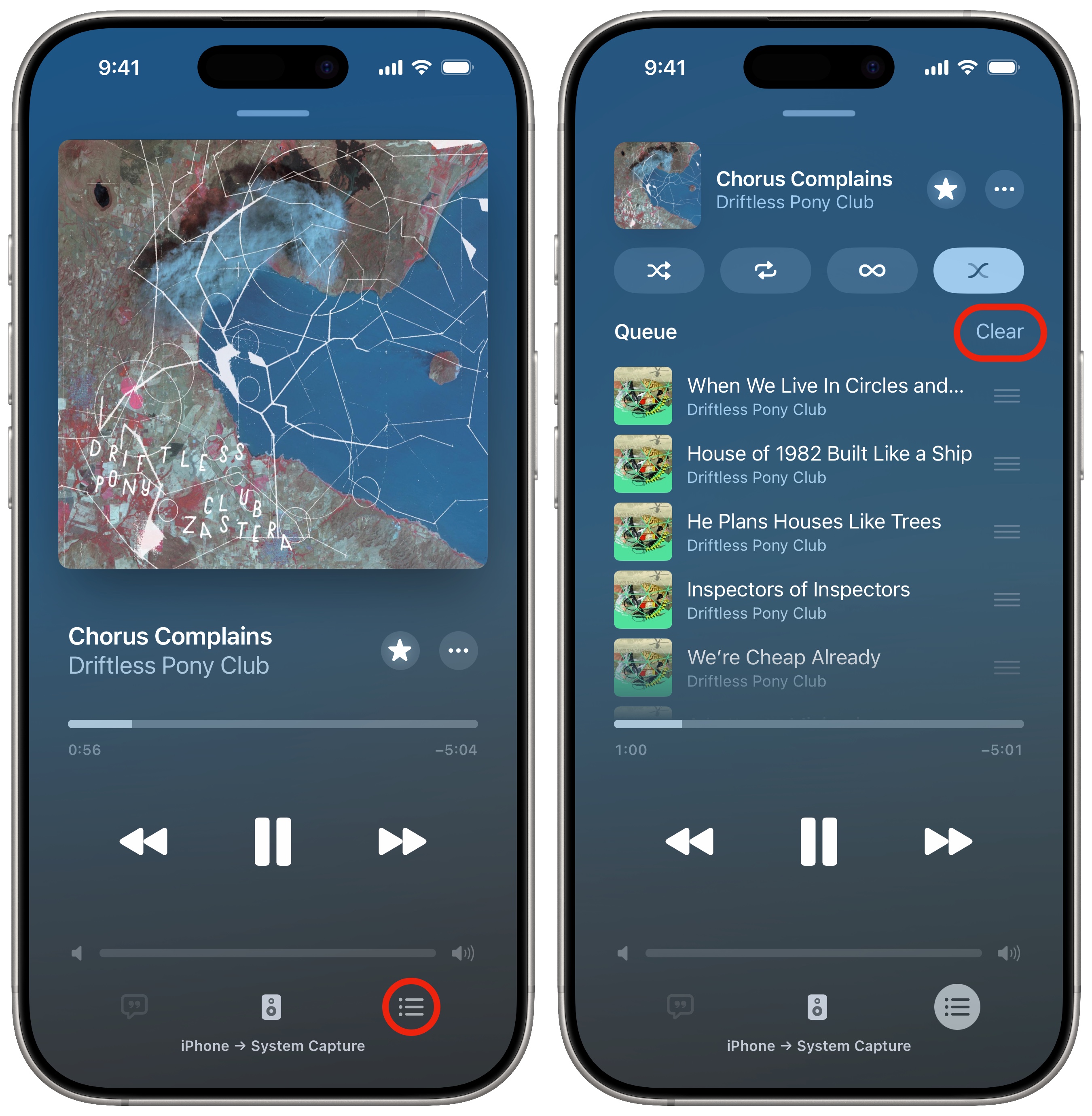
Want to start from scratch and listen to some new tunes? To clear the Apple Music song queue you’ve built up, tap the Playing Next button at the bottom-right of the Now Playing screen. Under the row of icons along the top, tap the Clear button. It’ll remove all the songs and albums you (and maybe your friends) have added.
Annoyingly, this may not totally empty the queue. If you’re in the middle of playing an album or playlist, the rest of its songs will still show up. You’ll have to either tap on the last item in the list and skip to the end, or manually swipe to remove all the songs.
More great Music features
- Apple Music Replay shows you the top songs, artists, albums and more detailed stats for a whole year, and makes an annual playlist of your top tunes.
- Apple Music Classical is a bespoke app and interface (free with an Apple Music subscription) for playing classical music.
- Karaoke Mode turns down the vocals so you can sing along at a party or in the car.
- Music Haptics let you feel the beat of the music right in your hand.
We originally published this post on how to queue songs in Apple Music on April 11, 2024. We updated the information on November 19, 2025.

D. Griffin Jones is a writer, podcaster and video producer for Cult of Mac. Griffin has been a passionate computer enthusiast since 2002, when he got his first PC — but since getting a Mac in 2008, he hasn’t turned back. His skills in graphic and web design, along with video and podcast editing, are self-taught over 20+ years. Griffin has a bachelor’s degree in computer science and has written several (unpublished) apps for Mac and iOS. His collection of old computers is made up of 40+ desktops, laptops, PDAs and devices, dating back to the early ’80s. He brings all of these creative and technical skills, along with a deep knowledge of Apple history, into his work for Cult of Mac.

