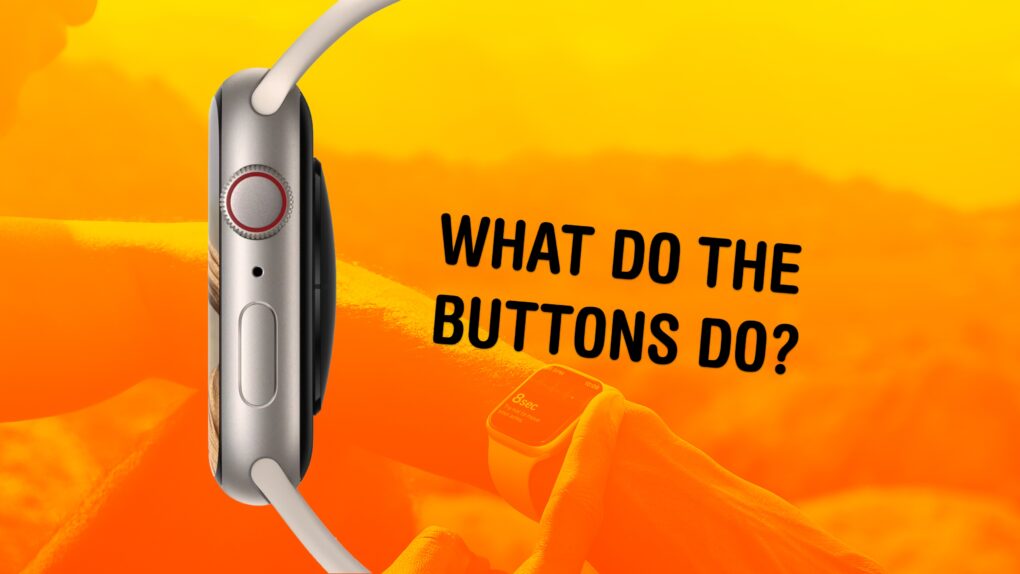
What do the buttons on the Apple Watch do? The Apple Watch borrows a lot from the iPhone, but the biggest difference between the two devices comes down to the way their buttons work. Each individual button does different things, depending on whether you click, double-click or hold them down.
Apple changed a lot of these features a few years ago with watchOS 10. The software update added a new Widgets view, reassigned Control Center to the side button, and changed what double-clicking the Digital Crown does. (For older devices, see our article about what Apple Watch buttons do in watchOS 9.)
Here’s a guide to the buttons on the Apple Watch.
What do the Apple Watch buttons do?
Apple occasionally tweaks the watchOS interface. Every change, frustratingly, breaks my muscle memory. watchOS 10 in 2023 marked the biggest change since the very first Apple Watch model arrived in 2015. If you’re a longtime Apple Watch user, the new actions for the buttons might still trip you up.
However, it’s a pretty capable device despite its small size. Add the Apple Watch Ultra‘s Action button and the Shortcuts app into the mix, and you’ve got more options than ever for getting things done with your smartwatch.
Use the infographics below as a quick guide to what all the Apple Watch buttons do.
For the ‘regular’ models:
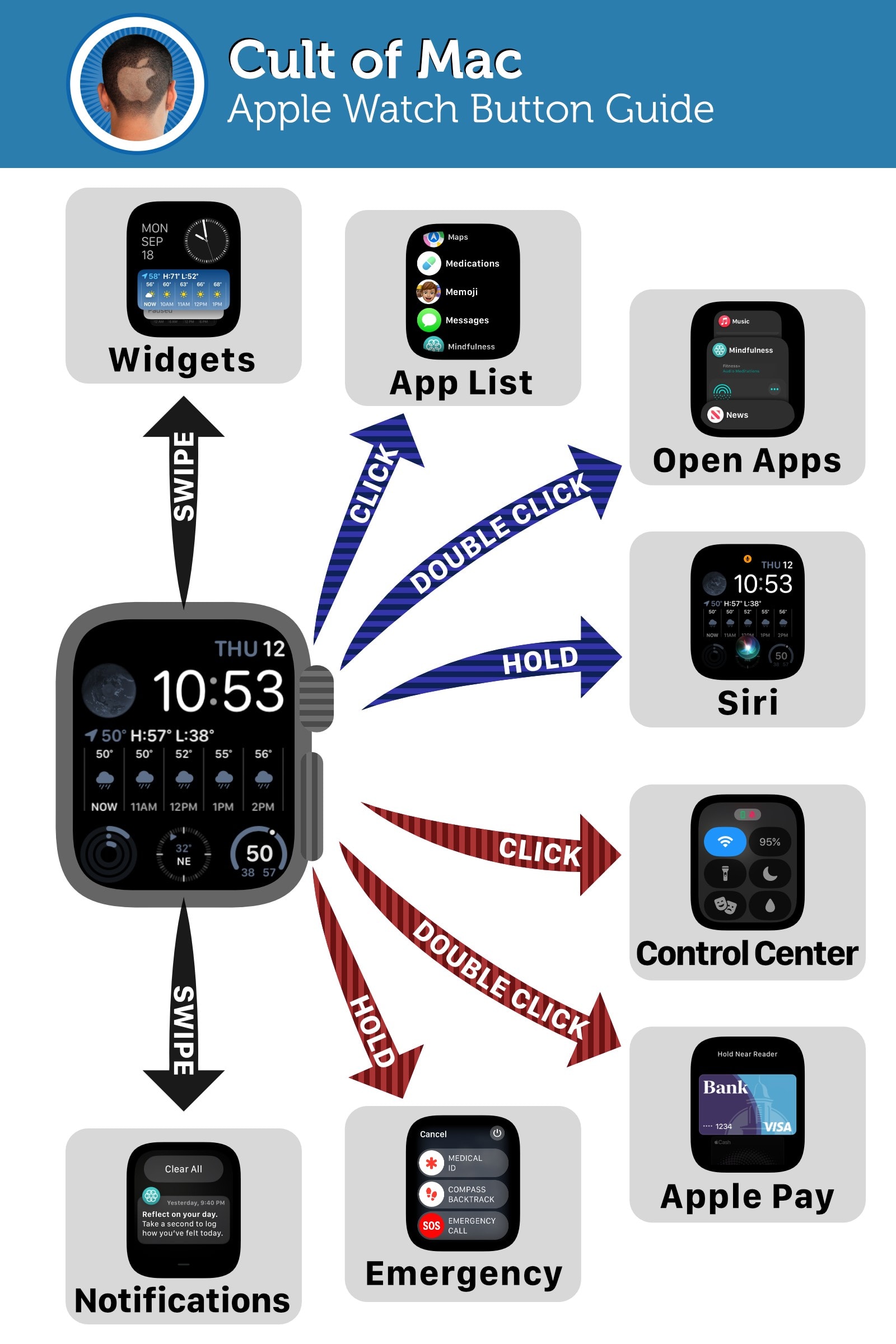
Image: D. Griffin Jones/Cult of Mac
Digital Crown, side button and watch face:
Here’s what the buttons on the Apple Watch do.
- The Digital Crown (the dial on the side):
- Spin the Digital Crown to scroll up and down.
- Click the Digital Crown to see the list of apps on your Apple Watch. Clicking it again will take you back to the watch face.
- Double-click the Digital Crown to see your recently used, open apps.
- Hold down the Digital Crown to activate Siri. If you find yourself activating it accidentally with your wrist, you can turn that off from your iPhone in the Watch app > Siri > Press Digital Crown.
- The side button:
- Click the side button to bring up Control Center.
- Double-click the side button to activate Apple Pay.
- Hold the side button to turn off the watch, show your Medical ID, track your location on a hike or call emergency services.
- From the watch face:
- Swipe up to see your widgets. Here you’ll see running timers, Maps directions and music/podcasts you’re playing. You can customize the widgets below to quickly access weather, messages, etc. (See our related guide: How to customize Apple Watch widgets for easy access to your favorite apps.)
- Swipe down to see notifications.
What do Apple Watch Ultra buttons do?
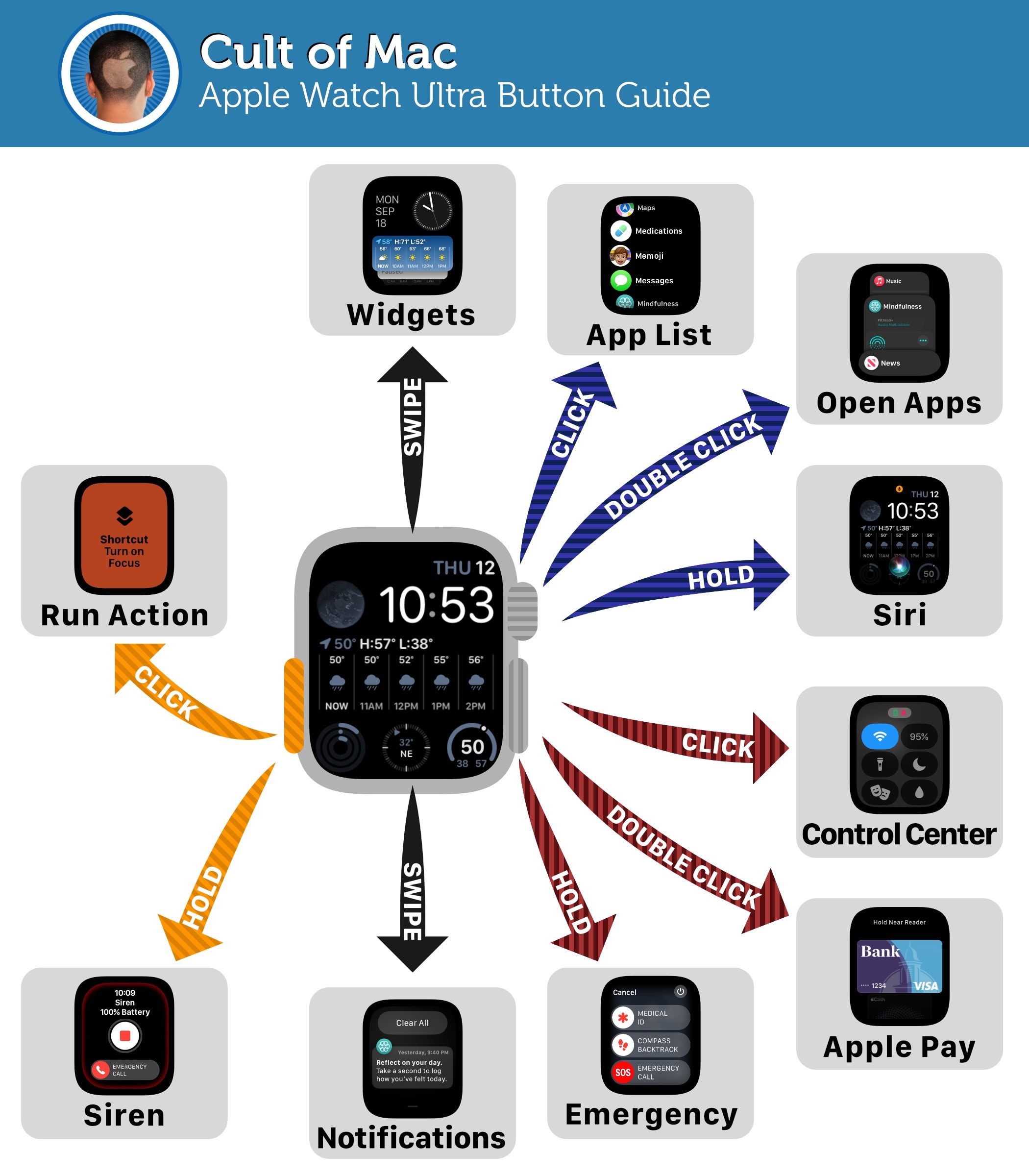
Image: D. Griffin Jones/Cult of Mac
Digital Crown, side button, Action button and watch face:
Here’s what the buttons on the Apple Watch Ultra do.
- The Action button:
- Click the Action button to do one of several things you can set. You can assign the Action button to turn on the flashlight, start a workout, set a hiking waypoint, start a stopwatch, run a Shortcut and more. Set it from Settings (on your Apple Watch) > Action button > Action.
- Hold the Action button to play a loud siren. If you get lost or injured and you’re too exhausted to yell for help, this can alert people around you. If you don’t want to set it off accidentally, go to Settings (on your Apple Watch) > Action button > Siren to turn it off.
- The Digital Crown (the dial on the side):
- Spin the Digital Crown to scroll up and down.
- Click the Digital Crown to see the list of apps on your Apple Watch. Clicking it again will take you back to the watch face.
- Double-click the Digital Crown to see your recently used, open apps.
- Hold it down to turn on Siri. If you find yourself activating it accidentally with your wrist, you can turn that off from your iPhone in the Watch app > Siri > Press Digital Crown.
- The side button:
- Click the side button to bring up Control Center.
- Double-click the side button to activate Apple Pay.
- Hold the side button to turn off the watch, show your Medical ID, track your location on a hike or call emergency services.
- From the watch face:
- Swipe up to see your widgets. Here you’ll see running timers, Maps directions and music/podcasts you’re playing. You can customize the widgets below so that you can quickly access weather, messages, etc.
- Swipe down to see notifications.
More Apple Watch tips
- How to track your Apple Watch activity rings and pause your streak
- How to customize Apple Watch widgets for easy access to your favorite apps
- How to use advanced Apple Watch sleep stage tracking
- How to use the Walkie-Talkie app on Apple Watch
- How to unlock your iPhone with Apple Watch
We originally published this post explaining what the Apple Watch buttons do on September 18, 2023. We updated it with the latest information on September 25, 2024, and January 15, 2026.

D. Griffin Jones is a writer, podcaster and video producer for Cult of Mac. Griffin has been a passionate computer enthusiast since 2002, when he got his first PC — but since getting a Mac in 2008, he hasn’t turned back. His skills in graphic and web design, along with video and podcast editing, are self-taught over 20+ years. Griffin has a bachelor’s degree in computer science and has written several (unpublished) apps for Mac and iOS. His collection of old computers is made up of 40+ desktops, laptops, PDAs and devices, dating back to the early ’80s. He brings all of these creative and technical skills, along with a deep knowledge of Apple history, into his work for Cult of Mac.

