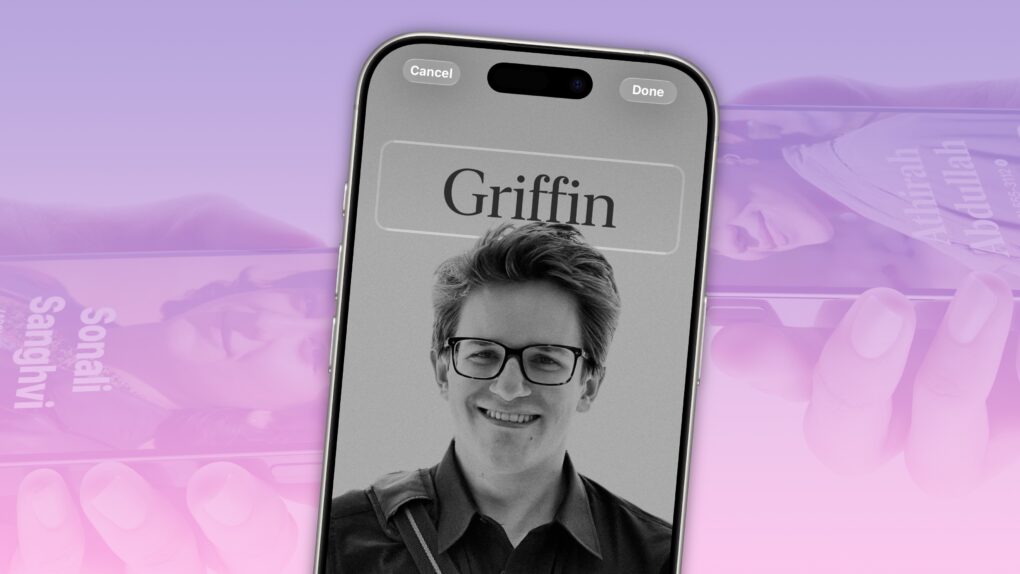
Contact Posters let you customize how your Apple contact card looks to other people when you call them. If they have your contact info in their address book, your customized Contact Poster will appear on their iPhone’s screen.
Done right, Contact Posters look great — way better than the old thumbnail images that preceded them. Plus, it’s really easy to turn an ordinary picture into a gorgeous-looking Contact Poster that makes a real impact.
And once you set one up, everyone with your matching phone number and/or Apple Account will see your chosen contact picture and personalized Contact Poster.
I’ll show you how to set one up; the process might look familiar if you’ve set up a custom Lock Screen.
How to create a Contact Poster on iPhone
Introduced in iOS 17, Contact Posters turn your iPhone contact card into a shareable bit of self-expression. Rather than displaying a default thumbnail, you can choose and customize a photo, Memoji or a classy-looking monogram that shows up on someone’s screen when you call them.
This guide will walk you through how to pick the perfect portrait, add filters, tweak colors, choose fonts or go full Memoji — and once you tap “Done,” your customized Contact Poster becomes the image that pops up whenever you reach out.
They’re more than cosmetic, though. Contact Posters transform the bland incoming call screen into a personal, expressive calling card. Contact Posters give you a way to project professionalism, personality or a bit of style before you even say “hello.”
Create one for yourself, and everyone you call can see the image you choose, with all your customizations. And if your friends drop the ball and can’t be bothered to make one for themselves, you can make one for them.
Table of contents: How to create an iPhone Contact Poster
- Choose a Contact Poster style
- How to edit a Photo Contact Poster
- How to make a Memoji Contact Poster
- How to make a Monogram Contact Poster
- Instantly swap your contact info
- More iPhone customization features
Choose a Contact Poster style
Screenshot: D. Griffin Jones/Cult of Mac
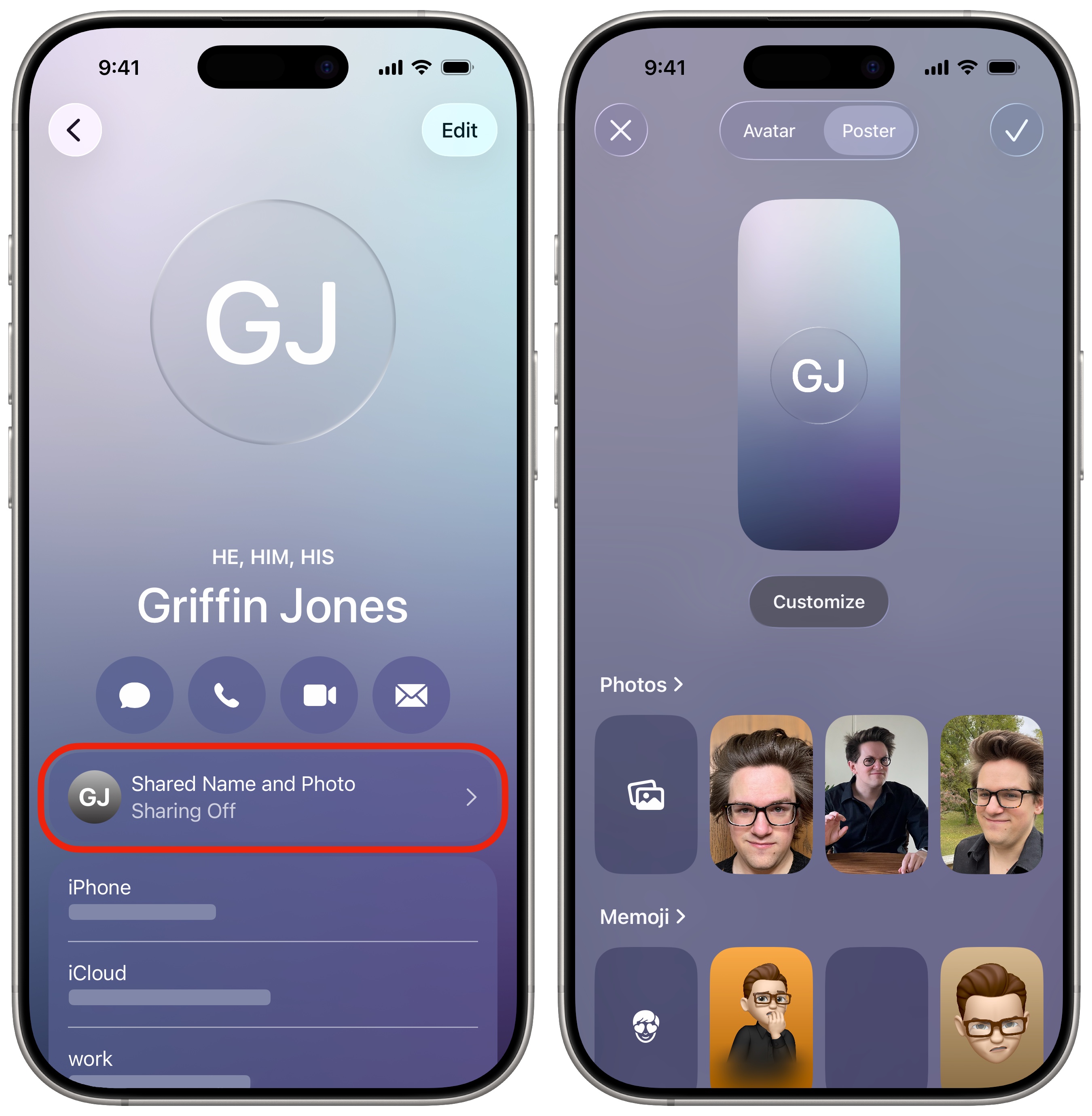
To make a Contact Poster, open the Contacts app (or go to the Contacts tab of the Phone app, where you’ll find your contact card at the very top). Tap My Card and tap on Shared Name & Photo. Tap the Poster tab at the top.
You can create three kinds of Contact Posters: Photo, Memoji or Monogram. I’ll run through how each of these work.
How to edit a Photo Contact Poster
Screenshot: D. Griffin Jones/Cult of Mac
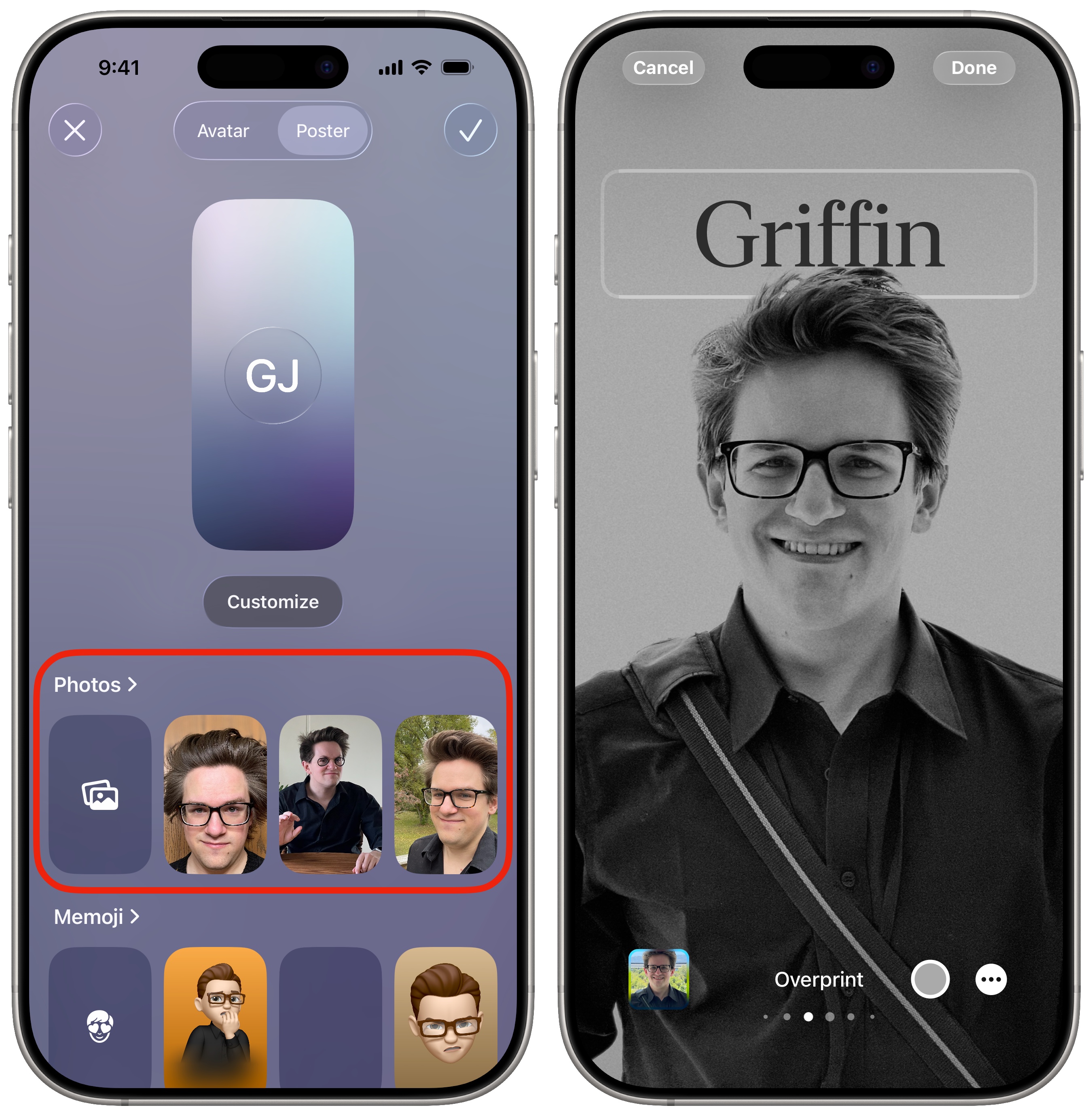
Tap on one of the suggestions under “Photos” as a starting point, or tap the New Photo button to the left to choose one.
This interface looks very similar to creating a custom iPhone Lock Screen. You pick a photo — preferably a vertical one — from your library. Photos taken with Portrait mode work great because your phone can easily separate you from the background to apply color effects. Just don’t crop yourself out of a group photo — everyone can tell when you do that.
Next, it’s time to edit your photo so it looks great. Swipe left and right between various filters on the image to help separate your face from the background. You can tap on the color circle in the bottom right to pick an accent color.
Then, tap on your name at the top of the screen to customize the font, color and weight. With two fingers, you can zoom and drag the picture around on the screen to achieve the perfect position that works with the other elements of your custom Contact Poster.
Tap Done when you’re satisfied.
How to make a Memoji Contact Poster
Screenshot: D. Griffin Jones/Cult of Mac
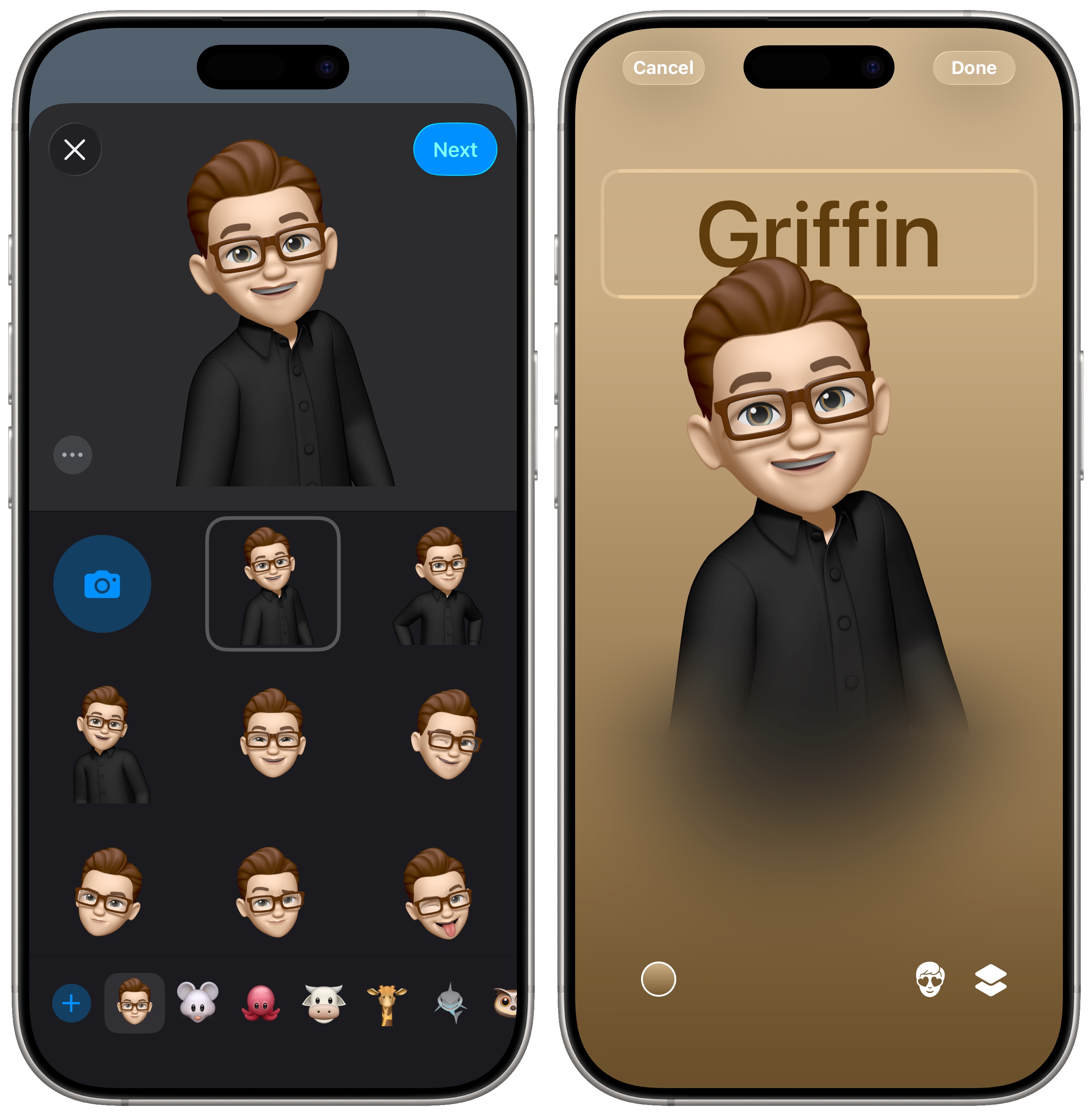
If you don’t want to present an actual picture of yourself, you can use the Memoji Contact Poster. Pick a Memoji from the list — one of the stock animals or one you created of yourself. (Read our how-to: How to make a great Memoji.)
You can pick a preset face — winking, tongue out, thumbs up, etc. — or capture an expression from your own face. A few of the Memoji presets show torsos and arms. While these look marginally less weird than the floating heads, I find the poses a bit awkward.
As before, you can customize the background color of the Contact Poster and the color of your name. Tap Done to save your changes.
How to make a Monogram Contact Poster
Screenshot: D. Griffin Jones/Cult of Mac
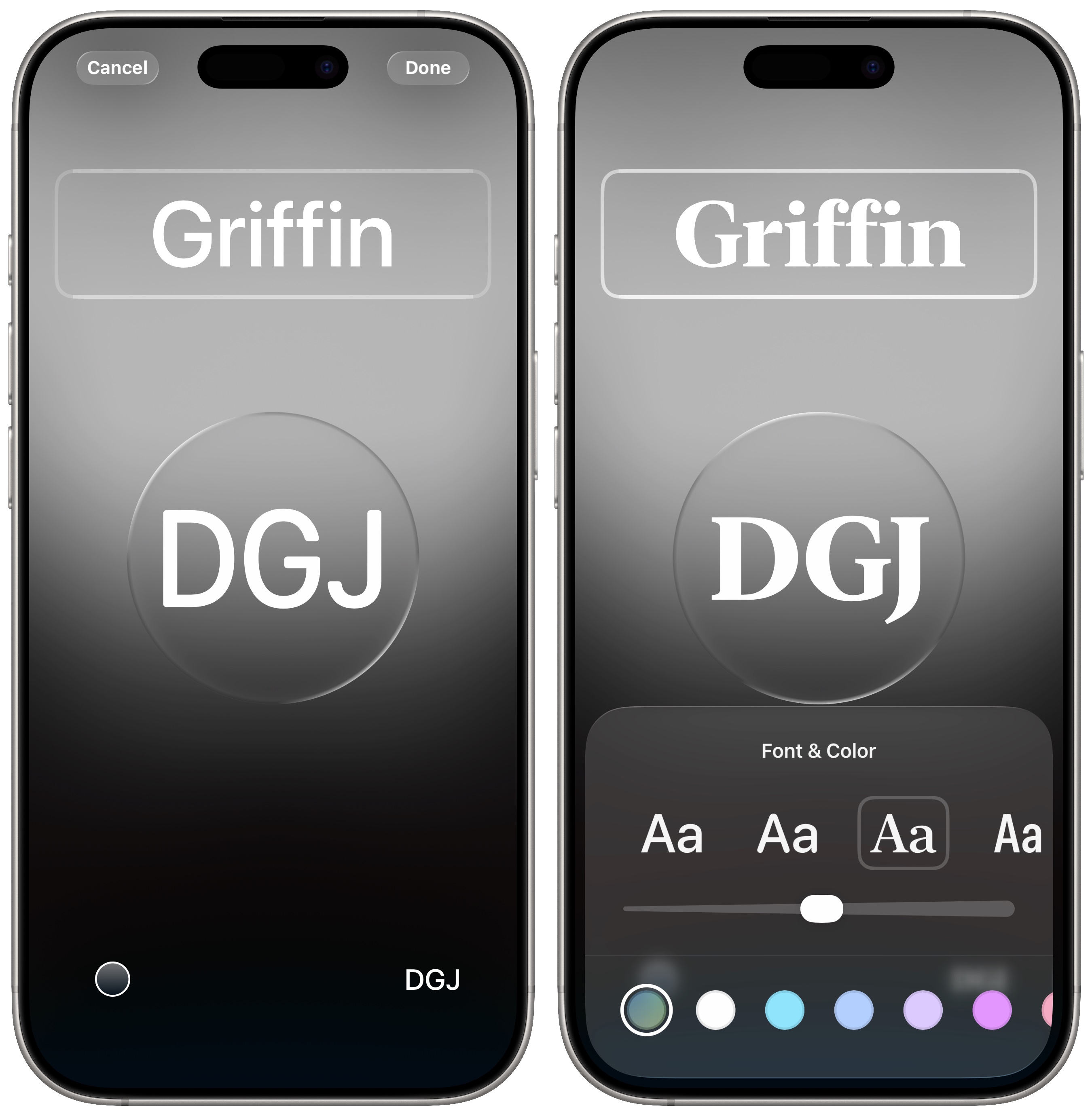
Want something that’s more typeface and less of your face? With the Monogram option, you enter simply your initials — up to three characters — and pick a color. The font of your initials that appears front and center on the Monogram Contact Poster matches whatever you set for your full name up top.
When creating a Monogram Contact Poster, you have a limited font selection — even fewer than with the custom Lock Screen feature. You can choose from the system font, a rounded version, a condensed version and a nice serif font. If you’re pretentious enough to make a monogram of your name, just go ahead and use the fancy serif font.
Tap Done to save your changes.
Instantly swap your contact info
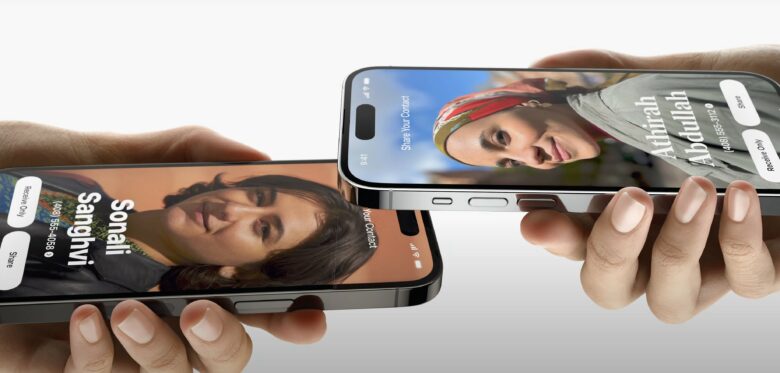
Photo: Apple
Once you’re finished, you’ll see your freshly created Contact Poster in a few different places. If you meet someone new, you can hold your phones together to quickly exchange contact info using NameDrop — and you’ll see each other’s Contact Posters. (You can also start SharePlay using the same feature.)
When you get a phone call from someone you know, if they have a Contact Poster set up, you’ll see it on a beautiful new incoming call screen.
Contact Posters may not have taken off in the same way that custom Lock Screens and Home Screens have, but a nicely made one will always impress.
More iPhone customization features
iPhone customization has taken some big steps forward in the last few years. Home Screen widgets opened the floodgates with iOS 14 in 2020. Using apps like Widgetsmith, people could create aesthetic, cutesy and highly personalized Home Screens. Two years later, Lock Screens got a major upgrade with iOS 16. Apple built in loads of awesome styles, with plenty of features to make your photos look unique.
Here are some other ways to customize your iPhone.
- You can fully customize your iPhone’s Home Screen. Place icons anywhere on the screen. Fans of dark mode can now enjoy alternate dark mode icons. If you have a color theme you want to match, you can tint icons to any hue you want.
- You can edit the buttons in the iPhone’s Control Center. You can add loads of toggles and buttons, including those from third-party apps. You can resize some buttons to make them more prominent, and you can arrange your controls across multiple pages. In one fluid motion, you can swipe down to activate Control Center and continue swiping down to scroll through your pages.
- StandBy mode turns your phone into a smart display when it’s sitting on your desk, your nightstand or the kitchen counter.
- Customize your iPhone’s Lock Screen with a bunch of widgets, aesthetics and styles. You have loads of fonts, colors, styles and themes available.
We originally published this how-to on creating iPhone Contact Posters on June 14, 2023. We updated it with the latest information on September 25, 2023; June 3, 2024; and December 3, 2025.

D. Griffin Jones is a writer, podcaster and video producer for Cult of Mac. Griffin has been a passionate computer enthusiast since 2002, when he got his first PC — but since getting a Mac in 2008, he hasn’t turned back. His skills in graphic and web design, along with video and podcast editing, are self-taught over 20+ years. Griffin has a bachelor’s degree in computer science and has written several (unpublished) apps for Mac and iOS. His collection of old computers is made up of 40+ desktops, laptops, PDAs and devices, dating back to the early ’80s. He brings all of these creative and technical skills, along with a deep knowledge of Apple history, into his work for Cult of Mac.

