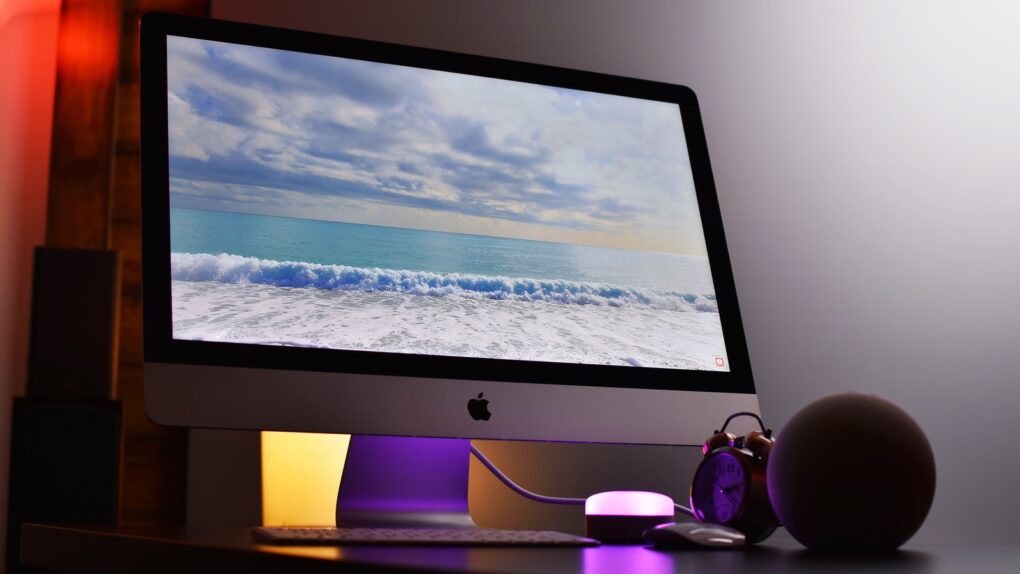
The HomePod operating system occasionally needs updating, because the device is a lot more than a simple speaker — it’s a computer. Here’s how to make sure your Apple smart speaker has the software version released this week. And you’ll definitely want the new HomePod Software version 27.2 — it comes stuffed with new features.
That list includes a new Sound Glow visual experience when playing music, home theater surround sound support, and the option to make a HomePod the audio output for everything on a Mac with a persistent AirPlay connection.
If you depend on automatic updates, it’s likely your smart speaker hasn’t yet installed the update. Here’s how to do so manually.
HomePod software updates: A bit of background
Apple offers macOS, iOS and several other platforms. You might think the operating system for HomePod would have a similar name. Internally, Apple employees call it audioOS, but the company never uses that name publicly. For everyone else, it’s simply “HomePod Software.”
It’s apparently a variation of Apple TV’s tvOS that’s been specially modified for the smart speaker. This makes sense — both focus on multimedia playback, support Siri, and don’t need to worry about cellular-wireless connections.
New HomePod Software versions come out when Apple updates the Apple TV software. And the version numbers are generally in lockstep. With tvOS 27.2 out now, it’s also time for a HomePod update.
Table of contents: HomePod software updates
- What is new in HomePod Software 27.2
- How to update your HomePod’s software
- You can set HomePod software updates to happen automatically
- How to turn off automatic HomePod software updates
What is new in HomePod Software 27.2
Screenshots: Apple/Cult of Mac
To be current, your Apple smart speaker should be on HomePod Software Version 27.2. This is true whether you own an original HomePod, HomePod 2 or HomePod mini. The previous version, 27, came out in September.
Apple’s release notes spell out the many changes:
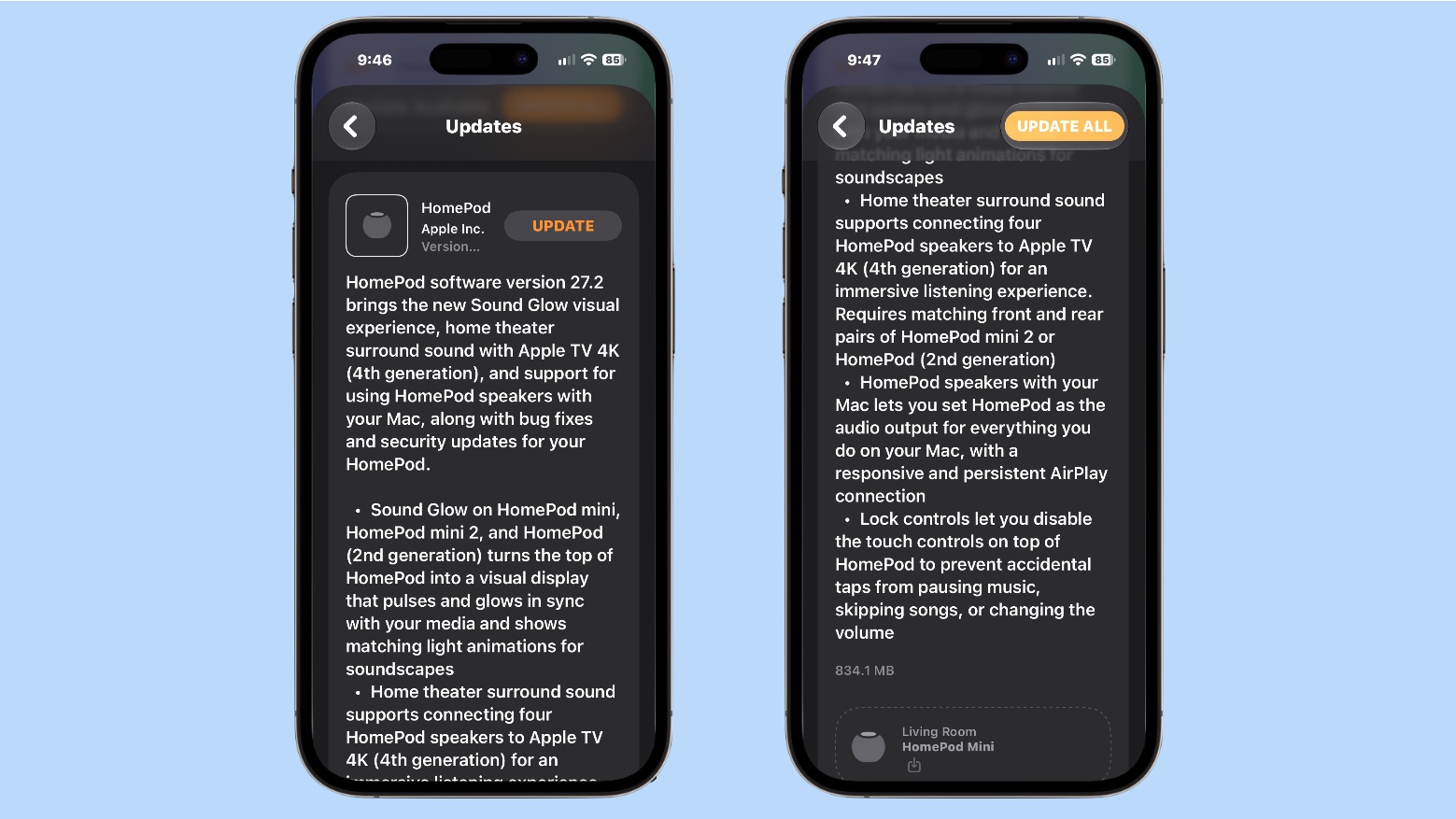
HomePod software version 27.2 brings the new Sound Glow visual experience, home theater surround sound with Apple TV 4K (4th generation), and support for using HomePod speakers with your Mac, along with bug fixes and security updates for your HomePod.
- Sound Glow on HomePod mini, HomePod mini 2, and HomePod (2nd generation) turns the top of HomePod into a visual display that pulses and glows in sync with your media and shows matching light animations for soundscapes.
- Home theater surround sound supports connecting four HomePod speakers to Apple TV 4K (4th generation) for an immersive listening experience. Requires matching front and rear pairs of HomePod mini 2 or HomePod (2nd generation).
- HomePod speakers with your Mac lets you set HomePod as the audio output for everything you do on your Mac, with a responsive and persistent AirPlay connection.
- Lock controls let you disable the touch controls on top of HomePod to prevent accidental taps from pausing music, skipping songs, or changing the volume.
How to update your HomePod’s software
You have the option to wait for the HomePod to automatically update itself. However, Apple delays for a surprisingly long time to start pushing new versions out to users. You can be sure your device has the latest version in just a few steps.
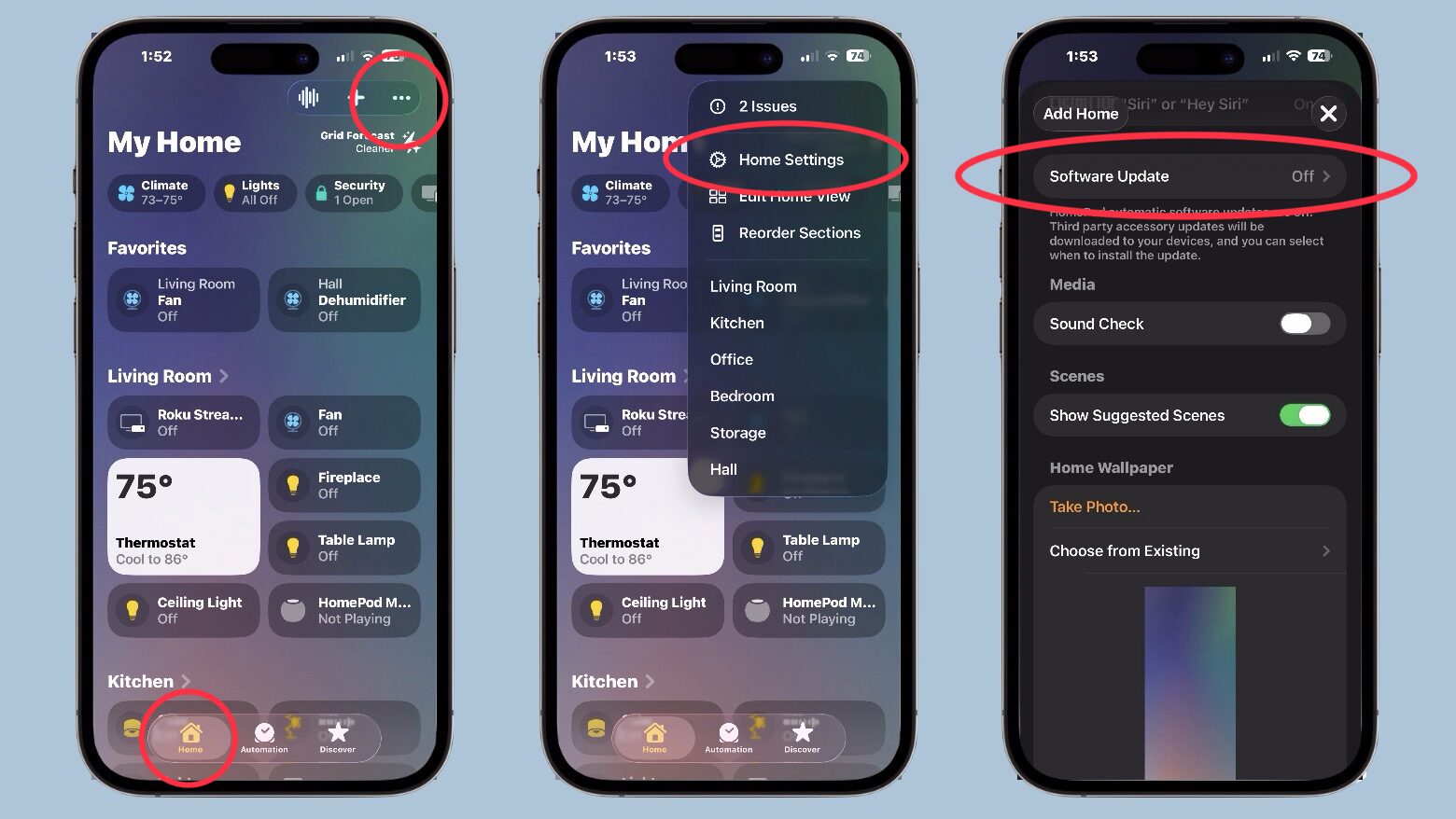
- Open the Home application on your iPhone
- Tap on the button for the Home tab in the lower left corner of the screen.
- Tap the menu button in the upper right corner of the screen, then select Home Settings from the resulting pop-up window.
- Scroll down to Software Update and tap on it.
Screenshot: Ed Hardy/Cult of Mac
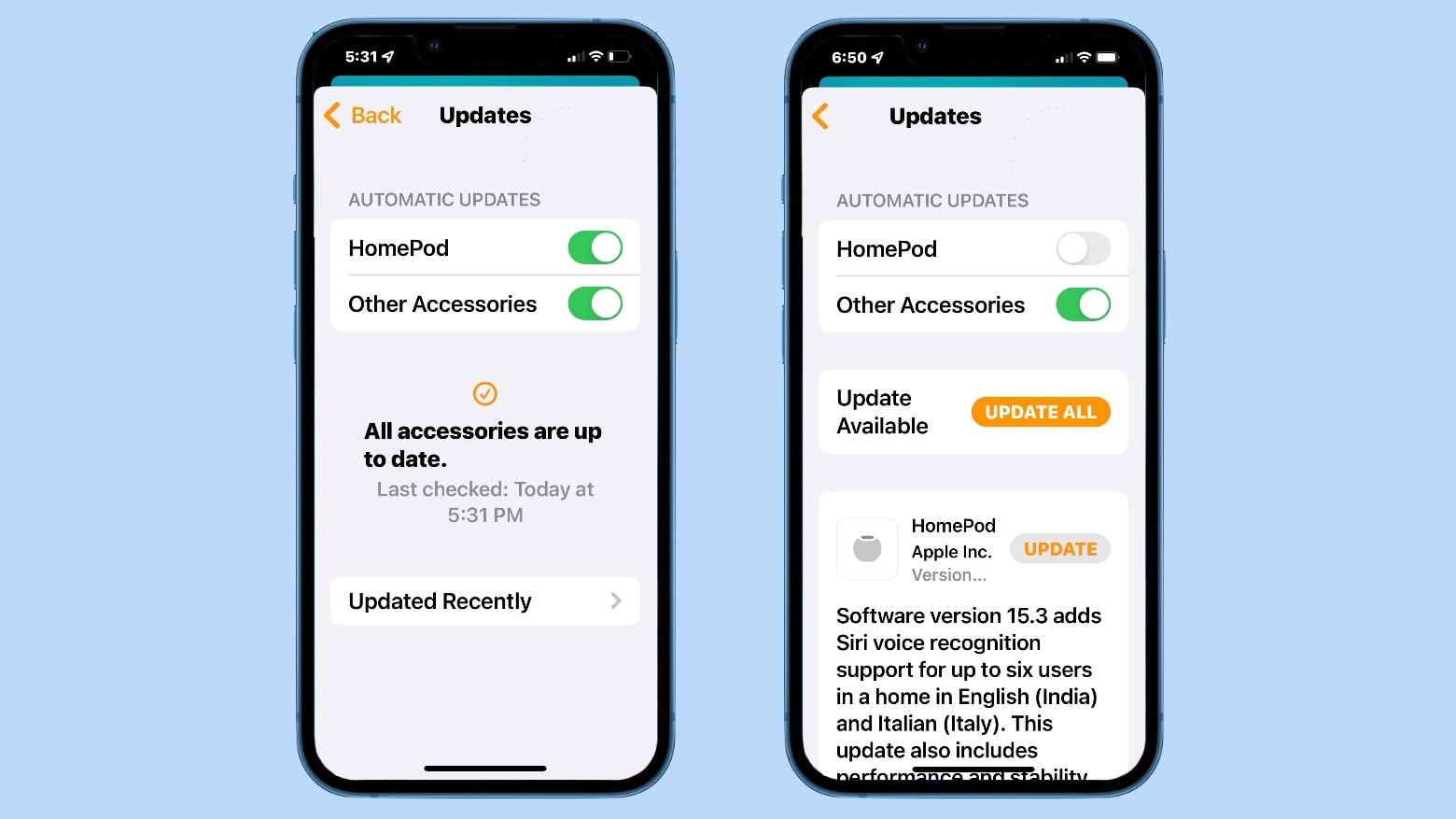
To see if your device automatically updated, tap on Updated Recently and you’ll see a description of the last version released.
But if you aren‘t caught up, you’ll see an Update Available message instead. There’ll be an Update All button next to this. Press it to see what the new version is and start the installation process.
If you know there’s a new version out but the Home app doesn’t show it, you need to reboot your HomePod. Do this the old-fashioned way: unplug it then plug it back in. Wait a few minutes for the reboot, then look again for the update.
You can set HomePod software updates to happen automatically
Graphic: Ed Hardy/Cult of Mac
By default, your smart speaker is set to automatically install the latest HomePod Software. If you don’t want to tinker with updating your HomePod’s software, you never need to think about it again.
Just be aware that automatic updates don’t start immediately. Based on personal experience, it can take a a week or more after the software release before your device gets the update. If you’re someone who likes to be sure you’re running the latest software on all your devices, you can always go in and request an immediate update by following the steps above. The best time to check is right after every tvOS update gets released.
How to turn off automatic HomePod software updates
Or there’s the exact opposite scenario. If you are happy with your HomePod now and don’t want to take the chance that a bad software update will muck it up, you can turn off automatic updates. It’s easy.
- Open the Home application on your iPhone
- Tap on the button for the Home tab in the lower left corner of the screen.
- Tap the menu button in the upper right corner of the screen, then select Home Settings from the resulting pop-up window.
- Scroll down to Software Update and tap on it
- In the Automatic Updates section of the screen, toggle off the switch next to HomePod.
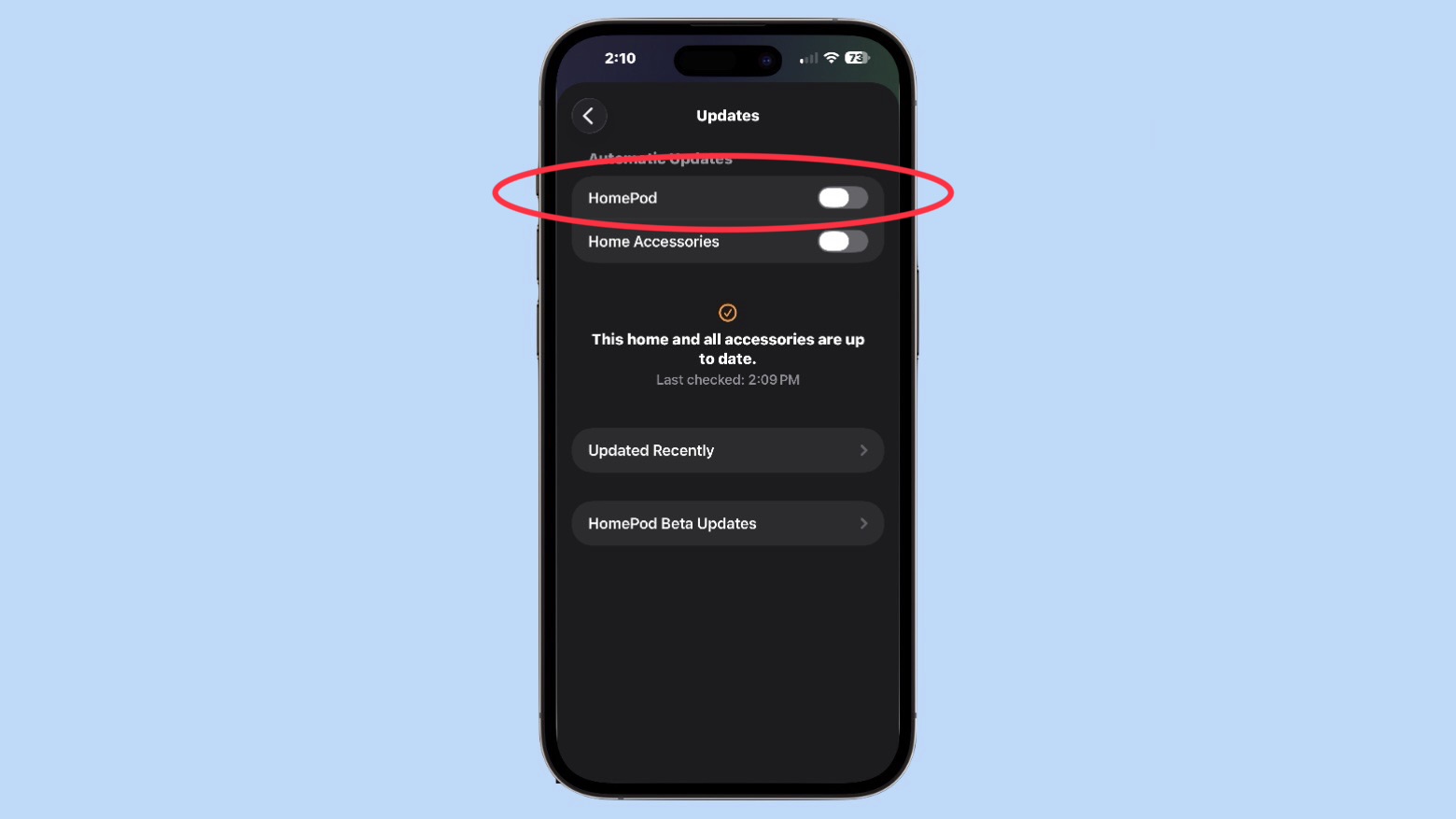
Screenshot: Ed Hardy/Cult of Mac
You might also consider doing this for other accessories updated from the Home app.
Just don’t forget you did this. By toggling off automatic updates, you’ll never receive another one until you manually request it. You might shut yourself off from useful features coming in the future.
We originally published this article in February 2022. We update it periodically with new information about the latest HomePod software updates.

Ed Hardy has been writing full-time about tech for 26 years, and using it for much longer than that. His intro to Apple was a Macintosh SE/30 (which he still has), but now he uses a 13-inch iPad Pro as his primary computer.
That’s because he’s a “tablet first” type of guy. Rather than use a Macbook, he connects a keyboard case to the iPad. And instead of a desktop Mac, he connects his tablet to a 27-inch display and full-size keyboard. (So don’t try to tell him that everyone has to use a Mac to be productive.)
Before coming to Cult of Mac, Ed wrote for NotebookReview, TabletPCReview and Brighthand, as well as other sites.


4 responses to “Make HomePod your Mac’s default speaker with new software update”
Crazy…..why can’t you update ALL of your Apple devices from any modern Mac running the latest OS ????
The reminder that HomePod is essentially a computer is helpful, especially with software version 27 adding AutoMix in Apple Music and improving AirPlay performance. Knowing where to check for updates—or disable automatic updates—makes managing those changes much easier.
The reminder that HomePod is essentially a computer is helpful, especially with software version 27 adding AutoMix in Apple Music and improving AirPlay performance. I’ll check the update settings rather than assume the speaker is already current.
The persistent AirPlay connection in HomePod Software 27.2 sounds like a genuinely useful upgrade for Mac users. It’s nice to see Apple treating the HomePod as a computer that needs regular updates, not just a simple speaker.