Apple Music Replay is a great way to find your music stats for the past year: the most played songs, artists and albums in the last 12 months. Similar to Spotify Wrapped and the like, your annual Apple Music Replay is a fun way to see what tracks you listened to most.
Fun fact: Apple usually publicizes Apple Music Replay in December, but it’s actually updated weekly and available throughout the whole year! You can check in whenever you want to see how your year is shaping up.
We’ll show you how to find it and how to share your top music of the year to your friends and social media.
Apple Music Replay 2025: How to find your music stats
Apple Music Replay is a great way to look back at the top songs, artists and albums that defined your year. The year-end summary presents charts of your most-played tracks, albums and artists. It also creates a personalized 2025 Apple Music Replay mix, which you can listen back to in the future to reminisce.
“The music we enjoy throughout the year becomes like a soundtrack, and it’s really fun to be able to go back and relive those meaningful and memorable moments over again,” said Oliver Schusser, Apple’s vice president of Apple Music and Beats, in a press release announcing the Apple Music Replay revamp in 2022.
Updated on Sundays, Apple Music Replay also includes “expanded music insights,” like the total number of minutes listened, the number of different artists and songs you played, and your top 10 playlists and stations. It also features a “milestone” tracker, which shows when you hit certain targets when using Apple Music, such as listening to 5,000 songs.
Table of Contents: Apple Music Replay
- Find your yearly Apple Music Replay (in iOS 26)
- Browse and share your yearly stats
- How to find your Apple Music Replay playlist
- Find your All Time Replay
- Find your yearly Apple Music Replay (in iOS 18 or earlier)
- More Apple Music features
Find your yearly Apple Music Replay (in iOS 26)
Screenshot: D. Griffin Jones/Cult of Mac
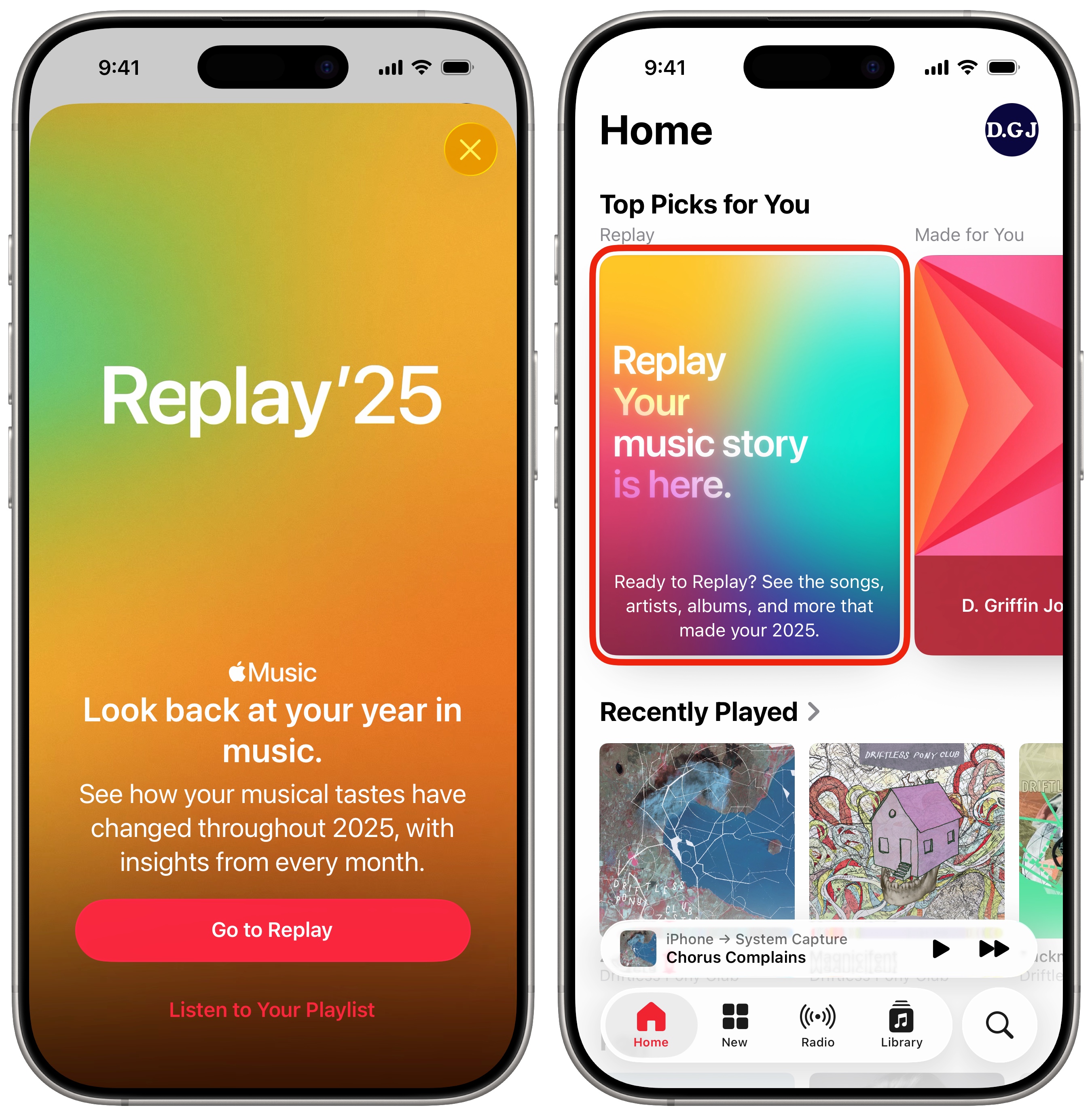
If you’re looking for your Replay in early December, you should see a fullscreen pop-up when you first open the app. There are easy links for Go to Replay and Listen to Your Playlist. But don’t worry — you can still find it later if you swipe it away.
On the Home and New tabs, you can find your Replay. It’ll stay right at the top during December, but it’s there all year — you may have to scroll to the bottom to find it, though.
Screenshot: D. Griffin Jones/Cult of Mac
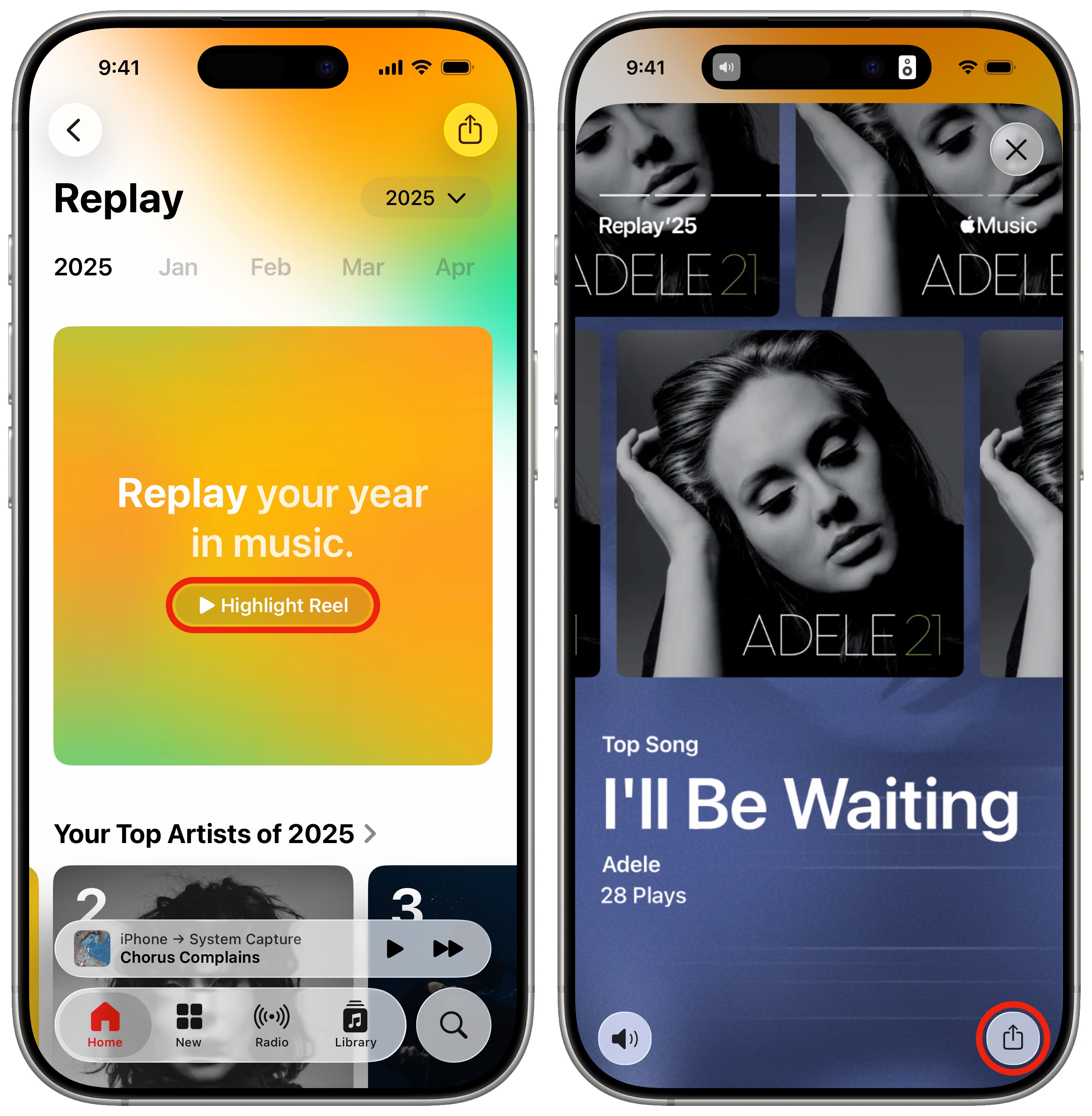
Play your Highlight Reel for a quick look at your top genres, artists, album and song of the year in a Snapchat story style. There’s a big Share button for you to send your results to social media, family or friends.
Browse and share your yearly stats
Screenshot: D. Griffin Jones/Cult of Mac
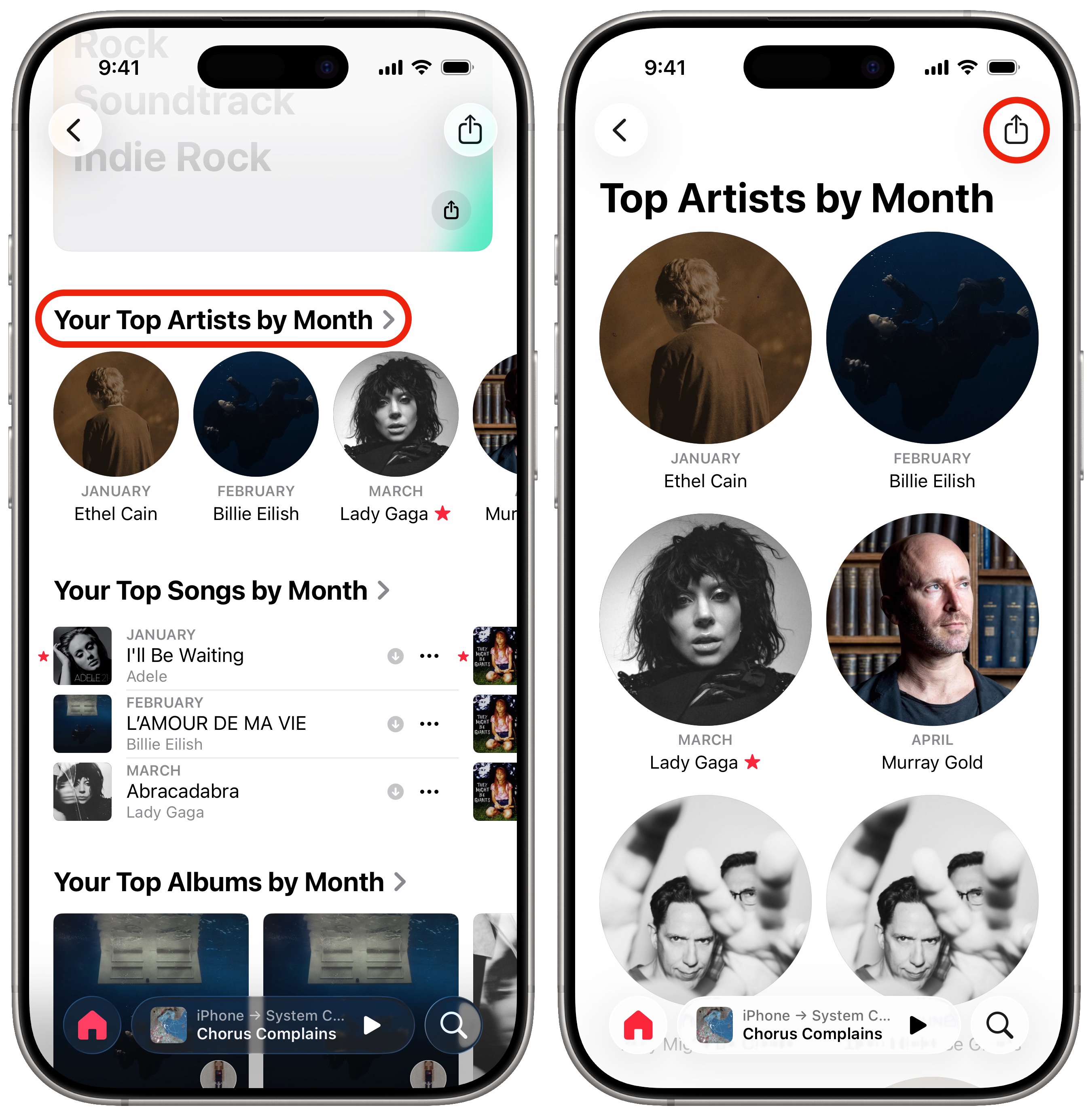
Scroll through the list to see such stats as your top artists, top songs, top albums and top genres through the entire year. You can also see how these changed month-by-month. You’ll also see your top playlists and radio stations and milestones for listening minutes. Finally, you can compare your top artist, song and album against last year’s stats.
To share your music stats on social media, tap on a section and tap the Share button in the lower-right corner of any section. From the share sheet, you can send an image to a friend via Messages. You can also post to social media like Snapchat, TikTok or Instagram, or save it to your photo library. (To see the full list of available apps, scroll until you see the ⋯ More icon and then tap that.)
How to find your Apple Music Replay playlist
Screenshot: D. Griffin Jones/Cult of Mac
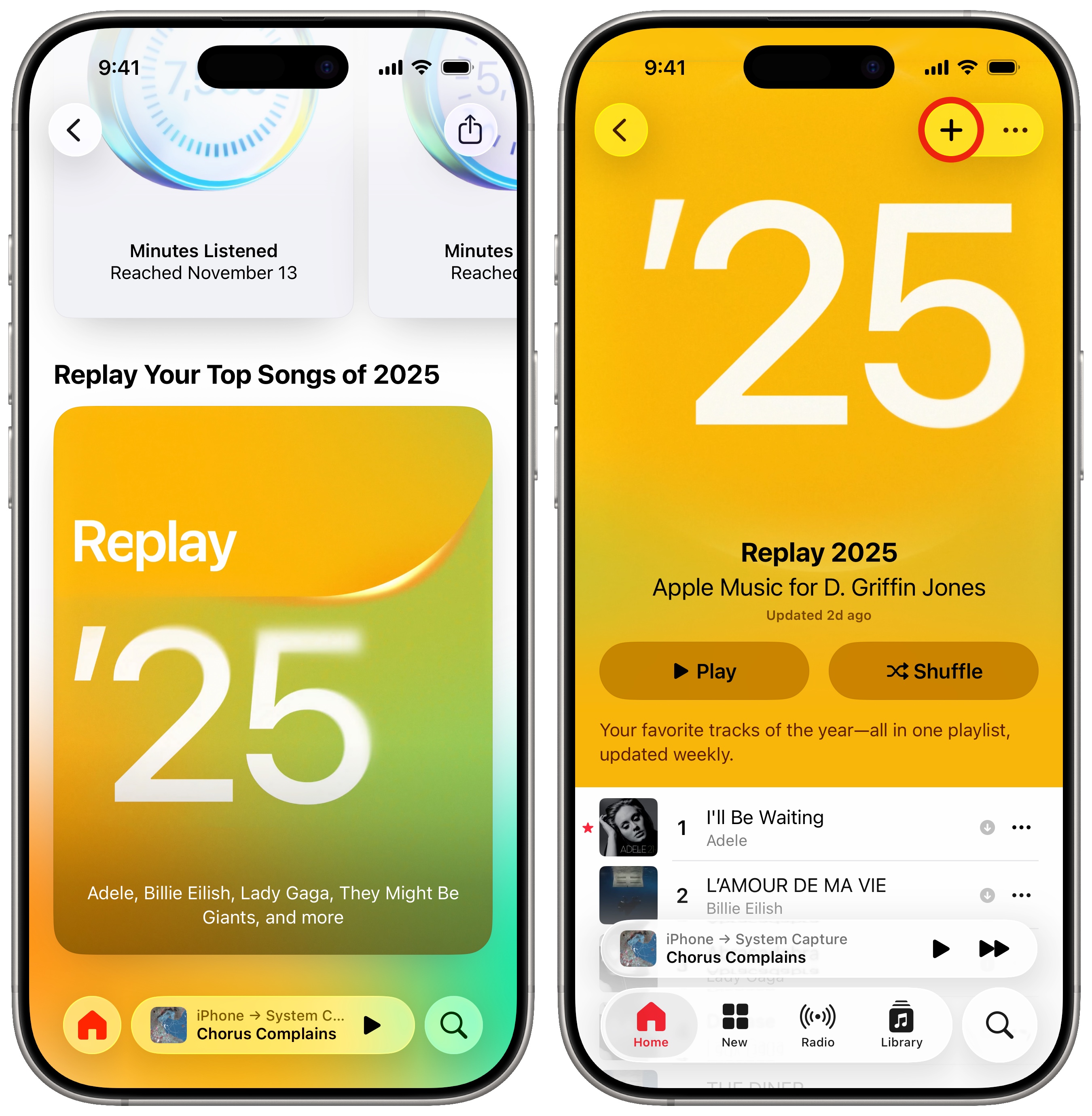
Scroll to the bottom and tap Replay ’25 to see your annual playlist. Tap + in the top-right to add it to your library. You can listen back at any time in the future from the Library tab by tapping Playlists at the top. Replay playlists appear at the bottom of your other playlists.
And don’t worry — it’ll continue to update in the final weeks of December to accurately reflect the whole calendar year.
Find your All Time Replay
Screenshot: D. Griffin Jones/Cult of Mac
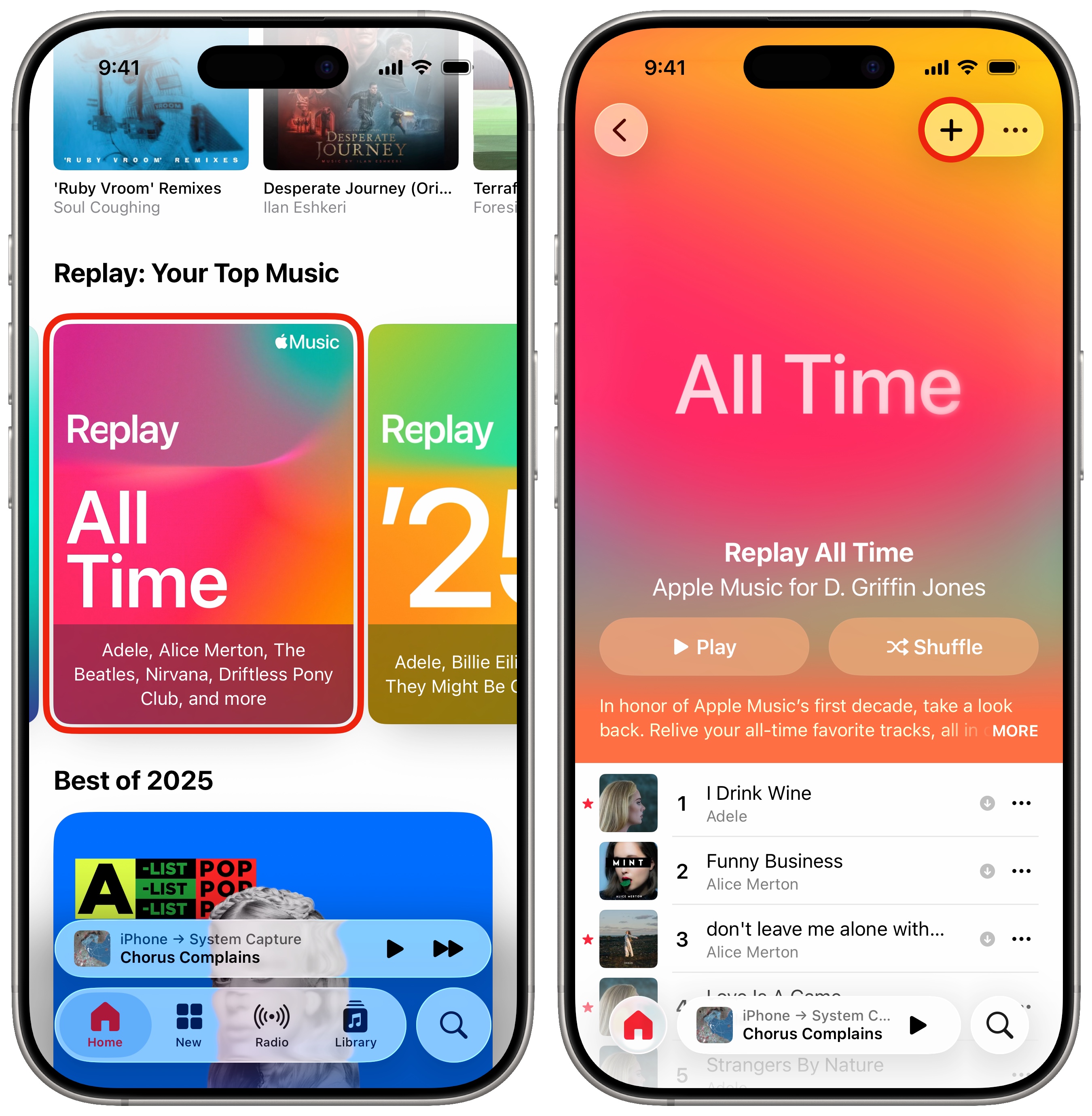
Scroll down on the Home tab, and under the “Replay: Your Top Music” section, you’ll see a new option for Replay All Time. The description says, “In honor of Apple Music’s first decade, take a look back. Relive your all-time favorite tracks, all in one playlist.”
This is a playlist of your top songs ever, that continually updates. Tap + in the upper right to add it. You can find it later in Library > Playlists, towards the bottom.
Find your yearly Apple Music Replay (in iOS 18 or earlier)
Screenshot: D. Griffin Jones/Cult of Mac
In older versions of iOS, Apple Music Replay feature isn’t available directly in the Apple Music app. It’s hosted separately on Apple Music’s webpage. Nonetheless, it’s easily available on all Apple devices.
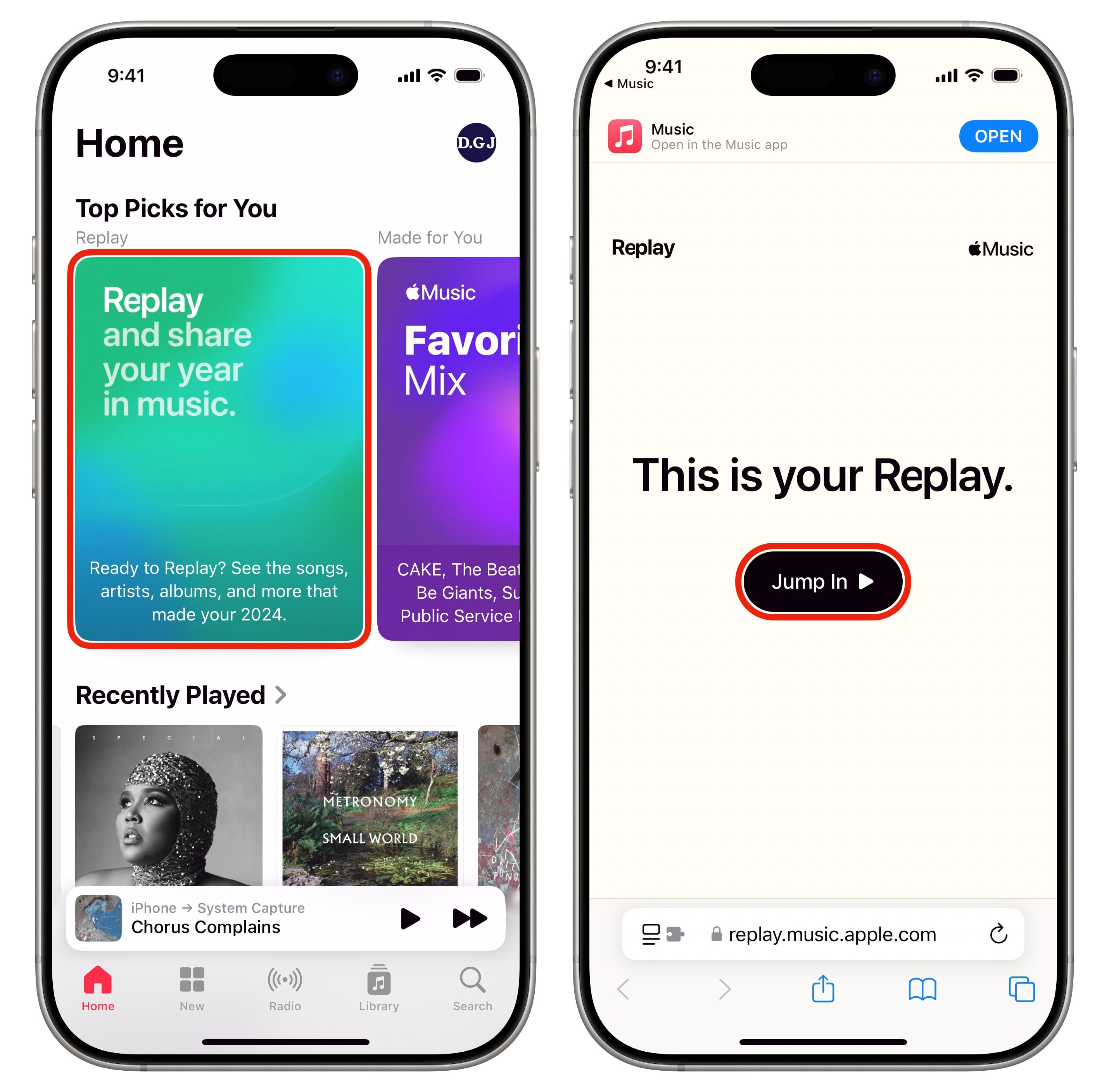
Apple Music Replay is available front and center in the Apple Music app during the month of December. It’s in the Home and New tabs at the very bottom. That’ll take you directly to the site in Safari. Or, you can visit replay.music.apple.com directly.
Tap Jump In and you can sign in using your Apple ID. A quick authentication with Face ID (or Touch ID) will get you in.
Scroll through the list to see your yearly stats on the web. Scroll farther down on the page to get your annual playlist. Tap Open in Apple Music to find it and tap + in the top-right to add it to your library.
More Apple Music features
- Queue songs to automatically build a playlist. You can set a song, album or playlist to play next, or add it to the end of the queue, with simple gestures and controls.
- Karaoke Mode turns down the vocals so you can sing along at a party or in the car.
- Music Haptics let you feel the beat of the music right in your hand.
- Apple Music Classical is a bespoke app and interface (free with an Apple Music subscription) for playing classical music.
David Snow and Leander Kahney contributed to this report.
This article on Apple Music Replay was originally published on December 2, 2021. It has been updated with the latest information on November 29, 2022; December 5, 2024; and December 2, 2025.

D. Griffin Jones is a writer, podcaster and video producer for Cult of Mac. Griffin has been a passionate computer enthusiast since 2002, when he got his first PC — but since getting a Mac in 2008, he hasn’t turned back. His skills in graphic and web design, along with video and podcast editing, are self-taught over 20+ years. Griffin has a bachelor’s degree in computer science and has written several (unpublished) apps for Mac and iOS. His collection of old computers is made up of 40+ desktops, laptops, PDAs and devices, dating back to the early ’80s. He brings all of these creative and technical skills, along with a deep knowledge of Apple history, into his work for Cult of Mac.

