
Mobile menu toggle

How To Take Screenshots On An iOS Device [iOS Tip]

By

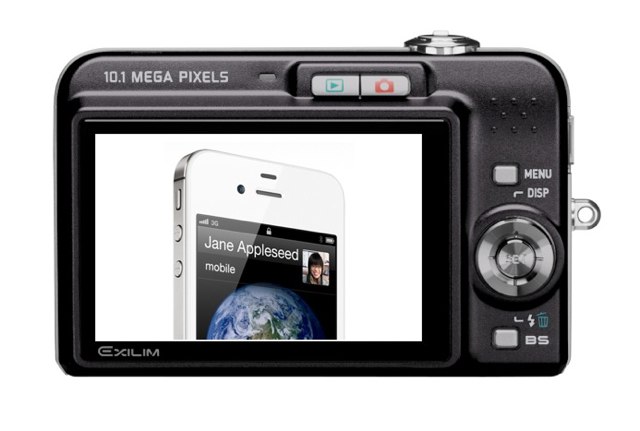
iPhone-in-camera

Ever wondered how you take a screenshot on your iOS device? It’s actually a lot simpler than you may think, with no need for third-party software or unauthorized tweaks.

In fact, this is one of the simplest tips we have. But seeing as though yesterday’s simple tip went down so well, we thought another one wouldn’t hurt. Here’s how to take screenshots on an iOS device.

Taking screenshots is a system-wide feature that allows you to snap an image of whatever’s displayed on your device at any time — regardless of which app you’re running. In fact, the only time this doesn’t work is during the startup or shutdown procedures.

When you want to capture your image, simply push the sleep/wake button (on the top of your device) and the home button (below the display) simultaneously.
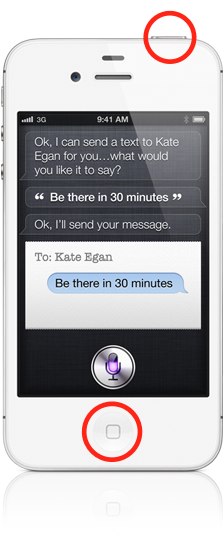
And it’s as simple as that. Your screenshot will now appear in your device’s Camera Roll within the Photos app.

  • Subscribe to the Newsletter

    Our daily roundup of Apple news, reviews and how-tos. Plus the best Apple tweets, fun polls and inspiring Steve Jobs bons mots. Our readers say: "Love what you do" -- Christi Cardenas. "Absolutely love the content!" -- Harshita Arora. "Genuinely one of the highlights of my inbox" -- Lee Barnett.

8 responses to “How To Take Screenshots On An iOS Device [iOS Tip]”

  1. LUVS_ME_SOME_MAC says:

    A Super fast way to save important info and conversations in iMessage on the go. Also I used it for making a piggy in Angry Birds my profile pic on Facebook.

  2. Jonathan Ober says:

    The blog photo for this is confusing…weird :)

  3. Ryan Simmons says:

    Apple is, and in particular Steve Jobs was, very much a minimalist. This article does not fall in line with that philosophy. It is the most complicated way to say “hold the power button and the home button to take a screenshot”. Even idiots know how to do this anyway.

  4. DeSpam says:

    I didn’t know about! Nor does anyone I know who has an iPhone. I guess Simmons below is a self proclaimed genius.

  5. MySkyizBlue says:

    I have no idea how I figured this out on my own

  6. guest says:

    You’ve been able to do this since iOS 3.0 I believe.. Lol

  7. MacHead84 says:

    usually people figure it out when trying to do a reset and their fingers slip

  8. Brandon says:

    I figured this out when needing to get a screenshot off of Atomic and print the pic via my Epson iPrint app (printer not airprint compatible).  Occasionally useful.  I dig these tips, btw, being a relatively new iPhone user (about 3 months)

Leave a Reply

